
Overview
You will learn
- How to create an ABAP package
- How to create a domain
- How to create a table
- How to create a data definition
- How to create a lock object


Prerequisites
- You need a SAP BTP, ABAP environment license.
- ADT version 2.96 or higher
Steps
Intro
In this tutorial, wherever XXX appears, use a number (e.g. 000).
Go to ADT and right-click on
ZLOCAL, select the menu path New > ABAP Package.
Create ABAP package Create your package:
- Name:
Z_ROOM_XXX - Description:
My Package XXX
Click Next>.

Create ABAP package - Name:
Click Next>.

Create ABAP package Click Finish.

Setup connection settings
Right-click on Favorite Packages and select Add Package…

Add ABAP package Search for
Z_ROOM_XXX, select it and click OK.
Create ABAP package
Right-click on
Z_ROOM_XXX, select the menu path New > Other ABAP Repository Object
Create domain Search for Domain, select it and click Next>.

Create domain Create your domain: - Name:
Z_LOCA_DOM_XXX- Description:Location
Click Next>.

Click Finish.

Create domain Enhance your domain with following information:
- Data Type:
CHAR - Length: 3
- Output Length: 3
Save and activate.

Create domain - Data Type:
Right-click on
Z_ROOM_XXX, select the menu path New > Other ABAP Repository Object
Create data element Search for Data Element, select it and click Next>.

Create data element Create your data element: - Name:
Z_LOCA_DTEL_XXX- Description:Location
Click Next>.

Click Finish.

Create data element Enhance your data element with following information:
- Category: Domain
- Type Name:
Z_LOCA_DOM_XXX
Save and activate.

Create data element
Right-click on
Z_ROOM_XXX, select the menu path New > Other ABAP Repository Object
Create table Search for Database Table, select it and click Next>.

Create table Create your database table: - Name:
ZROOM_XXX- Description:Room XXX
Click Next>.

Click Finish.

Create table Create your data table with following coding:
@EndUserText.label : 'Room XXX'
@AbapCatalog.enhancementCategory : #NOT_EXTENSIBLE
@AbapCatalog.tableCategory : #TRANSPARENT
@AbapCatalog.deliveryClass : #A
@AbapCatalog.dataMaintenance : #LIMITED
define table zroom_xxx {
key client : abap.clnt not null;
key id : abap.char(20) not null;
@EndUserText.label : 'Seats'
seats : abap.dec(3,0);
location : z_loca_dtel_xxx;
hasbeamer : abap_boolean;
hasvideo : abap_boolean;
userrating : abap.char(2);
lastchangeddatetime : tzntstmpl;
lastchangedbyuser : syuname;
}
```
Save and activate.
### Create data definition
1. Right-click on **`Z_ROOM_XXX`**, select the menu path **New** > **Other ABAP Repository Object**

2. Search for **Data Definition**, select it and click **Next>**.

3. Create your data definition:
- Name: **`Z_I_ROOM_XXX`**
- Description: **`Room XXX`**
Click **Next>**.

4. Click **Finish**.

5. Create your data definition with following coding:
```ABAP
@AbapCatalog.sqlViewName: 'Z_M_ROOM_XXX'
@AbapCatalog.compiler.compareFilter: true
@AbapCatalog.preserveKey: true
@AccessControl.authorizationCheck: #CHECK
@EndUserText.label: 'Room XXX'
@Search.searchable
@UI.headerInfo: { typeName: 'Room', typeNamePlural: 'Rooms' , title : { value: 'ID' } }
define root view Z_I_ROOM_XXX as select from zroom_xxx as room
association [0..1] to I_BusinessUserBasic as _SAPSysAdminDataChangeUser on _SAPSysAdminDataChangeUser.UserID = room.lastchangedbyuser
{
@UI.facet: [ { type: #COLLECTION, position: 1, id: 'ROOM', label: 'Room' }, { type: #IDENTIFICATION_REFERENCE, position: 1, parentId: 'ROOM', label: 'General Information'}]
@EndUserText: { label: 'ID' }
@Search: { defaultSearchElement: true }
@UI: { lineItem: [{ position: 1 }], identification: [{ position: 1 }] }
key room.id,
@EndUserText: { label: 'Seats' }
@UI: { lineItem: [{ position: 3 }], identification: [{ position: 2 }] }
room.seats,
@EndUserText: { label: 'Location' }
@UI: { lineItem: [{ position: 4 }], identification: [{ position: 3 }] }
room.location,
@EndUserText: { label: 'Has Beamer' }
@UI: { lineItem: [{ position: 5 }], identification: [{ position: 4 }] }
room.hasbeamer,
@EndUserText: { label: 'Has Video' }
@UI: { lineItem: [{ position: 7 }], identification: [{ position: 5 }] }
room.hasvideo,
@EndUserText: { label: 'User Rating' }
@UI: { lineItem: [{ position: 8 }], identification: [{ position: 6 }] }
userrating,
@EndUserText: { label: 'Last Changed On' }
@UI: { identification: [{ position: 7 }] }
room.lastchangeddatetime,
@EndUserText: { label: 'Last Changed By' }
@UI: { identification: [{ position: 8 }], textArrangement: #TEXT_ONLY }
room.lastchangedbyuser,
@UI.hidden: true
_SAPSysAdminDataChangeUser
}
```
Save and activate.
### Create lock object
1. Right-click on **`Z_ROOM_XXX`**, select the menu path **New** > **Other ABAP Repository Object**

2. Search for **Lock Object**, select it and click **Next>**.

3. Create your database table:
- Name: **`EZROOMXXX`**
- Description: **`LOCK`**
Click **Next>**.
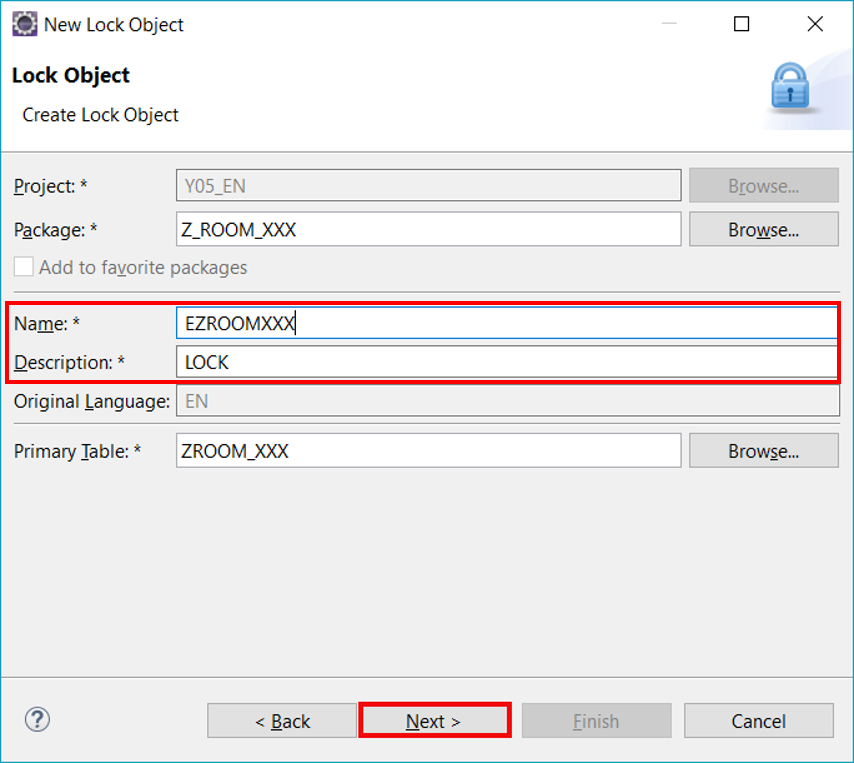
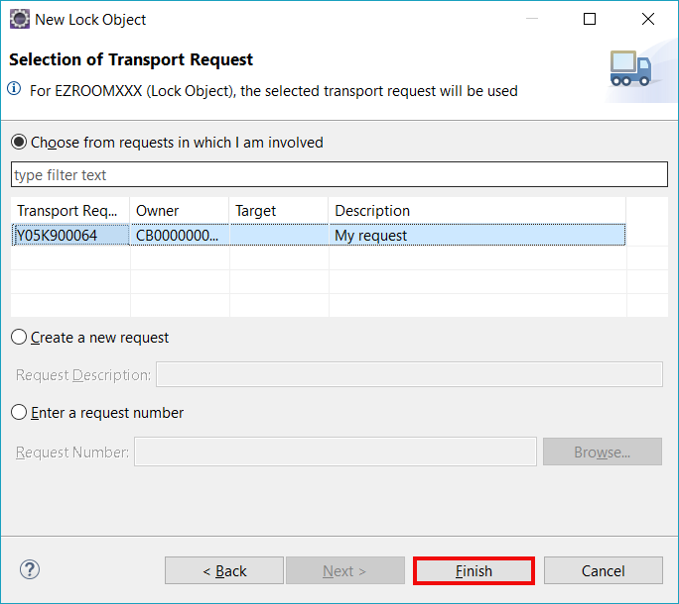
4. Click **Finish**.
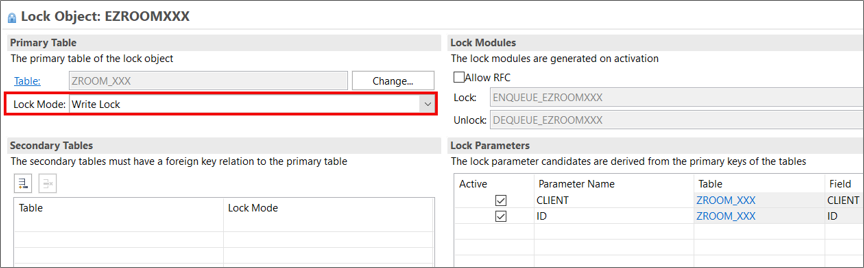
5. Enhance your lock object with following information:
- Lock Mode: Write Lock
Save and activate.
### Test yourself
</div><div class="step-validation-mount"
data-step="5"></div>
<div class="step-actions">
<button class="fd-button fd-button--emphasized" data-action="mark-done" data-step="5">Done</button>
</div>
</div>
</div>Resources
Discussion
Share feedback on this tutorial or join the conversation in SAP Community.
Joule
AI Notice
Joule is an AI assistant. Generative AI may produce inaccurate, incomplete, or biased information. Always verify important details before acting on them.
Conversations are sent to SAP-hosted large language models for processing. Do not include personal data, credentials, or confidential information in your messages.
Joule's responses are based on the SAP tutorial catalog and may not reflect the latest product changes. For authoritative guidance, consult the linked tutorials and official SAP documentation.