| title | Generate custom sales reports automatically |
|---|---|
| description | Connect to your sales data warehouse and automatically generate presentations for particular customers. |
| labels | Apps Script, Sheets, Slides, BigQuery |
| material_icon | pie_chart |
| create_time | 2019-12-10 |
| update_time | 2019-12-10 |
Annual and quarterly reports are a standard part of business for many enterprises. Luckily, automation can help eliminate the repetition inherent in these periodic obligations. If you find yourself needing to analyze and present findings from large sets of stored data, consider using automation to help streamline your reporting.
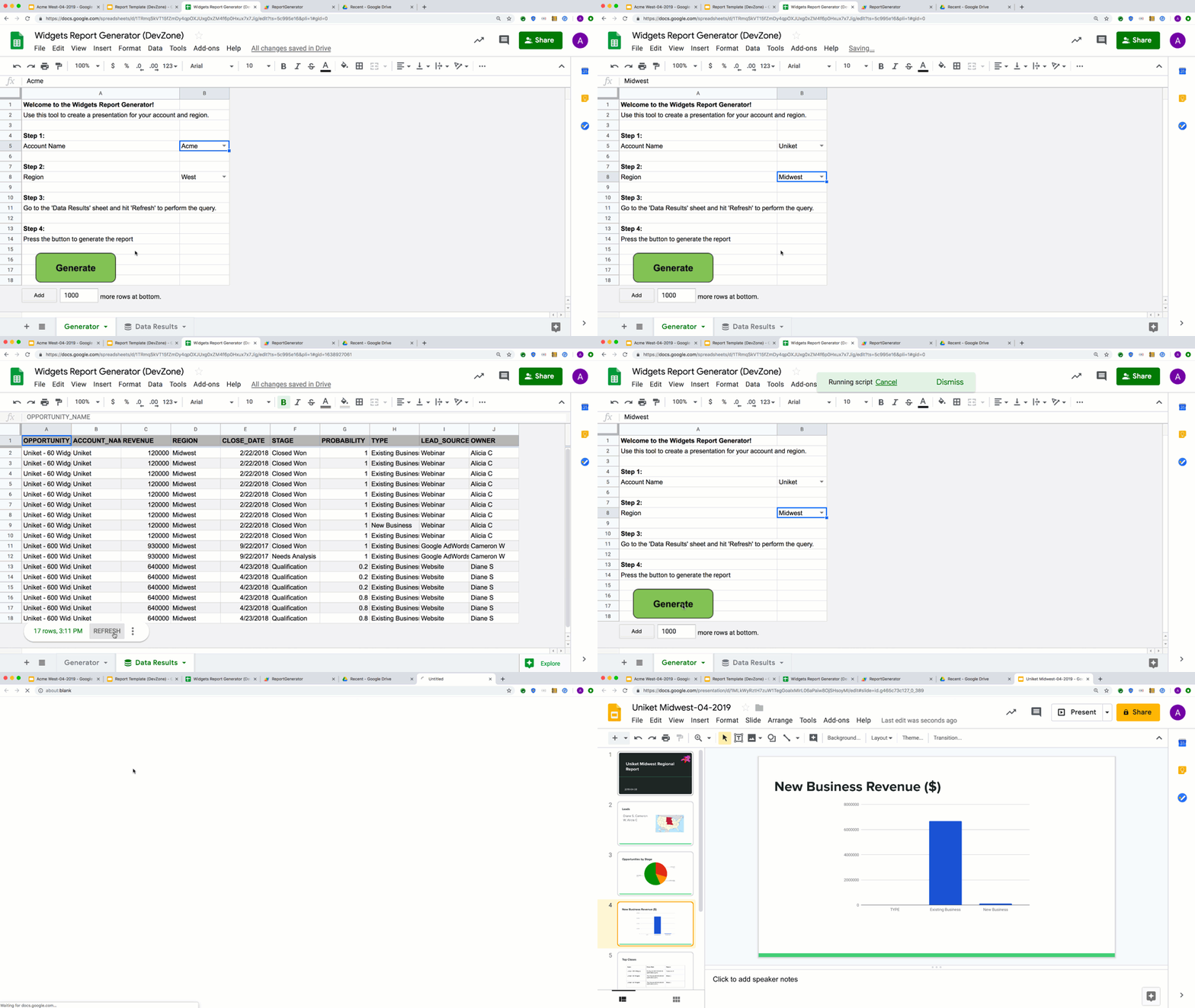
This solution creates a tool that connects to sales data in BigQuery, an analytics data warehouse, from directly within Google Sheets. A configuration sheet allows a user to provide parameters for the report, such as the Account Name and Region. With the click of a button, a customized report with the latest sales data is automatically created in just a matter of seconds!

Note: This solution requires a Google Workspace Enterprise account and a Google Cloud account and project.
- Uses the Sheets data connector for BigQuery to access tables in a data warehouse from directly within Google Sheets.
- Uses Google Slides to create a templatized report.
- Uses Apps Script to create a chart in Google Sheets, and merge it, along with sales data, into the template report.
This solution requires a Google Cloud account and project. The service used in this solution, BigQuery, has a sandbox environment that you can use to test this solution.
- Sign in with your Google Workspace Business, Enterprise, or Education Account credentials.
- In the Google Cloud Console, select or create a new Google Cloud project.
- Make a copy of the template slide deck here.
- Identify the unique ID of your Slides document. The ID can
be derived from the URL:
https://docs.google.com/presentation/d/slideId/edit
- Make of copy of the template spreadsheet here.
- From the spreadsheet, open the script editor by selecting Extensions > Apps Script.
- Copy and paste your Slides document ID into line 1 of
Constants.gsreplacingYOUR_SLIDES_IDand maintaining the quotes. - Save the changes by navigating to File > Save.
- Navigate to the Generator tab of your spreadsheet.
- Choose an Account Name and Region in drop-down cells.
- Navigate to the Data Results tab. At the bottom, next to Refresh, click the three dots to expand the More options menu. Select Edit query.
- In the pop-up menu, expand Query Settings and make sure your Google Cloud project is selected in the drop-down menu.
- Click the Connect button. This will run the query. In the future, you can run the query simply by clicking Refresh.
- Return to the Generator tab and click on the large Generate button at the bottom of the spreadsheet grid to initiate the creation of the report.
- When prompted, click the Review permissions button.
- Select your Google Workspace account from the list.
- Click the Allow button.
- Once the script finishes executing, navigate to Google Drive and click on Recent in the left-side navigation bar. Your newly minted report will be at the top of the list!
To learn more about how a similar solution was built, check out this blog post. You can also view the full source code of this solution on GitHub to learn more about how it was built.
You can read more about BigQuery in the product documentation, and learn how to load your own data directly or through solution providers.