Tidy Up
Tidy up and delete various things in your NotePlan notes
Tidy Up plugin
This plugin provides commands to help tidy up your notes:
- /Clean up note filenames command: cleans encoded characters (e.g.
'—) and invalid path characters (e.g.\\/:) from note filenames in a chosen folder and its subfolders. - /File root-level notes (alias "frnl"): For each root-level note, asks which folder you'd like it moved to, including the option of creating a new folder. (There's a setting for ones to permanently ignore.)
- /Generate @repeats in recent notes (alias "grrn"): Generates any needed new @repeat() lines in all recently-changed notes. This is only useful for people using the extended @repeat() syntax of the separate Repeat Extensions plugin. This means you don't have to add the special trigger on every relevant note: instead you can include this command in your Daily Note template, or run it manually every day or two. Please see extra details below.
- /List conflicted notes (alias "conflicts"): creates/updates a note that lists all your notes on your current device with file-level conflicts, along with summary details about them. It gives options to delete one or other of the conflicted versions, or to open them side-by-side for easier comparison.
 (See more details below.)
- /List duplicated content (alias "doubles"): creates/updates a note that lists calendar notes that potentially have doubled content (i.e. internal duplication within the note).
- Note: this is unlikely to happen, but it happened to me a lot for reasons I don't understand. This command helped me go through the notes and manually delete the duplicated content.
- Note: NotePlan 3.19.2 on Mac has added a "Content deduplicator tool" (in Sync > Advanced). This naturally has a nicer interface, but it only finds exact duplication, whereas the plugin allows for a 15% margin of difference, which I found necessary.
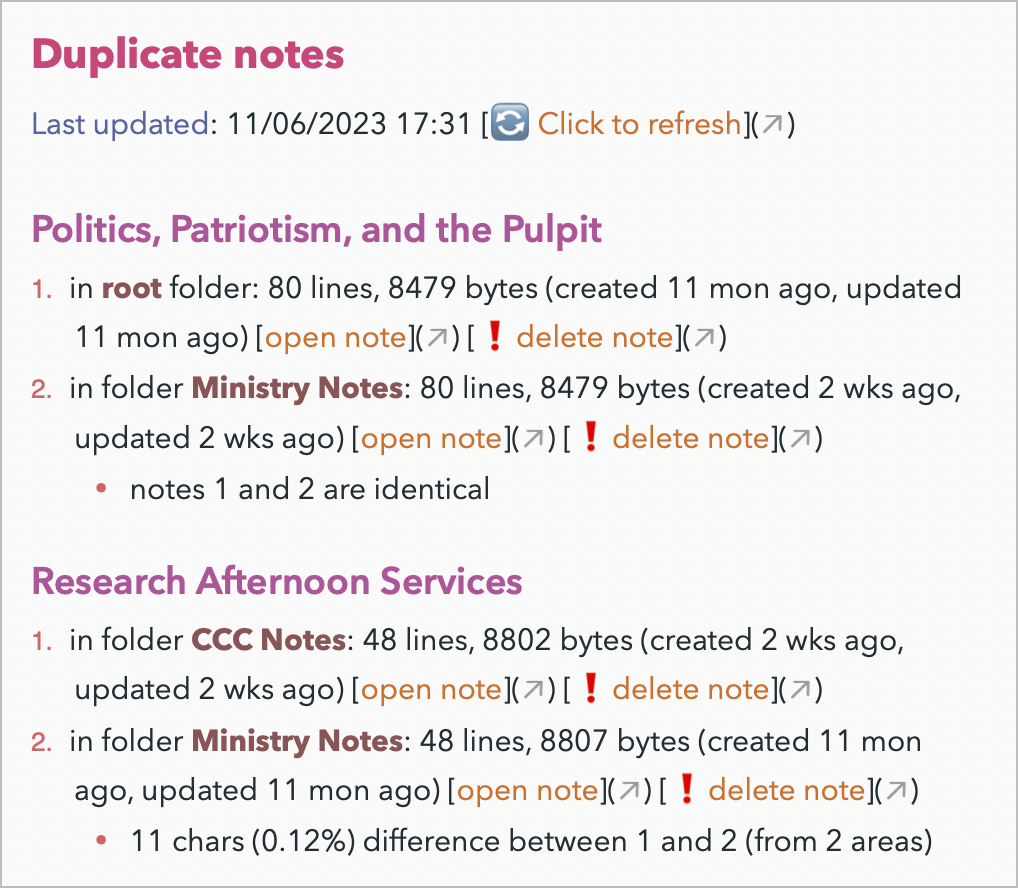
- /List duplicate notes (alias "dupes"): creates/updates a note that lists all your notes with identical titles, along with summary details about those potential duplicates. It gives options to delete one or other of the conflicted versions:
- /List missing daily notes: create a note that lists any missing or empty daily notes in the last year.
- /List stubs: creates a note that lists all your notes that contain "stubs" -- i.e. that caontain
[[note links]](aka "wikilinks") that don't lead to other notes in NotePlan. - /List embedded media problems (alias "media"): creates/updates a note that lists local
![image]/![file]links whose file is missing, and{note}_attachmentsfolders that exist but have no working link. The plugin cannot list files inside a folder, so an empty folder and a folder of unlinked files are one row. Buttons are provided to "Remove link", "Remove all links", "Remove folder", "Show in Finder" where appropriate. - /List title problems (alias "titles"): creates/updates a note that lists notes with one or more of the following problems:
- Title is
`---`(this can happen when frontmatter is invalid). - Frontmatter
title:field does not match the H1 on the first line of the body, when that H1 is present. An H1 that contains a template tag (for example<%- prompt('Where are we going?') %>) is skipped. Each mismatch is two bullets, with a "Use title" or "Use H1" button that copies that value onto the other field. - Title contains
|. This character is allowed, but in a note link it starts an alternative title, so can cause confusion. Each of those notes has "Open note" and "Fix" buttons, and the section has a "Fix all" button. Fix replaces each|with-. For a`---`title, the note includes the first 12 lines of the file. The results note is time-stamped and has a refresh button.
- Title is
- /Move top-level tasks in Editor to heading (alias "mtth"): Move tasks orphaned at top of active note (prior to any heading) to under a specified heading. Note: this command does not work inside a template. See section below.
- /Remove blank notes (alias: "rbn"): deletes any completely blank notes, or just with a starting '#' character. Note: this command cannot remove Teamspace notes (as of NotePlan v3.18.1), so it won't try.
- /Remove empty elements (alias: "ree"): in the open note removes empty list items, quotations and headings, reduces multiple empty lines to a single empty line, and removes a blank line between frontmatter and the H1. Smart heading preservation: If a subheading has content, its parent heading will be preserved even if the parent appears to have no direct content. This ensures your note structure remains intact when subheadings contain valuable information.
- /Remove empty elements from recent notes (alias: "reeRecent"): as above, but for recently changed regular notes, plus calendar notes whose whole period is already in the past. Today, this week, and the current month, quarter, and year are skipped, as are future-dated calendar notes. Template notes (those whose filename starts with '@Templates') are also always excluded from processing.
- /Remove empty lines (alias "rel"): Remove all empty lines from the open note.
- /Remove orphaned blockIDs (alias "rob"): Remove blockIDs from lines that had been sync'd, but have become 'orphans' as the other copies of the blockID have since been deleted.
- /Remove section from recent notes (alias "rsrn"): Remove a given section (heading + its content block) from recently-changed notes. Can be used with parameters from Template or x-callback.
- /Remove section from all notes (alias "rsan"). Remove a given section (heading + its content block) from all notes. Use wisely, as this is dangerous! (original function by @dwertheimer)
- /Remove time parts from @done() dates (alias "rtp"): Remove time parts of @done(date time) from recently-updated notes. Can be used with parameters from Template or Callback.
- /Remove @done() markers (alias "rdm"): Remove @done(...) markers from recently-updated notes, optionally just from completed checklist items.
- /Remove >today tags from completed todos (alias "rmt"): Removes the ">today" tag still attached to completed/cancelled tasks that means they keep showing up in Today's references every day forever. Does not touch open tasks.
- /Remove triggers from recent calendar notes (alias "rtcn"): Remove one or more triggers from recently changed calendar notes (in the past).
- /Cancel incomplete tasks in a past year (alias "citpy"): For a chosen year, finds all past calendar notes (daily, weekly, monthly, quarterly, yearly), shows counts of incomplete tasks and checklists per note type and Teamspace with a strong warning, and then (if confirmed) bulk-cancels all open/scheduled tasks and checklists in those notes.
- /Cancel incomplete tasks in a folder (alias "citf"): For a chosen folder and its subfolders, counts incomplete tasks and checklists in regular notes, shows a strong warning, and then (if confirmed) bulk-cancels them. Optional
folderToStartparameter for template/callback. Teamspace notes are skipped. Useful after importing notes from other tools. - /Log notes changed in interval (alias "lncii"): Write a list of notes changed in the last interval of days to the plugin console log. It will default to the 'Default Recent Time Interval' setting unless passed as a parameter.
Most can be used with parameters from a Template, or via an x-callback call.
There's also the /Tidy Up (alias "tua"), which runs as many of the other commands in this plugin as you have configured in its Settings.
(If these commands are useful to you, you'll probably find the Note Helpers plugin helpful too. It's rather arbitrary which commands live in which plugin.)
Note: don't run the Remove ... commands by typing /Remove ... in the editor. The plugin command will work, but the app tends to over-write the changes with the previous version again. Instead, use them from the menu bar or the command bar.

Details on /Generate @repeats in recent notes
This command exists to work around a limitation of my separate Repeat Extensions plugin, because the NotePlan API doesn't fire a change trigger when a task is completed from a search result list or from the Reference area.
This command catches any such completed repeats that haven't had the next repeat generated from them. It will work on all notes changed over the number of days you set the 'recently changed' setting to be.
It can use the "concrete dates" feature added to Repeat Extensions plugin in v1.2.
Details on /Remove empty blocks
The /Remove empty blocks command intelligently cleans up your notes while preserving important structure:
What it removes
- Empty task or checklists (e.g.
*or+with no further content) - Empty list items (e.g.,
-or*with no content) - Empty quotations (e.g.,
>with no content) - Empty headings (e.g.,
#with no text) - Multiple consecutive empty lines (reduces to single empty lines)
- A blank line between frontmatter and the H1
Note type coverage
- Open note: "/Remove empty elements" works on the note open in the Editor
- Fully in the past: When using "/Remove empty elements from recent notes", a calendar note is included only when every part of its period is already in the past. Today, this week, and the current month, quarter, and year are skipped, as are future-dated calendar notes
- Regular notes: "/Remove empty elements from recent notes" also processes recently changed regular notes
- Template notes: When using "/Remove empty elements from recent notes", Template notes (those whose filename starts with '@Templates') are automatically excluded from processing to preserve template structure which will frequently have empty sections.
Smart heading behavior
- Preserves parent headings when their subheadings contain content
- Removes headings only when they have no content AND no subheadings with content
- This ensures your note hierarchy stays intact when subheadings contain valuable information
Empty line handling
- Default behavior: Reduces multiple consecutive empty lines to a single empty line, and removes a blank line between frontmatter and the H1
- Strip all empty lines: Available as an x-callback setting to remove ALL empty lines
noteplan://x-callback-url/runPlugin?pluginID=np.Tidy&command=Remove%20empty%20elements&arg0=Editor&arg1=true
Advanced options
- Preserve heading structure: Availabe as an x-callback setting. When arg2 is true, keeps ALL headings (even empty ones) to maintain note templates and structure
- This is useful for note templates where you want to keep the heading hierarchy intact
noteplan://x-callback-url/runPlugin?pluginID=np.Tidy&command=Remove%20empty%20elements&arg0=Editor&arg1=false&arg2=true
Details on /List conflicted notes
Important notes:
- Conflicted notes can appear on each device you run NotePlan on, and the conflicted copies do not sync. Therefore you should consider running this on each of your devices. Each device gets its own list of conflicted notes
- If the setting 'Save a copy of previous version as a separate note?' is turned on, it will now write copy of the prior conflicted version of notes to the special '@Conflicted Copies' folder. This enables you to use an external editor to perform more detailed comparisons and merges that possible in NotePlan, particularly on iOS devices. You will need to clear up after yourself, though. Currently this only works for regular notes, not calendar notes.
- When you run the command it will first try to clear up after itself, deleting any saved copies (and subfolders) from an earlier run.
Automating Tidy Up
If these commands are valuable to you, then you probably want to be running them regularly. NotePlan doesn't yet allow fully automatic running of commands, but you can get close by either including the commands in a frequently-used Template, or from a third-party utility that can invoke x-callback commands. Each are described below.
Using from Templates
You can include Tidy Up commands in your Daily Note Template that you run each day (e.g. via the separate /dayStart command from my Daily Journal plugin).
To call all the checked commands in settings inside your template:
<% await DataStore.invokePluginCommandByName("Tidy Up","np.Tidy",[]) %>
To call one of these commands from a Template use this Templating command:
<% await DataStore.invokePluginCommandByName("<command name>","np.Tidy",['<parameters>']) %>
The parameters are passed as "key":"value" pairs separated by commas, and surrounded by curly brackets {...} (JSON encoding). Note the parameters then need to be surrounded by square brackets and single quotes.
For example, this will remove sections with the heading 'Habit Progress' from notes changed in the last 2 days, running silently:
<% await DataStore.invokePluginCommandByName("Remove section from notes","np.Tidy",['{"numDays":2, "sectionHeading":"Habit progress", "runSilently": true}']) %>
And this generates any needed new @repeat() lines from finished ones, that use the Extended Repeat syntax, over all notes changed in the last 4 days:
<% await DataStore.invokePluginCommandByName("Generate @repeats in recent notes","np.Tidy",['{"numDays":4}']) %>
Tip: as these are complicated and fiddly to create, I suggest you use @dwertheimer's excellent Link Creator plugin command "/Get X-Callback-URL" which makes it much simpler.
Using from x-callback calls
It's possible to call these commands from outside NotePlan using the x-callback mechanism. The URL calls all take the same form:
noteplan://x-callback-url/runPlugin?pluginID=np.Tidy&command=<encoded command name>&arg0=<encoded parameters>
Notes:
- all parameters are passed as
"key":"value"pairs separated by commas, and surrounded by curly brackets{...}. (This is JSON encoding.) - as with all x-callback URLs, all the arguments (including the command name) need to be URL-encoded. Most obviously, spaces need to be replaced by '%20'.
This is an example of a fully URL-encoded call:
| un-encoded call | URL-encoded call |
|---|---|
noteplan://x-callback-url/runPlugin?pluginID=np.Tidy&command=Remove section from notes&arg0={"numDays":20, "sectionHeading":"Test Delete Me"} | noteplan://x-callback-url/runPlugin?pluginID=np.Tidy&command=Remove%20section%20from%20notes&arg0=%7B%22numDays%22%3A%202%2C%20%22sectionHeading%22%3A%22Test%20Delete%20Me%22%7D |
Some commands have parameters that can be passed:
| command name | parameter 1 | parameter 2 | parameter 3 |
|---|---|---|---|
| List conflicted notes | runSilently | ||
| List duplicate notes | runSilently | ||
| List title problems | runSilently | ||
| Move top-level tasks in Editor to heading | Heading name to place the tasks under | runSilently | return content (true) rather than insert (false) |
| Remove blank notes | runSilently | ||
| Remove @done() markers | parameters (JSON) | ||
| Remove empty elements | filename (or 'Editor') | stripAllEmptyLines | preserveHeadingStructure |
| Remove empty elements from recent notes | filename (or 'Editor') | ||
| Remove empty lines | filename (or 'Editor') | ||
| Remove orphaned blockIDs | parameters (JSON) | ||
| Remove section from all notes | parameters (JSON) | ||
| Remove section from recent notes | parameters (JSON) | ||
| Remove time parts from @done() dates | parameters (JSON) | ||
| Remove >today tags from completed todos | runSilently | ||
| Remove triggers from recent calendar notes | parameters (JSON) | ||
| Cancel incomplete tasks in a past year | year (YYYY) to process | ||
| Cancel incomplete tasks in a folder | parameters (JSON with optional folderToStart) |
Note: where it just says 'parameters (JSON)' this means you can pass in any relevant setting names which will override what's in your settings for the plugin:
- foldersToExclude (Array
) - justRemoveFromChecklists (boolean)
- keepHeading (boolean)
- matchType (string: 'Exact', 'Starts with' or 'Contains')
- numDays (integer)
- runSilently (boolean)
- sectionHeading (string)
Tip: as these are complicated and fiddly to create, I strongly suggest you use @dwertheimer's excellent Link Creator plugin command "/Get X-Callback-URL" which makes it vastly easier.
Special case: /Move top-level tasks in Editor to heading
Running from in a template
This command rewrites the current document in the Editor, moving tasks from the top to underneath a specified heading. It cannot run like the other commands by itself or as part of TidyUp in a template, because the template processor is rewriting the document in parallel, and you will get duplicate headings.
However, there is a way to include this in your daily note. If you include some code like the following in your daily note template, it will run the command and include the output in the flow of writing the template, and so the document will not be getting written twice in parallel.
## Tasks
*
<% const tasks = await DataStore.invokePluginCommandByName("Move top-level tasks in Editor to heading","np.Tidy",["Tasks",true,true]);  -%>
<% if (tasks?.length) { -%>
<%- tasks %>
<% } -%>
This piece of my daily note template:
- creates a "Tasks" heading
- creates a blank task underneath for me to enter tasks during the day
- scans note and gets a list of task content that was at the top of the note (saves in "tasks" variable)
- outputs any tasks that were pre-existing in the note under that new Tasks heading that was just created NOTE: (thx @phenix): The order is important because the task header needs to be added before the tasks are inserted underneath.
NOTE: If you also run the
Tidy Upcommand in your template, you should uncheck this command in the TidyUp settings.
Running from an x-callback
Or you can use this x-callback link, placed in your daily note template, to move all top-level tasks in the current note to a heading, in this example "Tasks":
[Top-level->Tasks](noteplan://x-callback-url/runPlugin?pluginID=np.Tidy&command=Move%20top-level%20tasks%20in%20Editor%20to%20heading&arg0=Tasks&arg1=false&arg2=false)
Configuration
On macOS, click the gear button on the '🧹 Tidy Up' line in the Plugin Preferences panel, and fill in the settings accordingly. Defaults and descriptions are given for each one.
On iOS/iPadOS, use the "/Update plugin settings" command for this plugin, which will guide you through the options in turn.
Thanks
@dwertheimer wrote one of the functions used in this plugin, and helped beta test much of the plugin.
Support
If you find an issue with this plugin, or would like to suggest new features for it, please raise a Bug or Feature 'Issue' in GitHub.
If you would like to support my late-night work extending NotePlan through writing these plugins, you can through:
Thanks!
History
Please see the CHANGELOG.