
Android build setup prepares Unity to create APK or AAB files for Android devices. You need Android SDK, NDK, and JDK installed.
- APK: Installable file for Android.
- AAB: Google Play Store format (recommended).
Step 1: Install Android Build Support
If you didn't install Android support during Unity installation:
- Method 1: During Unity Hub installation - Check "Android Build Support".
- Method 2: Unity Hub - Installs - Click three dots - Add Modules - Check "Android Build Support".
Also check:
- Android SDK & NDK Tools
- OpenJDK

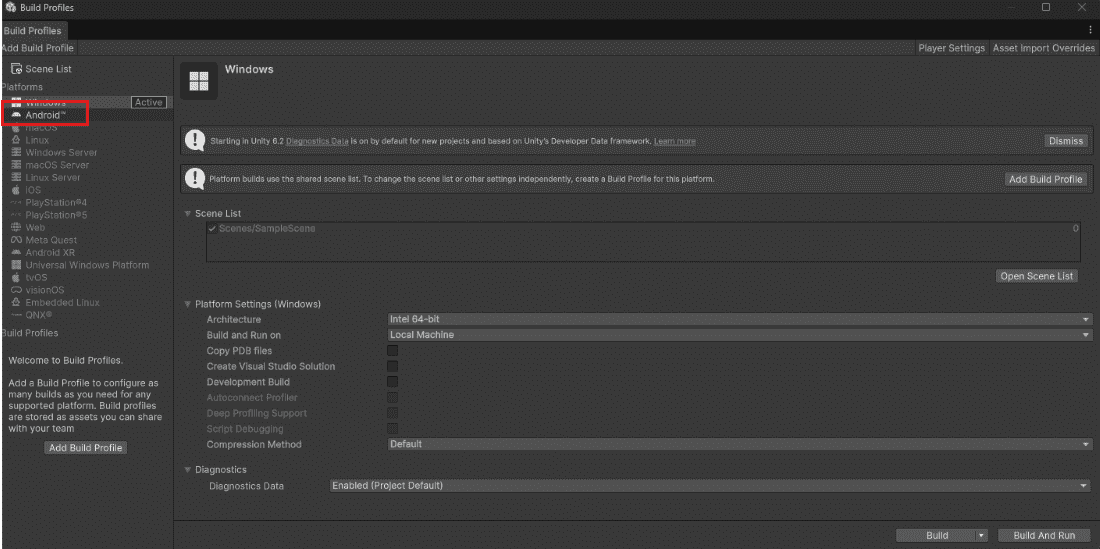
Step 2: Switch Platform to Android
- File - Build Settings.
- Click "Android" in platform list.
- Click "Switch Platform" button.
Wait for Unity to reimport assets (1-2 minutes).
Step 3: Configure Player Settings
Click "Player Settings" button in Build Settings. Important settings to change:
| Setting | Location | What to set |
|---|---|---|
| Company Name | General | Your name |
| Product Name | General | Game name |
| Package Name | Other Settings | com.CompanyName.GameName |
| Version | Other Settings | 1.0.0 |
| Default Icon | Icon | 1024×1024 PNG |
| Minimum API Level | Other Settings | Android 7.0 (API level 24) |
| Target API Level | Other Settings | Latest installed |
Package Name Explained
Package name is unique identifier for your game. Format:
com.yourcompany.yourgame
Examples:
- com.nintendo.mario
- com.tencent.pubgm
Rules: No spaces, lowercase only, unique across all apps.
Step 4: Configure Graphics API
Android uses OpenGL ES or Vulkan.
- Player Settings - Other Settings
- Graphics APIs - Remove Vulkan (keep OpenGL ES).
- Add OpenGL ES 3.0 if not present.
Step 5: Set Resolution and Quality
Player Settings - Resolution and Presentation:
- Default Orientation: Landscape Left or Portrait.
- Fullscreen Mode: Fullscreen Window.
- Supported Aspect Ratios: 16:9, 16:10, 19.5:9.
Step 6: Build APK
- Add all scenes to Scenes in Build.
- Click "Build" button.
- Choose folder and file name (example: MyGame.apk).
- Wait for build (2-5 minutes).
Installing APK on Phone
Method 1 (USB cable):
- Enable Developer Options on phone (Settings - About Phone - Tap Build Number 7 times).
- Enable USB Debugging.
- Connect phone to PC.
- Copy APK to phone - Open with file manager - Install.
Method 2 (Build and Run):
- Connect phone via USB.
- Enable USB Debugging.
- Click "Build and Run" instead of Build.
- Unity installs automatically.