
The Console window displays messages from Unity and your scripts. It helps you find errors, track variable values and understand what your game is doing.
- Errors (red): Game-breaking issues that stop something from working.
- Warnings (yellow): Potential problems that might cause issues.
- Logs (white): Information you print with Debug.Log().
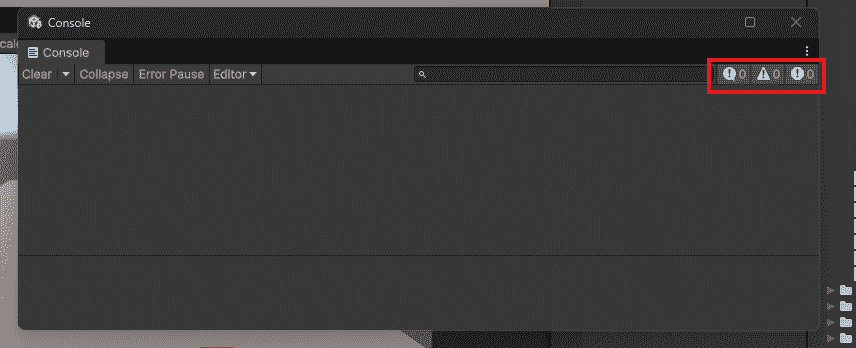
Opening the Console
- Method 1: Window -> General -> Console.
- Method 2: Ctrl + Shift + C (Windows) or Cmd + Shift + C (Mac).
The Console usually docks at the bottom of Unity by default.

Console Toolbar Buttons
The top of the Console has several important buttons:
- Clear: Removes all messages.
- Collapse: Groups identical messages and shows count.
- Clear on Play: Clears Console when Play mode starts.
- Error Pause: Pauses the game automatically on errors.
- Filter by Type: Show/hide Logs, Warnings, or Errors.

Clicking on Messages
Click any message in the Console. Unity automatically opens the script at the exact line that created it.
- Double-click: Opens script at that line.
- Right-click: Copy message text or open full stack trace.
Filtering Messages
Use the filter buttons to focus on specific message types:
- Logs: Your debug messages.
- Warnings: Potential issues.
- Errors: Actual problems.
Toggle off Logs to hide them. Only see Errors and Warnings.
Clearing Console from Script
Example:
using UnityEngine;

public class ClearConsole : MonoBehaviour
{
    public void Clear()
    {
        // This only works in Editor
        var logEntries = System.Type.GetType("UnityEditor.LogEntries, UnityEditor");
        var clearMethod = logEntries.GetMethod("Clear");
        clearMethod.Invoke(null, null);
    }
}
Attach to a button for a "Clear Console" button in your game.
Common Console Messages
- NullReferenceException: You tried to use something that doesn’t exist.
- MissingReferenceException: Object was destroyed but still accessed.
- IndexOutOfRangeException: Array index is invalid.
- CS1002: Missing semicolon.
- CS0103: Variable name doesn’t exist (typo).