
Image scaling, also known as resizing is used to change the size of an image while processing it. In computer vision, scaling is required to reduce processing cost, meet size constraints or adapt images for storage and transmission. Using OpenCV, images can be resized by either reducing or increasing their dimensions which directly affects image resolution, number of pixels and computational efficiency.
Opening the Webcam (Base Code)
Before performing any image scaling operation, the webcam must be accessed and the original video frame displayed. The below code opens the default webcam and continuously displays the original frame until the Enter key is pressed.
- cv.VideoCapture(0) opens the default webcam.
- cam.read() captures each frame from the camera.
- cv.imshow() displays the captured frame in a window and cv.waitKey(1) listens for keyboard input.
- Pressing Enter (13) stops the loop.
- cam.release() releases the camera resource and cv.destroyAllWindows() closes all OpenCV windows.
import cv2 as cv
cam = cv.VideoCapture(0)

while True:
    ret, frame = cam.read()
    cv.imshow("Original Frame", frame)

    if cv.waitKey(1) == 13:  # Enter key
        break

cam.release()
cv.destroyAllWindows()
Output

Resizing to a Fixed Size (Distortion Issue)
OpenCV provides the cv.resize() function to change the size of an image. One common approach is resizing the image to a fixed width and height.
resized = cv.resize(frame, (500, 500))
cv.imshow("Resized Frame", resized)
Output:

The resized image is displayed in a separate window with a resolution of 500 × 500 pixels.
Note: Resizing an image to a fixed size without preserving the aspect ratio causes distortion, making objects appear stretched or compressed.
Trying Better Fit Dimensions
Instead of resizing the image to a square shape, different width and height combinations can be tested to reduce distortion.
resized = cv.resize(frame, (700, 500))
resized = cv.resize(frame, (800, 500))
Although distortion is reduced compared to square resizing, the image is still not perfectly proportional. Manually choosing dimensions is not a reliable solution, as the original aspect ratio is not guaranteed to be preserved.
Understanding Aspect Ratio
Aspect ratio is the relationship between an image’s height and width.
Aspect Ratio = Height / Width
For a typical webcam frame:
720 / 1280 ≈ 0.56
To avoid distortion during resizing, this ratio must be preserved.
When width and height are divided to maintain the aspect ratio, the result is a float value. Since cv.resize() accepts only integers, explicit typecasting is required:
int(w/2), int(h/2)
Without typecasting, OpenCV throws an error.
Resizing Without Distortion
The best way to resize an image is by scaling both the width and height proportionally instead of using fixed values. This approach preserves the original aspect ratio and prevents image distortion.
- frame.shape[:2] retrieves the height and width of each frame. Both dimensions are divided by the same factor to preserve the aspect ratio.
import cv2 as cv
cam = cv.VideoCapture(0)

while True:
    ret, frame = cam.read()

    # Get original dimensions
    h, w = frame.shape[:2]

    # Resize frame by scaling down by 2
    resized = cv.resize(frame, (int(w / 2), int(h / 2)))

    cv.imshow("Original Frame", frame)
    cv.imshow("Resized Frame", resized)

    if cv.waitKey(1) == 27:  # Escape key
        break

cam.release()
cv.destroyAllWindows()
Output

Multiple Levels of Downscaling
Instead of resizing an image only once, the same frame can be downscaled using different scale factors. This helps in understanding how reducing image size affects clarity and detail.
import cv2 as cv
cam = cv.VideoCapture(0)

while True:
    ret, frame = cam.read()

    # Get original dimensions
    h, w = frame.shape[:2]

    # Downscale using different factors
    resize1 = cv.resize(frame, (int(w / 2), int(h / 2)))
    resize2 = cv.resize(frame, (int(w / 4), int(h / 4)))
    resize3 = cv.resize(frame, (int(w / 8), int(h / 8)))

    cv.imshow("Original Frame", frame)
    cv.imshow("Downscale 2x", resize1)
    cv.imshow("Downscale 4x", resize2)
    cv.imshow("Downscale 8x", resize3)

    if cv.waitKey(1) == 27:  # Escape key
        break

cam.release()
cv.destroyAllWindows()
Output:


- Here frame is resized by dividing both width and height by 2, 4 and 8. Each resized frame maintains the original aspect ratio.
- As the scaling factor increases, the image becomes smaller and loses detail. Downscaling beyond 4× or 8× significantly reduces visible pixel information.
Downscaling and Upscaling Experiment
This section demonstrates the effect of downscaling an image and then upscaling it back to its original size. The goal is to understand how resizing impacts image quality.
import cv2 as cv
cam = cv.VideoCapture(0)

while True:
    ret, frame = cam.read()
    if not ret:
        break

    # Get original dimensions
    h, w = frame.shape[:2]

    # Downscale the frame
    small = cv.resize(frame, (int(w / 4), int(h / 4)))

    # Upscale back to original size
    upscale = cv.resize(small, (w, h))

    # Display results
    cv.imshow("Original Frame", frame)
    cv.imshow("Upscaled Image", upscale)

    if cv.waitKey(1) == 13:  # Enter key
        break

cam.release()
cv.destroyAllWindows()
Output

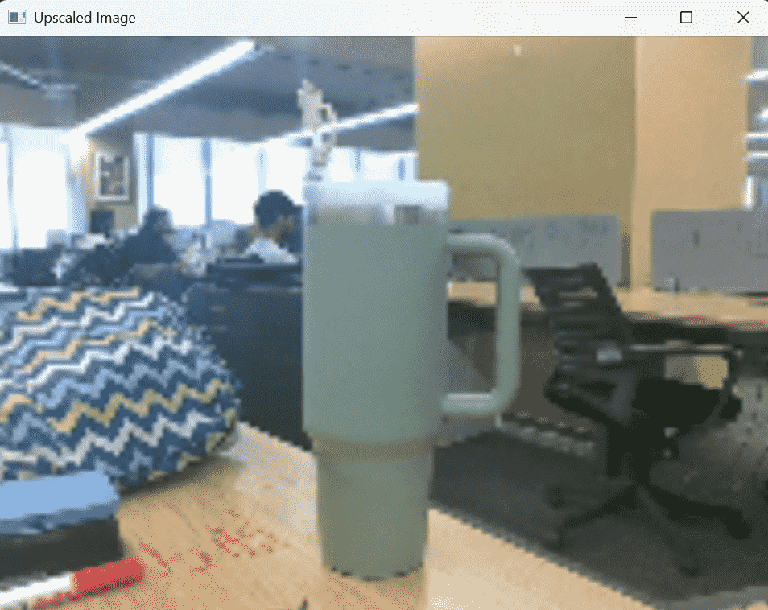
- Although both frames have the same resolution, the upscaled image appears blurry and pixelated and loses fine details
- This happens because downscaling removes pixel information. When the image is upscaled again, OpenCV only stretches the remaining pixels lost details cannot be recovered.