

Amazon Web Services Identity and Access Management (IAM) is a security framework and web service that securely controls who can access AWS resources and what actions they are allowed to perform, acting as the backbone of account-level security in AWS. It manages:
- Authentication: who can sign in
- Authorization: what actions they are allowed to perform

Importance of IAM
- Weak, stolen, or default passwords are a major cause of data breaches, making identity protection the weakest link in cybersecurity.
- Attackers commonly use phishing to steal credentials, then escalate access to install malware, create backdoors, or steal sensitive data.
- IAM reduces these risks by enforcing controlled, auditable, and least-privilege access to AWS resources.
Use Cases
- User and Group Management: IAM helps create users and groups with shared permissions.
- Least Privilege Security: Users receive only the permissions needed for their tasks.
- Resource Access Control: IAM controls access to AWS resources like EC2, RDS, and CloudWatch.
- Multi-Factor Authentication (MFA): IAM supports MFA for extra account security.
AWS Account Root User
The root user is the original identity created with an AWS account and has unrestricted access to all services and billing.
- Has full administrative privileges
- Should never be used for daily operations
- Must have Multi-Factor Authentication (MFA) enabled
- Reserved only for critical account-level tasks
Core Components
IAM is built on several core components that represent "who" can access your account.
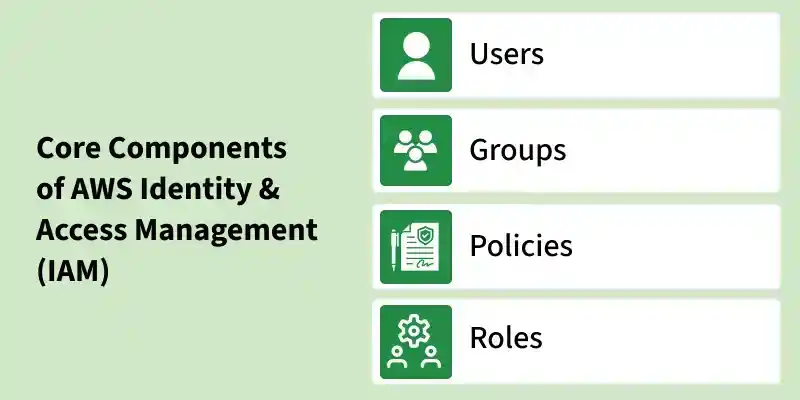
1. IAM Users
IAM Users represent individual people or applications requiring long-term access to AWS.
- Have permanent credentials (passwords and access keys)
- Used for console, CLI, or API access
- Best managed through groups, not individually
2. IAM Groups
IAM Groups are collections of users that simplify permission management.
- Permissions are assigned once at the group level
- Users inherit permissions automatically
- Reduces administrative errors and improves scalability
3. IAM Roles
IAM Roles provide temporary permissions to trusted entities without using long-term credentials.
- No passwords or access keys
- Uses temporary, auto-rotated credentials
- Ideal for AWS services and cross-account access
- Most secure method for application permissions
4. IAM Policies
IAM Policies define what actions identities can perform on which AWS resources. Policies are written in JSON format.
Each policy contains:
- Effect: Allow or Deny
- Action: AWS operations such as
s3:GetObject - Resource: Specific AWS resources
Types of IAM Policies
- AWS-Managed Policies: Policies created and maintained by AWS for common use cases.
- Customer-Managed Policies: Custom policies created and managed by users based on organizational requirements.
- Inline Policies: Policies embedded directly into a single IAM user, group, or role.
- Resource-Based Policies: Policies attached directly to AWS resources such as S3 bucket policies.
| Feature | IAM User | IAM Group | IAM Role | IAM Policies |
|---|---|---|---|---|
| Purpose | Represents a specific person or application with long-term credentials. | A logical container to simplify permission management across users. | A temporary identity assumed by trusted entities for specific tasks. | Defines permissions that specify what actions are allowed or denied on AWS resources. |
| Credentials | Permanent (password, access keys). | None; not an identity. | Temporary, automatically rotated credentials. | No credentials; attached to users, groups, or roles. |
| Use for Humans | Rarely used for direct access; reserved for administrative or break-glass scenarios. | Assign common permissions (e.g., Developers, Auditors). | Grant short-term, elevated, or cross-account access. | Control what users and groups can access in AWS. |
| Use for Services | Not recommended due to long-term key risks. | Not applicable. | Best practice for service-to-service access (e.g., EC2 → S3). | Define permissions for AWS services and resource access. |
Workflow of IAM
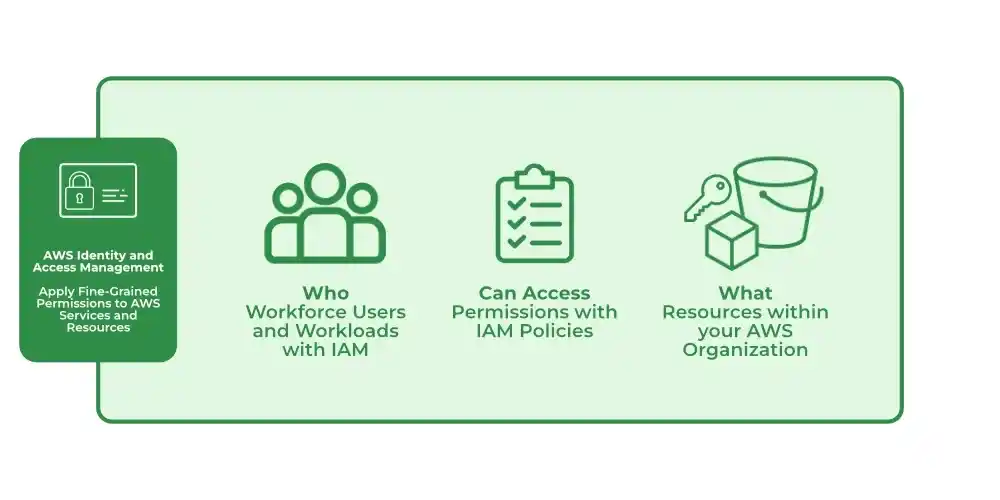
Identity and Access Management (IAM) works by clearly defining who can access AWS, what they can access, and under what conditions. Its working can be understood in the following flow:
1. Identify the User or Entity (Who)
IAM first identifies who is requesting access. This could be:
- An IAM user (human)
- An application or service
- An AWS service assuming a role
2. Authenticate the Request
IAM verifies the identity using authentication mechanisms like:
- Username and password
- Access keys
- Multi-Factor Authentication (MFA)
(Only authenticated identities can proceed further.)
3. Authorize Using Policies (Can Access)
After authentication, IAM checks policies attached to the user, group, or role. These policies define:
- Allowed or denied actions (e.g.,
s3:GetObject) - Specific resources (e.g., a particular S3 bucket)
- Conditions (time, IP address, MFA usage)
4. Evaluate Permissions
IAM evaluates permissions in this order:
- Explicit Deny: always blocks access
- Explicit Allow: grants access
- Implicit Deny: default if no allow exists
Access is granted only if an explicit allow exists and no deny overrides it.
5. Grant Access to Resources (What)
If authorization succeeds, IAM allows the user or service to perform the requested action on the specified AWS resource such as:
- EC2 instances
- S3 buckets
- RDS databases
6. Temporary Access via Roles (Optional but Recommended)
For applications and services, IAM roles provide temporary credentials instead of long-term keys, improving security and reducing credential misuse.
Access Management
Access management determines who can access which AWS resources and what actions they can perform.
- Based on the principle of least privilege
- Prevents over-permissioning
- Improves security posture and compliance
Federation and Single Sign-On (SSO)
Federation allows external users to access AWS using existing identity providers.
- Supports corporate directories and social logins
- Enables Single Sign-On (SSO)
- Reduces password fatigue and improves security
Role-Based Access Control (RBAC)
RBAC assigns permissions based on job roles rather than individual users.
- Simplifies access control
- Aligns permissions with organizational structure
- Minimizes security risks caused by excess privileges.
Types of Permissions
- Allow Permissions: An explicit "allow" permission grants the user, group, or role access to a resource. For Example, an IAM user with the "s3:ListBucket" permission can list the content of an S3 Bucket.
- Deny Permissions: A "deny" permission explicitly prevents access to a resource. This can be set for security reasons, such as denying access to sensitive resources for certain users.
- Implicit Deny: By default, if no policy is attached to a user, group, or role, access to a resource is denied. IAM denies access if no explicit allow rule is present.
How to Set Up IAM
Setting up IAM involves creating users, groups, roles, and policies that define what resources and actions are allowed. Below is a simple process for getting started:
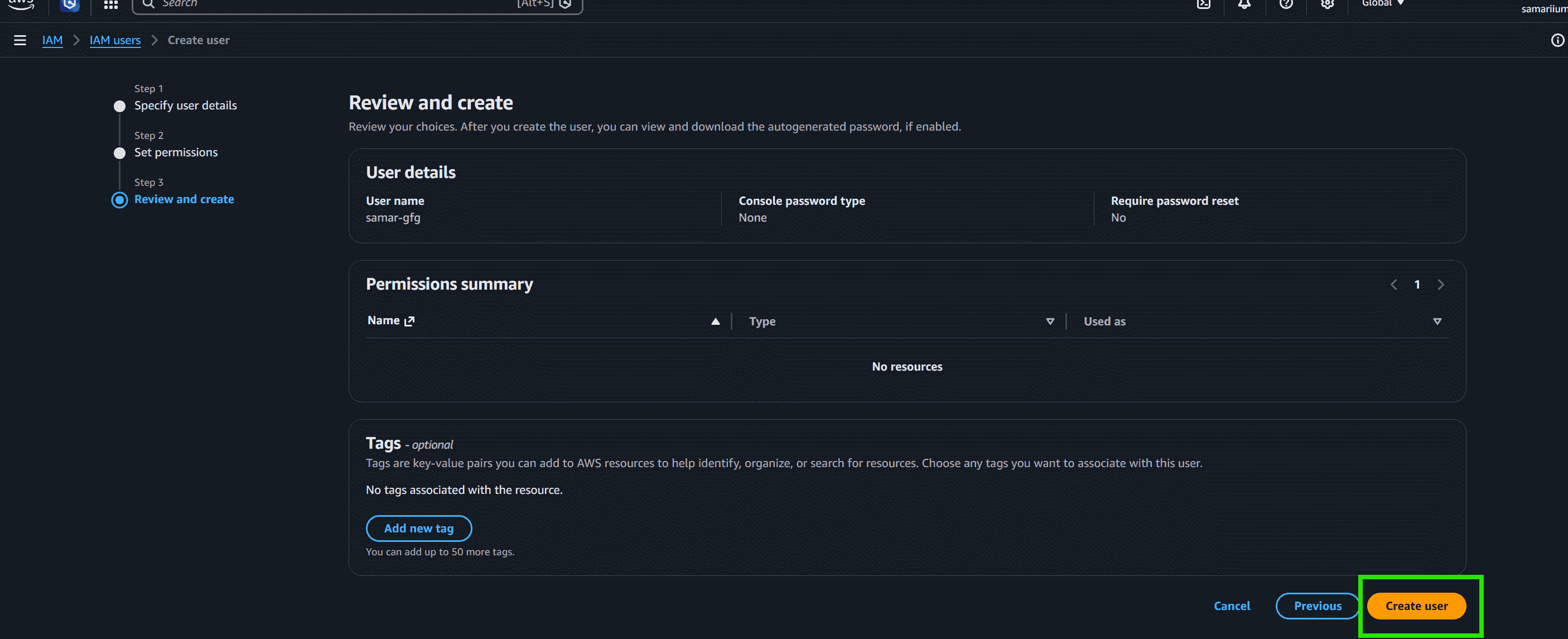
Step 1: Create an IAM User
- Open the IAM Console and click Users then Create User.
- Enter the username, select the access type (e.g., programmatic or console access), and assign permissions.
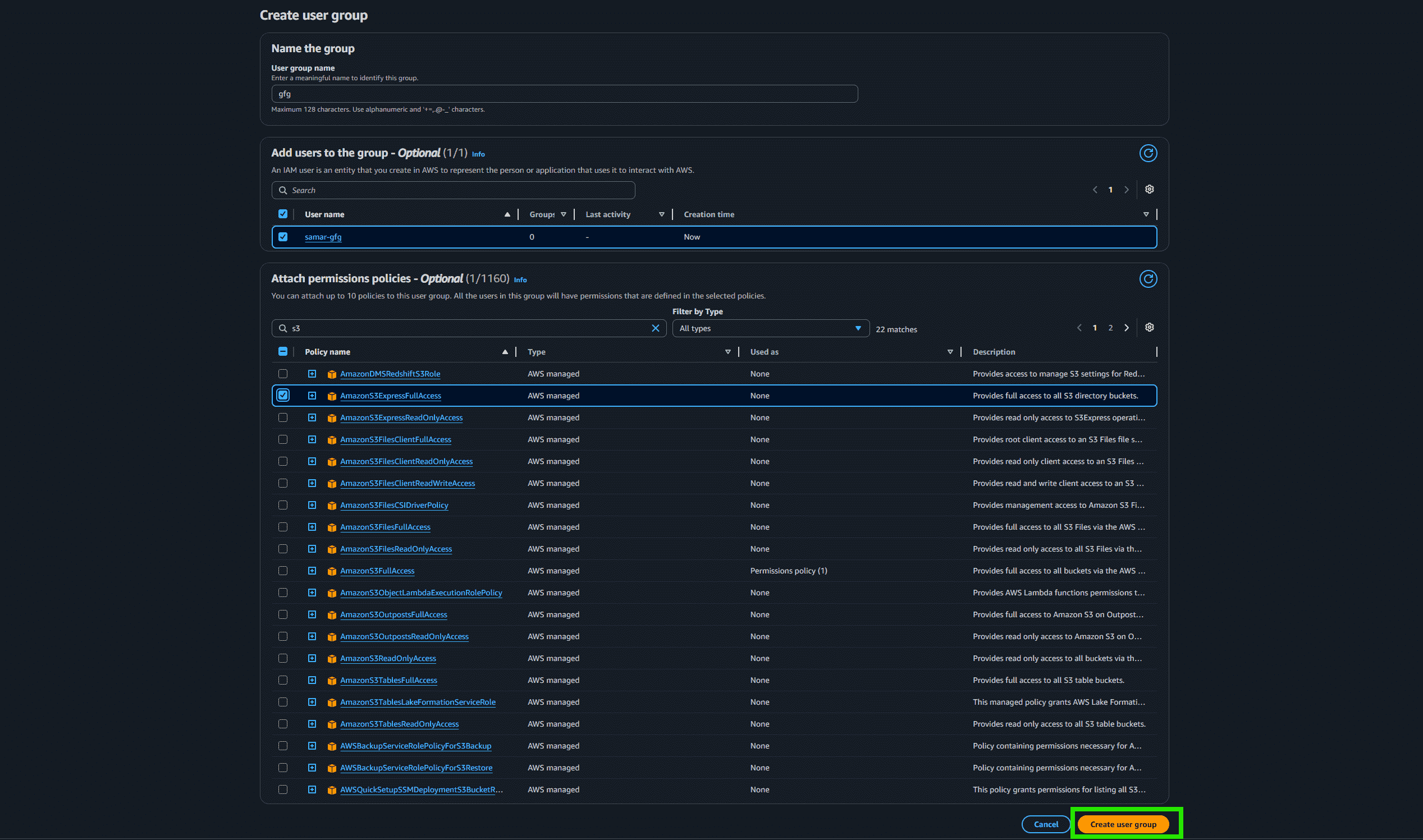
Step 2: Create an IAM Group
- Go to IAM Console >> Groups >> Create New Group
- Add users to this group and assign a set of policies (permissions).
Step 3: Enable MFA (Multi-Factor Authentication)
- To enhance security, enable MFA for critical IAM users (such as admins). MFA adds an extra layer of protection by requiring users to provide a second form of authentication (e.g., a mobile app).
Note: For the detailed setup and configuration process of Multi-Factor Authentication (MFA) in AWS, refer to the dedicated MFA article.
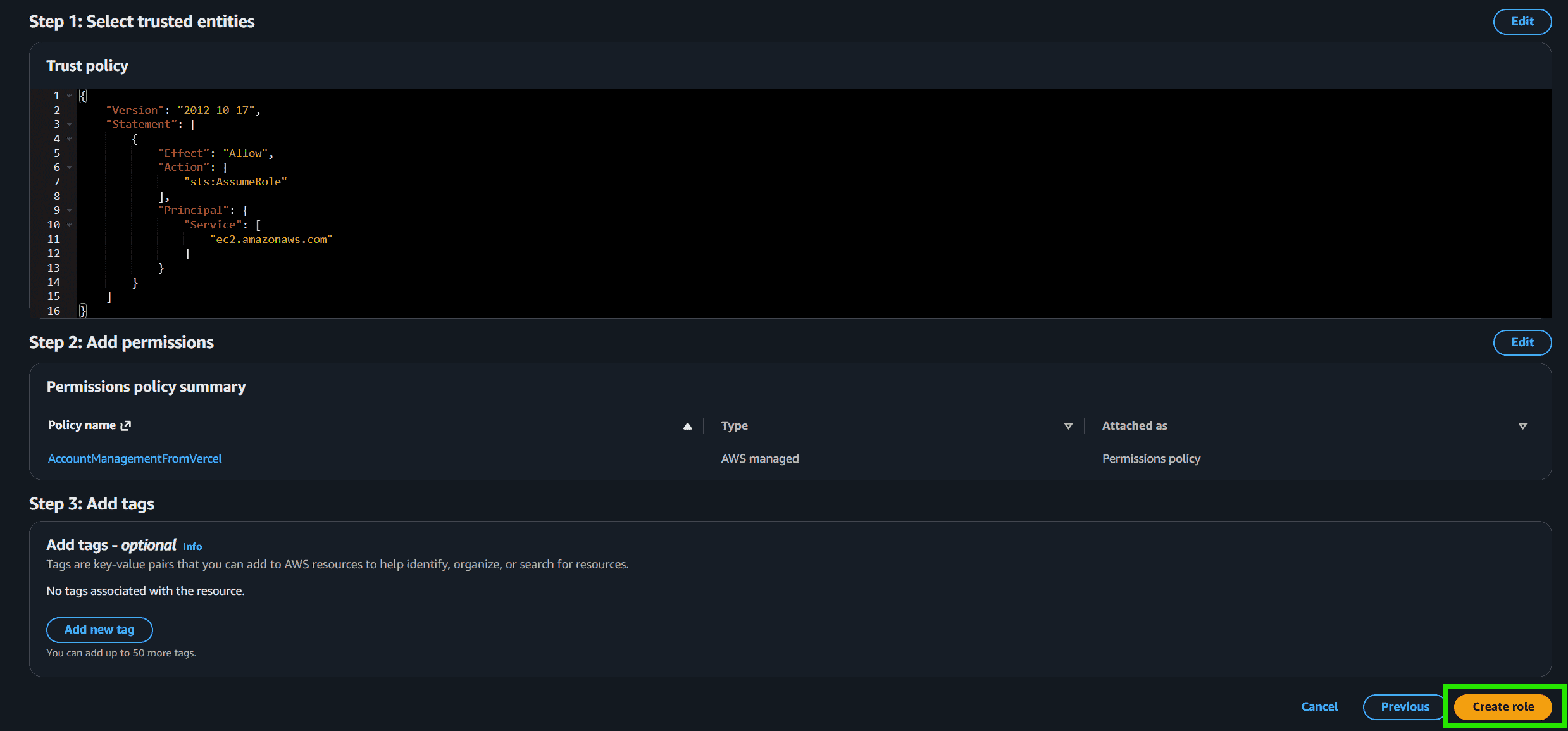
Step 4: Create IAM Roles
IAM roles can be created for cross-account access or to give AWS services permissions to interact with each other (E.g., EC2 needs access to S3).
- Go to IAM Console >> Roles >> Create role
Benefits
- Protects systems from unauthorized access and credential misuse
- Controls user identities, roles, and permissions centrally
- Supports fine-grained access control using IAM policies
- Follows the principle of least privilege for stronger security
- Supports secure scaling of users, applications, and AWS services
Best Practices
- Lock Away Your Root User Credentials: Do not use the root user for daily tasks. Enable MFA on it and store the credentials securely.
- Enforce the Principle of Least Privilege: Always grant only the minimum permissions required for a user or application to perform its task. Start with nothing and add permissions as needed.
- Use Groups to Assign Permissions to Users: Never attach policies directly to individual users.
- Use Roles for Applications and AWS Services: This avoids the need to manage long-term access keys.
- Enable Multi-Factor Authentication (MFA): Add an extra layer of security for all your users, especially privileged ones.
- Rotate Credentials Regularly: Implement a policy to rotate passwords and access keys periodically.
IAM Technologies and Tools
- Single Sign-On (SSO): A choice that lets a user login and use multiple applications at once, as well as give more security to the services.
Example: Its competitors include Okta and Microsoft Entra AD (Formerly Azure AD).
- Multi-Factor Authentication (MFA): MFA requires users to verify their identity using two or more authentication methods.
Example: Some of the examples of Two Factor Authentication applications are Duo Security and Google Authenticator.
- Role-Based Access Control (RBAC): Secures the system based on employees’ roles, where the user will have the least privilege to access the system.
Example: IBM Security Identity Manager.
- Privileged Access Management (PAM): Performs functions associated with obtaining and maintaining high levels of accessible (“privileged”) computing resources.
Example: CyberArk, BeyondTrust.