Streamlining Dev With Microsoft Dev Box
Last Updated :
23 Jul, 2025
In this shifting landscape of software development, efficiency and flexibility are characteristics that could enable relevant delivery. Microsoft Dev Box is a strong tool geared toward work improvement by providing cloud-based, pre-configured development environments. This guide explains how Microsoft Dev Box eases development and why it is such an important instrument in modern development.
What Is Microsoft Dev Box?
Intended to help developers work from a ready-to-code workstation, Microsoft Dev Box provides cloud-based managed workstations, individually tailored to suit any project's requirements. It means a developer starts to code instead of struggling to set up a development environment or configure the machines.
Benefits Of Using Microsoft Dev Box
- Faster Onboarding: Setting up the Development environment can be time-consuming, especially in the case of new members of the team. Microsoft Dev Box kills this bottleneck by providing a ready-to-use environment, reducing the onboarding time from days to minutes.
- Improved Collaboration: Dev Boxes allow every developer on your team to work in a consistent environment, reducing the "it works on my machine" problem. It assures that the code is going to work in the same manner for every developer. Thus, this makes collaboration much easier and integration problems considerably fewer in number.
- Cost Efficiency: Traditional development environments require high-end hardware, which involves a lot of overhead to maintain and upgrade. Dev Boxes, on the other hand, run in the cloud, so organizations are charged only for used resources. This pay-as-you-go model can drive significant savings.
- Security And Compliance: Microsoft Dev Box allows seamless integration with the Azure Active Directory, enabling organizations to apply tight security and compliance policies from their companies. Data is safely kept in the cloud, while access controls can be managed centrally to avoid data breaches or unauthorized access.
- Seamless Integration With Azure: Dev Boxes will easily integrate with other Azure services, such as Azure DevOps, GitHub, and Azure Kubernetes Service. This allows developers to easily deploy code, run tests, and monitor apps right from their development environment.
Step-By-Step Guide: How To Set Up A Microsoft Dev Box
Step 1: Access The Dev Box Portal
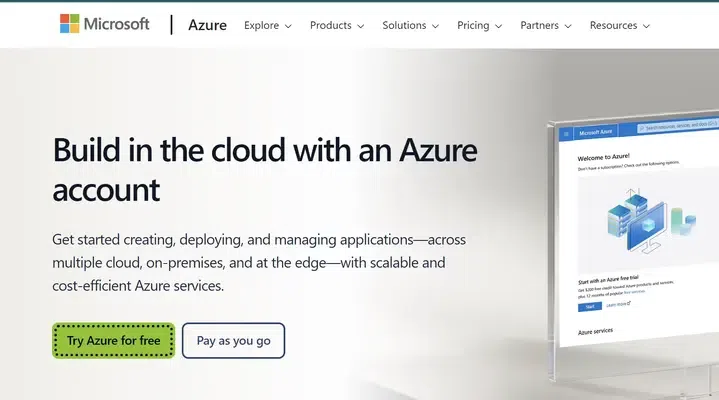
- To get started with Microsoft Dev Box, go to either the Azure portal or the Dev Box-specific portal. From here, administrators can create Dev Boxes and manage them for their teams.
- Pick A Template: It will be a pre-configured template that best fits your project requirements. These include specific IDEs and SDKs among other tools.

- Set Resources: Determine how much of the CPU, memory, and storage is to be used with the Dev Box. These values can always be changed at a later stage if the requirements of the project change.

- Networking And Security: The network configuration and setting up of virtual networks and security policies—such as firewall rules—that will protect your Dev Box.

Step 3: Dev Box Provisioning
- Now that it is configured, the Dev Box can be provisioned. This means an Azure Virtual Machine will be created, and all necessary software is installed upon it. Depending on the configuration, this might take a few minutes.

Step 4: Connect And Start Coding
- After provisioning, developers can log in to their Dev Box using Remote Desktop Protocol or other remote access tools of their choice. Of course, everything will be preconfigured, so it's time for them to start coding right away.

Best Practices For Microsoft Dev Box
- Use Versioned Templates: For consistency across dev environments, use versioned templates to be certain all developers are using the same tools and configurations. This consistency reduces disparities and bugs.
- Update Dev Boxes: Keep your Dev Boxes current with the latest tools and dependencies. Doing this ensures the availability of the latest features and security patches during development.
- Monitor Resource Usage: Monitor usage and their corresponding costs for resources through the monitoring tools at Azure. This enables the optimization of Dev Boxes and ensures that resources are well utilized.
- Implement Backup And Restore: Configure periodic backups for your Dev Box environments so you don't lose data. Azure provides automated backup tools for you.
Features Of Microsoft Dev Box
- Pre-configured Environments: Dev Boxes come with all relevant tools, SDKs, and dependencies preinstalled so a developer can get straight to writing code, rather than getting caught up in setup.
- Scalability: Since Dev Boxes are hosted in the cloud, they could be scaled up or down depending upon the requirements of the project.
- Flexibility: As a number of Dev Boxes for different projects could be created by the developer, each of these boxes would be suited according to the requirements of that particular project
Conclusion
It changes everything for development teams working hard to optimize their workflows and reduce setup time. With Dev Box, development environments will be ready-to-use, scalable, and secure; it helps developers focus on what matters most: writing great code. Whether working on a small project or running a large team, Microsoft Dev Box will deliver the flexibility and power needed to drive productivity and collaboration.
Explore
DevOps Basics
Version Control
CI & CD
Containerization
Orchestration
Infrastructure as Code (IaC)
Monitoring and Logging
Security in DevOps