
Struggling to find important emails in Outlook? Whether you're looking for an old message, a document, or a specific keyword within an email, Outlook’s search function can help you locate emails instantly. However, many users are unaware of how to refine their search for faster and more accurate results.
In this step-by-step guide, we’ll show you how to search emails in Outlook, including basic search, folder search, and advanced search. By the end of this article, you'll be able to find any email in seconds, saving time and improving productivity.

Table of Content
How to Search for Text in an Outlook Email (Basic Search)
This is the easiest way to Search Inside a Message in Outlook. Follow the below steps to search for text in an Outlook:
Step 1: Open Outlook
- Open Microsoft Outlook on your computer or browser.
- Sign in with your Microsoft account if required.
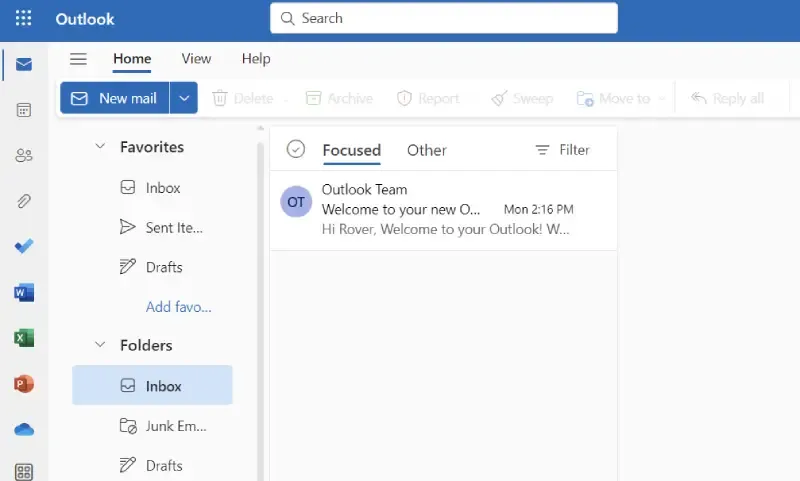
Step 2: Locate the Search Bar
- The search bar is located at the top of the Outlook window (desktop) or at the top of the screen (web).
Use the Keyboard Shortcuts
- CTRL + E to Open the search bar to search across all emails.
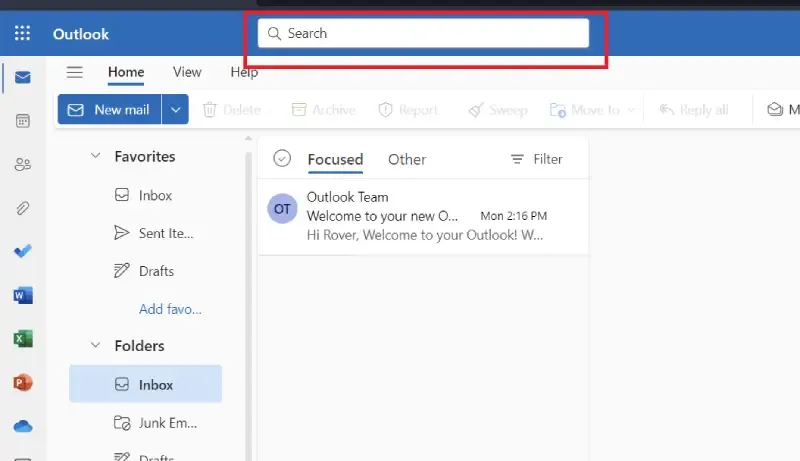
Step 3: Enter Your Search Query
- Click on the search bar and start typing a keyword, sender’s name, recipient, or subject line.
- Outlook will instantly display matching emails below the search bar.
Note: You can type any keyword, sender's name , recipient or any relevant information.
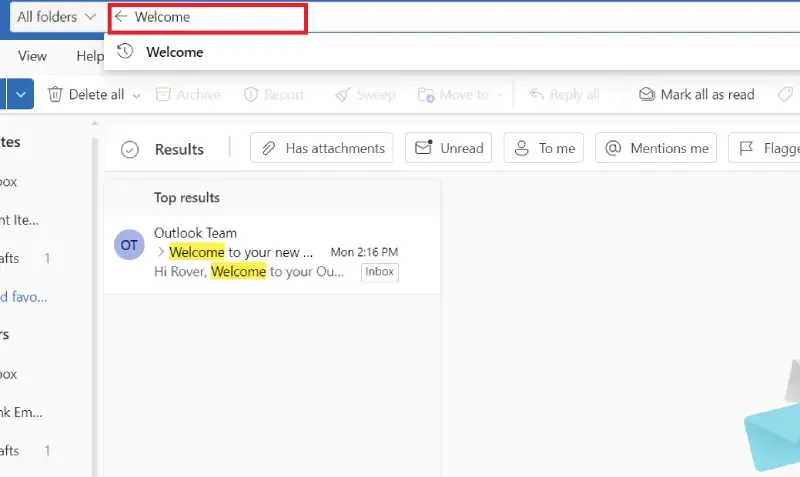
Step 4: View Results & Open Email
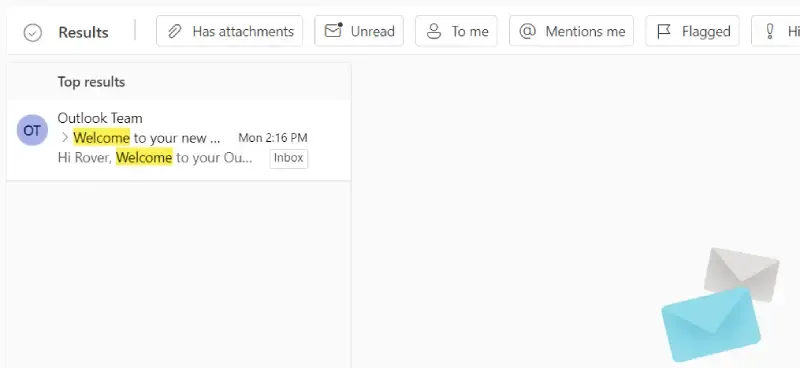
- Scroll through the search results and click on the email you were looking for.
Pro Tip: Use quotation marks (" ") to search for an exact phrase in the email body.
How to Search for an Email in a Specific Folder
If you remember that the email is in a specific folder (Inbox, Sent Items, Drafts, etc.), use folder search to narrow down your results.
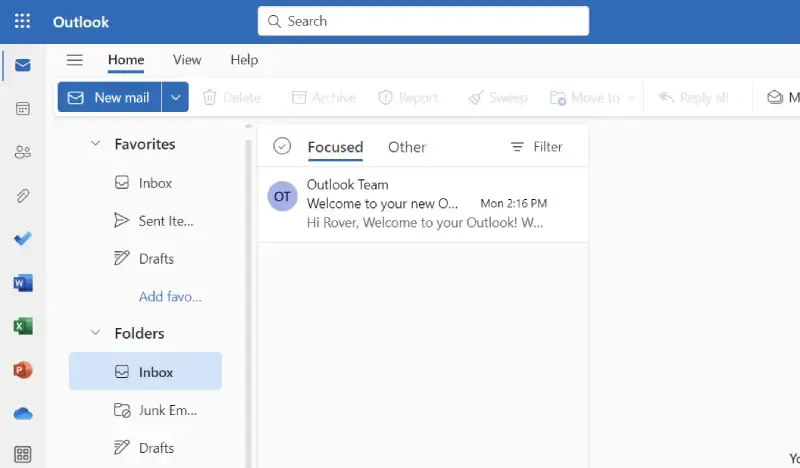
Step 1: Open Outlook
Launch Outlook and Open Outlook
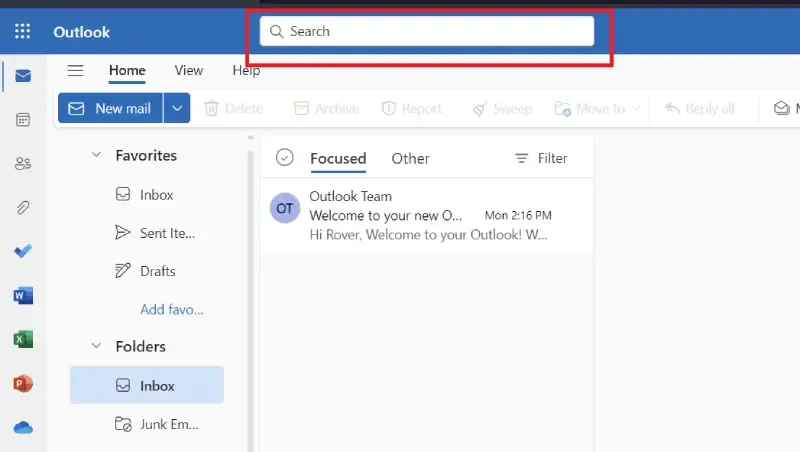
Step 2: Navigate to the Search Bar
Locate the search bar at the top.
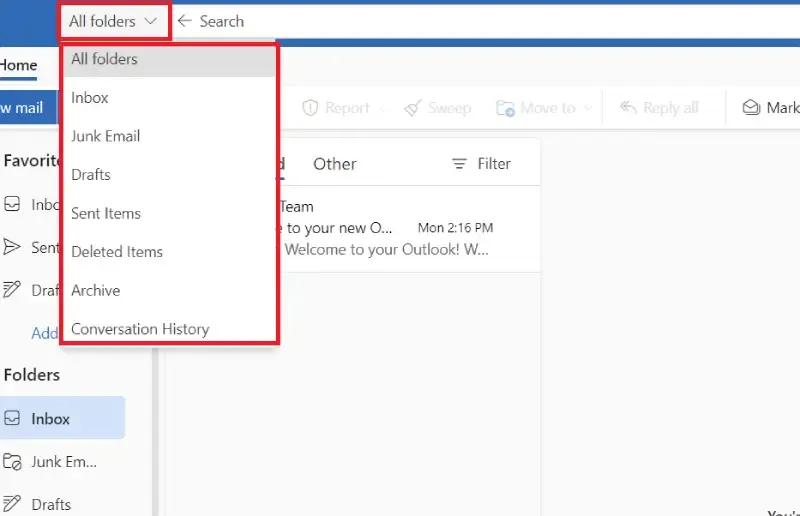
Step 3: Select the Folder to Search In
- Click on the drop-down arrow beside the search bar.
- Select the specific folder where you want to search (e.g., Inbox, Sent Items, Drafts).
Step 4: Enter Your Search Query
Click on the search bar and start typing the query you want to search in the email messages. This can be a keyword, the sender's name, recipient, or any relevant information.
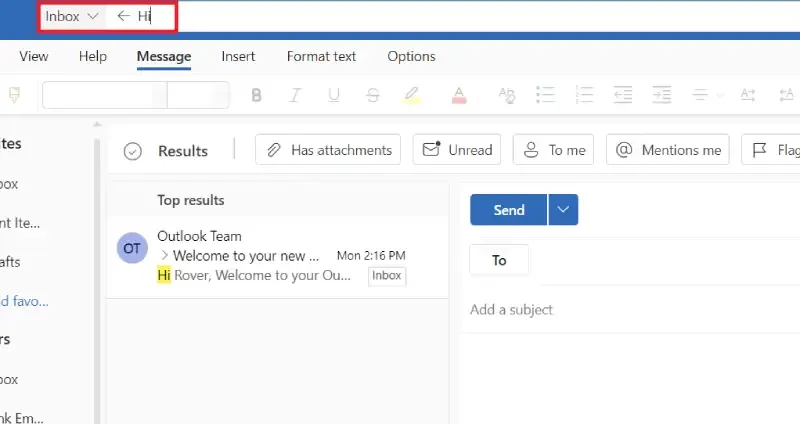
Step 5: View Results
The Outlook will display results only from the selected folder making it easier to find emails with specific context Scroll through the displayed emails to find the one you're looking for.

Pro Tip: If you frequently search in a specific folder, consider using Search Folders in Outlook to automate the process.
How to Use Advanced Search in Outlook
Advanced Search is useful when you need precise search results based on multiple conditions (Refine Search by Date, Sender, Subject & More).
Step 1: Open Outlook
Open your web browser open Microsoft Outlook and sign in to your account if you're not already logged in.
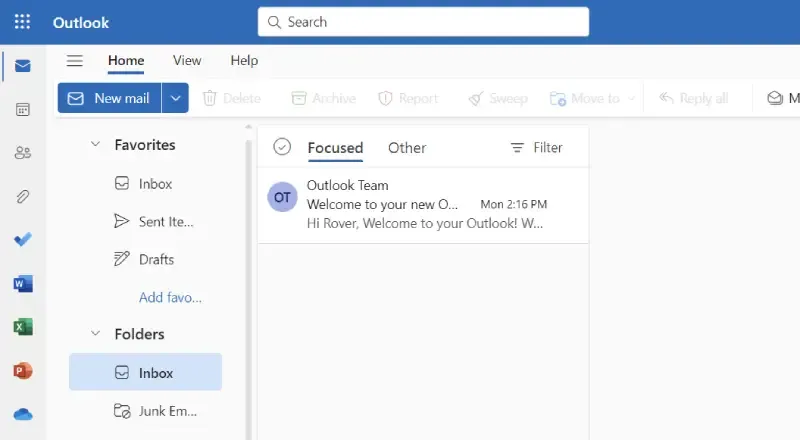
Step 2: Locate the Search Bar
At the top of the outlook window, you'll find a search bar.
Alternatively Use the Keyboard Shortcuts
- CTRL + Shift + F - Opens advanced search options.
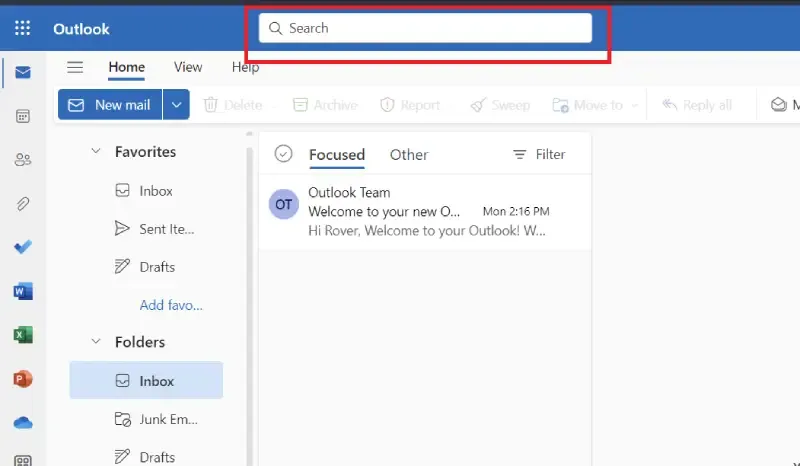
Step 3: Enter Your Search Query
Click on the search bar and start typing the query you want to search in the email messages.
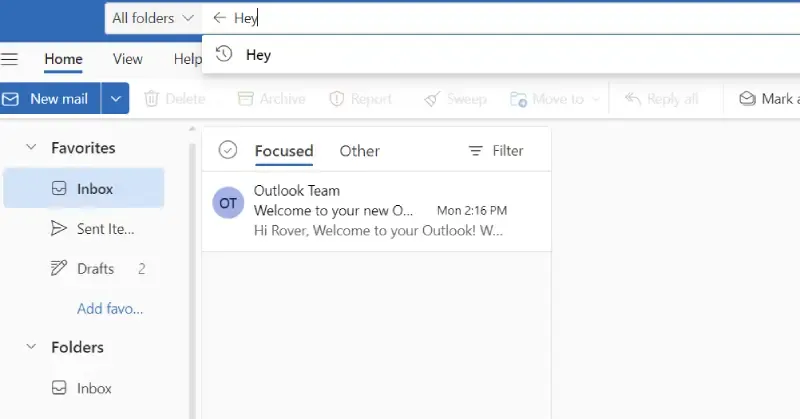
Step 4: Locate the Filter Button
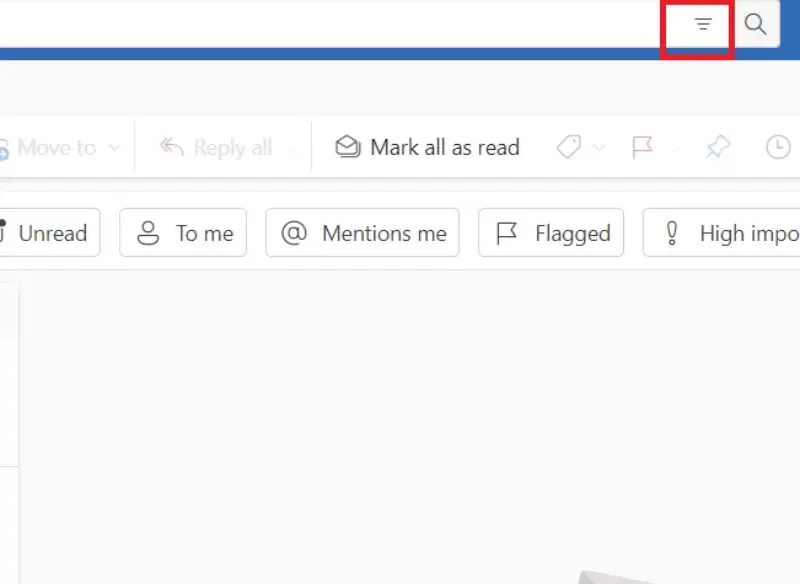
On the right side of the search bar, there's a button marked by three horizontal lines positioned to the left of the search button. This button is known as the filter button. Please go ahead and click on the filter button.
Step 5: Set the Search Criteria
When you click the filter button a dialog box will appear where we can specify multiple search criteria like sender, subject, bcc, date, keywords, and more. Set the search filter according to your context.

Step 6: Start the Search
Once we have set the criteria click on Search Button in the dialog box.
Step 7: View Results
The Outlook will display a list of results matching our search criteria and query. You can scroll through the results to find the email you're looking for.

Troubleshooting: Outlook Search Not Working
If Outlook fails to display search results, you may need to fix search indexing issues or update the application.
How to Fix It
- Restart Outlook & Your Computer – Fixes temporary search glitches.
- Check Your Internet Connection – Poor connectivity can affect results.
- Update Outlook – Go to File > Office Account > Update Options to install updates.
- Rebuild Search Index –
- Go to File > Options > Search > Indexing Options > Modify.
- Select Microsoft Outlook and click Rebuild Index.
- Use Safe Mode – Press Ctrl while launching Outlook to disable conflicting add-ins.
Pro Tip: If Outlook search is still not working, try switching to Outlook Web and perform the search there.
Conclusion
Mastering Outlook’s search features will save you time and boost your productivity. Whether you use basic search, folder search, or advanced search, these methods help you quickly locate important emails and attachments.
If you ever struggle with Outlook search not working, try rebuilding the search index or updating Outlook for a smoother experience. Now, apply these search techniques and find your emails faster than ever!