Text analysis is a machine learning technique that automatically extracts valuable insights from unstructured text data. Organizations rely on text analysis tools to quickly interpret online reviews, survey responses, and documents, transforming them into actionable insights.
In Excel, text analysis can be used to:
- Extract specific information such as keywords, names, or company details
- Categorize survey responses
- Analyze sentiment in customer feedback
- Summarize large volumes of unstructured data
Automated Text Analysis in Excel
Thanks to the latest AI capabilities, Excel now supports automated text analysis by combining built-in functions, macros, and powerful add-ins. These tools allow you to automate repetitive tasks and perform advanced text mining directly within your familiar Excel environment.
Example
Good service: I ordered a brand new laptop from online store. It's really a awesome product with good condition.
Thank you for this wonderful service.
You might want to analyze this text to extract sentiment, highlight key phrases, or detect the category (such as positive customer service feedback).
Popular Text Analysis Techniques
Some commonly used text analysis techniques include:
- Text classification (e.g., categorizing feedback as positive, neutral, or negative)
- Text extraction (e.g., identifying product names or order numbers)
- Word frequency (e.g., counting how often words like good or bad appear)
- Clustering (e.g., grouping similar feedback automatically)
Steps to Performed Automated Text Analysis in Excel
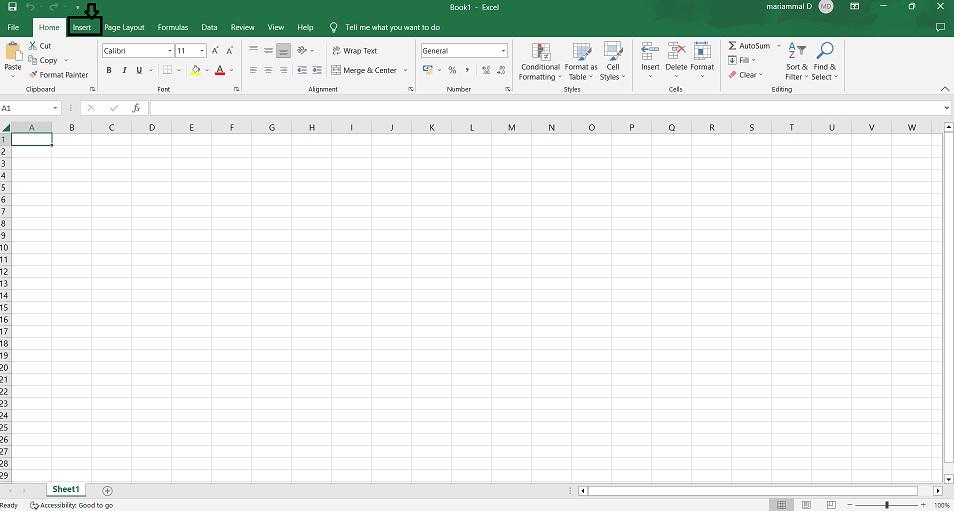
Step 1: Open the Excel spreadsheet and proceed with Azure machine learning add-ins. Add-ins such as text analytics for excel provide advanced text analysis capabilities such as sentiment analysis, key phrase extraction, and language detection. These can be used to automatically extract insights from large amounts of text data, such as identifying positive or negative sentiments in customer reviews or extracting key topics from a collection of documents.
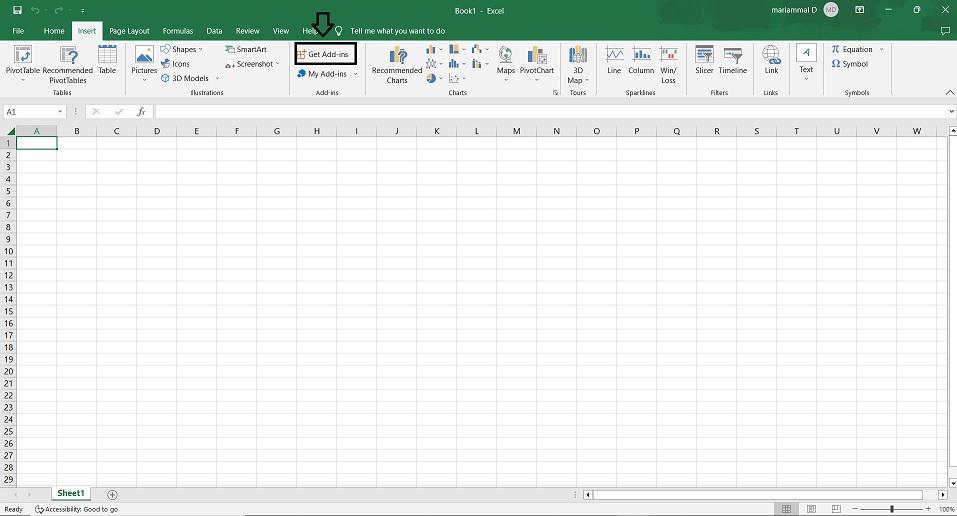
- Click on the Get Add-ins tab.
Additionally, Excel can also be integrated with other AI services such as Azure cognitive services or AWS comprehend to perform more advanced text analysis tasks such as entity recognition, language translation, and machine learning-based text classification.
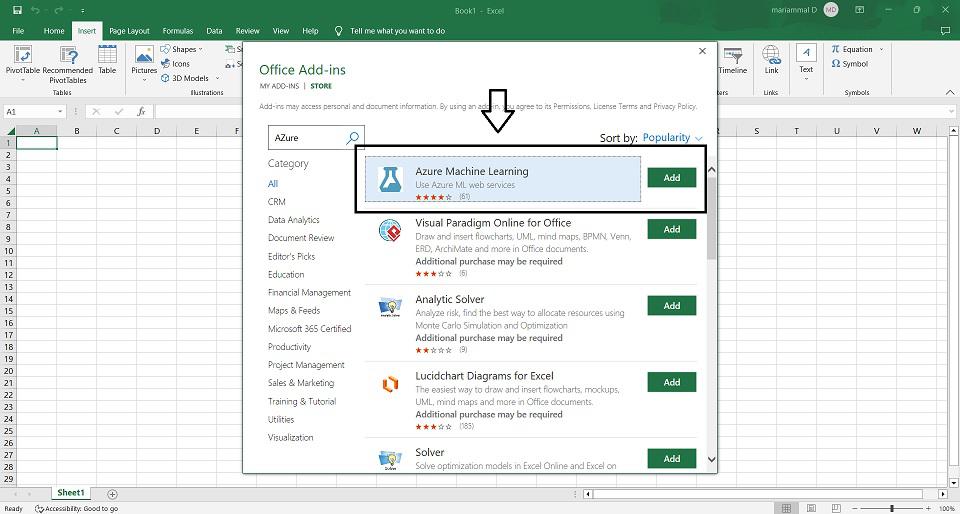
Step 2: After installing the Azure Machine Learning add-ins it's time to prepare your text data by cleaning and transforming it in Excel. This may include removing unnecessary columns, removing duplicates, and standardizing the format of the text data.
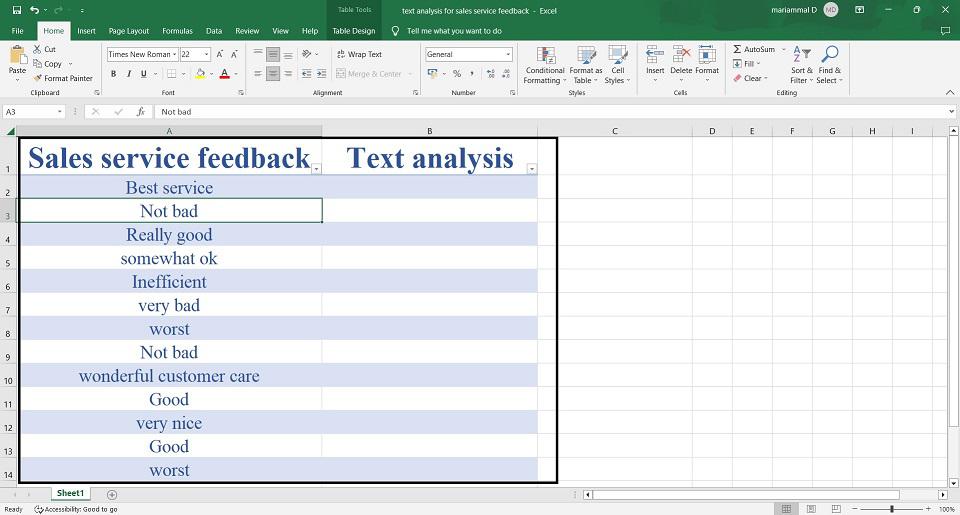
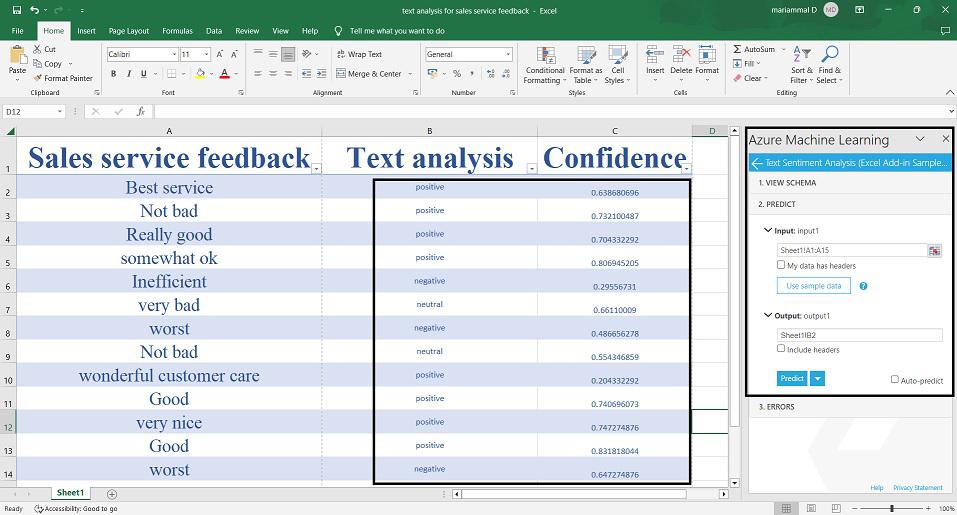
Step 3: Now apply the web services to the cells to apply text sentiment analysis. Azure Machine Learning add-ins for Excel are a set of Excel add-ins that allow users to build, deploy, and manage machine learning models within the Excel interface. These add-ins provide a user-friendly way to access Azure Machine Learning's capabilities and can be used to create predictive models, deploy them as web services, and consume them in Excel.
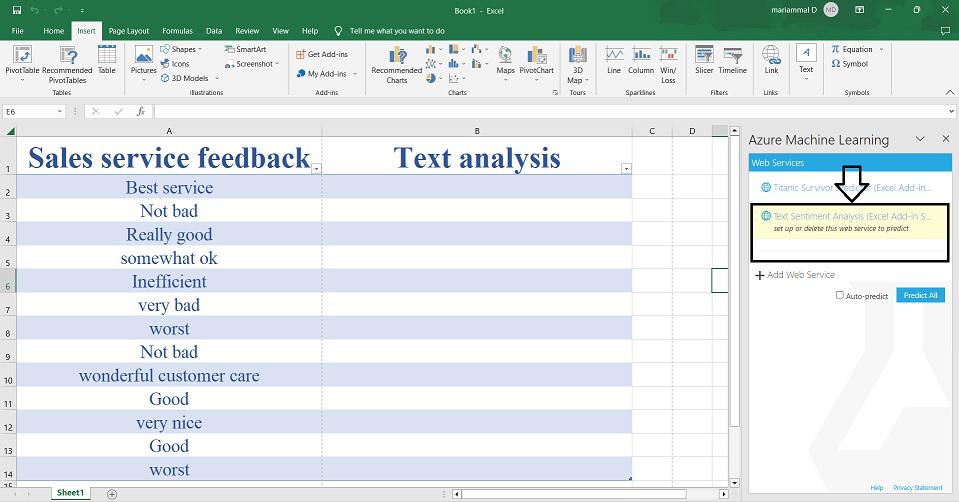
Below, we can see that the text analysis is done.