
Tic Tac Toe is a two-player game that anybody of any age can play and understand are rules in a matter of minutes. In this tutorial, we are going to show you how to create a simple Tic Tac Toe game in Flutter step by step. I tried my best to make this guide easy to understand, and preferably for new users who are unfamiliar with Flutter or programming. Once at the end of the video, you will have a complete, fully working Tic Tac Toe game!
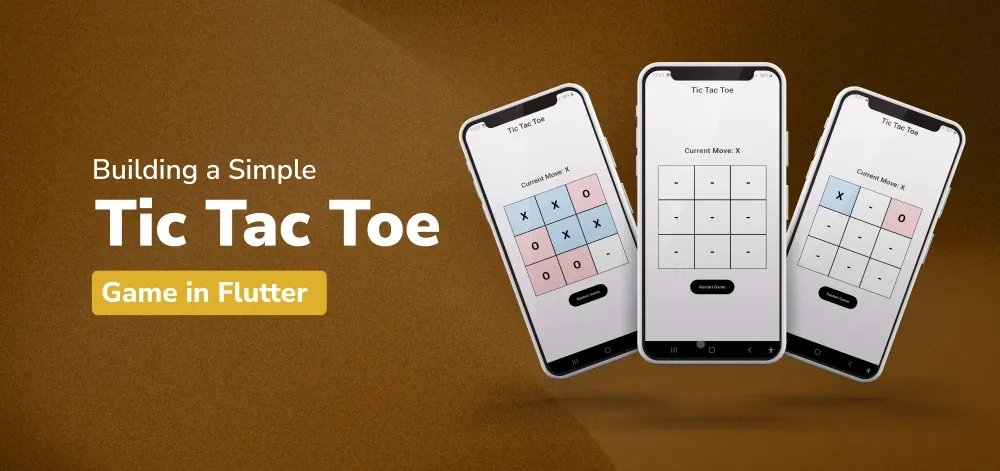
Tic Tac Toe Game
Another game frequently played by two people is Tic Tac Toe or Noughts and Crosses, as it is also called. The game aims to be the first to get your marks in a row, either parallel to the surface of the game, perpendicular to the surface of the game, or in any other direction you try. We will be building a basic version of this game in Flutter in this tutorial.
Implementation of Simple Tic Tac Toe
Step 1: Create a New Flutter Project
Before going any further, ensure that you have Flutter up and running. If it has not been installed already, here you will follow the official Flutter installation process. Once you have Flutter installed, create a new project by running the following commands in your terminal:
flutter create tic_tac_toe
cd tic_tac_toe
To know more about it refer this article: Creating a Simple Application in Flutter
Open the project in your favourite code editor (like VS Code or Android Studio).
Directory Structure

Step 2: Set Up the Main Structure
Open the main.dart file and replace its content with the following code to set up the basic structure of the Flutter app:
import 'package:flutter/material.dart';

// Main Function
void main() {
  runApp(const MyApp());
}

// MyApp class
class MyApp extends StatelessWidget {
  const MyApp({super.key});
  @override
  Widget build(BuildContext context) {
    return const MaterialApp(
      title: 'Tic Tac Toe',
      debugShowCheckedModeBanner: false,
      home: TicTacToePage(),
    );
  }
}
This sets up the main structure of our Flutter app with a title and a home page.
Step 3: Creating the Game Page
Now, it is time to design the Tic Tac Toe game page.
First of all, let’s start writing a stateful widget for the Tic Tac Toe game. This will enable us to control the state of the game in order to have the best chance of emerging as the ultimate winner.
- APPEND the following code to the main below the MyApp class. dart file:
class TicTacToePage extends StatefulWidget {
  const TicTacToePage({super.key});
  @override
  State<TicTacToePage> createState() => _TicTacToePageState();
}
- Defining the State:
Next, we define the state for the TicTacToePage. This includes initializing the game board, keeping track of the current move, and a counter for the number of moves.
class _TicTacToePageState extends State<TicTacToePage> {
  List<String> moves = List.filled(9, "-");
  String currentMove = "X";
  int count = 0;
- Building the Scaffold:
Now, we build the scaffold for the game page. This includes an AppBar and the main content area.
  @override
  Widget build(BuildContext context) {
    return Scaffold(
      appBar: AppBar(
        title: const Text(
         'Tic Tac Toe',
          style: TextStyle(fontSize: 28, fontWeight: FontWeight.w600),
        ),
        centerTitle: true,
      ),
      body: Center(
        child: Column(
          mainAxisAlignment: MainAxisAlignment.center,
          children: [
            Text(
              "Current Move: $currentMove",
              style: const TextStyle(fontSize: 25, fontWeight: FontWeight.w600),
            ),
            const SizedBox(height: 20),
- Creating the Game Board:
We create a 3x3 grid for the game board using a GridView.builder. Each cell in the grid is a clickable GestureDetector.
SizedBox(
              height: 300,
              width: 300,
              child: GridView.builder(
                primary: true,
                padding: const EdgeInsets.all(6),
                itemCount: 9,
                gridDelegate: const SliverGridDelegateWithFixedCrossAxisCount(
                    crossAxisCount: 3),
                itemBuilder: (context, index) {
                  return GestureDetector(
                    onTap: () {
                      if (moves[index] == "-") {
                        setState(() {
                          moves[index] = currentMove;
                          currentMove = currentMove == "O" ? "X" : "O";
                          count++;
                          if (_checkWinner()) {
                            _showDialog(context, "Winner!", "The winner is ${moves[index]}");
                          } else if (count == 9) {
                            _showDialog(context, "Draw!", "Match is DRAW");
                          }
                        });
                      }
                    },
                    child: Container(
                      decoration: BoxDecoration(
                        border: Border.all(color: Colors.black),
                        color: moves[index] == "-"
                            ? Colors.white
                            : (moves[index] == "X"
                                ? Colors.blue.shade100
                                : Colors.red.shade100),
                      ),
                      child: Center(
                        child: Text(
                          moves[index],
                          style: const TextStyle(
                            color: Colors.black,
                            fontSize: 40,
                            fontWeight: FontWeight.bold,
                          ),
                        ),
                      ),
                    ),
                  );
                },
              ),
            ),
            const SizedBox(height: 20),
- Adding the Reset Button:
Finally, we add a button to restart the game.
  ElevatedButton(
        style: ElevatedButton.styleFrom(
                backgroundColor: Colors.black,
                foregroundColor: Colors.white,
              ),
              onPressed: _resetGame,
              child: const Text("Restart Game"),
            ),
          ],
        ),
      ),
    );
  }
}
- Putting it all together, the complete code for the Tic Tac Toe page looks like this:
class TicTacToePage extends StatefulWidget {
  const TicTacToePage({super.key});
  @override
  State<TicTacToePage> createState() => _TicTacToePageState();
}
class _TicTacToePageState extends State<TicTacToePage> {
  List<String> moves = List.filled(9, "-");
  String currentMove = "X";
  int count = 0;
  @override
  Widget build(BuildContext context) {
    return Scaffold(
      appBar: AppBar(
        title: const Text('Tic Tac Toe',
         style: TextStyle(fontSize: 28, fontWeight: FontWeight.w600),
        ),
        centerTitle: true,
      ),
      body: Center(
        child: Column(
          mainAxisAlignment: MainAxisAlignment.center,
          children: [
            Text(
              "Current Move: $currentMove",
               style: const TextStyle(fontSize: 25, fontWeight: FontWeight.w600),
            ),
            const SizedBox(height: 20),
            SizedBox(
              height: 300,
              width: 300,
              child: GridView.builder(
                primary: true,
                padding: const EdgeInsets.all(6),
                itemCount: 9,
                gridDelegate: const SliverGridDelegateWithFixedCrossAxisCount(
                    crossAxisCount: 3),
                itemBuilder: (context, index) {
                  return GestureDetector(
                    onTap: () {
                      if (moves[index] == "-") {
                        setState(() {
                          moves[index] = currentMove;
                          currentMove = currentMove == "O" ? "X" : "O";
                          count++;
                          if (_checkWinner()) {
                            _showDialog(context, "Winner!", "The winner is ${moves[index]}");
                          } else if (count == 9) {
                            _showDialog(context, "Draw!", "Match is DRAW");
                          }
                        });
                      }
                    },
                    child: Container(
                      decoration: BoxDecoration(
                        border: Border.all(color: Colors.black),
                        color: moves[index] == "-"
                            ? Colors.white
                            : (moves[index] == "X"
                                ? Colors.blue.shade100
                                : Colors.red.shade100),
                      ),
                      child: Center(
                        child: Text(
                          moves[index],
                          style: const TextStyle(
                            color: Colors.black,
                            fontSize: 40,
                            fontWeight: FontWeight.bold,
                          ),
                        ),
                      ),
                    ),
                  );
                },
              ),
            ),
            const SizedBox(height: 20),
            ElevatedButton(
              style: ElevatedButton.styleFrom(
                 backgroundColor: Colors.black,
                 foregroundColor: Colors.white,
              ),
              onPressed: _resetGame,
              child: const Text("Restart Game"),
            ),
          ],
        ),
      ),
    );
  }
}
Step 4: Add Game Logic
- Resetting the Game:
First, we'll add a method to reset the game. This method will reinitialize the game board, set the current move to "X", and reset the move count.
void _resetGame() {
  setState(() {
    moves = List.filled(9, "-");
    currentMove = "X";
    count = 0;
  });
}
- Checking for a Winner:
Next, we'll add a method to check if there's a winner. This method will go through all possible winning combinations and check if any of them have been achieved.
bool _checkWinner() {
  List<List<int>> winningCombinations = [
    [0, 1, 2],
    [3, 4, 5],
    [6, 7, 8],
    [0, 3, 6],
    [1, 4, 7],
    [2, 5, 8],
    [0, 4, 8],
    [2, 4, 6]
  ];
  for (var combo in winningCombinations) {
    if (moves[combo[0]] != "-" &&
        moves[combo[0]] == moves[combo[1]] &&
        moves[combo[1]] == moves[combo[2]]) {
      return true;
    }
  }
  return false;
}
- Showing a Dialog:
Lastly, we'll add a method to show a dialog when the game ends. This method will display a dialog with the game's result (either a win or a draw) and provide an option to restart the game.
void _showDialog(BuildContext context, String title, String content) {
  showDialog(
    context: context,
    builder: (context) {
      return AlertDialog(
        title: Text(title),
        content: Text(content),
        actions: [
          TextButton(
            onPressed: () {
              Navigator.of(context).pop();
              _resetGame();
            },
            child: const Text("Play Again"),
          ),
        ],
      );
    },
  );
}
- Putting It All Together:
Add the above methods to the _TicTacToePageState class. Here's the complete code for the state class with all the methods included:
class _TicTacToePageState extends State<TicTacToePage> {
  List<String> moves = List.filled(9, "-");
  String currentMove = "X";
  int count = 0;

  @override
  Widget build(BuildContext context) {
    return Scaffold(
      appBar: AppBar(
        title: const Text('Tic Tac Toe'),
        centerTitle: true,
      ),
      body: Center(
        child: Column(
          mainAxisAlignment: MainAxisAlignment.center,
          children: [
            Text(
              "Current Move: $currentMove",
              style: const TextStyle(fontSize: 25),
            ),
            const SizedBox(height: 20),
            SizedBox(
              height: 300,
              width: 300,
              child: GridView.builder(
                primary: true,
                padding: const EdgeInsets.all(6),
                itemCount: 9,
                gridDelegate: const SliverGridDelegateWithFixedCrossAxisCount(
                    crossAxisCount: 3),
                itemBuilder: (context, index) {
                  return GestureDetector(
                    onTap: () {
                      if (moves[index] == "-") {
                        setState(() {
                          moves[index] = currentMove;
                          currentMove = currentMove == "O" ? "X" : "O";
                          count++;
                          if (_checkWinner()) {
                            _showDialog(context, "Winner!", "The winner is ${moves[index]}");
                          } else if (count == 9) {
                            _showDialog(context, "Draw!", "Match is DRAW");
                          }
                        });
                      }
                    },
                    child: Container(
                      decoration: BoxDecoration(
                        border: Border.all(color: Colors.black),
                        color: moves[index] == "-"
                            ? Colors.white
                            : (moves[index] == "X"
                                ? Colors.blue.shade100
                                : Colors.red.shade100),
                      ),
                      child: Center(
                        child: Text(
                          moves[index],
                          style: const TextStyle(
                            color: Colors.black,
                            fontSize: 40,
                            fontWeight: FontWeight.bold,
                          ),
                        ),
                      ),
                    ),
                  );
                },
              ),
            ),
            const SizedBox(height: 20),
            ElevatedButton(
              onPressed: _resetGame,
              child: const Text("Restart Game"),
            ),
          ],
        ),
      ),
    );
  }

  void _resetGame() {
    setState(() {
      moves = List.filled(9, "-");
      currentMove = "X";
      count = 0;
    });
  }

  bool _checkWinner() {
    List<List<int>> winningCombinations = [
      [0, 1, 2],
      [3, 4, 5],
      [6, 7, 8],
      [0, 3, 6],
      [1, 4, 7],
      [2, 5, 8],
      [0, 4, 8],
      [2, 4, 6]
    ];

    for (var combo in winningCombinations) {
      if (moves[combo[0]] != "-" &&
          moves[combo[0]] == moves[combo[1]] &&
          moves[combo[1]] == moves[combo[2]]) {
        return true;
      }
    }
    return false;
  }

  void _showDialog(BuildContext context, String title, String content) {
    showDialog(
      context: context,
      builder: (context) {
        return AlertDialog(
          title: Text(title),
          content: Text(content),
          actions: [
            TextButton(
              onPressed: () {
                Navigator.of(context).pop();
                _resetGame();
              },
              child: const Text("Play Again"),
            ),
          ],
        );
      },
    );
  }
}
Complete Source Code
main.dart:
import 'package:flutter/material.dart';

// Running the Application
void main() {
  runApp(const MyApp());
}

// Stateless widget representing the main application
class MyApp extends StatelessWidget {
  const MyApp({super.key});

  @override
  Widget build(BuildContext context) {
    return const MaterialApp(
      title: 'Tic Tac Toe', // Application title
      debugShowCheckedModeBanner: false, // Disable debug banner
      home: TicTacToePage(), // Set TicTacToePage as the home page
    );
  }
}

// Stateful widget representing the Tic Tac Toe game page
class TicTacToePage extends StatefulWidget {
  const TicTacToePage({super.key});

  @override
  State<TicTacToePage> createState() => _TicTacToePageState();
}

// State class for the Tic Tac Toe game logic and UI
class _TicTacToePageState extends State<TicTacToePage> {
  // List to store the moves on the board
  List<String> moves = List.filled(9, "-");
  // Variable to track the current move
  String currentMove = "X";
  // Variable to count the number of moves made
  int count = 0;

  @override
  Widget build(BuildContext context) {
    return Scaffold(
      appBar: AppBar(
        title: const Text(
          'Tic Tac Toe',
          style: TextStyle(fontSize: 28, fontWeight: FontWeight.w600),
        ), // AppBar title
        centerTitle: true, // Center the title
      ),
      body: Center(
        child: Column(
          mainAxisAlignment: MainAxisAlignment.center,
          children: [
            Text(
              "Current Move: $currentMove", // Display the current move
              style: const TextStyle(fontSize: 25, fontWeight: FontWeight.w600),
            ),
            const SizedBox(height: 20), // Spacer
            SizedBox(
              height: 300,
              width: 300,
              child: GridView.builder(
                primary: true,
                padding: const EdgeInsets.all(6),
                itemCount: 9, // Number of items in the grid
                gridDelegate: const SliverGridDelegateWithFixedCrossAxisCount(
                  crossAxisCount: 3,
                ), // 3x3 grid
                itemBuilder: (context, index) {
                  return GestureDetector(
                    onTap: () {
                      if (moves[index] == "-") {
                        setState(() {
                          // Update the move
                          moves[index] = currentMove;
                          // Switch to the next move
                          currentMove = currentMove == "O" ? "X" : "O";
                          // Increment the move count
                          count++;
                          // Check for a winner or draw
                          if (_checkWinner()) {
                            _showDialog(
                              context,
                              "Winner!",
                              "The winner is ${moves[index]}",
                            );
                          } else if (count == 9) {
                            _showDialog(context, "Draw!", "Match is DRAW");
                          }
                        });
                      }
                    },
                    child: Container(
                      decoration: BoxDecoration(
                        border: Border.all(color: Colors.black), // Cell border
                        color:
                            moves[index] == "-"
                                ? Colors
                                    .white // Empty cell color
                                : (moves[index] == "X"
                                    ? Colors
                                        .blue
                                        .shade100 // X cell color
                                    : Colors.red.shade100), // O cell color
                      ),
                      child: Center(
                        child: Text(
                          moves[index], // Display the move
                          style: const TextStyle(
                            color: Colors.black,
                            fontSize: 40,
                            fontWeight: FontWeight.bold,
                          ),
                        ),
                      ),
                    ),
                  );
                },
              ),
            ),
            const SizedBox(height: 20), // Spacer
            ElevatedButton(
              style: ElevatedButton.styleFrom(
                backgroundColor: Colors.black,
                foregroundColor: Colors.white,
              ),
              onPressed: _resetGame, // Restart game button
              child: const Text("Restart Game"),
            ),
          ],
        ),
      ),
    );
  }

  // Method to reset the game state
  void _resetGame() {
    setState(() {
      moves = List.filled(9, "-"); // Reset moves
      currentMove = "X"; // Reset to initial move
      count = 0; // Reset move count
    });
  }

  // Method to check for a winning combination
  bool _checkWinner() {
    List<List<int>> winningCombinations = [
      [0, 1, 2],
      [3, 4, 5],
      [6, 7, 8],
      [0, 3, 6],
      [1, 4, 7],
      [2, 5, 8],
      [0, 4, 8],
      [2, 4, 6],
    ];

    for (var combo in winningCombinations) {
      if (moves[combo[0]] != "-" &&
          moves[combo[0]] == moves[combo[1]] &&
          moves[combo[1]] == moves[combo[2]]) {
        return true;
      }
    }
    return false;
  }

  // Method to display a dialog with the game result
  void _showDialog(BuildContext context, String title, String content) {
    showDialog(
      context: context,
      builder: (context) {
        return AlertDialog(
          title: Text(title), // Dialog title
          content: Text(content), // Dialog content
          actions: [
            TextButton(
              onPressed: () {
                Navigator.of(context).pop(); // Close the dialog
                _resetGame(); // Reset the game
              },
              child: const Text("Play Again"),
            ),
          ],
        );
      },
    );
  }
}
Step 5: Testing Your Game
Now, you can run your app on an emulator or a physical device. Use the following command to run your Flutter app:
flutter runYou'll see your Tic Tac Toe game in action! Click on the cells to make moves and see who wins or if it’s a draw.
Output:
Note : To access the full android application check this repository:Simple Tic Tac Toe Game in Flutter