
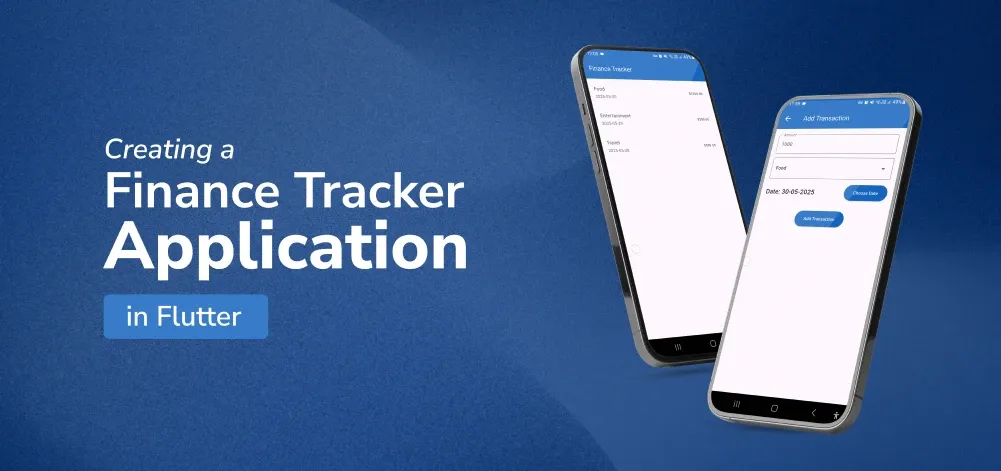
Developing a new tracker for finance is a good practice to improve your skills and build a helpful application. Through Flutter, an open-source UI toolkit developed by Google, it is possible to design for iOS/ Android, web, and desktop. Here you will find out the recipe of how to create a finance tracker application in Flutter, excluding UI components that are not essential to such an application. By the end, you should have a functional Android application with a feature for tracking expenses with a category, an amount, and a date, and the data is stored locally using SQLite.
How to Build a Finance Tracker App in Flutter
To develop a finance tracker app using Flutter, follow these steps:
Project Directory Structure
Before diving into the code, let's look at the directory structure of our project:

Steps to Create a Finance Tracker App in Flutter
Step 1: Create a new Flutter Application
Create a new Flutter application using the command Prompt. To create a new app, write the following command and run it.
flutter create app_nameTo know more about it refer this article: Creating a Simple Application in Flutter
Step 2: Adding the Dependency
To add the dependency to the pubspec.yaml file, add provider and sqflite as a dependency in the dependencies part of the pubspec.yaml file, as shown below:
dependencies:
  flutter:
    sdk: flutter
  provider: ^6.1.5
  sqflite: ^2.4.2
Now, run the below command in the terminal.
flutter pub getOr
Run the below command in the terminal.
flutter pub add provider sqfliteStep 3: Define the Data Model
Create a file lib/models/transaction.dart to define the Transaction data model:
class Transaction {
  final String? id; // Make it nullable for add/edit
  final String category;
  final double amount;
  final DateTime date;

  Transaction({
    this.id,
    required this.category,
    required this.amount,
    required this.date,
  });
}
Step 4: State Management with Provider
Create a file lib/providers/transactions.dart to manage the state using the Provider package:
import 'package:flutter/foundation.dart';
import '../models/transaction.dart';
import '../helpers/db_helper.dart';

class TransactionsProvider with ChangeNotifier {
  List<Transaction> _transactions = [];

  List<Transaction> get transactions => _transactions;

  void addTransaction(String category, double amount, DateTime date) {
    final newTransaction = Transaction(
      id: DateTime.now().toString(),
      category: category,
      amount: amount,
      date: date,
    );
    _transactions.add(newTransaction);
    notifyListeners();
    DBHelper.insert('transactions', {
      'id': newTransaction.id ?? "",
      'category': newTransaction.category,
      'amount': newTransaction.amount,
      'date': newTransaction.date.toIso8601String(),
    });
  }

  Future<void> fetchAndSetTransactions() async {
    final dataList = await DBHelper.getData('transactions');

    _transactions =
        dataList
            .map(
              (item) => Transaction(
                id: item['id'],
                category: item['category'],
                amount: item['amount'],
                date: DateTime.parse(item['date']),
              ),
            )
            .toList();
    notifyListeners();
  }

  void updateTransaction(
    String id,
    String category,
    double amount,
    DateTime date,
  ) {
    final txIndex = _transactions.indexWhere((tx) => tx.id == id);
    if (txIndex >= 0) {
      _transactions[txIndex] = Transaction(
        id: id,
        category: category,
        amount: amount,
        date: date,
      );
      notifyListeners();
      DBHelper.update('transactions', {
        'id': id,
        'category': category,
        'amount': amount,
        'date': date.toIso8601String(),
      });
    }
  }

  void deleteTransaction(String id) {
    _transactions.removeWhere((tx) => tx.id == id);
    notifyListeners();
    DBHelper.delete('transactions', id);
  }
}
Step 5: Main Application Setup
Update lib/main.dart to set up the main structure of the app:
import 'package:flutter/material.dart';
import 'package:provider/provider.dart';
import './providers/transactions.dart';
import './screens/home_screen.dart';
import './screens/add_transaction_screen.dart';

void main() {
  runApp(const MyApp());
}

class MyApp extends StatelessWidget {
  const MyApp({super.key});

  @override
  Widget build(BuildContext context) {
    return ChangeNotifierProvider(
      create: (ctx) => TransactionsProvider(),
      child: MaterialApp(
        title: 'Finance Tracker',
        debugShowCheckedModeBanner: false,
        theme: ThemeData(primarySwatch: Colors.blue),
        home: const HomeScreen(),
        routes: {
          AddTransactionScreen.routeName: (ctx) => const AddTransactionScreen(),
        },
      ),
    );
  }
}
Step 6: Home Screen
Create a file lib/screens/home_screen.dart to display the list of transactions and provide a button to add new ones:
import 'package:flutter/material.dart';
import 'package:provider/provider.dart';
import '../providers/transactions.dart';
import '../widgets/transaction_list.dart';
import 'add_transaction_screen.dart';

class HomeScreen extends StatelessWidget {
  const HomeScreen({super.key});

  @override
  Widget build(BuildContext context) {
    final transactionsProvider = Provider.of<TransactionsProvider>(context);

    return Scaffold(
      appBar: AppBar(
        backgroundColor: Colors.blue.shade800,
        foregroundColor: Colors.white,
        title: const Text('Finance Tracker'),
      ),
      body: FutureBuilder(
        future: transactionsProvider.fetchAndSetTransactions(),
        builder:
            (ctx, snapshot) =>
                transactionsProvider.transactions.isEmpty
                    ? const Center(
                      child: Text(
                        "No transactions!",
                        style: TextStyle(
                          fontSize: 21,
                          fontWeight: FontWeight.w500,
                        ),
                      ),
                    )
                    : TransactionList(transactionsProvider.transactions),
      ),
      floatingActionButton: FloatingActionButton(
        backgroundColor: Colors.blue.shade800,
        foregroundColor: Colors.white,
        child: const Icon(Icons.add),
        onPressed: () {
          Navigator.of(context).pushNamed(AddTransactionScreen.routeName);
        },
      ),
    );
  }
}
Step 7: Transaction List Widget
Create a file lib/widgets/transaction_list.dart to display the list of transactions:
import 'package:flutter/material.dart';
import 'package:flutter_geeks/models/transaction.dart';
import 'package:provider/provider.dart';
import '../providers/transactions.dart';
import '../screens/add_transaction_screen.dart';

class TransactionList extends StatelessWidget {
  final List<Transaction> transactions;
  const TransactionList(this.transactions, {super.key});

  @override
  Widget build(BuildContext context) {
    return ListView.builder(
      itemCount: transactions.length,
      itemBuilder: (ctx, index) {
        final tx = transactions[index];
        return Dismissible(
          key: ValueKey(tx.id),
          direction: DismissDirection.endToStart,
          background: Container(
            color: Colors.red.shade700,
            alignment: Alignment.centerRight,
            padding: const EdgeInsets.only(right: 20),
            child: const Icon(Icons.delete, color: Colors.white),
          ),
          onDismissed: (_) {
            Provider.of<TransactionsProvider>(
              context,
              listen: false,
            ).deleteTransaction(tx.id!);
          },
          child: ListTile(
            title: Text(tx.category),
            subtitle: Text(tx.date.toLocal().toString().split(' ')[0]),
            trailing: Text('\$${tx.amount.toStringAsFixed(2)}'),
            onTap: () {
              Navigator.of(
                context,
              ).pushNamed(AddTransactionScreen.routeName, arguments: tx);
            },
          ),
        );
      },
    );
  }
}
Step 8: Add Transaction Screen
Create a file lib/screens/add_transaction_screen.dart to add new transactions:
import 'package:flutter/material.dart';
import 'package:flutter_geeks/models/transaction.dart';
import 'package:provider/provider.dart';
import '../providers/transactions.dart';

class AddTransactionScreen extends StatefulWidget {
  static const routeName = '/add-transaction';

  const AddTransactionScreen({super.key});

  @override
  _AddTransactionScreenState createState() => _AddTransactionScreenState();
}

class _AddTransactionScreenState extends State<AddTransactionScreen> {
  final _formKey = GlobalKey<FormState>();
  String _category = 'Food';
  double _amount = 0;
  DateTime _selectedDate = DateTime.now();
  String? _editId;

  @override
  void didChangeDependencies() {
    super.didChangeDependencies();
    final tx = ModalRoute.of(context)!.settings.arguments as Transaction?;
    if (tx != null) {
      setState(() {
        _editId = tx.id;
        _category = tx.category;
        _amount = tx.amount;
        _selectedDate = tx.date;
      });
    }
  }

  void _submitForm() {
    if (_formKey.currentState!.validate()) {
      _formKey.currentState!.save();
      if (_editId != null) {
        Provider.of<TransactionsProvider>(
          context,
          listen: false,
        ).updateTransaction(_editId!, _category, _amount, _selectedDate);
      } else {
        Provider.of<TransactionsProvider>(
          context,
          listen: false,
        ).addTransaction(_category, _amount, _selectedDate);
      }
      Navigator.of(context).pop();
    }
  }

  void _presentDatePicker() {
    showDatePicker(
      context: context,
      initialDate: _selectedDate,
      firstDate: DateTime(2020),
      lastDate: DateTime.now(),
    ).then((pickedDate) {
      if (pickedDate == null) {
        return;
      }
      setState(() {
        _selectedDate = pickedDate;
        print(_selectedDate);
      });
    });
  }

  @override
  Widget build(BuildContext context) {
    return Scaffold(
      appBar: AppBar(
        backgroundColor: Colors.blue.shade800,
        foregroundColor: Colors.white,
        title: const Text('Add Transaction'),
      ),
      body: Padding(
        padding: const EdgeInsets.all(16.0),
        child: Form(
          key: _formKey,
          child: Column(
            children: <Widget>[
              TextFormField(
                decoration: const InputDecoration(
                  border: OutlineInputBorder(),

                  labelText: 'Amount',
                ),
                keyboardType: TextInputType.number,
                validator: (value) {
                  if (value!.isEmpty) {
                    return 'Please enter an amount';
                  }
                  return null;
                },
                onSaved: (value) {
                  _amount = double.parse(value!);
                },
                initialValue: _amount.toString(),
              ),
              SizedBox(height: 10),
              DropdownButtonFormField(
                decoration: InputDecoration(border: OutlineInputBorder()),
                value: _category,
                items:
                    ['Food', 'Travel', 'Entertainment']
                        .map(
                          (label) => DropdownMenuItem(
                            value: label,
                            child: Text(label),
                          ),
                        )
                        .toList(),
                onChanged: (value) {
                  setState(() {
                    _category = value as String;
                  });
                },
                onSaved: (value) {
                  _category = value as String;
                },
              ),
              SizedBox(height: 10),

              Row(
                mainAxisAlignment: MainAxisAlignment.spaceBetween,
                children: <Widget>[
                  Text(
                    'Date: ${_selectedDate.day.toString().padLeft(2, '0')}-'
                    '${_selectedDate.month.toString().padLeft(2, '0')}-'
                    '${_selectedDate.year}',
                    style: TextStyle(
                      fontSize: 21,
                      fontWeight: FontWeight.w500,
                      color: Colors.black,
                    ),
                  ),
                  ElevatedButton(
                    style: ElevatedButton.styleFrom(
                      backgroundColor: Colors.blue.shade800,
                      foregroundColor: Colors.white,
                    ),
                    onPressed: _presentDatePicker,
                    child: const Text('Choose Date'),
                  ),
                ],
              ),
              const SizedBox(height: 20),
              ElevatedButton(
                style: ElevatedButton.styleFrom(
                  backgroundColor: Colors.blue.shade800,
                  foregroundColor: Colors.white,
                ),
                onPressed: _submitForm,
                child: const Text('Add Transaction'),
              ),
            ],
          ),
        ),
      ),
    );
  }
}
Step 9: Local Storage Setup
Create a file lib/helpers/db_helper.dart to set up SQLite for local storage:
import 'package:sqflite/sqflite.dart';
import 'package:path/path.dart';

class DBHelper {
  static Future<Database> database() async {
    final dbPath = await getDatabasesPath();
    return openDatabase(
      join(dbPath, 'transactions.db'),
      onCreate: (db, version) {
        return db.execute(
          'CREATE TABLE transactions(id TEXT PRIMARY KEY, category TEXT, amount REAL, date TEXT)',
        );
      },
      version: 1,
    );
  }

  static Future<void> insert(String table, Map<String, Object> data) async {
    final db = await DBHelper.database();
    db.insert(table, data, conflictAlgorithm: ConflictAlgorithm.replace);
  }

  static Future<List<Map<String, dynamic>>> getData(String table) async {
    final db = await DBHelper.database();
    return db.query(table);
  }

  static Future<void> update(String table, Map<String, Object> data) async {
    final db = await DBHelper.database();
    await db.update(table, data, where: 'id = ?', whereArgs: [data['id']]);
  }

  static Future<void> delete(String table, String id) async {
    final db = await DBHelper.database();
    await db.delete(table, where: 'id = ?', whereArgs: [id]);
  }
}
Output:
Congratulations! You have created a simple but operational Finance Tracker Application in Flutter. This app enables users to enter transactions with categories, amounts, and dates, and downloads and stores the data with the use of a SQLite database. You can improve it by adding a feature to edit the transaction, filtering the data by date, and adding more useful tools to illustrate the data.
Git Application for the Finance Application : Finance Flutter Application
Of course, do whatever you need to do to develop and grow the app and its capabilities. Happy coding!