
Git merge combines changes from different branches into one for smooth integration. If Git can’t merge changes automatically, a merge conflict occurs and must be resolved manually.
- Combines changes from one branch into another.
- Helps in collaborative development and feature integration.
- May create conflicts if the same code is modified differently.
Example Scenario
You are working on a dev branch where you create a file k.txt and commit it. When you check the logs, you’ll see a commit showing that k.txt was added in the dev branch.
- Now, your master branch does not have this file yet.
- To bring this change into master, you need to merge the dev branch into it.
- After merging, the master branch will also contain k.txt and the commit history will reflect this change.
This can be broken into steps:
1. Merging Changes
In the above example, merging is used to bring k.txt from the dev branch into the master branch.
- Transfers changes (like k.txt) from dev to master.
- Makes both branches consistent.
- Updates commit history.
git checkout master
git merge dev

Now k.txt appears in the master branch.
Note:master and main are default branch names in Git. Older versions use master while newer versions use main, but both serve the same purpose as the primary branch.
2. Merge with a Commit
In the same scenario, if Git performs a fast-forward merge, it will only move the branch pointer without creating a new commit.
But if you want a separate commit to clearly show that dev was merged, you can use --no-ff.
- Creates a dedicated merge commit.
- Helps in tracking when branches were merged.
- Avoids only shifting the branch pointer.
git merge dev --no-ff -m "Merged dev into master"
Now a new merge commit is added to the history.
3. Merge Conflict
Now imagine another situation in the same example:
- In master, you write: Master conflict change
- In dev, you write: Dev conflict change
When you try to merge, Git cannot decide which version to keep which creates a conflict.
- Occurs when same file/line is changed differently
- Git asks for manual resolution
- Must be fixed before completing merge
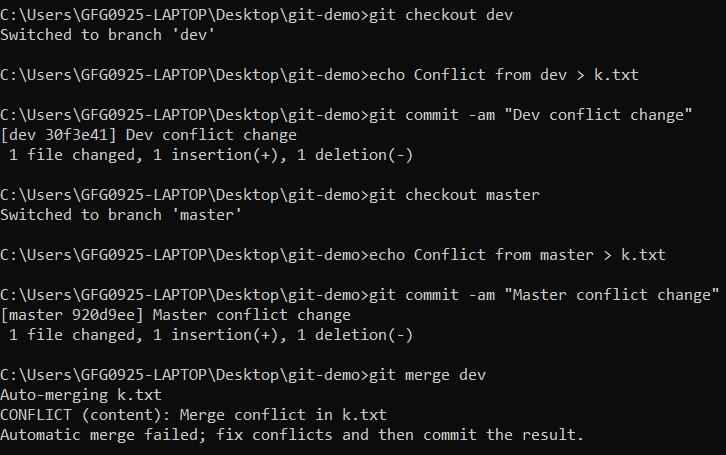
Example Conflict:

Resolution: Edit k.txt with the desired content, then run:
git add k.txt
git commit -m "Resolved Conflict"

After resolving, the merge completes successfully.
4. Aborting a Merge
If during this process you feel the merge is incorrect or too complex, you can cancel it.
- Stops the merge process.
- Restores previous branch state.
- Useful when conflicts are confusing.
git merge --abort
This brings your project back to the state before the merge started.