Git allows you to track changes, collaborate with others, and manage codebase efficiently. One of the fundamental tasks when working with Git is saving files, a process that involves several steps, including adding files to the staging area and committing them to the repository. In this article, we will explore how to save a file in Git.
Steps to Saving a File in Git
1. Initialize a Git Repository
If you haven't already initialized a Git repository, you can do so by navigating to your project directory and running the following command:
git init
This command creates a new Git repository in your project directory.
2. Create or Modify a File
Next, create a new file or modify an existing one in your working directory. For example, you can create a new file named example.txt:
echo "This is an example file." > example.txt
3. Check the Status
To see the current status of your working directory and the changes you've made, use the git status command:
git status
This command will show you the files that have been modified or newly created and not yet staged for commit.
4. Add the File to the Staging Area
To save the changes you made to a file, you need to add it to the staging area. Use the git add command followed by the file name:
git add example.txt
You can also add multiple files at once or use a wildcard to add all changes:
git add .
5. Commit the Changes
Once the file is staged, you need to commit it to the repository to save your changes permanently. Use the git commit command with a descriptive commit message:
git commit -m "Add example.txt file"
The commit message should clearly describe the changes you made to help you and others understand the history of the project.
6. Push the Changes (Optional)
If you are working with a remote repository (e.g., on GitHub or GitLab), you need to push your commits to the remote repository using the git push command:
git push origin main
Example
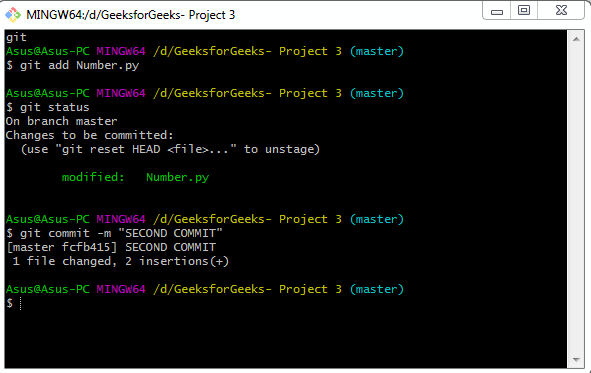
Below are the snapshots of how above commands works
*Creating a python file
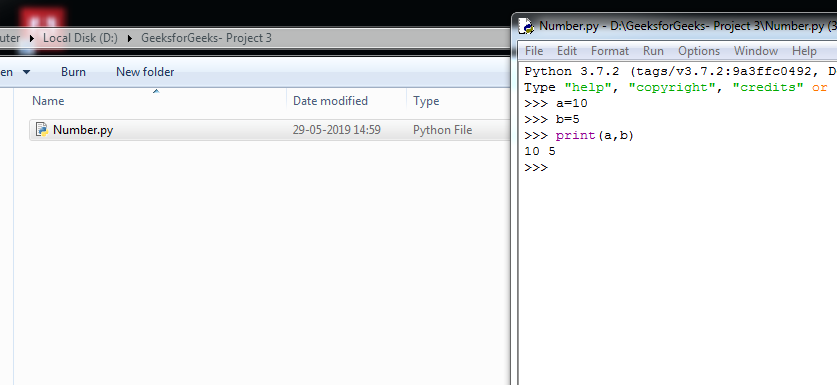
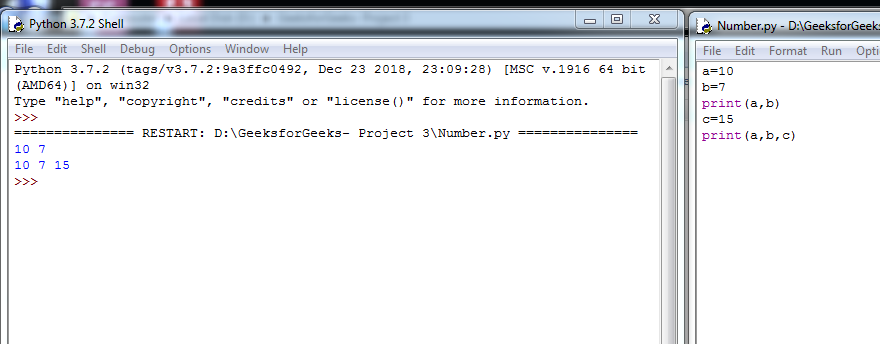
*Using git add, git status, git commit commands in our first commit
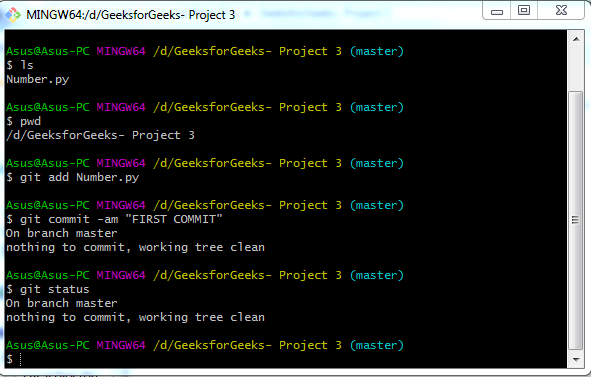
*Changing or updating the Number.py file in IDLE and saving it
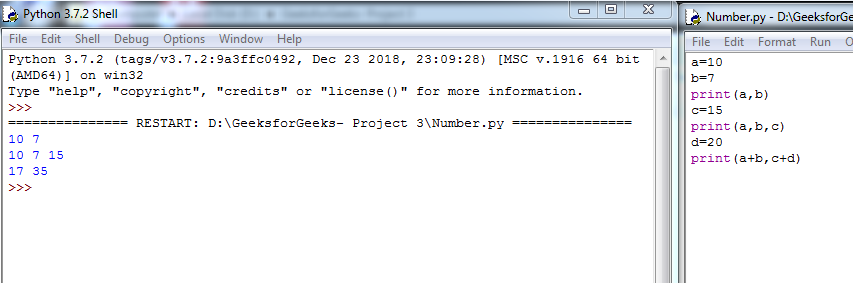
*Again using git add, git status, git commit commands in our Second commit
What is the purpose of running git init before saving files in Git?
-
It saves all files automatically
-
It creates a new Git repository in the project directory
-
It pushes files to a remote repository
-
It stages all files for commit
Explanation:
git init initializes a new Git repository by creating a .git folder in the project directory. This folder stores all Git metadata (history, configurations, objects), enabling Git to start tracking changes. Without initializing the repository, Git commands like git add or git commit cannot function.
After modifying or creating a file, which command helps you see which changes have not yet been staged?
Explanation:
git status displays the current condition of your working directory and staging area. It shows:
- Untracked files
- Modified files
- Staged files
This helps developers understand what needs to be added or committed next.
What does the git add example.txt command do?
-
Commits the file to the repository
-
Deletes the file from tracking
-
Moves the file from working directory to staging area
-
Pushes the file to GitHub
Explanation:
git add example.txt places the file in the staging area, preparing it for the next commit. Git will include this file in the repository history only after a commit is performed.
What is required after staging a file before Git permanently saves it to the repository?
-
-
-
Running git commit with a message
-
Explanation:
Staging alone does not save changes permanently. You must run git commit -m "message" to record the changes into the repository’s history. The commit snapshot becomes part of the project’s timeline and can be viewed later with git log.
When working with a remote repository on GitHub or GitLab, which command uploads your local commits to the remote server?
Explanation:
git push origin main sends your local commits to the remote repository’s main branch, making your latest changes available to collaborators or backups. Pushing is optional unless you are working with a remote project.
Quiz Completed Successfully
Your Score : 2/5
Accuracy : 0%
Login to View Explanation
1/5
1/5
< Previous
Next >
Explore
Git Introduction
Git Installation and Setup
All Git Commands
Most Used Git Commands
Git Branch
Git Merge
Git Tools and Integration
Git Remote Repositories
Collaborating with Git
Advanced Git Commands