

Accurate spelling and grammar are important for professional documents, and Google Docs provides built-in tools to catch errors. It offers automatic suggestions while typing and step by step checks to easily correct mistakes.
Steps to Automatically Spell Check in Google Docs
Step 1: Open Google Document
Open a new Google Doc or any existing one from your Google Drive. Type the content of your document.
Step 2: Go to the Tools Tab, choose Spelling and Grammar, and pick grammar suggestions.
Navigate to the top menu, click on “Tools”, then choose “Spelling and Grammar” from the drop-down menu. Next, select "Show spelling suggestions" and/or "Show grammar suggestions".
.webp)
Step 3: View the suggestion and accept/reject it.
Return to the document and right-click one of the red/blue underlined words to see the Google Docs suggestion. Click on the suggested spelling it to accept it.
.webp)
If you do not wish to accept the suggestion and want to keep your spelling as it is; then click on the "cross" to ignore(reject) the suggestion.
.webp)
Steps to Spell Check Via Dialog Box
After you have written your desired content, if you want to go through every suggestion without having to scan your eyes over the text to look for the red/blue markings, you can use the Dialog box for spell-checking.
Step 1: Place the cursor wherever you want to start the spell check
Place the cursor before the word, wherever you want to start the spell check. If you want to do the spell check for the entire document, place the cursor at the top, before the 1st word of the document.
Step 2: Turn on Spelling and grammar check
Navigate to the top menu, click on “Tools”, then choose “Spelling and Grammar” from the drop-down menu. Next, select "Spelling and grammar check".
.webp)
A dialog box will open in the top right corner, showing the suggested spelling/grammar corrections.
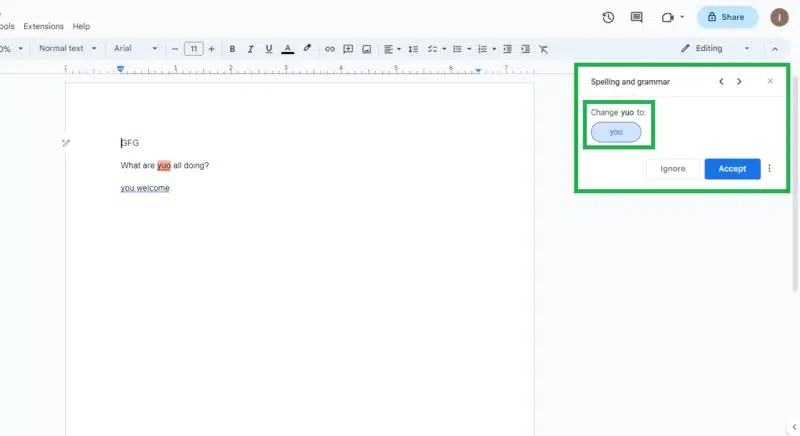
Step 3: Ignore/Accept the Suggestion
Click "Accept" if you want to accept the suggestion and apply it to your doc, else click "ignore".
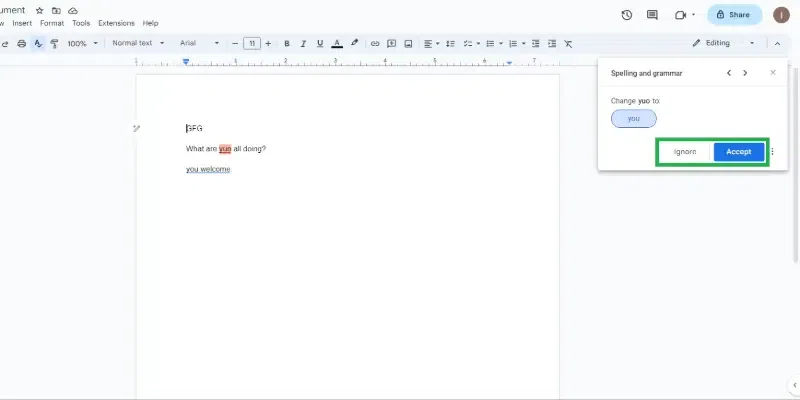
Step 4: Move to the next suggestion
Move to the next suggestions using arrow buttons in the Dialog box to ignore/accept further suggestions.
.webp)