

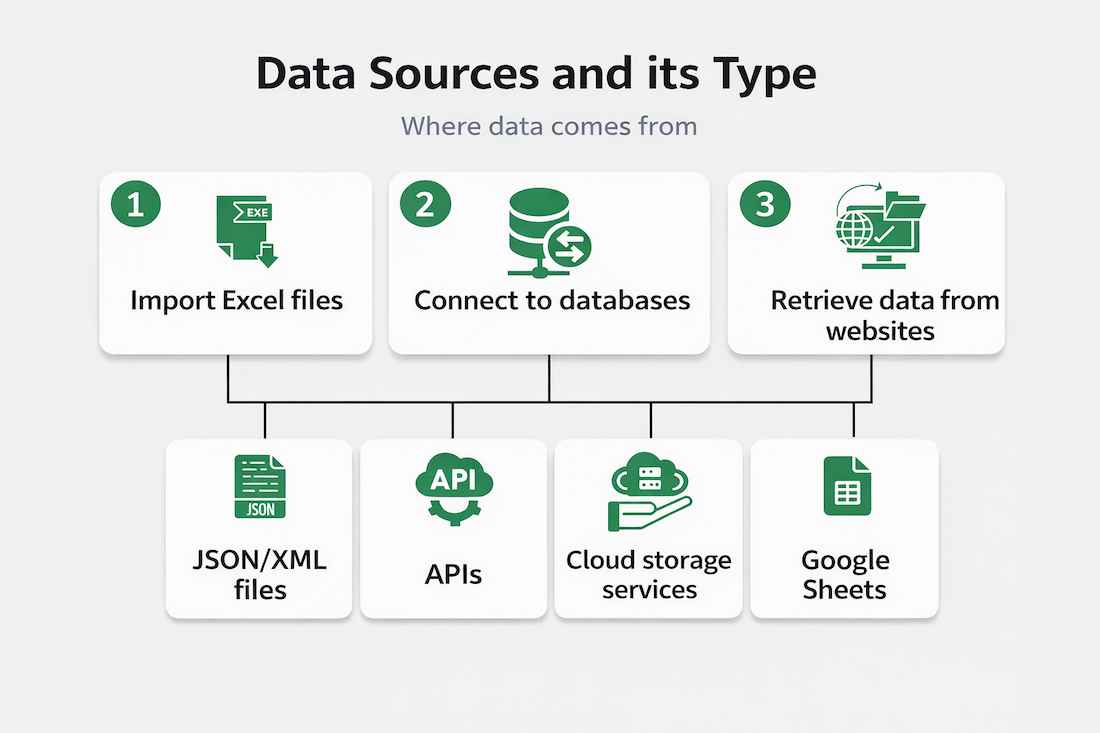
A data source in Power BI is the original location where data is stored, such as a file, database or online service. Power BI connects to these sources to import data, which is then used to create reports, dashboards and visualizations for analysis and decision-making.
Steps to Find Data Sources
If you want to find and manage your data sources in Power BI Desktop here’s how you do it:
- Go to the Home tab at the top of the Power BI window.
- Click on the Get Data button. This will show you a list of the most common types of data sources.
- If you want to see the full list of available data sources, click on More. This opens a window where you can browse all the types of data you can connect to.

Clicking ‘More’ opens a new window displaying all available data sources with a search option at the top.

Types of Data Sources
As mentioned above Power BI Desktop categorize data sources into several types below you can explore examples of what data sources there are in Power BI:
File Data Sources
- File data sources in Power BI include common file types used to import data, such as Excel, Text/CSV, XML and JSON files. You can also connect to folders (multiple files), PDF documents and SharePoint folders.
- These are widely used when working with data stored locally or on shared drives. They are one of the most common ways to import data into Power BI.

Database Data Sources
- A list of available database connections is displayed when the user selects the Database option. Choose a database type from the list as shown in the screenshot below to connect to any database.
- Click Connect after selecting the database type. To connect the user must enter the server name, user name and password.
- Using the advanced settings you can also connect by using a straight SQL query. Additional connectivity options include Import and DirectQuery.

Azure Data Sources
- The Azure category in Power BI includes data sources that come from Microsoft’s cloud platform. You can connect to services like Azure SQL Database, Azure Synapse Analytics, Azure Analysis Services and Azure Database for PostgreSQL.
- These options are helpful when your data is stored in the cloud allow you to access and analyze it directly from Power BI without need to download anything locally.

Online Services
- The Online Services category in Power BI allows you to connect to web-based tools and applications used in businesses. You can import data from services like SharePoint Online, Exchange Online and Dynamics 365.
- It also supports platforms like Google Analytics, Adobe Analytics, LinkedIn Sales Navigator and Twilio. This makes it easy to bring data directly from online tools and create reports and dashboards without manual data transfer.

Other Data Sources
- The Other category in Power BI includes a mix of different data sources that don’t fit into the main groups. Some examples are Web, SharePoint list, Active Directory, Microsoft Exchange and Python script.
- You can even start from scratch using a Blank Query. This category is helpful when your data comes from less common or more advanced sources.

Power BI Desktop supports a wide variety of data sources and Microsoft continuously expands this list. Currently, it supports hundreds of data connections.