
Data types are the fundamental building blocks of any dataset. They define the kind of information stored in each column making data easier to organize, process and analyze. Power BI supports a wide range of data types each designed for a specific purpose.
Common Data Types in Power BI
To access the Data Type options:
- First, open Power BI Desktop
- Click on Transform Data to launch Power Query Editor
- Next, select the required column in your table
- Once the column is selected, click on the data type icon displayed in the column header
This opens the data type dropdown menu where you can choose the appropriate data type.

1. Decimal Number
- Stores numeric values with decimal points for precise calculations.
- Used for financial data, measurements and values such as prices or taxes.

2. Fixed Decimal Number
- Stores numbers with fixed precision and consistent decimal places.
- Commonly used for currency and values where rounding must be controlled.

3. Whole Number
- Stores integer values without decimals.
- Used for counting, indexing and identifiers.

4. Percentage
- Represents numeric values as percentages.
- Used to display ratios, growth rates and proportions.

5. Date/Time
- Stores both date and time together in a single value.
- Used for transaction logs, event tracking and timestamps.
6. Date
- Stores only the date without any time component.
- Used for daily, monthly or yearly analysis.
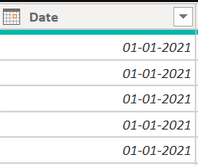
7. Time
- Stores time of day without date information.
- Used for analyzing time-based patterns within a day.
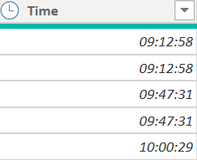
8. Date/Time/Timezone
- Stores date and time along with timezone details.
- Used for global reporting where consistent time representation is required.
9. Duration
- Stores the length of time between two events.
- Used to measure task durations or processing times.

10. Text
- Stores alphanumeric values and special characters as text.
- Used for descriptive or categorical information.
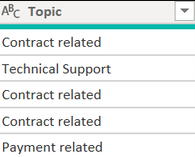
11. True/False (Boolean)
- Stores logical values with True or False values.
- Used in filtering, conditions and logical expressions.
12. Binary
- Stores non-text data such as images or documents.
- Used for managing files and document-based data.
How to Detect Data Types in Power BI
When data is loaded into Power BI data types are automatically detected. You can view them in Power Query Editor by selecting Home and then Transform Data, where each column header shows an icon indicating its data type.
-660.png)
- The icons shown in the column headers indicate that Power BI has automatically assigned Date and Time data types.
- To change a data type click the icon next to the column name and select the required option such as Decimal Number, Whole Number, Date/Time or Text.
- You can also modify data types from the Modeling tab in Report view by selecting a field and choosing the desired option from the Data type dropdown.
How to Change Data Types in Power BI
When you bring data into Power BI it usually tries to figure out the best data type for each column. However it doesn't always get it right especially if your data is inconsistent. If Power BI misinterprets the data type you can change it manually. There are two main ways to do this: using the Power Query Editor or using DAX formulas.
1. Changing Data Types Using Power Query Editor
To change the data type of a column using the Power Query Editor.
- Open Power BI report and go to the "Home" tab. Click on "Edit Queries" to open Query Editor.
- In Query Editor select the column you want to change. Then go to the "Transform" tab and choose a new data type from the "Data Type" dropdown menu.
- Make sure your data fits the new data type. If there are any issues the editor will prompt you to fix them.
- After making your changes click "Close and Apply" to save everything and load the updated data back into Power BI.
- Finally check the new data type in the Data View to make sure it matches your reporting and visualization needs.

2. Converting Data Types Using DAX
In Power BI you can use DAX formulas to convert or cast data from one data type to another. DAX provides several functions to help you achieve this. Here are some commonly used functions for data type conversion and casting in Power BI DAX:
Function | Purpose |
|---|---|
VALUE() | change text into a number |
FORMAT() | Change a value into text with a specific format like currency or date |
DATEVALUE() | Turns a text date like "01/01/2025" into a real data |
TIMEVALUE() | turns a text time like "12:30 PM" into a real time |
INT() | Rounds a number down to the nearest whole number |
IF() | Checks a condition and gives one result if it's true and another if it's false |
These DAX functions allow you to manipulate data types and perform explicit conversions or casting when needed for your calculations, measures and visualizations in Power BI. By knowing how these data types work you use them and convert raw data into useful insights for better decisions.