

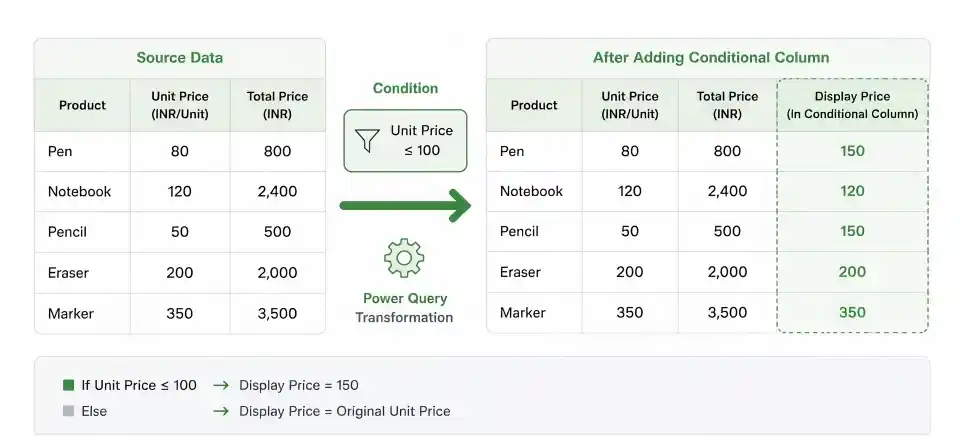
Conditional columns in Power BI allow you to create a new column based on one or more conditions.
Step 1: Open Power Query Editor
To create conditional column, you first need to open the Power Query Editor. Steps include:
- Open Power BI Desktop.
- Go to the Home tab.
- Click on Transform Data.
- A new window called Power Query Editor will open.
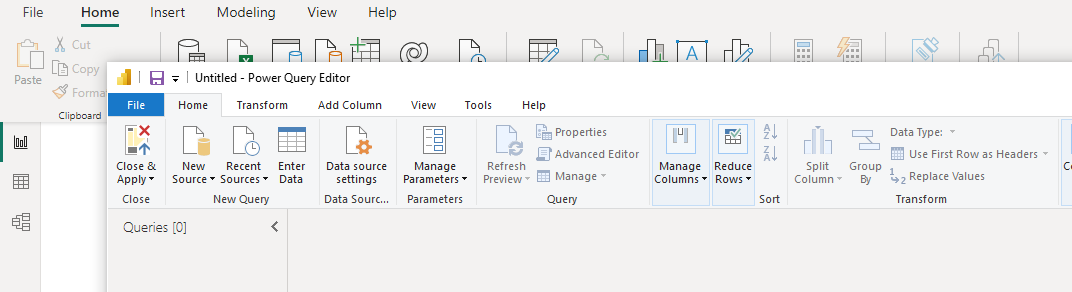
In this example we are using a dataset which you can download from here, from a Library Supplies company which looks like this:

Step 2: Adding a Conditional Column
Now that you are inside the Power Query Editor let's add a Conditional Column. Follow the below steps:
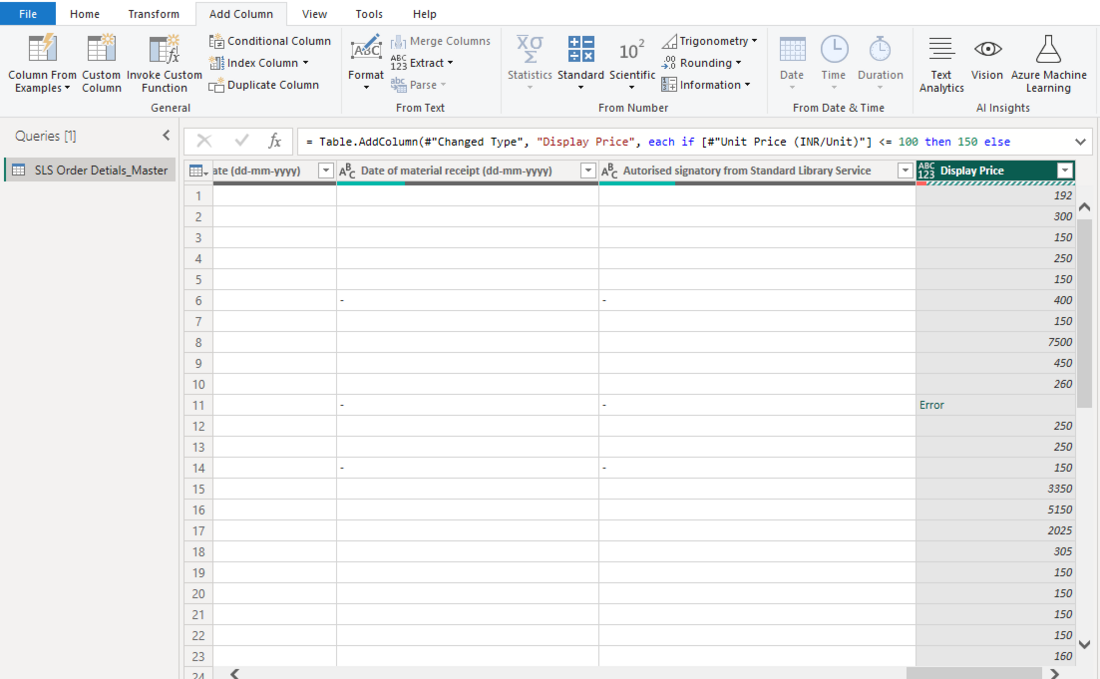
- Go to the Add Column tab.
- Click on Conditional Column

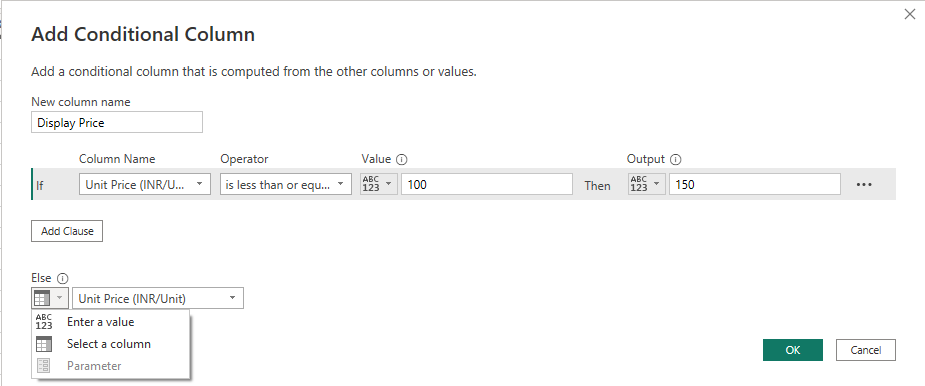
A dialog box will appear where you can set your conditions.
- Column: Select the column on which the condition is applied.
- Operator: Choose the comparison, such as equals, less than or greater than.
- Value: Enter the value to compare against.
- Output: Specify the value to return when the condition is met.
- Else: Specify the value to return when the condition is not met.
Note: Make sure the column used in the condition has the appropriate data type, such as Number, Text or Date, because the available comparison operators depend on the column's data type.
Here we are targeting the "Unit Price (INR/Unit)" column from the Data Table to create a conditional column "Display Price". The new Display Price column contains:
- 150 when Unit Price ≤ 100
- the original Unit Price when the condition is false.
Adding a Column Using Multiple Conditions
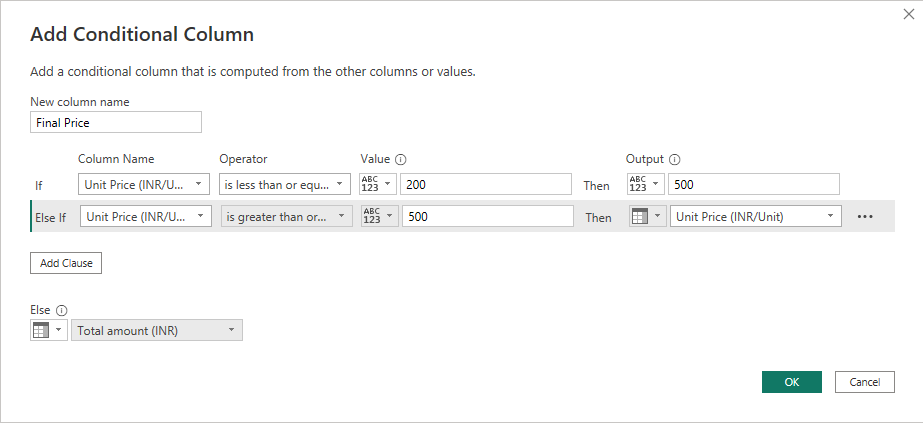
Now let's add another conditional column named "Final Price" that will contain the "Unit Price (INR/Unit)" column value:
If Unit Price <= 200 to 500
Else if Unit Price >= 500 to Unit Price
Else Total Price (INR)
However the figure from the "Total Price (INR)" column will be the Output if neither condition is met.
.png)
Conditional columns in Power BI make it easy to transform and categorize data based on specific conditions. By using one or multiple conditions, you can create new columns with values that suit your data analysis and reporting needs.