
A Power BI dashboard is a single-page view that uses visualizations to present key insights. Since it is limited to one page, it focuses only on the most important information. Dashboards are created in the Power BI Service, while reports are built in Power BI Desktop.

The visuals on a dashboard are called tiles, which are pinned from reports based on datasets. A dashboard provides an overview of the data and selecting a tile allows users to navigate to the underlying report or dataset.
Basic Steps Required
- Extract data
- Transform data using Power Query and manage relationships in the data model
- Use DAX for calculations
- Create visualizations
- Customize charts, graphs and dashboards
- Publish to Power BI Service for sharing
Loading data
Data can be loaded using the "Get Data" option:
- Files: Excel, CSV, etc.
- Databases: MySQL, Oracle, SQL Server
- DirectQuery: Access data without importing
- Online Services: Google Analytics, Salesforce, SharePoint
- Live Connection: Real-time connection to data sources

After the data gets loaded into the application, you can begin transforming and modeling your data. You can select add new column option with custom options and make your own calculated field column.
Step 1: For this step Select "Data" from the three options on the left margin.

Step 2: Select "New Measure" from the "Calculation" section in the "Table Tools" tab.

Step 3: Now you can get your desired functions with the table field's name and thus you'll be able to create a new column.


Step 4: In this step, you create the required calculated columns or measures. Use New Column when you want the result to be stored in the table and available during data refresh. Use measures for dynamic calculations based on the filter context, as they are computed at query time.
Power Query Editor is used earlier in the process to clean and transform data, helping prepare it for visualization and building an effective data model.
Note: Reports in Power BI use only a single dataset whereas dashboards use many datasets.
Power Query
Power Query is used to transform data by performing tasks such as filtering, grouping and pivoting. It helps to create calculated columns and measures by using the formula bar and functions. After the cleaning and transformation of your data, you can move on to your visualizations. Following are the steps to use Power Query.
Step 1: Select "Home" from the top menu.

Step 2: From the queries section select “Transform data”.[(A new window will open with Power Query Editor),(If no data connection is made yet then it'd show a blank page)].
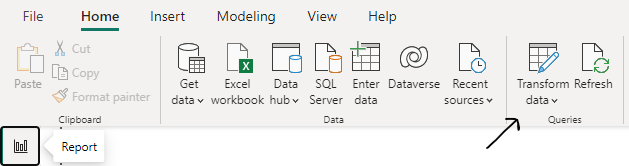
Step 3: On this page you'll get to add, change, view, transform and correct your data.
- The "Home" tab provides data source options.

- The "Transform" tab includes addition, deletion, splitting and changing data types functions.

- The "Add Column" tab provides the column addition and formatting of the same.

- The "View" tab provides how the page is displayed to you.

Step 4: With a right-click on your column you can make different changes.
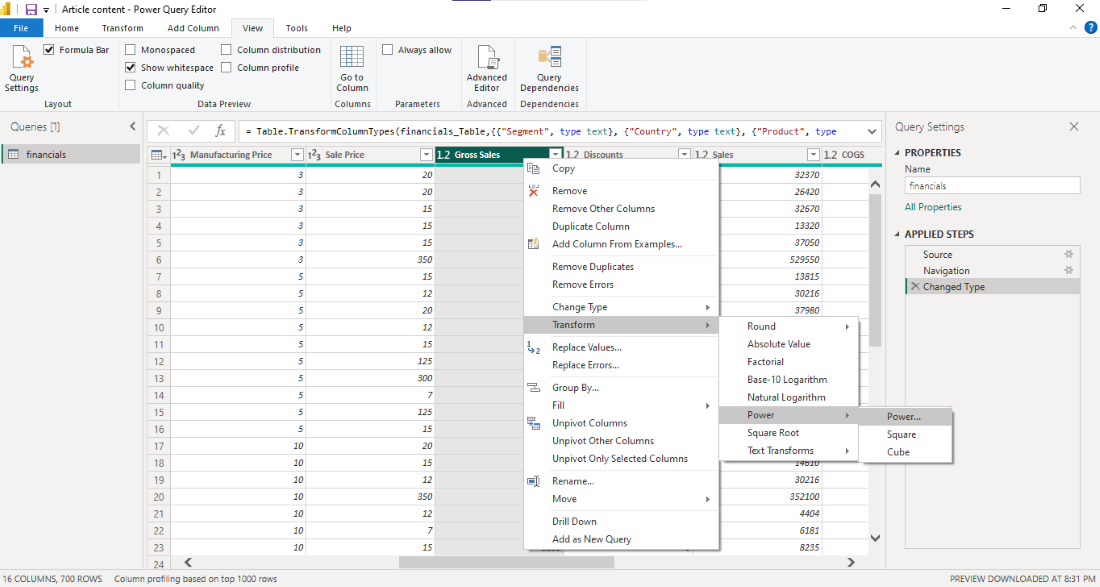
Step 5: After making the necessary transformations, click on "Close & Apply" by clicking on the "File" tab to save the changes and return to the Power BI Desktop.

Your data is now ready to be used in visualizations and reports.
Note: If you want to make more complex changes to your visualizations, you can use the "DAX" formulas to create calculated columns and measures.
Visualization in Power BI
Format and Fields sidebar is the section to make your dashboard and report visually attractive.
- To edit the layout of a report, use the "Layout" option under the "View" tab. (It provides various theme options to match up with your report.)

- To edit the visualization after it's been added to the report, click on the visualization and use the "Format" option to customize the visualization.

If you want to make more complex changes to your visualizations, you can use the "DAX" formulas to create calculated columns and measures.
Dashboards in Power BI
A Power BI dashboard is a collection of visualizations (tiles) pinned from reports that provide an overview of key metrics. It is a single-page view that allows users to monitor and analyze data in a visually interactive way. While users can interact with the visuals, editing and detailed analysis are typically performed in reports.
Note: Dashboards are only provided in the Power BI Service and not in Power BI Desktop or Mobile.

Types of Reports in Power BI
Reports can be shared within an organization and embedded in websites, portals or applications. Users can interact with visualizations in a report to explore insights and gain a deeper understanding of the data.
A report can contain a single or multiple visuals and can span one or more pages, depending on the requirements.
- To create a new report, you can select the "New Report" button in the Home tab of the Power BI Desktop.
- Once you have created a report, you can add different visualizations such as charts, tables and maps by dragging fields from your data source onto the report canvas.
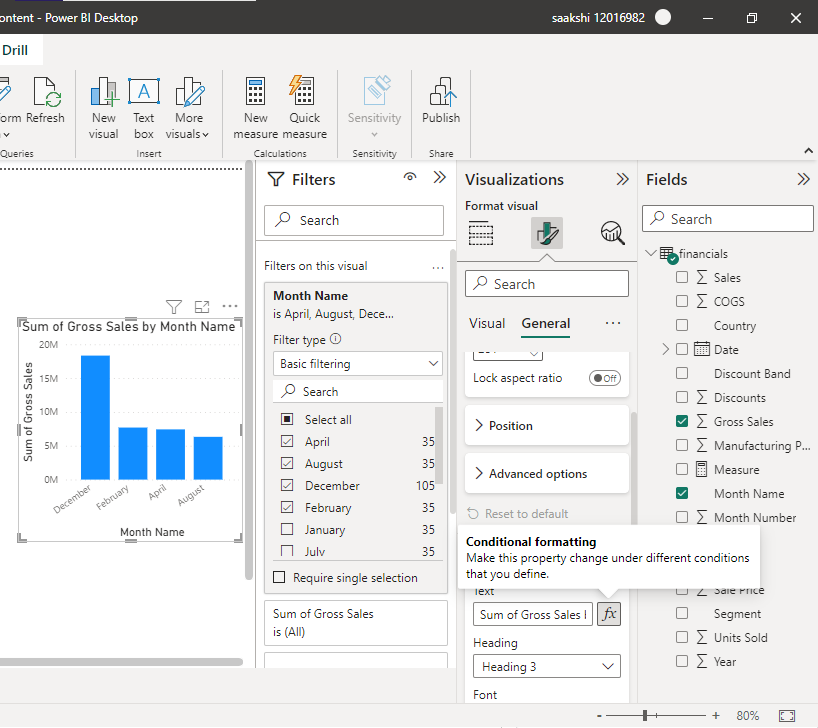
- You can also edit the appearance of these visualizations by adjusting their formatting options. (figure above)
- To edit an existing report, you can simply open it and make the necessary changes.
- You can also make a copy of an existing report, by right-clicking on the report in the Power BI Service and selecting 'Duplicate Report'
These are the reports that you should be acquainted with:
- Canvas Report: The standard report where users create visualizations using drag-and-drop on a canvas.
- Paginated Report: A pixel-perfect report with a fixed layout, suitable for printing and detailed tables.
- Drillthrough Report: Allows users to navigate to another report page with detailed, filtered data.
- Mobile Report: Reports optimized for viewing on mobile devices.
These are some of the most commonplace types of reports that are created in Power BI, however, there are different styles of words that can be created as well.
