
Microsoft Power BI (part of Microsoft Office 365) is a business intelligence tool that helps users turn raw data into meaningful insights. It allows you to connect multiple data sources, create interactive dashboards and visualize information using charts and graphs.
Power BI acts as a bridge between data and decision-making, enabling teams across departments to understand insights clearly and stay aligned.
Applications of Power BI
1. Easy Data Visualization
- Combines data from multiple sources into one dashboard
- Uses charts, graphs and visuals for better understanding
- Helps track KPIs like sales, costs and expenses in one place
2. Real-Time Performance Monitoring
- Tracks live data and ongoing business activities
- Monitors project status, deadlines and employee performance
- Keeps teams updated with real-time insights
3. Sales Analysis
- Identifies top-selling products and categories
- Analyzes customer behavior and buying patterns
- Highlights high-revenue regions and trends
4. Marketing Optimization
- Evaluates campaign performance and effectiveness
- Tracks pricing, engagement and conversion metrics
- Helps design data-driven marketing strategies
5. Consistent Reporting
- Generates standardized and automated reports
- Reduces manual effort and reporting errors
- Makes insights easier to interpret for managers
6. Cost Control
- Tracks expenses across campaigns and operations
- Identifies cost-heavy areas and optimization opportunities
- Supports better budgeting and financial planning
7. Product Development
- Analyzes product performance and profitability
- Identifies which products to improve or discontinue
- Supports data-driven product decisions
Practical Applications of Power BI
Power BI is a Microsoft tool that allows you to use datasets from multiple sources and create reports and charts to address specific business needs. Using Power BI is about providing practical solutions for real-world problems, making it the perfect tool for organizations seeking quick and easy insights with minimal effort. Let's see by creating a simple Line chart in Power BI of the Financial sales analysis dataset. Let's see the different practical applications of Power BI:
Financial Sales Analysis in Power BI
On launching the Power BI Desktop App, we get an option to Try the sample dataset; by clicking on that option, we can import the sample Financial dataset and start using it to create our Power BI Report.

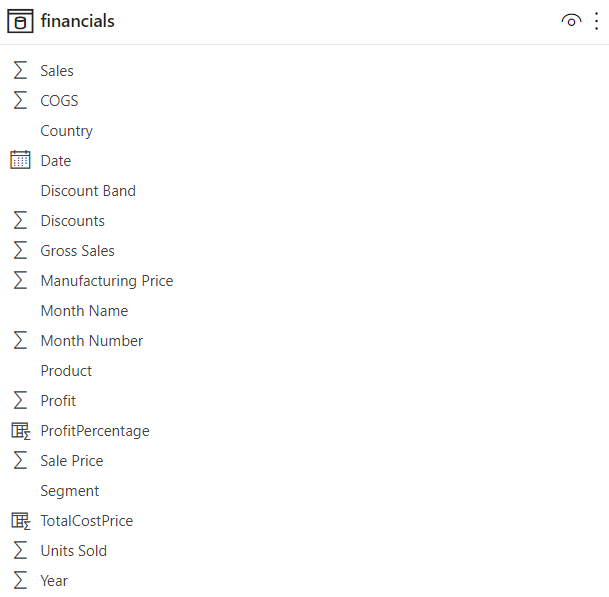
The dataset gives insights into the Sales and Profits of certain products belonging to different segments in multiple countries over 2013-14. It comprises the following columns by default:
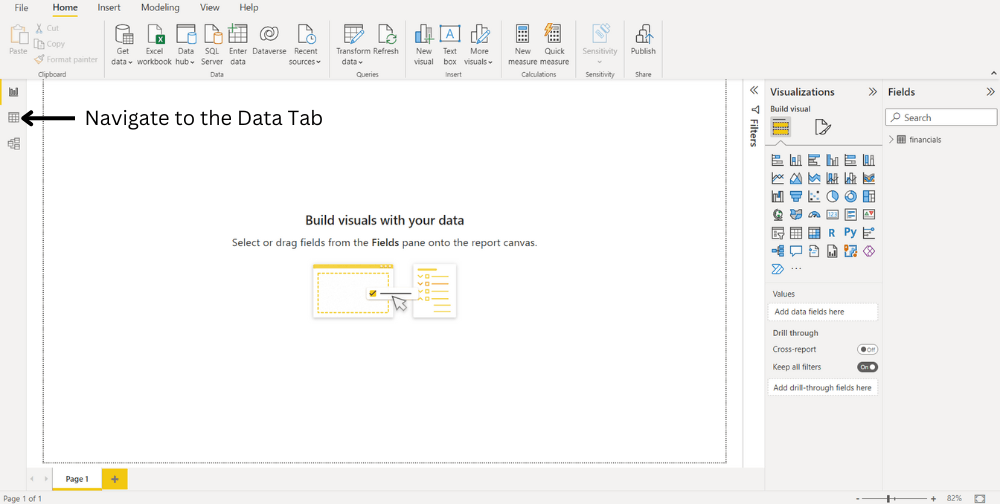
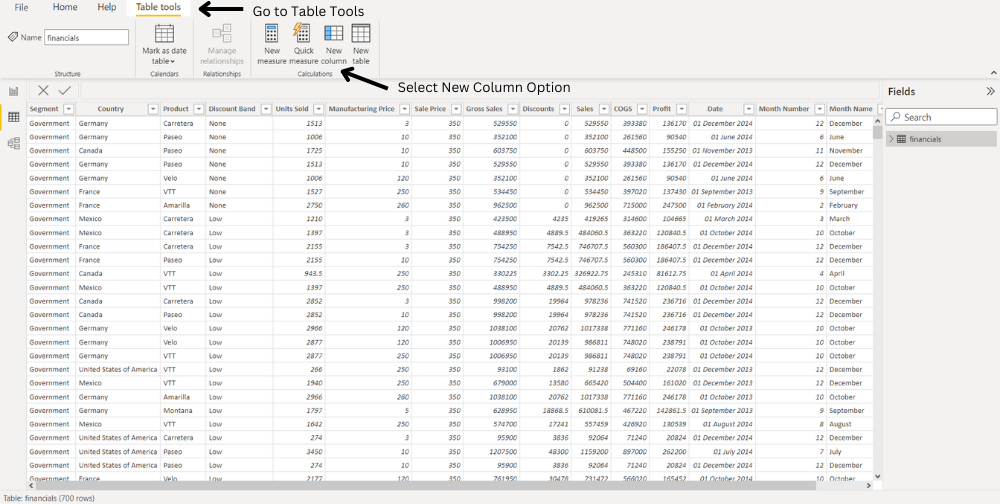
Step 1: First, navigate to the Data Tab and select the Table Tools options from the top navigation bar. Select the New Column option from the table tools and opportunities to create a new custom column.
Step 2: On clicking the New Column option, an input bar will appear where we will write a simple DAX expression to create our columns.
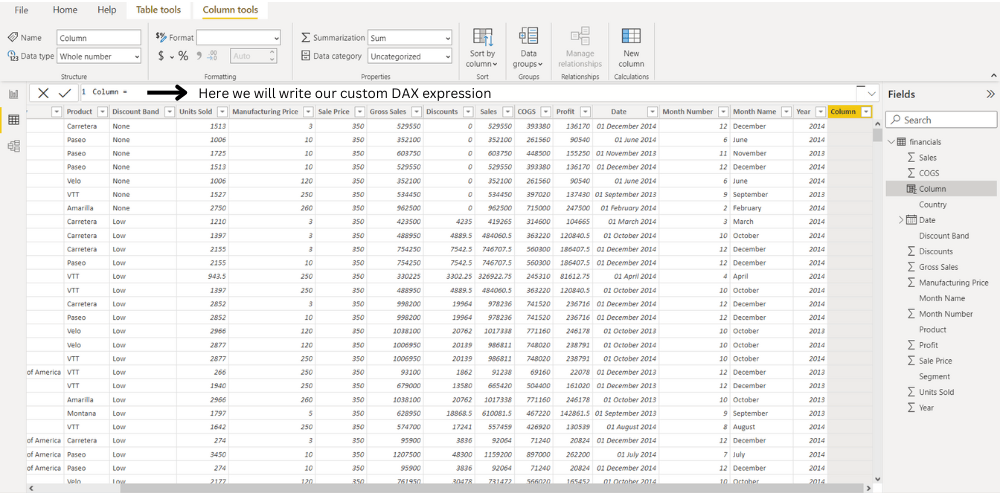
Step 3: In DAX, we can access a particular column using the following syntax - tableName[columnName],The following DAX Expression creates a new column named TotalManufacturingPrice.
TotalManufacuturingPrice = financials[Manufacturing Price]*financials[Units Sold]
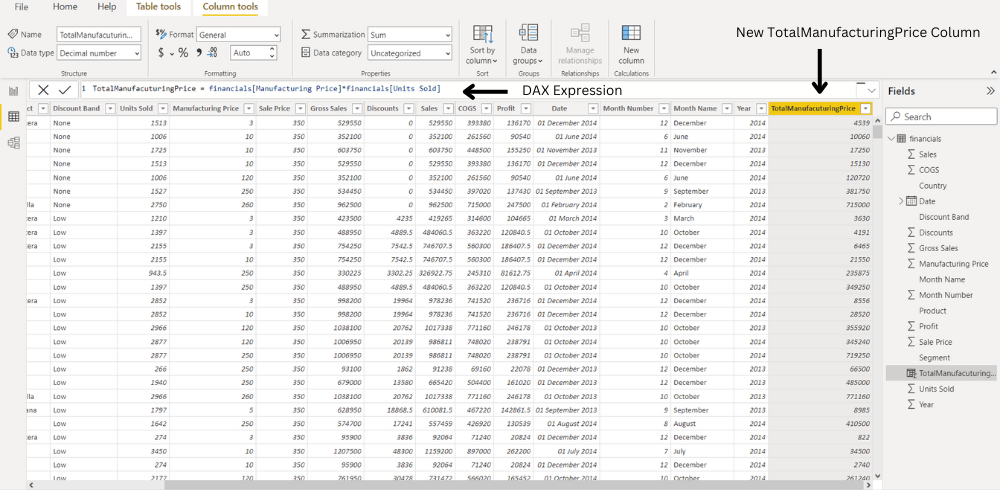
Step 4: Now, using this newly created column, we make our ProfitPercentage column using the below expression.
ProfitPercentage = (financials[Profit]/financials[TotalManufacuturingPrice])*100
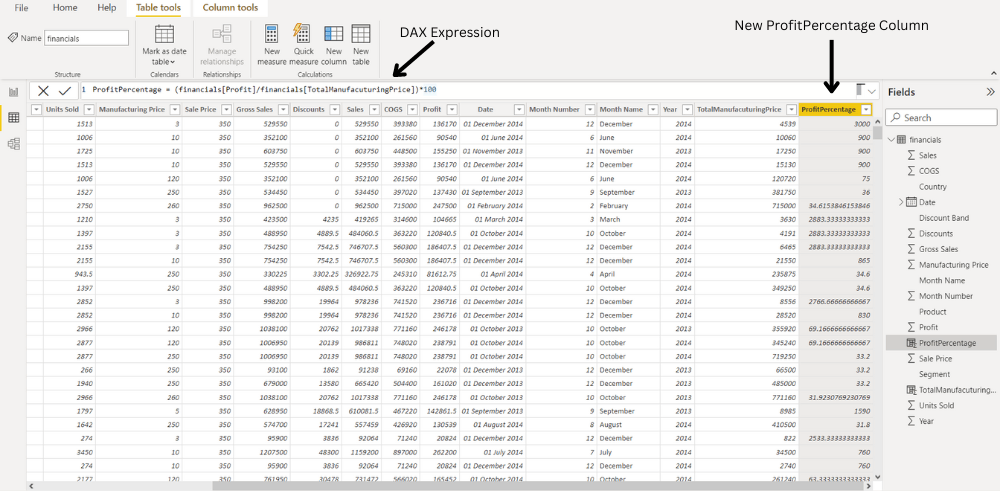
Step 5: Now, Select the Line chart from the Visualization. Drag the segment and drop to the X-axis, Again drag the ProfitPercent and drop to the Y-axis that we have created our custom columns, we can use a line chart which comes out to be like this:

Profit Analysis using Donut Chart in Power BI
Next, we will create another custom column called ProfitType to tell if the profit is positive, negative or null. This can be done by using the IF function in the DAX Expression like this:
ProfitType = IF(financials[Profit]<0,"Negative",IF(financials[Profit]>0,"Positive","NULL"))
Step 1: From the top navigation bar, select the New Column option from the table tools and opportunities to create a new custom column.
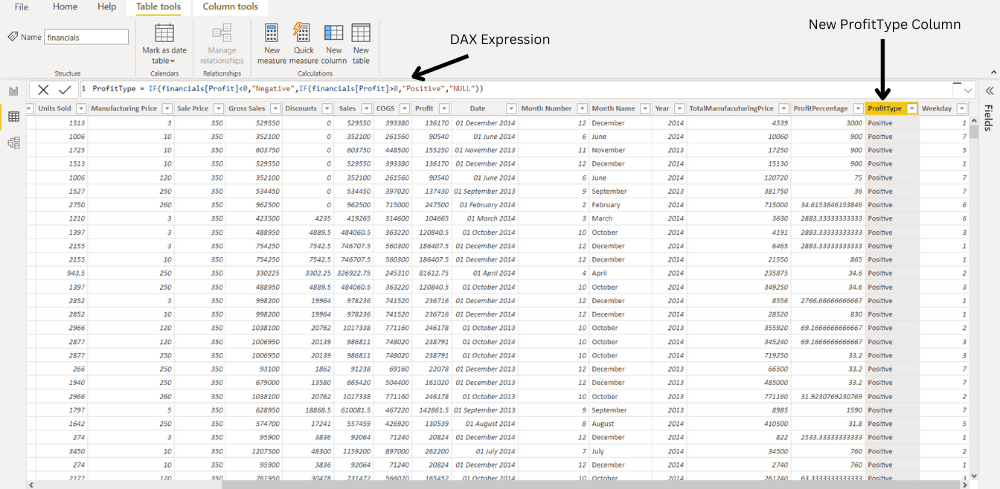
Step 2: Select the donut chart from the Visualization. From the field, option drag the ProfitType and drop to the values and details. This newly created column can be further used to create a donut chart, as shown below:

Analysis of most profitable day using Bar Chart in Power BI
Suppose we also want to analyze which day of the week has the most significant number of sales or profit; so for this, we can create an additional column, Weekday, by extracting the day of the week from the Date Column already provided using the DAX WEEKDAY function like this:
Weekday = WEEKDAY(financials[Date].[Date],2)
Here, the second parameter of the function refers to the return type.
- If return type = 1, week begins on Sunday (1) and ends on Saturday (7). numbered 1 through 7.
- If Return type = 2, week begins on Monday (1) and ends on Sunday (7).
- If Return type = 3, week begins on Monday (0) and ends on Sunday (6).numbered 1 through 7.
For the above function return type is 2, i.e the week begins on Monday.
Step 1: On clicking the New Column option, an input bar will appear where we will write a simple DAX expression to create our columns.
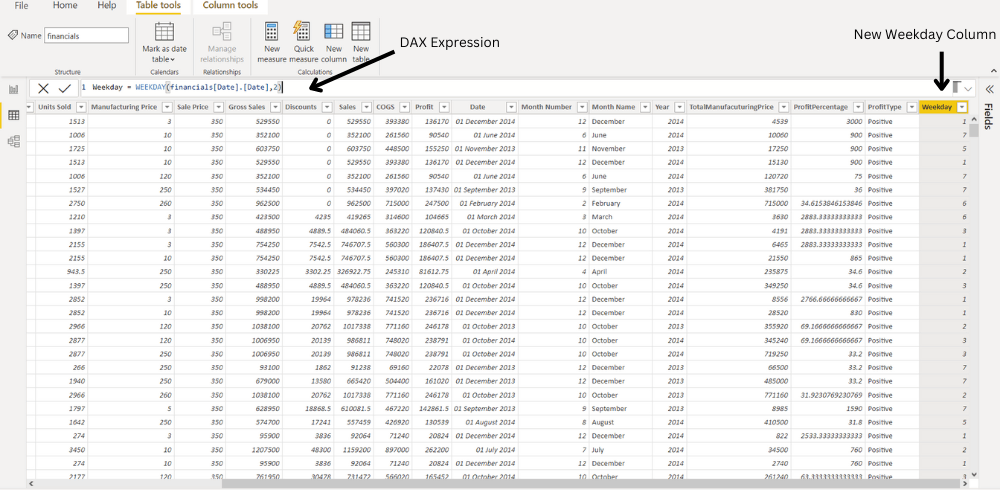
Step 2: Using this custom column, we can plot the following bar chart and conclude that we get Maximum Profits on Tuesdays (Weekday = 2)
