
Warm and cool tones are commonly used in image processing to enhance the visual mood of an image. A warm tone adds a yellowish shade making the image look brighter and energetic, while a cool tone introduces a bluish tint that gives a calm and colder appearance.
In OpenCV, these effects are created by blending the original image with a colored background using the addWeighted() function.
Dynamic Background for Different Image Sizes
Images can have different resolutions depending on the source device. When applying warm or cool tones, the colored background must always match the size of the input image. If the background size does not match, OpenCV cannot blend them properly.
For example:
- Image size: 1280×720: Background must be 1280×720
- Image size: 3120×1280: Background must be 3120×1280
To handle this automatically, we generate a solid color background dynamically based on the image dimensions.
Python Implementation
In this code, we load an image, create warm and cool color overlays matching its size, and blend them with the original using OpenCV’s addWeighted() function to generate toned images.
Note: For this article, we will be using a sample image "sample.jpg", to download, click here.

Approach
- Load the input image using OpenCV.
- Extract the height and width of the image to handle different image sizes.
- Create two solid color background images (warm and cool) matching the dimensions of the original image.
- Blend the original image with the warm background to produce a warm tone effect.
- Blend the original image with the cool background to produce a cool tone effect.
- Display the original, warm-toned, and cool-toned images.
import cv2 as cv
import numpy as np

# Load sample image
img = cv.imread("eyes.jpg")

# Get dimensions
rows, cols = img.shape[:2]

# Create warm (yellow) and cool (blue) overlays
warm_bg = np.full((rows, cols, 3), (0, 180, 255), dtype=np.uint8)
cool_bg = np.full((rows, cols, 3), (255, 140, 0), dtype=np.uint8)

# Blend overlays
warm = cv.addWeighted(img, 0.7, warm_bg, 0.3, 0)
cool = cv.addWeighted(img, 0.7, cool_bg, 0.3, 0)

# Show results
cv.imshow("Original Image", img)
cv.imshow("Warm Tone Image", warm)
cv.imshow("Cool Tone Image", cool)

cv.waitKey(0)
cv.destroyAllWindows()
Output:
Warm Tone Image

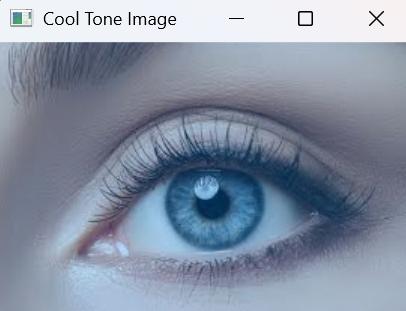
Cool Tone Image
Code Explanation:
- cv.imread("eyes.jpg"): Loads the input image.
- img.shape[:2]: Retrieves height and width of the image.
- np.full((rows, cols, 3), color): Creates a solid color background the same size as the image.
- Warm background (0,180,255) adds a yellowish tone.
- Cool background (255,140,0) adds a bluish tone.
- cv.addWeighted(): Blends the background and original image using specified weights.
- cv.imshow(): Displays the original and processed images.