
Opening the Local Group Policy Editor in Windows Home can be tricky, as this feature is typically unavailable in the Home edition by default. However, workarounds exist to access Group Policy on Windows Home and manage system policies effectively. In this guide, we’ll show you how to enable Group Policy Editor in Windows Home and navigate the Group Policy settings to customize your system preferences.
Table of Content
What Is Group Policy Editor in Windows?
The Group Policy Editor, an administrative tool in Windows, enables the configuration of various operating system aspects. It offers a user interface that manages policies influencing the system’s behavior and user experience. It allows you to control how the system works and what users can do, like setting passwords, blocking certain programs, or changing desktop settings.
How to Access the Group Policy Editor in Windows Home?
Users can access the Local Group Policy Editor directly on Windows Professional or Enterprise editions. However, Home edition users must implement a workaround to access this feature, as it is not included by default.
Method 1: Using Search Bar
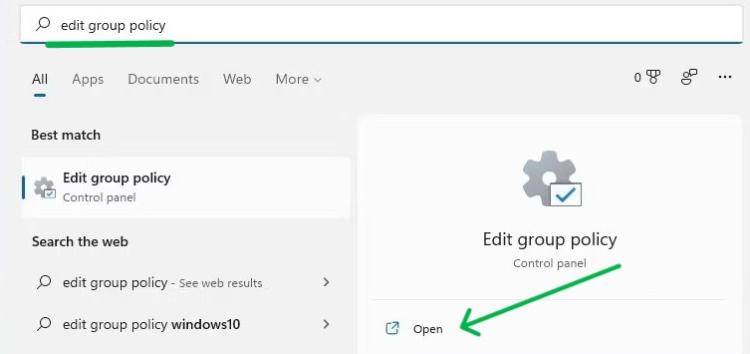
Step 1: Press WindowsKey + S then on the search bar type "Edit group policy"
Step 2: On the right side click on "open"
Method 2: Using Run Dialog
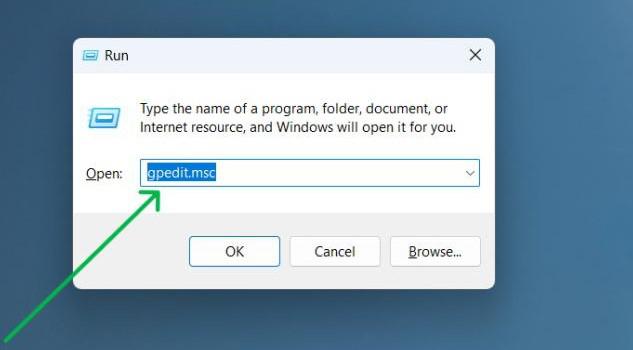
Step 1: Press Windows + R then on run dialog type "gpedit.msc"
Step 2: Press the Enter button or OK to open the group policy on Windows home
How to Configure Windows Settings Without the Group Policy Editor?
To Open the Group Policy editor, Users of Windows Home editions must use alternative methods to configure system settings typically managed by the Group Policy Editor. These methods can include direct registry edits or the use of third-party software solutions.
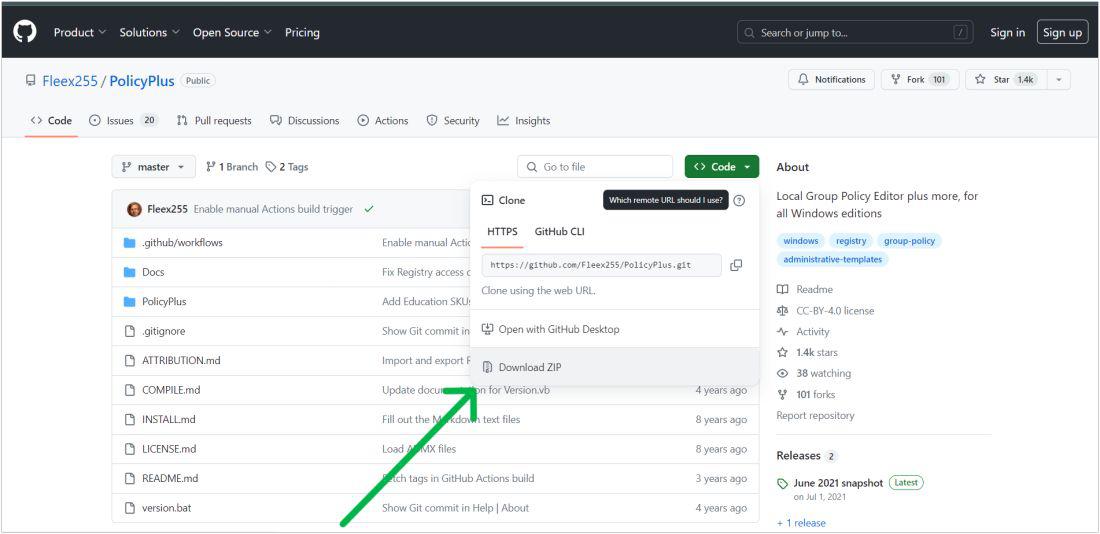
Policy Plus, a free and open-source tool, extends the capabilities of Group Policy settings to all Windows editions, beyond just Professional and Enterprise. It empowers users to view and edit Registry-based policies across local GPOs, per-user GPOs, individual POL files, offline Registry user hives, and the live Registry.
You can download Policy Plus from GitHub:
https://github.com/Fleex255/PolicyPlus
How to Enable Group Policy Editor (gpedit. msc) on Windows 10/11 Home Edition?
To enable the Group Policy Editor on Windows Home editions, you can use any method like GPEdit Installer or PowerShell Script to enable the Group Policy Editor on Windows Home edition.
Method 1: Using PowerShell Script
For the more technically inclined, enabling the Group Policy Editor via a PowerShell script is an efficient way to activate this feature. This method involves executing a script that automates the installation process, providing a swift and direct approach to accessing the Group Policy Editor on Windows Home Editions.
Step 1: Open Notepad
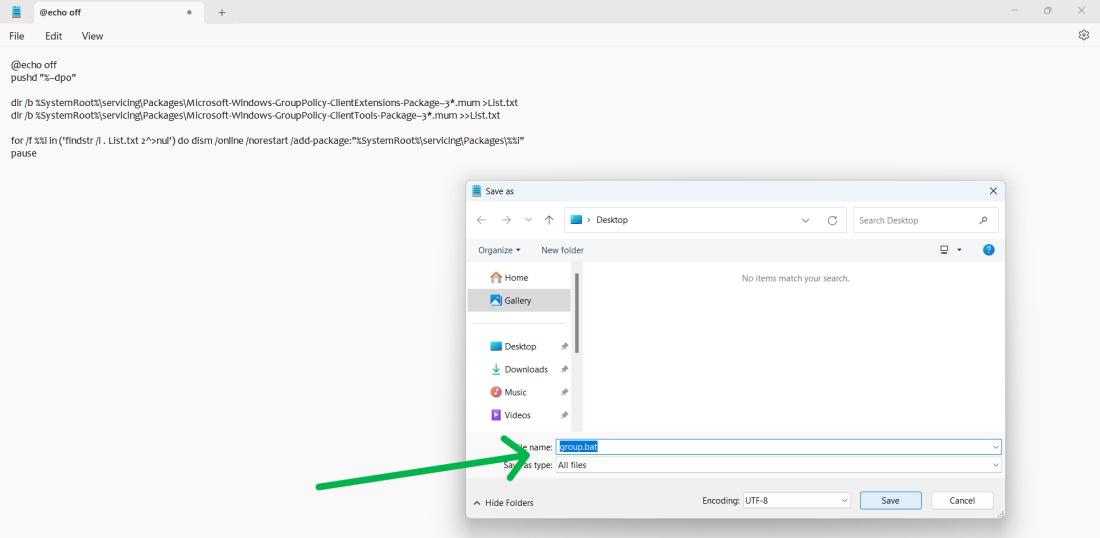
Step 2: Copy this code and paste it into Notepad and save as it a .batfile
@echo off
pushd "%~dp0"
dir /b %SystemRoot%\servicing\Packages\Microsoft-Windows-GroupPolicy-ClientExtensions-Package~3*.mum >List.txt
dir /b %SystemRoot%\servicing\Packages\Microsoft-Windows-GroupPolicy-ClientTools-Package~3*.mum >>List.txt
for /f %%i in ('findstr /i . List.txt 2^>nul') do dism /online /norestart /add-package:"%SystemRoot%\servicing\Packages\%%i"
pause
Step 3: After that click on the saved file and select "Run as administrator" from the menu
Step 4: After completion, press any key to close the Command Prompt
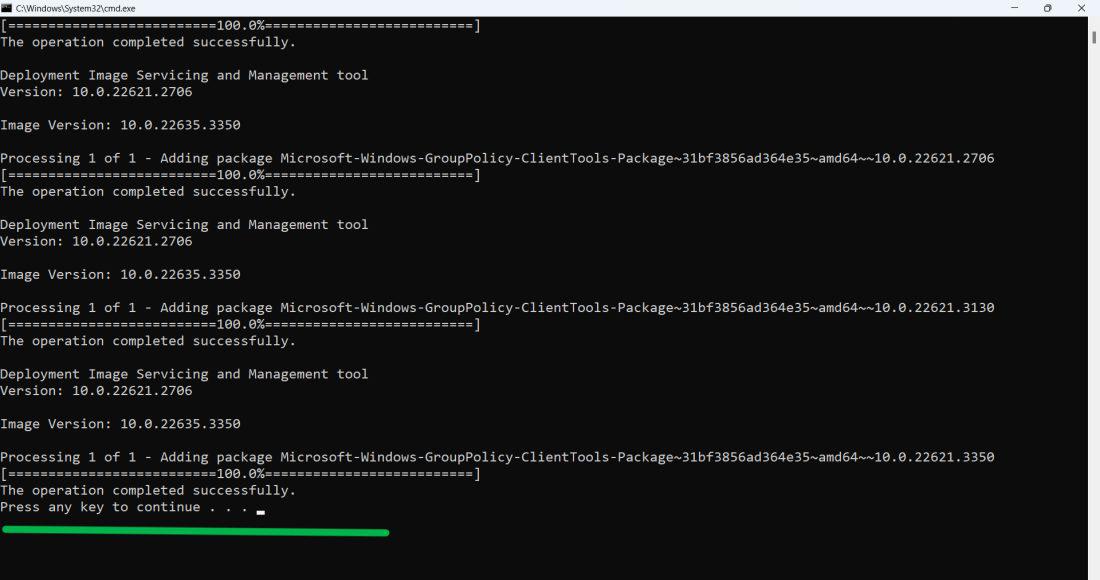
Step 5: Restart Your computer
Method 2: Using GPEdit Installer
Unlocking the Group Policy Editor in Windows Home Edition is made simple with the GPEdit Installer. This method provides a hassle-free installation process, allowing users to quickly gain access to the editor’s extensive settings and configurations without complex procedures.
Step 1: Download the setup file from this link
https://www.dropbox.com/scl/fi/rbjwsux5cx7tpre6tlruo/add_gpedit_msc.zip?rlkey=5f5bcjxng3q6spaos778xj849&dl=0Step 2: Double-click on the setup.exe file then click on "next"
Step 3: Select Install
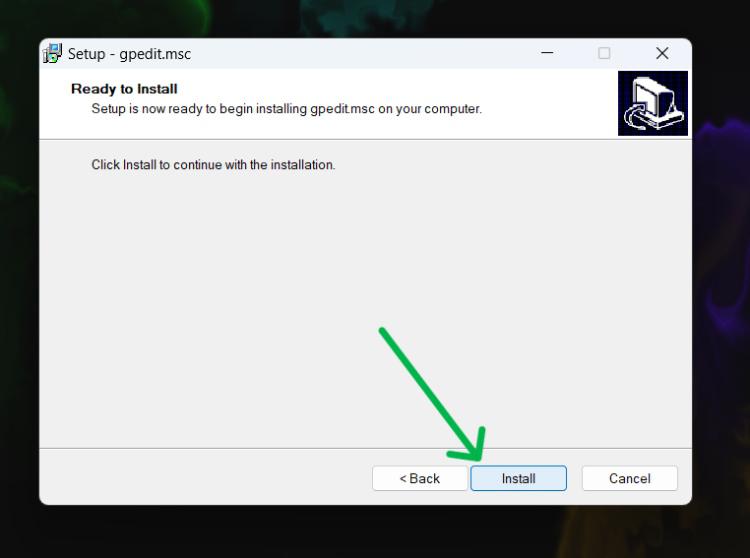
Step 4: After clicking on the install button a window will be pop
Step 5: Restart your computer
Also Read
Conclusion
Though Windows Home doesn’t natively include the Local Group Policy Editor, you can use a workaround to install and open Local Group Policy Editor in Windows Home. By following these steps, you'll be able to adjust important Group Policy settings that are normally reserved for Pro and Enterprise editions. Understanding how to use Group Policy Editor in Windows Home can help you manage your system more effectively and unlock additional control over your PC.