
Short Preview!
Follow the quick steps to check your hard drive's temperature in Windows 11:
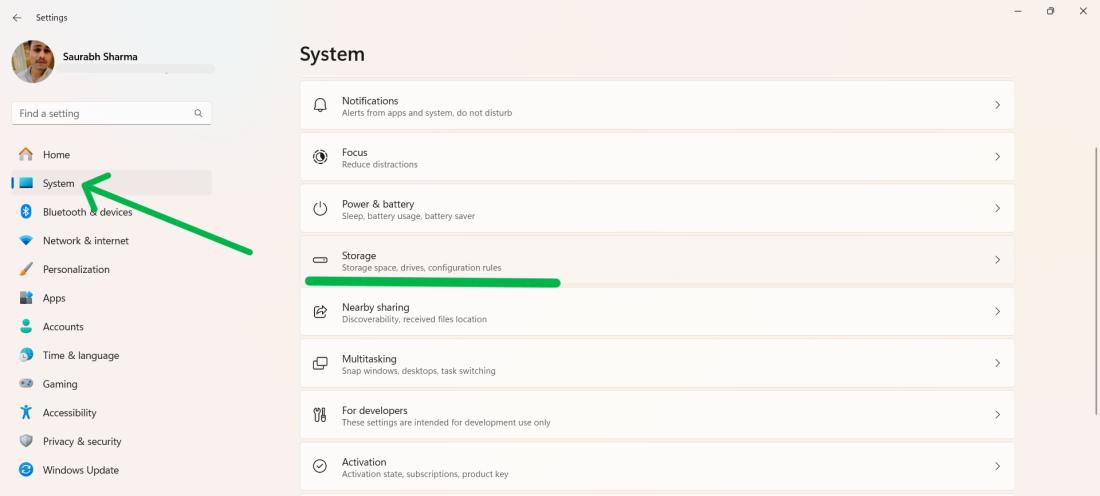
- Go to Settings
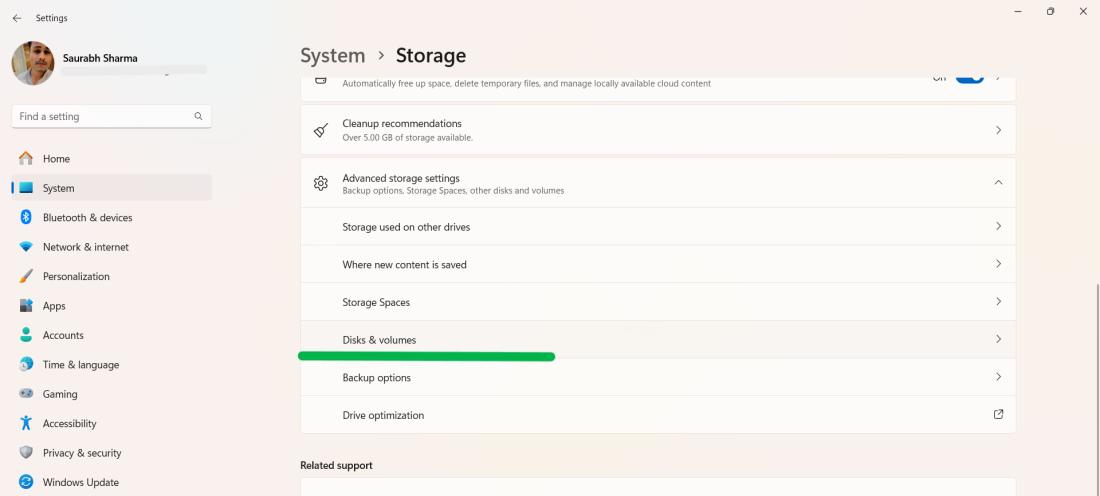
- Then System.Storage>Disk & Volume
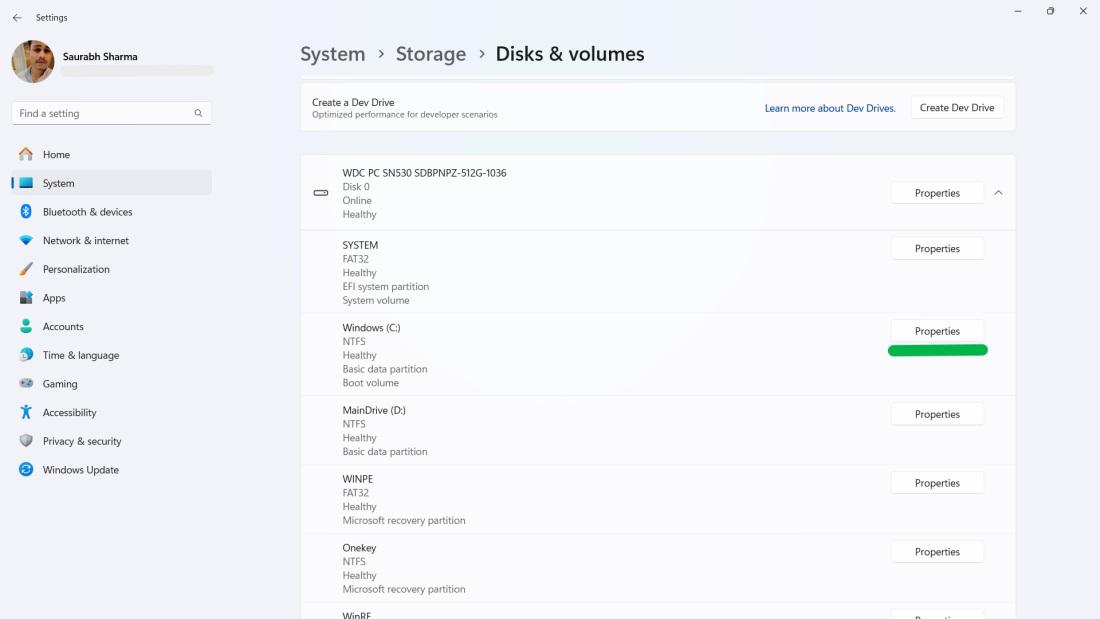
- Now, click on "Properties.
- A pop-up will open that will show you the exact temperature of your Hard Drive.
It is essential to monitor the temperature of your drive to ensure its health and performance. Overheating can cause hardware failure. It is crucial to keep track of your drive temperature.
In this article, we will discuss two methods, for checking the temperature of your drive on Windows 11.
Method 1: Check Hard Drive Temperature on Windows 11 from Settings
Windows 11 has a built-in feature that allows you to check the health of your drive, including its temperature.
Step 1: Open Settings (Win + I) and navigate to System > Storage.
Step 2: Click on Advanced storage settings, then select Disks & volumes.
Step 3: Choose your hard drive and click Properties.
Step 4: Under Drive health, you'll see the current temperature displayed.
Method 2: Check Hard Drive Temperature on Windows 11 from CrystalDiskInfo
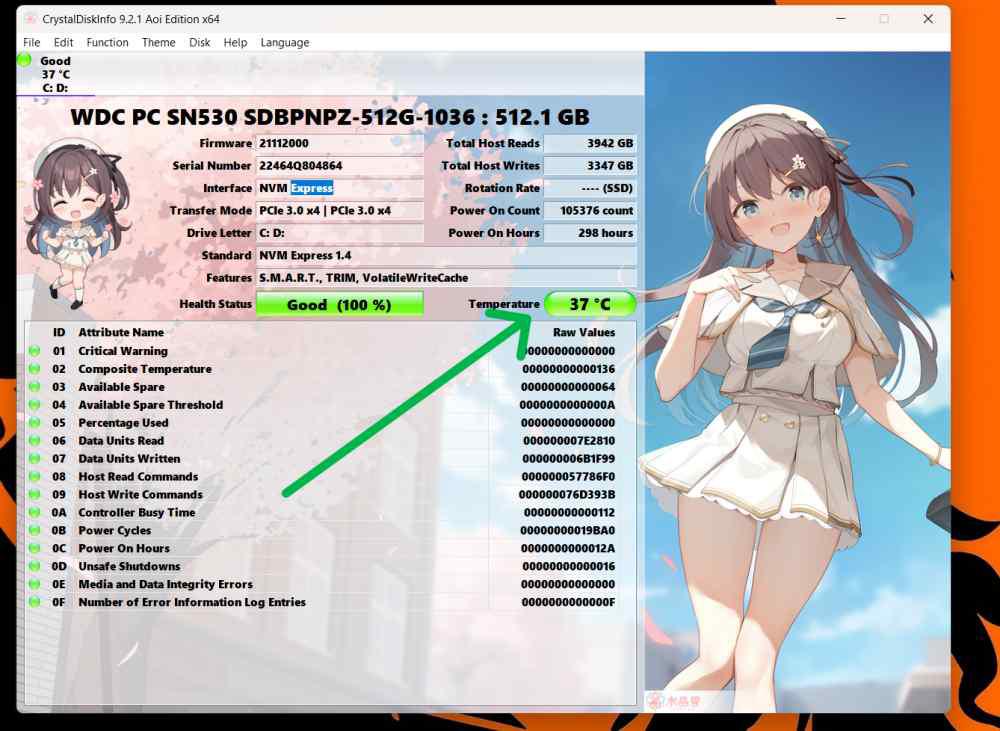
CrystalDiskInfo is a third party tool that provides information, about your drives, including temperature.
Step 1: Download and install CrystalDiskInfo from this link (https://crystalmark.info/en/download/#CrystalDiskInfo)
Step 2: Open the software. Your hard drive's temperature will be shown on the main screen.
Conclusion
Regularly monitoring the temperature of your drive can help prevent data loss and prolong its lifespan. Whether you opt for Windows 11s built in tools or third party software staying informed about the condition of your drive is a decision.