
Knowing your RAM speed is essential for understanding your computer's performance capabilities. If you're using Windows 11, there are several methods to check your RAM speed, whether you're troubleshooting performance issues, planning an upgrade, or simply curious about your system's specifications. In this guide, we will provide step-by-step instructions on how to check your RAM speed on Windows 11 using built-in tools and third-party applications.
Methods to check your RAM Speed on Windows 11
The speed of RAM can be easily identified in Windows 11. To enhance the CPU retrieval of new information and smooth operation of the applications. For optimal operation of your Windows 11 machine, be sure the RAM’s clock speed is up to par. Moving further, let's understand different methods to find RAM speed on Windows 11.
Method 1: How To Find RAM Speed From Task Manager
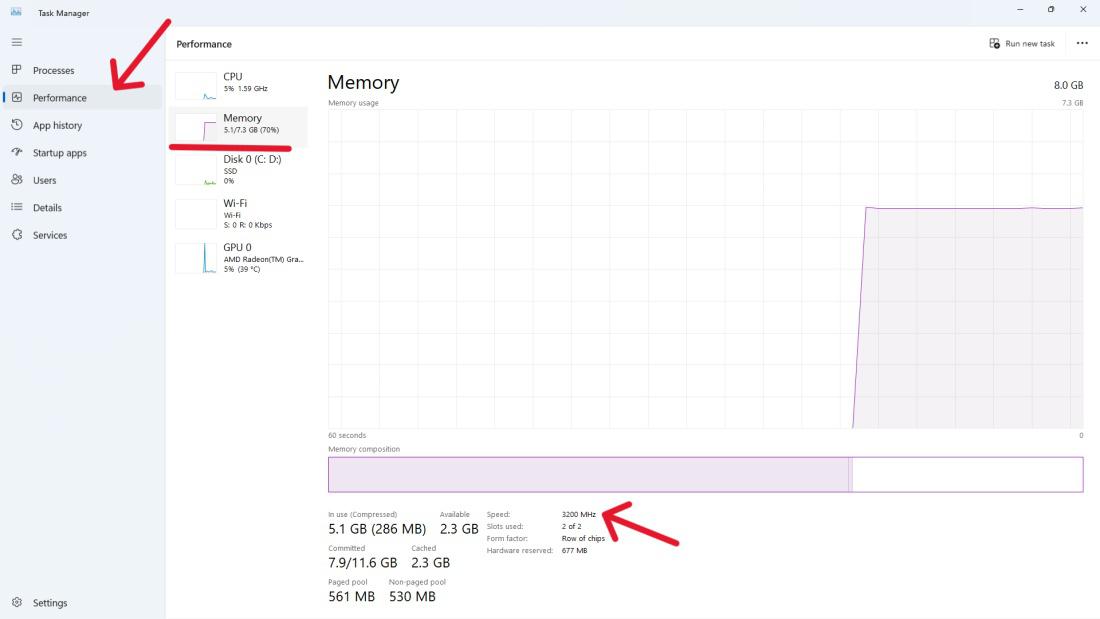
Step 1: To open the task manager, right-click on the taskbar and choose “Task Manager” or press Ctrl + Shift + Esc.

Step 2: In the Task Manager, navigate to the "Performance" tab.
Step 3: Click on "Memory" in the right sidebar.
Step 4: Under the "Memory" section, you will find information about your RAM, including the speed.
Method 2: Check RAM Speed Using Command Prompt
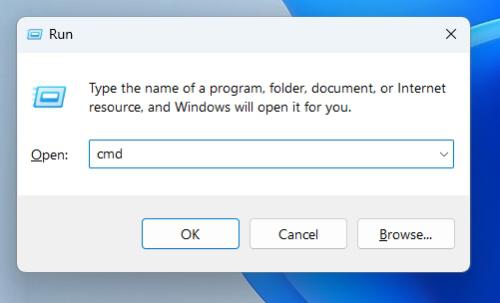
Step 1: Simultaneously press the Win + R keys to open the Run dialog box.
Step 2: Enter "CMD" in the Run box and press Enter.
Step 3: Type this following command
wmic MemoryChip get DeviceLocator, Manufacturer, Speed
Step 4: Close the Command prompt
Method 3: Find RAM Speed Using Windows PowerShell
Step 1: Go to start menu, type “PowerShell” then right click on “Windows Powershell” choose “Run as administrator.”
Step 2: Type the following command and press Enter:
Get-CimInstance -ClassName Win32_PhysicalMemory | Format-Table Devicelocator, Manufacturer, Speed
Step 3: Close the PowerShell
How to Check RAM Information on Windows 11?
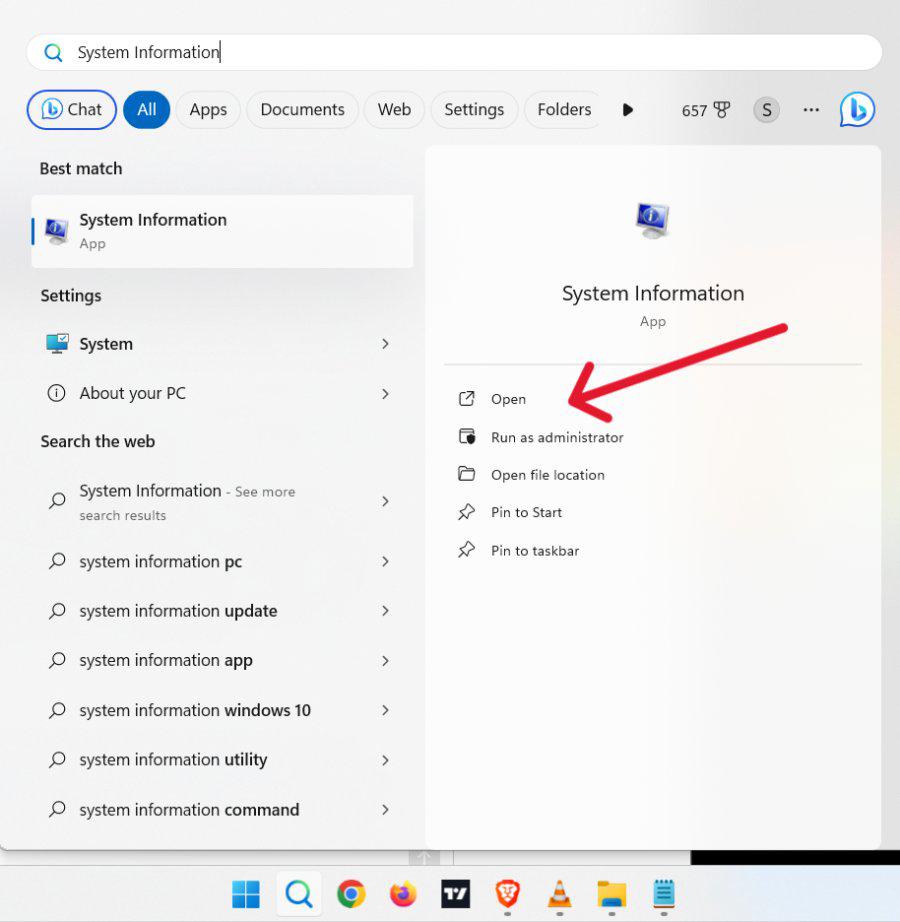
Step 1: Click on start menu, type “System Information” and open the displayed results.
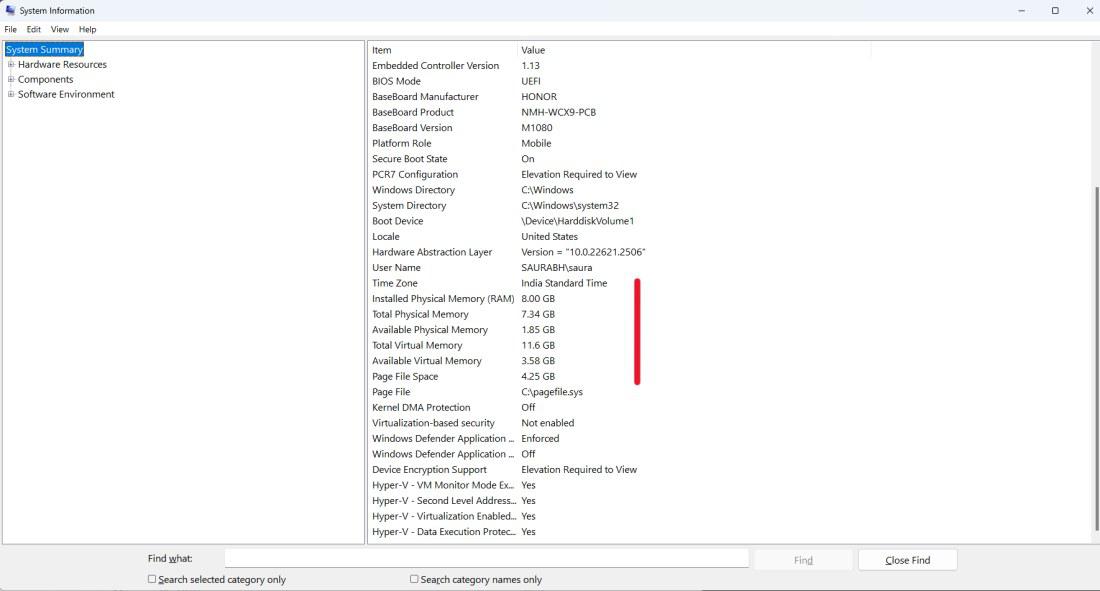
Step 2: You can get detailed information about your installed RAM on right sidebar
Conclusion
Checking your RAM speed on Windows 11 is a straightforward process that can provide valuable insights into your system's performance. By following the steps outlined in this guide, you can easily determine your RAM speed and make informed decisions about potential upgrades or optimizations. Regularly monitoring your system's specifications ensures you maintain optimal performance and stay aware of your hardware capabilities.