
To keep your Windows 10 computer healthy, knowing the distinctions among SFC, CHKDSK, and DISM is important. These in-built utilities have distinct roles in identifying and fixing problems in your system. In this piece, we'll explain each utility, emphasizing their specific roles and the situations in which they should be employed, so you can efficiently diagnose and care for your Windows 10 machine.
Table of Content
- What is the System File Checker (SFC)?
- What is the Check Disk (CHKDSK)?
- What is the Deployment Imaging Service and Management (DISM)?
- Features of Deployment Imaging Service and Management (DISM):
- How to use the Deployment Imaging Service and Management (DISM)?
- Difference between SFC, CHKDSK & DISM in Windows 10
What is the System File Checker (SFC)?
On Windows OS, if the files are missing due to any reason, some important malfunction can be observed. Also, sometimes due to the infection of Malware Windows or the presence of Viruses on the OS, the system file might get corrupted. In such cases, the Windows System File Checker Command should be used.
Features of System File Checker (SFC):
- SFC Scans protects the System File from Virus Infection.
- The SFC Command helps to restore the previous version.
- SFC Command provides leverages the Windows File Protection (WFP).
- It maintains the Correct Version of System Files.
- SFC Receives the correct version from the System Cache.
How to Use System File Checker (SFC) Command?
Open the Command Prompt & execute the SFC Command in the following manner. It will take some time to complete the execution.
Command: sfc /scannow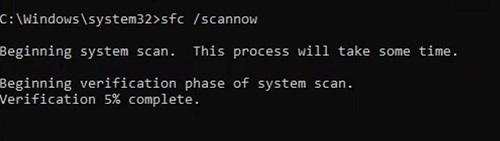
What is the Check Disk (CHKDSK)?
On Windows OS, if the problem is much bigger than any simple File On OS, then the CHKDSK Command should be used. The CHKDSK Command or Check Disk Command can be used on the Disk & Drivers of Windows. If there is any issue with any Windows Disk or Driver, then the Check Disk or CHKDSK Command can be used.
Features of Check Disk (CHKDSK):
- The File System Structure is being checked by the Check Disk Command.
- The Check Disk or CHKDSK ensures the integrity of the File System.
- The Security Descriptors are also fixed by the CHKDSK Command.
- It works on any damaged sector on a Windows Disk.
How to Use Check Disk or CHKDSK Command?
On the Search bar, go for the CMD or Command Prompt option. Now, execute the CHKDSK Command in the following manner.
Command: chkdsk <Disk-Name> /f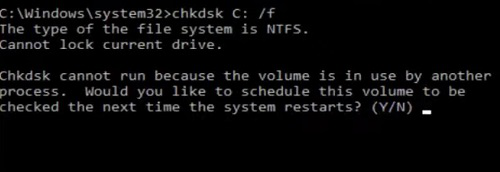
What is the Deployment Imaging Service and Management (DISM)?
The Deployment Imaging Service and Management (DISM) is a more advanced tool. It is used when the Common Errors on Windows can't be restored by the SFC & CHKDSK Commands. The Deployment Imaging Service and Management (DISM) can work on Disk & Drivers along with the Windows Image Files.
Features of Deployment Imaging Service and Management (DISM):
- The DISM can repair the Windows System Image if any errors or issues there.
- The DISM can replace the Corrupted Files from the Windows Update Server.
- Once DISM is executed, it helps to keep the component Free from Further Corruption.
- The DISM can download the System Image on Windows as well.
How to use the Deployment Imaging Service and Management (DISM)?
Open the Command Prompt & execute the DISM Windows Command in the following manner.
Command: Dism /Online /Cleanup-Image /RestoreHealth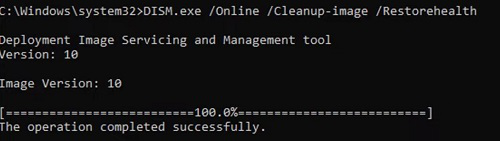
Difference between SFC, CHKDSK & DISM in Windows 10
Now, as we have discussed briefly on SFC, CHKDSK & DISM Commands on Windows OS, it is time to discuss the Difference Between Windows Command SFC, DISM & CHKDSK. Let us have a look at the following Difference Table.
Categories | SFC Command | CHKDSK Command | DISM Command |
|---|---|---|---|
Command | sfc /scannow | chkdsk <Disk-Name> /f | Dism /Online /Cleanup-Image /RestoreHealth |
Function | It checks & repairs Windows System Files | It checks & repairs File System Errors. | It only repairs Windows System Image Files. |
Focus Area | System Files | File System and Disk Sectors | Windows Image & Component Store |
Addressable Issues | 1) System File Corruption 2) Missing System Files | 1) Logical File System Error 2) Bad Sector in Windows Disk | 1) System Image Corruption 2) Component Store Issue |
When to Use | 1) Unexpected Crashes 2) System Instability 3) Application Failure | 1) File System Error 2) Disk-related Issue 3) BSOD Error | 1) Issue with Windows Update 2) System Image Corruption 3) When SFC fails to repair Corrupted Files |
Repaired Files | Windows File Protection (WFP) | Repair the Disk itself | Windows Update Server |
Execution Time | Moderate | Long (Depends on Disk Size) | Moderate to Long |
Conclusion
Understanding the distinctions among SFC, CHKDSK, and DISM can give you the power to address different problems with Windows 10 effectively. Every tool has its own set of features, ranging from detecting faulty system files with SFC, verifying the condition of disks with CHKDSK, to updating the Windows operating system with DISM. By grasping the appropriate times and methods for utilizing these tools, you can ensure your system remains in good working order and responsive.