
Running into a sign-in error on Windows 11 can stop you from accessing your files, apps, and work. This common Windows 11 error appears when the system cannot load or verify your profile. It usually happens due to:
- Corrupted or incomplete user profile data
- Damaged system files
- Antivirus interference
- Network or account verification issues
- Misconfigured profile settings
Methods to Fix Windows 11 Sign-in Error
1. Restart your device
A simple restart often clears temporary glitches and Windows errors.
Step 1:
- Save your work and close all programs.
Step 2:
- Shut down your PC using the Power button (or hold for 30 seconds if frozen).

Step 3:
- Wait 5–10 minutes, turn the PC back on, and try signing in again.
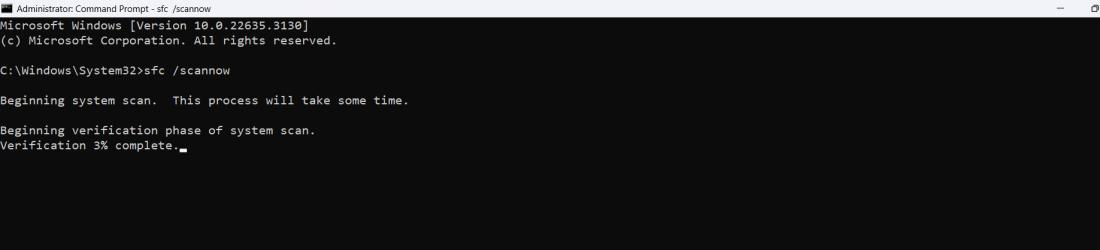
2. Run the System File Checker
SFC scans and repairs corrupted system files.
Step 1:
- Press Win + S, type CMD, and select Run as administrator.

Step 2:
- Enter the command:
sfc /scannow
Step 3:
- Wait for the scan to finish, then restart.
3. Disable Your Antivirus Temporarily
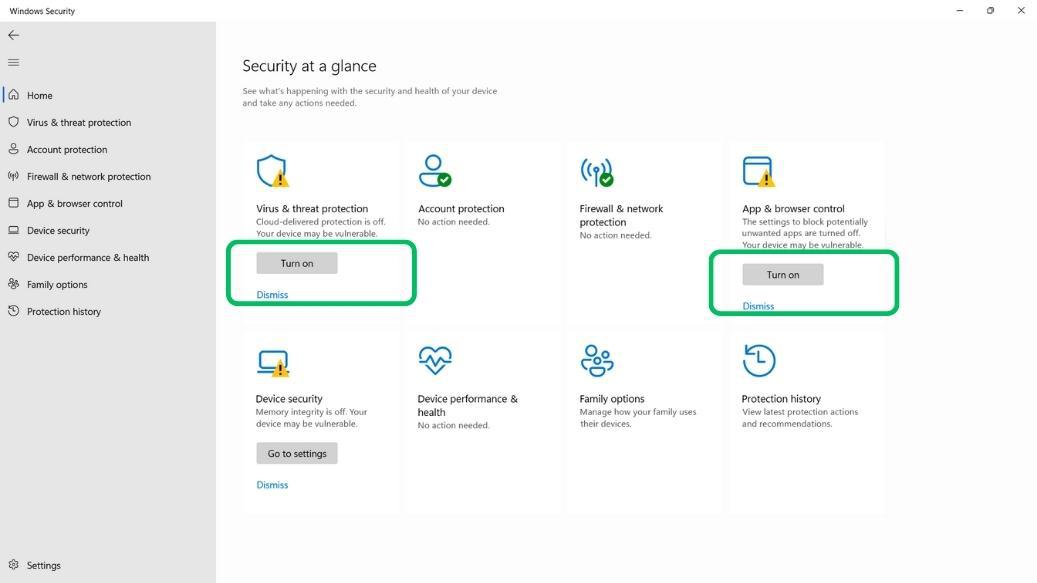
Aggressive antivirus programs can prevent Windows from loading your profile. To disable your antivirus software, follow these steps:
Step 1:
- Right click your antivirus icon in the system tray.
Step 2:
- Turn off Virus & Threat Protection and App & Browser Control features.
Step 3:
- Try signing in again.
Re-enable antivirus later for security.
4. Fix Profile Issues via Registry Editor
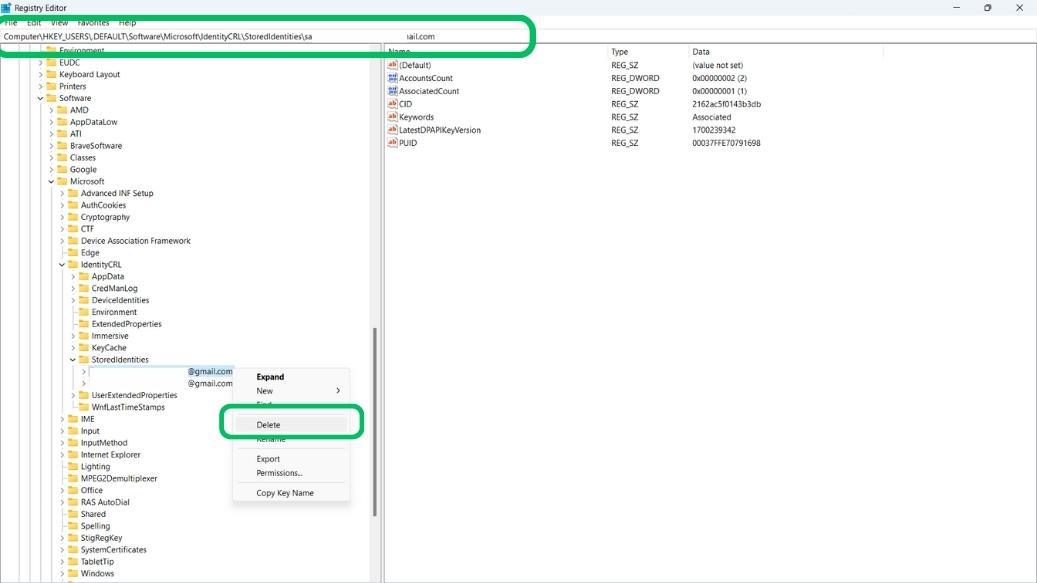
A corrupted stored identity can block your sign-in.
Step 1:
- Press Win + S then on the search bar type "Registry Editor" then open it

Step 2: Navigate to the following path
Computer\HKEY_USERS\.DEFAULT\Software\Microsoft\IdentityCRL\StoredIdentities.
Step 3:
- Delete the folder matching your email address. Restart your system.
5. Force a User Profile Using Command Prompt
Step 1:
- Press Win + S then the search bar type "CMD" then click on "Run as administrator"
Step 2:
- Type the following command and press Enter button after each one:
net user username /add
net localgroup administrators username /add
net share concfg*C:/grant:username,full
net user username
Step 3:
- Restart your device and try to sign in to your account again.
6. Install the Latest Windows Updates
Updates often fix profile and system-related bugs.
Step 1:
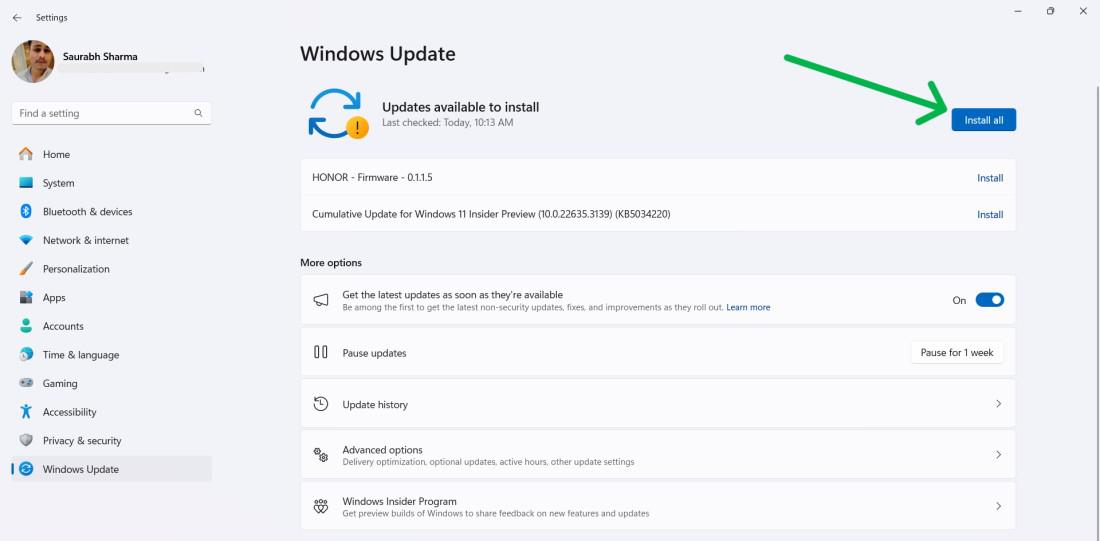
- Press Win + I to open Settings.
- Go to Windows Update.
Step 2:
- Click Check for updates and install all available updates.
Step 3:
- Reboot your computer
7. Use System Restore
Step 1:
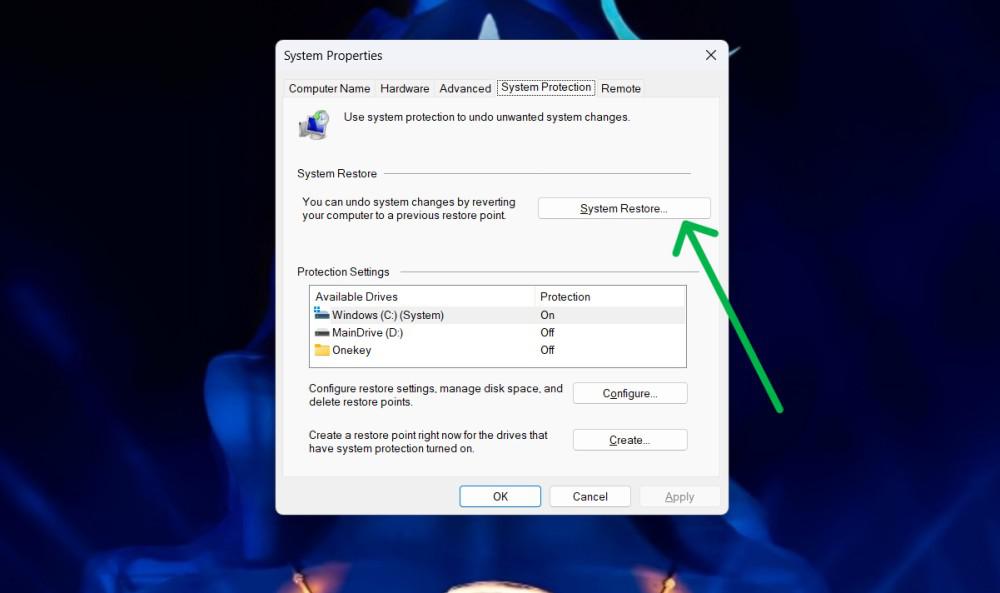
- Press Win + S, type Create a restore point, and open it.
Step 2:
- Go to the System Protection tab.
Step 3:
- Select your drive → Configure → ensure Protection is ON.
Step 4:
- Click System Restore and follow the on-screen steps.
Step 5:
- Apply changes and restart.
8. Reset Your PC (Last Resort)
If none of the above fixes work, reset Windows.
Step 1:
- To begin the reset process, open settings by pressing Win + I
Step 2:
- In the right-hand menu, select "System" and then "Recovery."

Step 3:
- Click on “Reset PC“

Step 4: In the “Reset this PC” window, choose:
- Keep My Files: Deletes apps and settings but keeps personal files.
- Remove Everything: Erases apps, settings, and personal files. Use when selling or giving away your device.

Step 5: On the “How Would You Like to Reinstall Windows” screen:
- Cloud Download: fresh Windows from Microsoft.
- Local Reinstall: uses files already on your device.
