
Open ports on your Windows PC are virtual gateways that allow apps, services, and remote systems to communicate. While essential (e.g., port 80 for web browsing), unprotected or unnecessary open ports are major security risks — exploited in ransomware, remote code execution, and data breaches.
Regularly checking open ports helps you:
- Detect vulnerabilities before attackers do.
- Fix connection failures (e.g., “Why can’t I host a game?”).
- Harden your system by closing unused services.
This step-by-step guide shows you how to use Command Prompt (CMD) - no downloads needed - to list listening ports, identify the process behind each, test specific ports, and secure your system.
1. How to Check Open Ports Using CMD in Windows
Make sure that the essential ports are allowed or blocked by your firewall system configuration. The Control Panel's Windows Firewall settings allow you to control all the initial processes for system requirements. If you discover the open ports that ought to be closed within the system, you might want to halt the related service or change the in-build configuration of the program that opened the port manually.
Now, see the below-mentioned steps and implement them to Check Open Ports Using CMD in Windows.
Step 1: Open CMD or Command Prompt
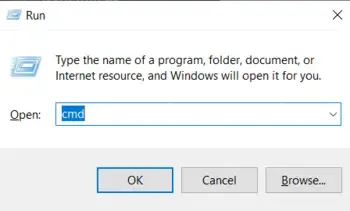
- Press Win + R from your keyboard > Type cmd > Click on the Enter button
Step 2: Implement the "netstat" Command
An effective tool for keeping an eye on open ports within the system and configured network connections is the netstat command to simplify. It offers comprehensive details on all open connections and system servers, such as the protocol in use, and local and international addresses to control or verify all the connection's status.
- Type the below command in the cmd to check the open port functions > Press Enter
netstat -an | find "LISTEN"
- See the output below
TCP    0.0.0.0:135        0.0.0.0:0        LISTENING
TCP    0.0.0.0:445       0.0.0.0:0        LISTENING
TCP    0.0.0.0:902       0.0.0.0:0        LISTENING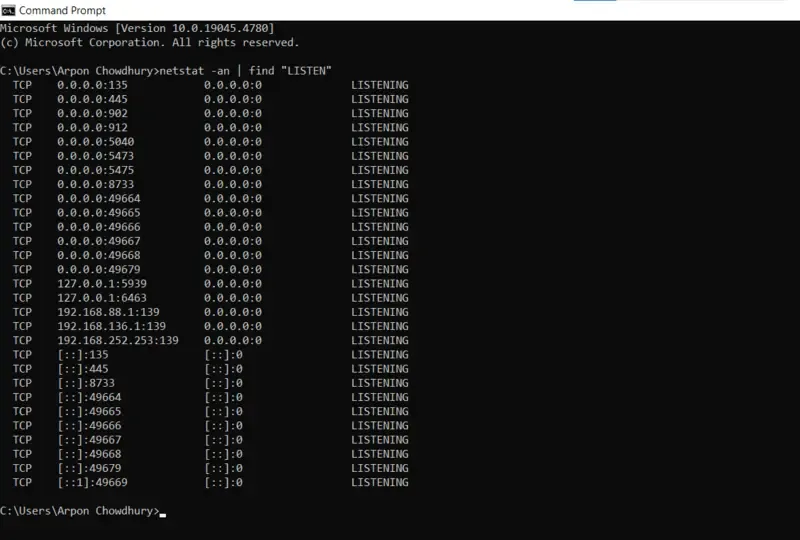
In this case, 0.0.0.0 designates that all pre-processed network interfaces are listening on the port, which is open for the internal system server. The port number is the number that comes after the colon of the system commands (e.g., 135, 445, 3389).
Step 3: Observe the functional Process Using the Port
- Write the following command to identify which application or process is using a specific port within the system.
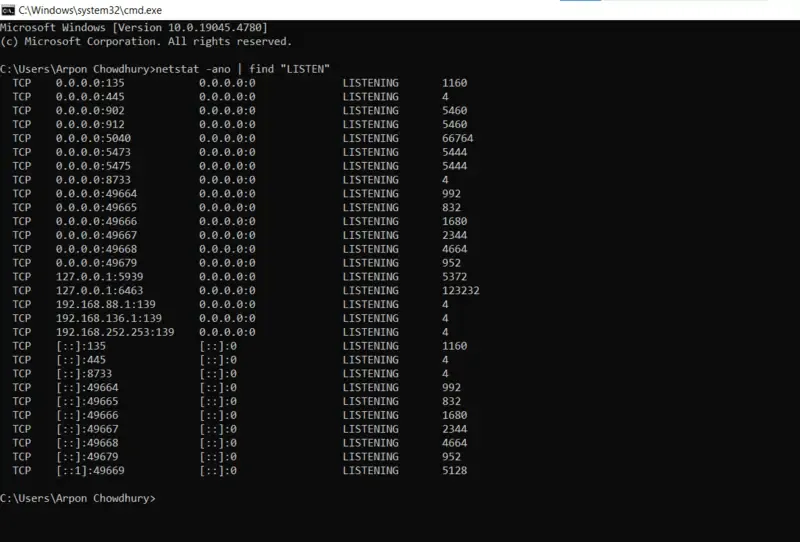
netstat -ano | find "LISTEN"
An extra -o flag is included with this command while processed, which shows the Process ID (PID) connected to each port manually.
- See the output within a PID column
TCP    0.0.0.0:135        0.0.0.0:0        LISTENING      1160
TCP 0.0.0.0:445 0.0.0.0:0 LISTENING 4- Search and Open Task Manager > Go to Details option > See the PID column
Step 4: Check Specific Port in cmd
- You can change the implemented command to focus on a particular port if you want to see if it's open or not within the system configuration. For instance, use this to see if port 60 is open to identify the process:
netstat -an | find ":60"- See the final entry below -
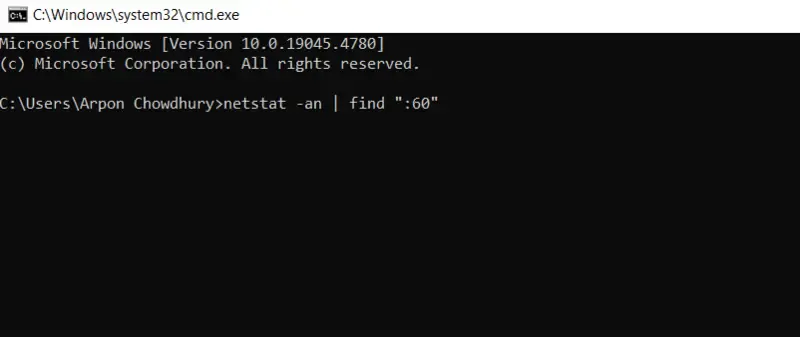
TCP 0.0.0.0:40 0.0.0.0:0 LISTENING
Also Read
How to Check Open Ports Using CMD in Windows
Make sure that the essential ports are allowed or blocked by your firewall system configuration. The Control Panel's Windows Firewall settings allow you to control all the initial processes for system requirements. If you discover the open ports that ought to be closed within the system, you might want to halt the related service or change the in-build configuration of the program that opened the port manually.
Now, see the below-mentioned steps and implement them to Check Open Ports Using CMD in Windows.
Step 1: Open CMD or Command Prompt
- Press Win + R from your keyboard > Type cmd > Click on the Enter button
Step 2: Implement the "netstat" Command
An effective tool for keeping an eye on open ports within the system and configured network connections is the netstat command to simplify. It offers comprehensive details on all open connections and system servers, such as the protocol in use, and local and international addresses to control or verify all the connection's status.
- Type the below command in the cmd to check the open port functions > Press Enter
netstat -an | find "LISTEN"- See the output below
TCP    0.0.0.0:135        0.0.0.0:0        LISTENING
TCP    0.0.0.0:445       0.0.0.0:0        LISTENING
TCP 0.0.0.0:902 0.0.0.0:0 LISTENINGIn this case, 0.0.0.0 designates that all pre-processed network interfaces are listening on the port, which is open for the internal system server. The port number is the number that comes after the colon of the system commands (e.g., 135, 445, 3389).
Step 3: Observe the functional Process Using the Port
- Write the following command to identify which application or process is using a specific port within the system.
netstat -ano | find "LISTEN"An extra -o flag is included with this command while processed, which shows the Process ID (PID) connected to each port manually.
- See the output within a PID column
TCP    0.0.0.0:135        0.0.0.0:0        LISTENING      1160
TCP 0.0.0.0:445 0.0.0.0:0 LISTENING 4- Search and Open Task Manager > Go to Details option > See the PID column
Step 4: Check Specific Port in cmd
- You can change the implemented command to focus on a particular port if you want to see if it's open or not within the system configuration. For instance, use this to see if port 60 is open to identify the process:
netstat -an | find ":60"- See the final entry below -
TCP 0.0.0.0:40 0.0.0.0:0 LISTENINGAlso Read