
A Graphics Processing Unit (GPU) is responsible for rendering images, animations, and videos in real time. Dedicated GPUs from NVIDIA and AMD deliver far better performance than integrated graphics, making them essential for tasks like gaming, video editing, 3D rendering, and heavy multitasking. Whether you're using Windows 10 or Windows 11, checking your GPU details is simple and helps you understand your system’s capabilities.
Why Knowing Your GPU Matters:
- Determines gaming performance, rendering quality, and fps.
- Helps choose the right software, drivers, or upgrades.
- Useful when troubleshooting lag, crashes, or display issues.
Methods to Check Your GPU
Method 1: Check GPU Using Task Manager
Task Manager is a quick way to view GPU model, usage, temperature, and performance.
Step 1:
Press Ctrl + Shift + Esc to open Task Manager
(Or press Win + X → Task Manager)

Step 2: Go to Performance → GPU
- Shows GPU name, temperature, usage, and memory.
- If you have multiple GPUs, you’ll see GPU 0, GPU 1, etc.

Method 2: Check GPU Using System Information
Provides you a detailed overview of your Windows System. Here's how you can do it:
Step 1:
Press Win + S, type System Information, and open it.
(Alternative: Win + R → msinfo32)

Step 2:
In the left panel, expand Components → Display
- View GPU name, VRAM, drivers, and more.

Method 3: Check GPU Using PowerShell
Ideal for users comfortable with command-line tools. Here's how you can use this option to check GPU:
Step 1:
Press Win + S, type PowerShell, and open it.

Step 2:
Enter the command below:
Get-CimInstance Win32_VideoController
Note: This will display your GPU model and related information.
Method 4: Check GPU Using DirectX Diagnostic Tool (DxDiag)
Good for diagnosing graphics-related issues. Here's how to perform this action.
Step 1:
Press Win + R, type dxdiag, and press Enter.
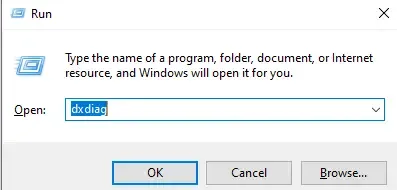
Step 2:
Open the Display tab
- Shows GPU model, VRAM, and driver information.

Note: If you're looking to troubleshoot graphics related issues, this can be a useful method.
Method 5: Check GPU Using Device Manager
Here's how you can perform this action:
Step 1:
- Press Win + X → Device Manager.

Step 2:
Expand Display adapters.

Step 3:
Right-click your GPU → Properties for detailed info

Method 6: Use Third-Party Tools for Advanced GPU Details
These provide deeper analytics, temperature tracking, and benchmarking:
- HWiNFO64
- GPU-Z
- Speccy
Important GPU Specs to Check
Once you identify the GPU model, look up:
- GPU Model: type and generation
- VRAM: video memory for textures and rendering
- Driver Version: affects performance and compatibility
Best GPU At a Glance (Category Wise)
Below, is now the table featuring some of the best GPUs in different segments, considering factors of performance, prices and requirement.
| Category | Best GPU | Manufacturer | Why It’s Recommended |
|---|---|---|---|
| Best for Gaming | NVIDIA GeForce RTX 4090 | NVIDIA | Leading 4K & ray-tracing performance |
| Best Budget GPU | AMD Radeon RX 6600 XT | AMD | Great 1080p performance for low cost |
| Best for Content Creation | NVIDIA GeForce RTX 3080 | NVIDIA | Excellent for editing & 3D rendering |
| Best for Professionals | NVIDIA Quadro RTX 8000 | NVIDIA | Optimized for CAD & scientific workloads |
| Best for Streaming | AMD Radeon RX 6800 XT | AMD | Strong multitasking + gaming performance |
| Best for VR | NVIDIA GeForce RTX 3080 | NVIDIA | Smooth VR performance with RT |
| Best Budget Gaming | NVIDIA GTX 1660 Super | NVIDIA | Reliable 1080p gaming at low price |
| Best for 4K Gaming | NVIDIA GeForce RTX 4090 | NVIDIA | Top-tier 4K ultra gaming |
| Best for Machine Learning | NVIDIA A100 | NVIDIA | Industry-leading AI/ML capabilities |
| Best Laptop GPU | NVIDIA GeForce RTX 3080 Laptop | NVIDIA | High-end mobile gaming performance |
GPU Troubleshooting Tips
If your GPU is lagging or having issues:
- Update your GPU drivers
- Check for overheating
- Use Device Manager → Diagnostics
- Reinstall the GPU driver if necessary
- Adjust in-game or GPU control panel settings