
If you're experiencing website loading issues, seeing outdated pages, or encountering network errors in Google Chrome, clearing your DNS cache (also known as host cache) might be the solution. This method is useful if you are facing problems like slow browsing speeds, site access errors, or incorrect cached website data.
Note: This method works properly on Windows 10, Windows 11, macOS, Linux operating systems and Android devices. The interface may look slightly different on mobile, but the steps and process mentioned below will remain the same.
1. How to Clear DNS Cache in Google Chrome using "net internals dns"
Follow the steps below to clear the hosting cache from your Google Chrome browser easily:
Step 1: Open Google Chrome and Paste Net Internal Command
- Launch Google Chrome on your laptop or Desktop.
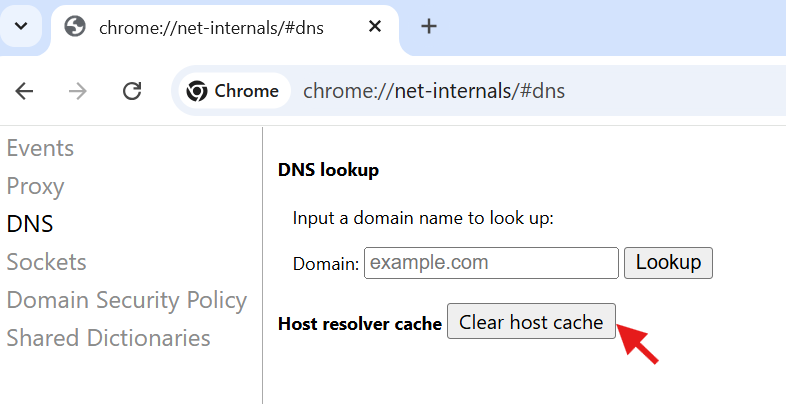
- Now, in the URL bar, type or copy and paste chrome://net-internals/#dns and press Enter.
- This will take you to Chrome internal network diagnostics page, where you can manage various network-related settings, including the DNS cache.

Step 2: Clear the Host Cache
- Tap on Clear host cache button available next to Host resolve cache text.
- This action ensures that Chrome will perform fresh DNS lookups the next time you visit any website.
Step 3: Flush Socket Pools (Recommended)
- After clearing the DNS cache, it is recommended to flush the socket pools to ensure that Chrome do not reuse the existing connections with outdated DNS records.
- Now, to go the sockets option from the left-side bar or simply type of copy and past the command
chrome://net-internals/#socketsin the top URL box. - Now Click on Flush socket pools button.
- This will close all active network connections, ensuring that no remaining connections hold onto old DNS info before new lookups occur.

Step 4: Restart Chrome
- Now, Restart the Chrome
- Restarting ensures that all changes take effect and clears any remaining temporary data.
- After completing these steps, Chrome will perform fresh DNS lookups for any website you visit, which can resolve issues caused by outdated or corrupt DNS cache entries.
Note: Chrome’s cache is separate from your OS’s DNS cache. If problems still persist, you might need to flush the OS-level cache and to do this refer the guide how to clear DNS cache in Opreating System
Pro-Tips
Disable Browser Extensions
- Some extensions, especially those related to security or VPNs, can interfere with DNS resolution. Try disabling extensions or running Chrome in Incognito mode (which disables most extensions by default).
Reset Chrome Settings
- If issues continue, you can reset Chrome to its default settings. Go to chrome://settings/reset and click “Restore settings to their original defaults.” Note that this will disable extensions and clear some preferences, so consider this to be your last option.
2. Google Chrome vs System DNS Cache
Google Chrome maintains its own internal DNS cache separate from the operating system’s DNS cache. This distinction is important because clearing Chrome’s cache alone does not flush the system-wide DNS cache and vice versa.
| Feature | Chrome DNS Cache | System DNS Cache |
|---|---|---|
| Where it is stored? | Inside Chrome’s browser memory | In the operating system (Windows, macOS, Linux) |
| How to clear it? | Via chrome://net-internals/#dns | Using system commands |
| Affects other applications? | No, only affects Chrome | Yes, affects all applications using the internet |
| When to clear? | When Chrome is showing incorrect DNS resolution | When all browsers and apps face DNS issues |
3. When Should You Clear Google Chrome DNS Cache?
Consider clearing the DNS cache if you encounter any of the following:
- A website you know is live isn’t loading in Chrome.
- You’re seeing an outdated version of a website despite knowing it has been updated.
- You’re experiencing DNS-related errors, such as “DNS_PROBE_FINISHED_NXDOMAIN.”
- You’ve recently changed DNS settings or switched networks and are having trouble accessing sites.
Clearing the cache is a safe troubleshooting step with minimal issues, though you might notice slightly slower load times for websites on your first visit after clearing, as Chrome performs fresh DNS lookups.