
If you've ever seen horizontal lines on your computer screen, you know how frustrating it can be. These lines can show up for many reasons—sometimes due to software issues, other times because of problems with your graphics card or monitor. But don't worry!
Learn how to troubleshoot common causes of horizontal lines on your computer screen and restore your display to its normal condition along with the process of fixing horizontal lines on your computer screen. Whether you’re using a PC, laptop, or an external monitor, we’ll go over easy steps to help you get your display back to normal.

Why Horizontal Lines Appears on Computer Screen
Before jumping into the fixes, it’s helpful to know why those horizontal lines appear in the first place. Here are the most common causes:
- Damaged Cables: You monitor cables plays an important role in connecting various components of a computing system. If the cables connecting your monitor to your PC or Laptop are loose or damaged, it can cause poor signal transmission.
- Screen Resolution: When the screen resolution you have set contradicts with the size of the screen, horizontal or vertical lines may be seen on the screen.
- Expired drivers: In case the device drivers or the operating systems have become old beyond the specified dates, you will experience such difficulty.
- Power issues: Due to residual power, the monitor may be short circuiting and cause the lines.
- Old monitor: Defects with the monitor is another important cause that is to be taken care of.
How to Fix Horizontal Lines on a Computer Screen?
In most cases, it must not be a big issue to fix. Just by following a few steps, you can get the job done. However, it also depends on the cause. Following are a few methods you can try to fix your computer screen.
Before you go to the methods, check if there are any magnetic or electronic devices around your computer and remove them. They sometimes interfere and cause the lines on the screen.
Method 1: Restart your System
Sometimes, the quickest fix is the easiest one—just restart your computer! You can perfrom a system reboot to fix any minor software glitches and repair any temporary horizontal line issues. Here's how can perform this action:
- Save all your current work to avoid any data loss
- Close all the running applications
- Restart your PC or laptop
- Check to see if the screen flickering are still there after the system restart.

Method 2: Check Your Monitor
If restarting doesn't help, it's time to check your monitor for any lags. Try turning off your monitor and then switch on. If it prevails, you can also try to connect your CPU to a different monitor. This helps you identify the core of the problem. You can identify if the problem is with the processor.
In case you have a monitor that uses its built-in settings and is not just connected and works depending on the processor, then try and reset the monitor to its factory settings. These options can be accessed using the buttons found on the computer monitor. Here's what you need to do:
- Turn off you Monitor and Turn it back on
- Try to connect with any other CPU (if you're using a computer)
- Check for the connecting ports and plug it in again
- Press and hold down the power button of Monitor (wait for LED to blink for 5 times) to restart
Method 3: Check the Cables Connections
Take a look at the cables for any damage or loose connections. It might also be due to incorrect connection. Remove all the cables and reconnect them, especially the video cable connected to the monitor. Now, switch on your system and check if the horizontal lines are gone.
Remember to check the ribbon cables for damages and then reconnect or replace them. It is composed of multiple small grade cables placed parallel to each other. The key purpose of the cable is for data transmissions and communications. So, any defect in this cable might affect the transmission of video signals. Here's a quick glimpse of what needs to be done in this method:
- Turn off your computer and unplug any video cables (like HDMI, VGA, or DisplayPort).
- Inspect the cables for damage, fraying, or bent connectors.
- If the cables look fine, plug them back in securely.
- Turn your computer back on and see if the lines are still visible.
Method 4: Check Graphics Card Driver
In the previous steps we've covered most of the external faults. When nothing has worked, the issue must be software-related.
Outdated or corrupt graphics card drivers can easily cause horizontal lines. Here’s how to make sure your drivers are up-to-date:
Step 1: Access the Windows Device Manager
Go to 'Settings' or use Windows Keyboard Shortcut Win + X and open 'Device Manager'.
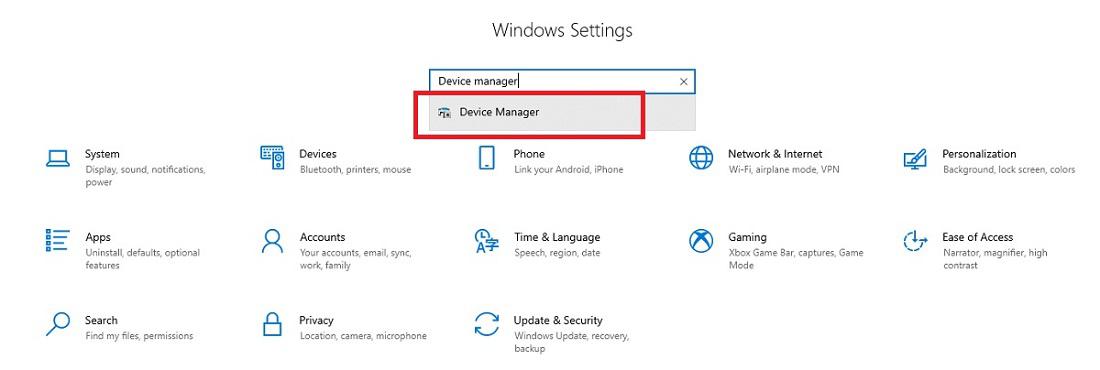
Step 2: Navigate to Windows Display Adapters
Select 'Display Adapters'.

Step 3: Select to Update Drivers
Right-click on your graphics driver from the list of drivers and click 'Update driver'.

Step 4: Follow the on-screen Prompts
Continue and follow the instructions prompted on your screen.
Keeping your graphics drivers up to date can solve many display issues, including screen flickering and lines.
Method 5: Modify the Screen Resolution
If the screen resolution is not set correctly, it could be causing the horizontal lines. Here's how to fix it:
Step 1: Navigate to Display Settings
Open settings and go to 'System'.

Step 2: Adjust the Resolution
Now click on 'Display' and adjust the resolution according to your screen size.

Check if the horizontal lines have disappeared. If not, read further more to try other ways.
Method 6: Scan for Malware
This issue can also occur by any malware and can interfere with your computer’s performance, including causing horizontal lines on your display. Running a system scan can help identify and remove malicious software, here's what you need to do:
- Open Windows Defender or any trusted antivirus program.
- Run a full system scan to check for malware.
- Remove any threats or suspicious software that could be causing the display issues.
Clearing out any malware might fix the horizontal line problem caused by infected system files.
Method 7: Check Refresh Rate of your Monitor
The refresh rate on your computer needs to be correctly set to avoid display issues like horizontal lines. Here’s how to adjust it:e:
Step 1: Open Display Settings
Go to 'Display Settings' from your computer 'settings'.

Step 2: Navigate to Advanced Display Settings
Now, select the 'Refresh Rate' and set up 'G-Sync or FreeSync'.

Method 8: Install All the Latest System Updates
Few system specifications may be contradictory to the old software. Updating and installing the the latest updates to your computer and operating system may help resolve the issue. It can automatically fix the issue with your computer screen.
Method 9: Perform a Factory Reset (Powerwash)
If none of the above methods work, performing a factory reset (also known as a Powerwash) might help resolve the issue. This will restore your Chromebook (or other computer) to its original factory settings:
- Go to Settings > Advanced > Reset settings.
- Click Powerwash and then Restart.
- Follow the instructions to complete the reset.
This method will remove all personal data and settings, so make sure to backup your files before proceeding.
Still Getting Horizontal Lines on a Computer Screen?
If you've tried all the steps above and still see horizontal lines on your screen, the issue may be with your hardware, like a faulty graphics card or monitor. Here’s what you can do next:
- Try a Different Monitor: Connect your computer to another monitor. If the lines disappear, the issue may be with your original monitor.
- Check for Overheating: Make sure your graphics card and CPU are not overheating. Cleaning your computer’s vents and ensuring proper ventilation can help.
- Professional Help: If the problem persists, it may be time to consult a professional repair service to check for internal hardware issues.
Conclusion
Fixing horizontal lines on your computer screen is an easy task if you follow the right approach. Whether the issue is with loose cables, outdated drivers, or resolution mismatches, the solutions provided here should help restore your display to normal.
If the problem persists, don’t hesitate to seek professional repair services to address hardware-related issues.