
The Xbox app on Windows 11 acts as a central hub for gaming, social features, and access to Xbox Game Pass titles. However, many users encounter issues where the app crashes, fails to launch, or does not load properly. These problems can interrupt gaming sessions and restrict access to games and services.
Steps to Fix the Xbox App Not Opening Issue on Windows 11
If the Xbox app crashes at launch or refuses to open, it is often caused by outdated Windows files, disabled services, corrupted app data, or driver incompatibility. Follow the steps below in order to resolve the issue permanently.
Step 1: Check for Windows Updates in the system
Outdated Windows versions can cause compatibility issues with built-in apps like Xbox.
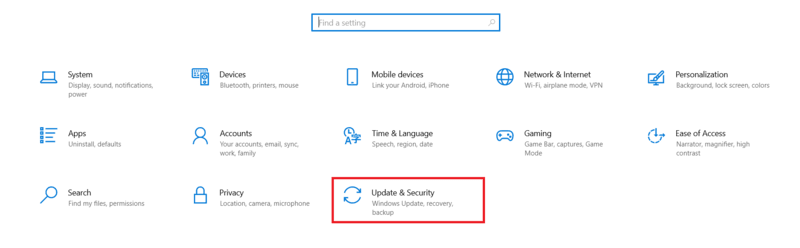
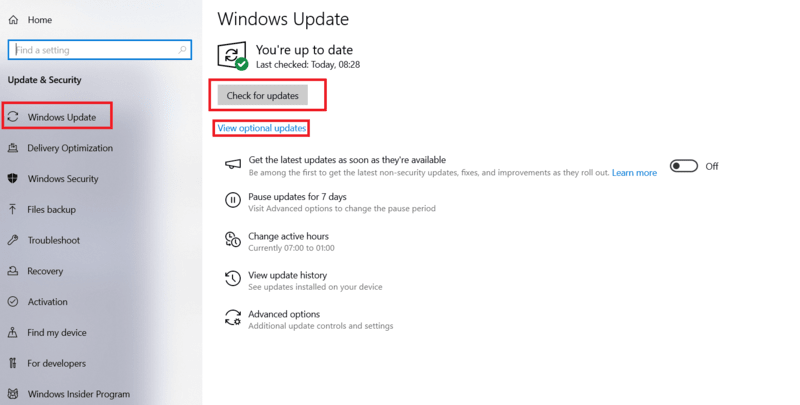
- Press Windows + I to open Settings > Go to Windows Update option
- Click on the Check for Updates option > Click on Download and Install (if required) > Restart your system
Step 2: Ensure Xbox Services Are Running
The Xbox app depends on multiple background services. If they are disabled, the app may not open.
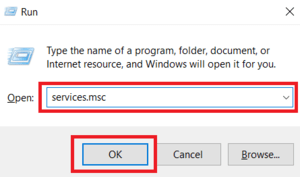
- Press Windows + R to open Run terminal > Type services.msc > Click on Enter
- Set all the process Automatic > Restart your system
Step 3: Reset the Xbox App
Corrupted app data can prevent the Xbox app from launching.
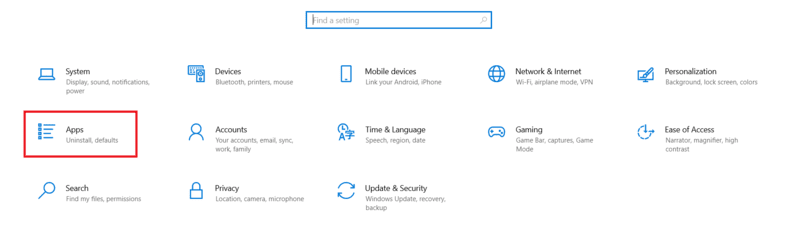
- Open Settings → Apps → Installed apps
- Scroll down and select Xbox
- Click the three-dot menu → Advanced options
- Click Reset and confirm
- Restart your system
Step 4: Repair or Reinstall the internal Gaming Services
The Xbox app's official performance services on the Gaming Services component can occasionally be the source of the problem.
- Open Powershell or Command Prompt > Click on Run as administrator > Type the below command > Press Enter
get-appxpackage Microsoft.GamingServices | remove-AppxPackage -allusers

- Run all the commands > Reinstall Gaming services by the below-mentioned command
start ms-windows-store://pdp/?productid=9MWPM2CQNLHN

- Go or Open Microsoft Store > Click on the Install button to reinstall all the features
- Restart your system > Open the Xbox app
Step 5: Update the internal Graphics Drivers
Incompatible system graphics drivers can lead to problems with the Xbox app's compatibility to produce the minimum activity.
- Go to Start button > Select Device Manager > Find and click on Display adapters option
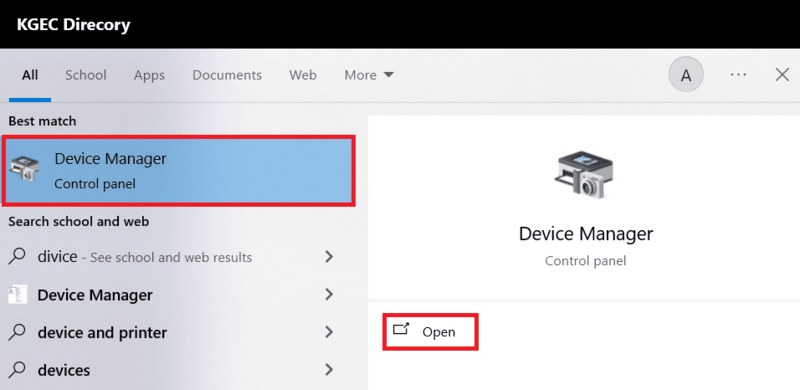
- Right-click on the Graphics card option > Tap on Update driver > Choose Search automatically for updated driver software
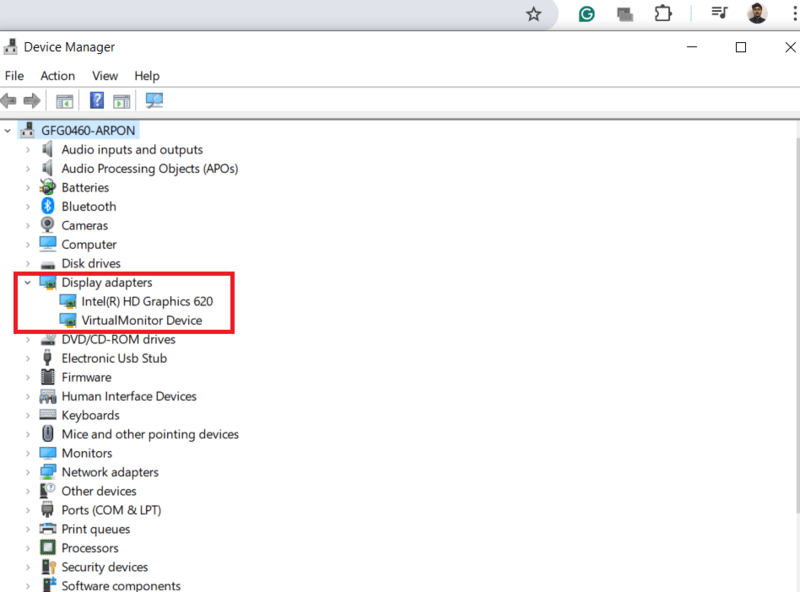
- Install all the required updates (if available) > Restart your system
Also Read