
Windows 11's sleep mode is a useful feature that conserves system power by shutting down the display after a period of inactivity. Disabling sleep mode can be done through settings or using Microsoft's PowerToys. The sleep mode saves battery and allows users to resume work.
However, it can sometimes become an annoyance when the PC is asleep. Turn off sleep mode can be done for various reasons, such as waiting for Windows to wake up on older PCs, excessive sleep during breaks, or suspending large downloads.
In this article, we will learn how to turn off sleep mode. here we have explained 4 methods to turn off sleep mode sleep mode on your PC.
How to Make Your Windows 11 PC Never Go To Sleep
How to Turn off sleep mode in Windows 11?
we'll explore different methods to make your Windows 11 PC never go to sleep, providing you with the necessary steps to adjust your power settings effectively. By understanding these methods, you can change your PC's behavior to suit your needs, whether it's for uninterrupted work sessions or extended entertainment sessions.
Method 1: Disable Sleep Mode in Windows 11 Using Settings App
Window 11 has a Settings App through which you can easily set up different system settings such as the sleep mode. Follow these steps to turn off sleep mode:
Step 1: Press the Windows key + I to open the Settings app.
Step 2: Click on "System" in the left sidebar.
Step 3: Select "Power & Battery" from the left-hand menu.
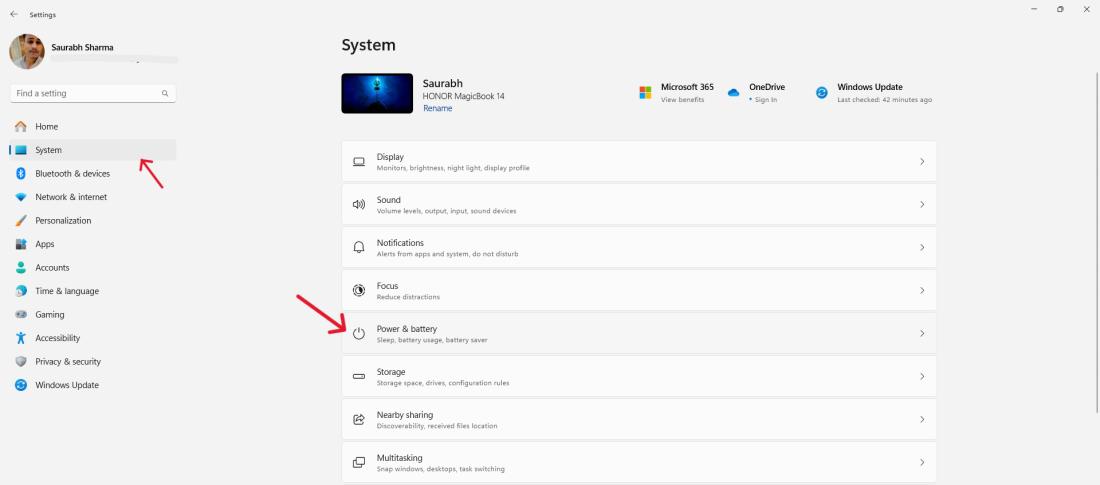
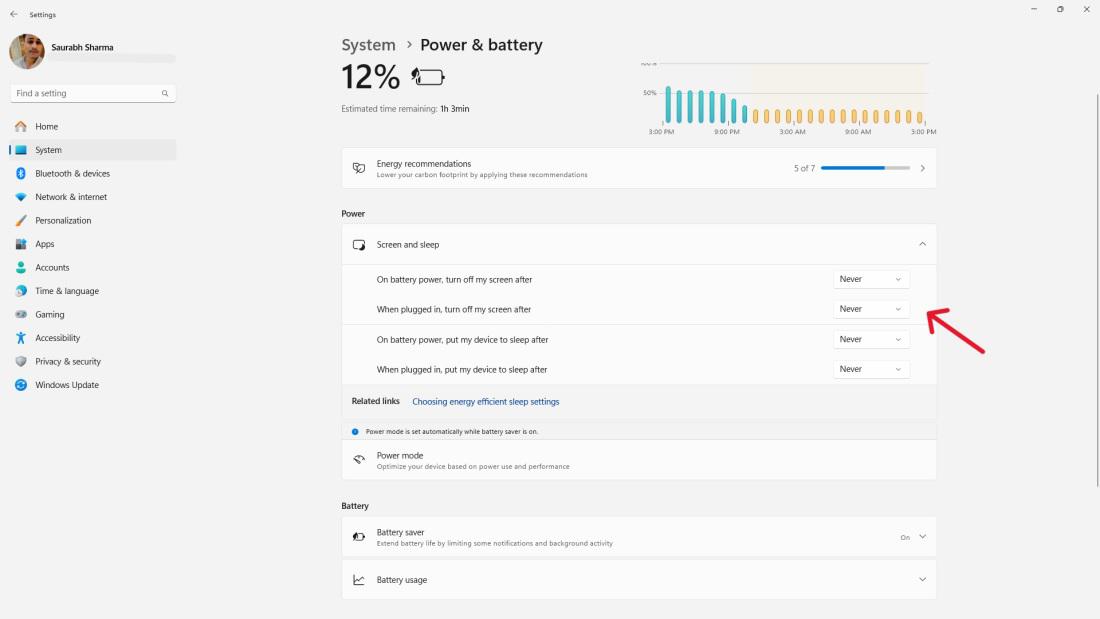
Step 4: Under the Sleep section, use the drop-down menus to set both "On battery power, PC goes to sleep after" and "When plugged in, PC goes to sleep after" to "Never."
Method 2: Disable Sleep Mode in Windows 11 Using Control Panel
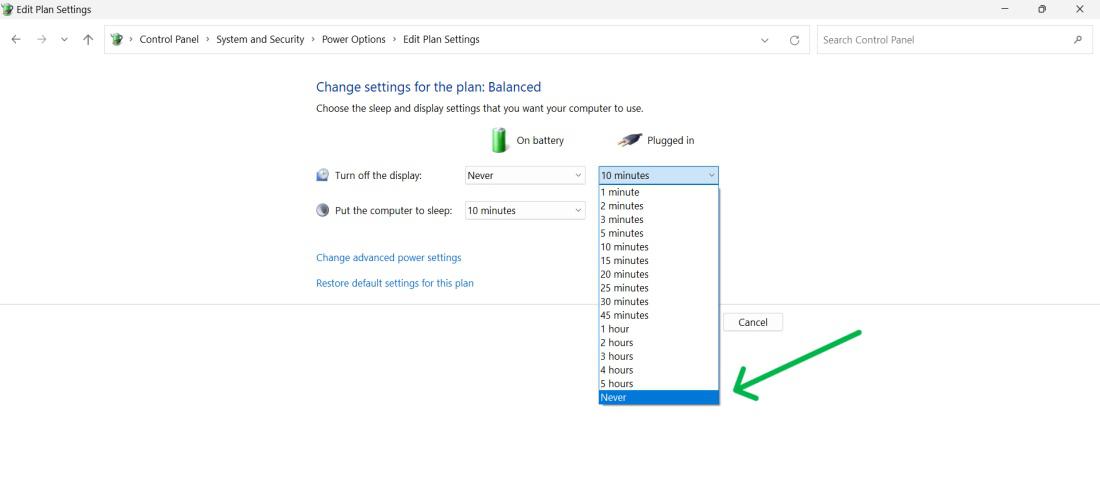
Power settings can also be accessed via a control panel. Here's how to disable sleep mode:
Step 1: Press Win + S then on search bar type "Control Panel"
Step 2: Click System and Security.
Step 3: Then, Click Power Options.

Step 4: Under the "Select Plan" click on "Change plan settings"
Step 5: From dropdown select "Never"
Method 3: Disable Sleep Mode in Windows 11 Using Group Policy Editor
If you want to turn off sleep mode, you can use the Group Policy Editor. Here's how:
Step 1: To open the Run dialog, hit Windows key + R, type "gpedit.msc," and then press Enter.
Step 2: Navigate to:
Computer Configuration \Administrative Templates\System\Power Management\Sleep Settings
Step 3: Enable the "Allow standby states (S1-S3) when sleeping (plugged in)" and "Allow standby states (S1-S3) when sleeping (on battery)" policies by double-clicking on them.
Method 4: Disable Sleep Mode in Windows 11 Using Microsoft PowerToys
Step 1: Press Win + S then on search bar type "MicroSoft Store" then open.
Step 2: On Microsoft store search bar type "Microsoft PowerToys" and Press enter
Step 3: On left hand side click on "Install" button
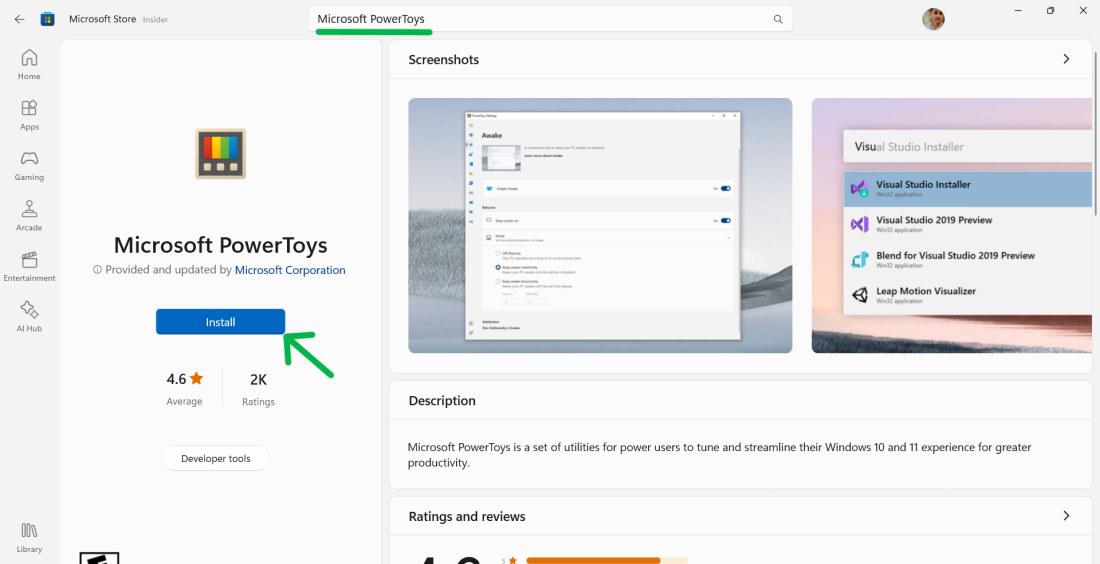
Step 4: After installing the Microsoft PowerToys open it.
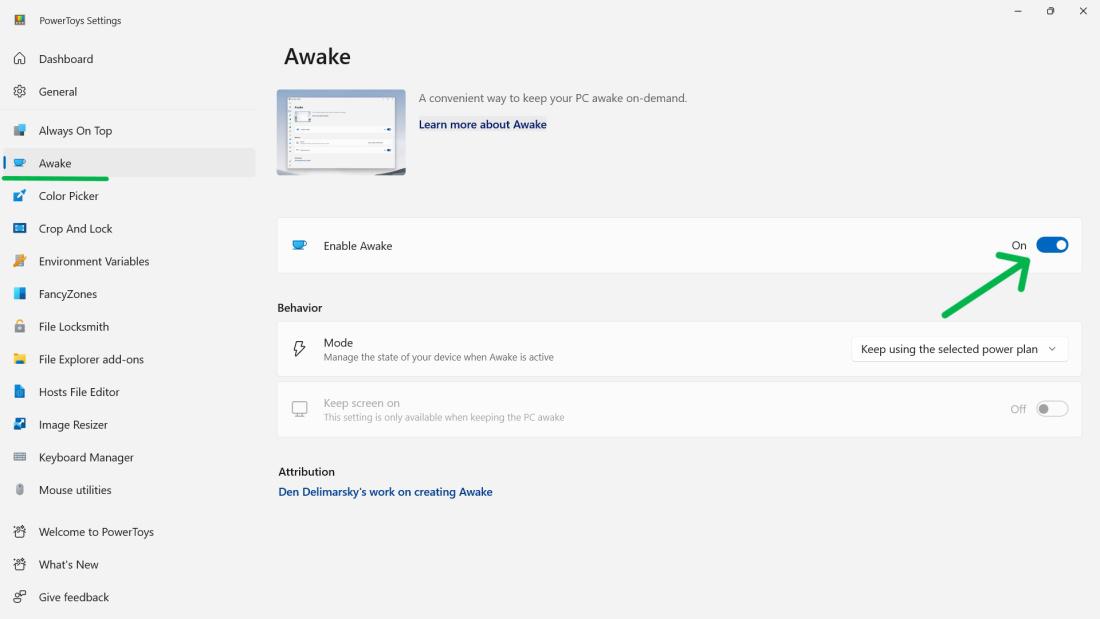
Step 5: Left side bar go to "Awake" section.
Step 6: On Right hand side click on "Open Settings".
Step 7: Toggle the button.
Conclusion
In conclusion, learning how to turn off sleep mode can greatly enhance your computing experience by ensuring uninterrupted workflows and entertainment sessions. By disabling sleep mode through settings or using tools like Microsoft's PowerToys, you can change your PC's behavior to suit your needs, whether it's for extended work hours, downloading large files, or avoiding interruptions during presentations.
With these methods, you can control your PC's sleep settings to meet your needs. Whether you're a busy professional or a streaming enthusiast, keeping your Windows 11 PC awake when you need it most is invaluable.