
Ever received a WhatsApp message only to see it disappear with a “This message was deleted” notification? Whether it’s curiosity or the need to retrieve important information, figuring out how to see deleted messages on WhatsApp can feel like solving a mystery. While WhatsApp doesn’t make it easy, there are clever workarounds to read deleted messages.
How to See Deleted Messages on WhatsApp
Want to recover deleted WhatsApp messages? While WhatsApp doesn’t have a built-in feature to restore deleted texts, there are several ways to see deleted messages on WhatsApp using different methods.
Below are five effective ways to retrieve deleted messages. Follow these methods to retrieve deleted messages on Android, iPhone, and WhatsApp Web easily.
Method 1: Through WhatsApp Notification Log
If you are using an Android device, you can see deleted for everyone messages on whatsapp through the Notification Log feature. However, this method works only if notifications were received before the message was deleted and if your device supports notification history.
Step 1: Open Settings App
Go to your phone’s Settings to access system options.
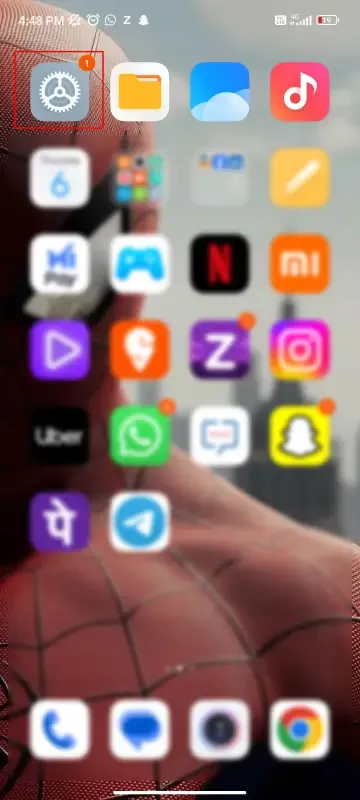
Step 2: Navigate to Notifications
Scroll down and tap on Apps & notifications (or Notifications, depending on your device).

Step 3: Select WhatsApp and Turn On Notification
Tap on Notification for the WhatsApp so that it can reflect on you notification bar.

Step 4: View Deleted Messages
Now you can read the messages from the notification bar, even the messages got deleted still you know the messages.

Method 2: By Restoring WhatsApp Chats Backup
To see deleted for everyone messages on whatsapp using backup, uninstall and reinstall WhatsApp, then restore chats from the most recent backup saved before the message was deleted.
Step 1: Check Backup Availability
Open WhatsApp > Settings > Chats > Chat backup and check the last backup date. If the backup was made before the message was deleted, you can restore it.
Step 2: Uninstall WhatsApp
Long-press the WhatsApp app icon and select Uninstall or remove it from the app settings.

Step 3: Reinstall WhatsApp
Download WhatsApp from the Google Play Store or Apple App Store and install it again.
Step 4: Verify Your Number
- Open WhatsApp and enter your phone number.
- Follow the verification process using the OTP sent to your phone.

Step 5: Restore from Backup
When prompted, tap Restore to recover your chats from the backup. Wait for the process to complete, and your deleted messages will reappear.

Method 3: Opening WhatsApp Web Inspect Element
To see deleted for everyone messages on whatsapp using the Inspect Element trick, open WhatsApp Web, right-click on the chat, select Inspect, and check the message code to find deleted texts in the HTML source.
Step 1: Open WhatsApp Web
Visit web.whatsapp.com and scan the QR code using your phone.
Step 2: Go to the Chat with Deleted Messages
Open the conversation where the message was deleted.

Step 3: Right-click and Inspect
Right-click anywhere in the chat and select Inspect (or Inspect Element) to open the browser’s Developer Tools.

Step 4: Search for Deleted Messages
- Press Ctrl + F and search for keywords like “deleted” or part of the message.
- Sometimes, deleted messages are still present in the HTML code.

Method 4: Reading Deleted Message by Reply or Quote Before Deletion
To read deleted messages on WhatsApp using the reply or quote method, check if someone replied to the message before it was deleted, as quoted messages remain visible even after deletion.
Step 1: Open the WhatsApp Chat
Launch WhatsApp on your device and navigate to the specific chat where the deleted message was sent. This could be a group chat or a one-on-one conversation.

Step 2: Scroll Up in the Conversation
Swipe or scroll upward through the chat history to locate the area where the deleted message originally appeared. Look for replies or quoted text around the time you suspect the deletion occurred.
Step 3: Identify a Reply or Quoted Message
Find a reply or quoted text (in a box) that shows the deleted message.
Step 4: Read the Quoted Content
Once you find the reply or quote, read the preserved text within it. This is the content of the deleted message as it was captured before deletion.

Step 5: Take Note if Needed
If you want to save the information, manually copy the quoted text or take a screenshot of the chat for future reference, as it won’t be restored to the original message slot.
Method 5: Using Third-Party Apps
Third-party apps claim to help retrieve deleted WhatsApp messages by saving notifications, but they come with significant risks. These apps often require access to your notifications, storage, and sometimes even contacts, raising privacy concerns and potential data breaches.
Additionally, they may not work reliably due to WhatsApp's security updates, and some could contain intrusive ads, malware, or hidden subscription fees. Using such apps can compromise your personal data, making them a risky option compared to built-in WhatsApp features.