
The keyboard shortcut Alt+F4 is used to end the active window in the system. On Windows 10 and all other Windows editions, the Alt and F4 keys function properly. The best way to end the active window is to use Task Manager if the Alt + F4 shortcut isn't working in the system.
In this article, we'll discuss what Alt + F4 does and what to do if the Alt + F4 shortcut doesn't work, and provide detailed solutions to fix the Alt+F4 not working problem in your system. Additionally, we'll cover how to enable Alt+F4, activate the shortcut, and change its default function in Windows 11.
What Does Alt+F4 do? What to Do If Alt+F4 Doesn't Work
What Does Alt + F4 Do?
The user can use the keyboard shortcut Alt + F4 to close the active window. For example, the game window will close instantly if users use this keyboard shortcut while playing a game or doing some internal tasks. Press and hold the "Alt" key on the keyboard until press the "F4" key to create the Alt + F4 shortcut. The space bar key has an Alt key on either side of it and the F4 key is present at the top of the keyboard.
How to Use Alt+F4 on Microsoft Windows?
In Microsoft Windows, the Alt + F4 shortcut sends an internal command to the system that ends the current window and application. If the system is not running any programs, pressing Alt + F4 will bring up the "Shutdown" window suddenly.
How to Use Alt+F4 on Microsoft Word?
A word processor that may be used to create required documents for both personal and business purposes is the Microsoft Word application. Users can install Microsoft Word on computer hardware and use it whenever needed by utilizing Microsoft Office 365. Microsoft Word is also a free tool to use and accessible online. In Microsoft Word, the Word document shuts down when using the keyboard shortcut Alt + F4.
How to Use Alt+F4 on Microsoft Excel?
After preparing the required data, users can use a Microsoft Excel spreadsheet to do arithmetic computations or operations on the data. The operating systems Windows, Android, Mac, and iOS may all use this application. In Microsoft Excel, the Alt + F4 keyboard shortcut quits the Excel application and all the internal tasks.
What to Do If Alt+F4 Doesn't Work?
In Windows 10, sometimes users face system issues with not working the keyboard shortcut Alt + F4 to close the window or applications. This implies that users will need to manually close every program and window by navigating to the upper right corner button. If you're having problem of Alt+F4 key not working, we've listed down 4 Easy methods to resolve Alt+F4 not working problem.
Methods to fix Alt+F4 Not Working Problem
If you're having the same issue with Alt+F4 Not working. After following the given 4 easy methods user can resolve the problem and work with the Alt + F4 shortcut keys.
Method 1: Upgrade the Keyboard Drivers
At first, users need to upgrade the keyboard drivers when Alt + F4 shortcut keys don't work.
Step 1: Click on the Windows icon on the taskbar > Select Device Manager

Step 2: On the Device Manager window, Expand Keyboards > Click on Update Driver

Step 3: Follow the on-screen instructions for update > Reboot the Computer.
Method 2: Press Alt + fn + F4
Step 1: Check to see if the open window closes by pressing the Alt+fn+F4 shortcut.
Step 2: Press the fn key > Then try to press Alt+F4 to see if the keyboard shortcut has been restored automatically.
Method 3: Turn Off Sticky Keys
Users need to turn off the sticky keys when Alt+F4 shortcut keys don't work by following the mentioned steps.
Step 1: Click on the Windows icon on the taskbar > Select Settings option > Click on Ease of Access
Step 2: Select the Keyboard option > Toggle Off the Sticky Keys on the left side.

Method 4: Run the Keyboard Troubleshooter
Windows 10 comes with a special function called Keyboard Troubleshooter. Users can run it and solve the problem by following the steps.
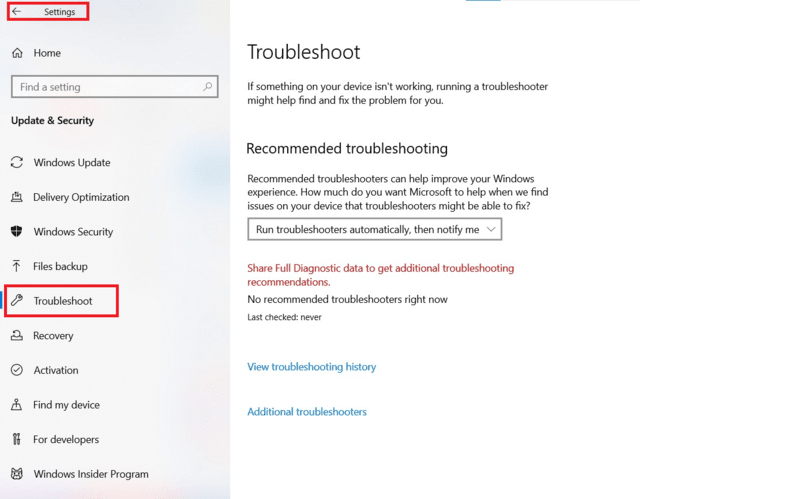
Step 1: Click on Search bar > Type and Open "Settings" > Select the Update and Security option.
Step 2: Click on the Troubleshoot icon on the left side > Scroll down and find Keyboard > Select Run the Troubleshooter button.
Also Read
- Windows Shortcut Keys
- Top 100+ Computer Keyboard Shortcut Keys List (A to Z), PDF Available
- Function Keys on keyboard
Conclusion
Keyboard shortcuts are essential tools for user productivity and convenience when using computers and doing required tasks. In Windows systems, Alt+F4 is a useful keyboard shortcut for quickly terminating internal applications. Users can resolve Alt+F4 difficulties and improve their computing experience by being aware of the sources of malfunction and using the mentioned solutions or methods. So I hope you got the idea of What Does Alt+F4 do, and What to Do when Alt+F4 Doesn't Work. In case You have any related queries following frequently asked questions will definitely help.