
How to Add a Second Email Account to Outlook - Quick Steps
- Launch Microsoft Outlook
- Click on File Tab >> Select Add Account
- Enter Email Address >> Enter Password
- Email Account Added >> Start Using Account
Managing multiple email accounts can be a hassle, but Outlook makes it easy to keep everything organized in one place. Whether you're adding a work email, a personal account, or a shared mailbox, setting up an additional email account in Outlook allows you to stay on top of all your messages without switching between different apps. In this article, you'll learn how to seamlessly add an extra email account to Outlook, ensuring you can manage all your emails effortlessly from a single platform. Get ready to streamline your communication and boost your productivity with this simple setup!

Table of Content
Why Add an Email Account to New Outlook
Adding an email account to the new Outlook offers several benefits, such as:
- Centralizing multiple accounts for streamlined email management.
- Improving productivity by accessing all messages in one place.
- Enabling efficient calendar and task management across accounts.
- Simplifying communication with integrated tools and features.
- Enhancing collaboration and organization through unified inboxes.
How to Add an Extra Outlook Email Account (Classic Outlook)
Here are the steps to add an email account in Outlook on desktop:
Step 1: Launch Microsoft Outlook and Select File Tab
Launch Microsoft Outlook Application on your desktop and navigate to the top right corner of the screen and click the "File" Tab.

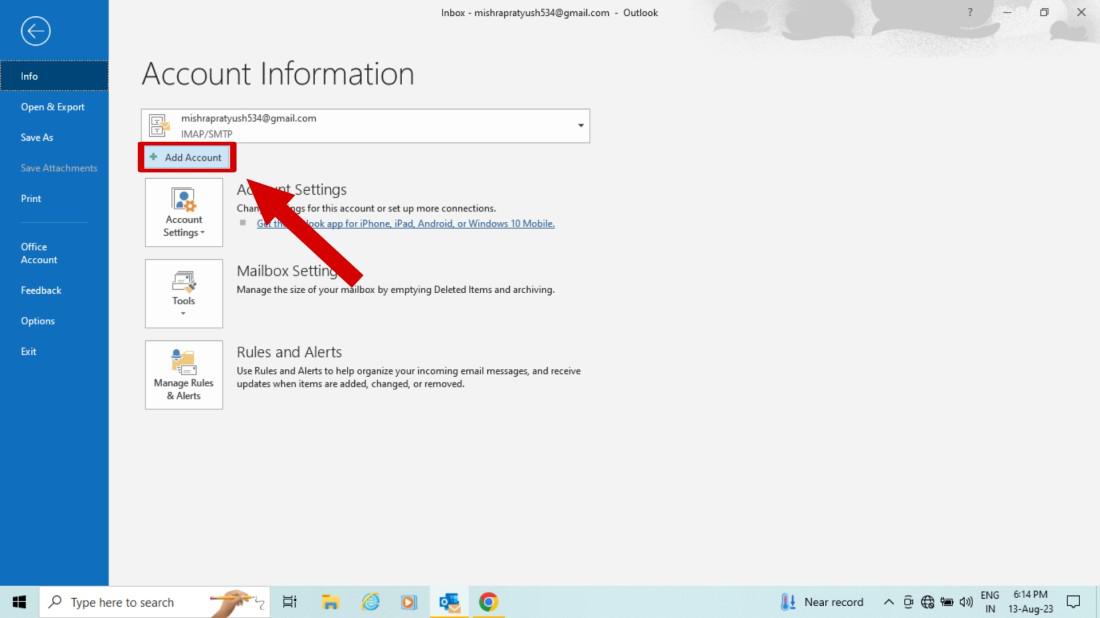
Step 2: Click on Add Account
Now your account information screen will appear, click on "+ Add Account" option to add another account to your Outlook.
Step 3: Enter Account Information and Click Connect
Now Enter another "email address" that you want to add and then click the "connect" button.

Step 4: Enter the Account Password and Click Sign in
Now enter the "credential or password" of the account you have previously added to connect with your outlook and then click on "Sign in" button.
.jpg)
Step 5: Preview Changes and Ensure Account is Successfully Added
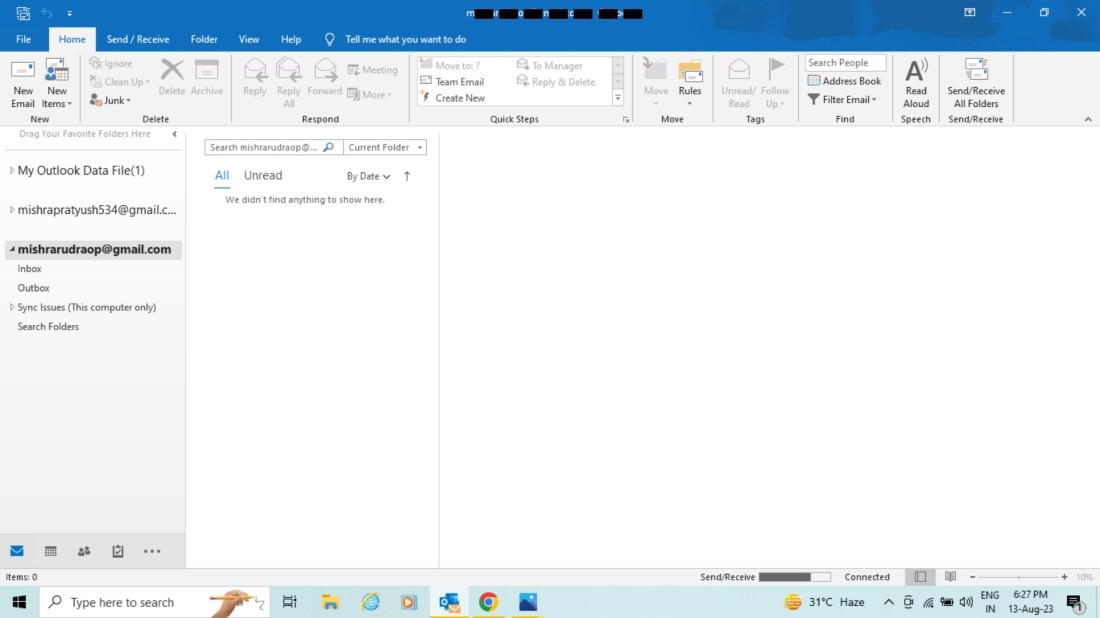
If you have enabled 2FA, you will be prompted to authenticate with Duo 2FA. Otherwise, a message prompt will appear confirming that your other account has been successfully added to your Outlook.
Note: If your other account still isn't visible, try restarting your Outlook.
How to Add Multiple Email Accounts in Outlook 365 (O365)
Using Outlook365 to Setting Up Outlook 365 for Multiple Email Accounts is very easy, below are the steps to setup Outlook 365 also know as New Outlook for additional email account:
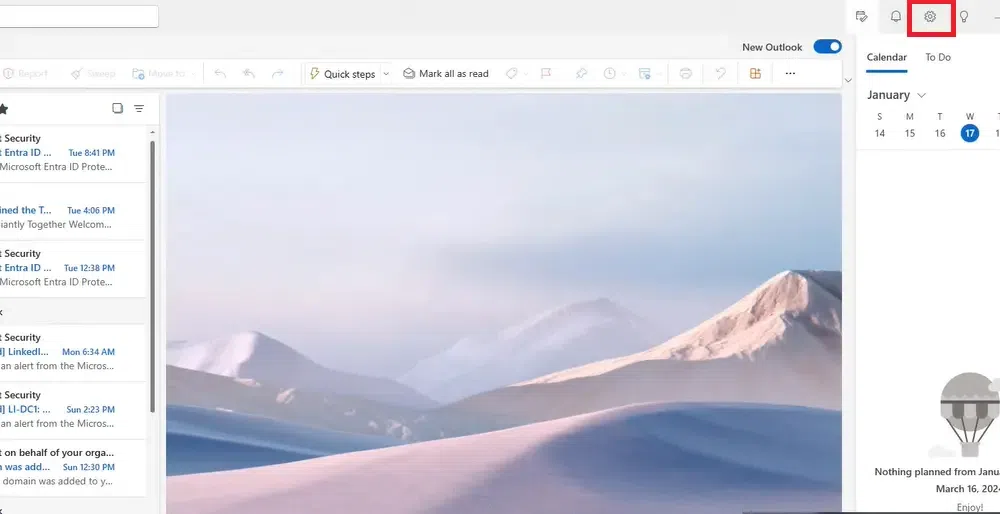
Step 1: Open Outlook and Click on Gear Icon
Open the Outlook app on your desktop and click on the Gear icon located at the top-right side of the interface.
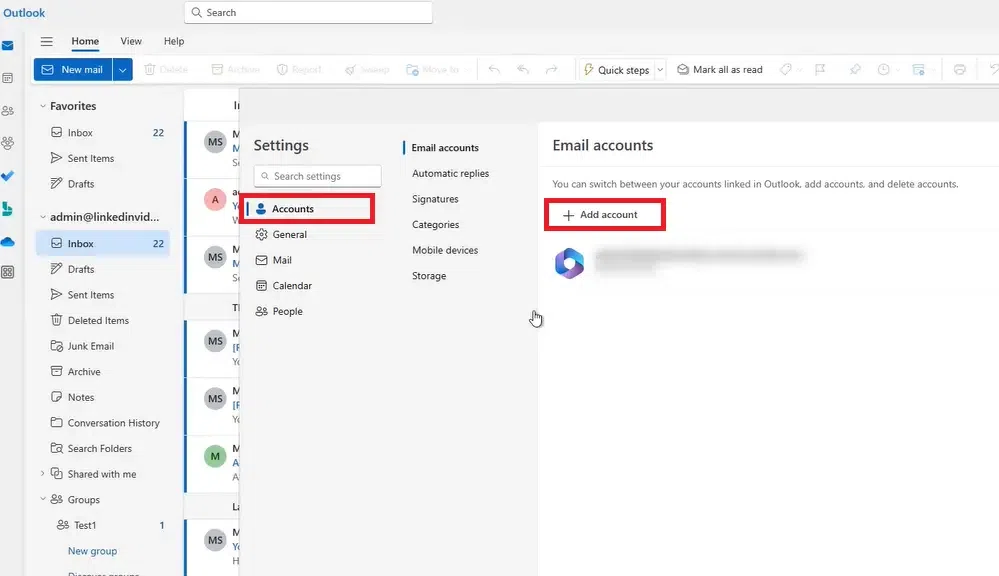
Step 2: Go to Accounts Tab and Click on Add Account
In the Settings go to the Accounts tab and click on the "Add Account" button.
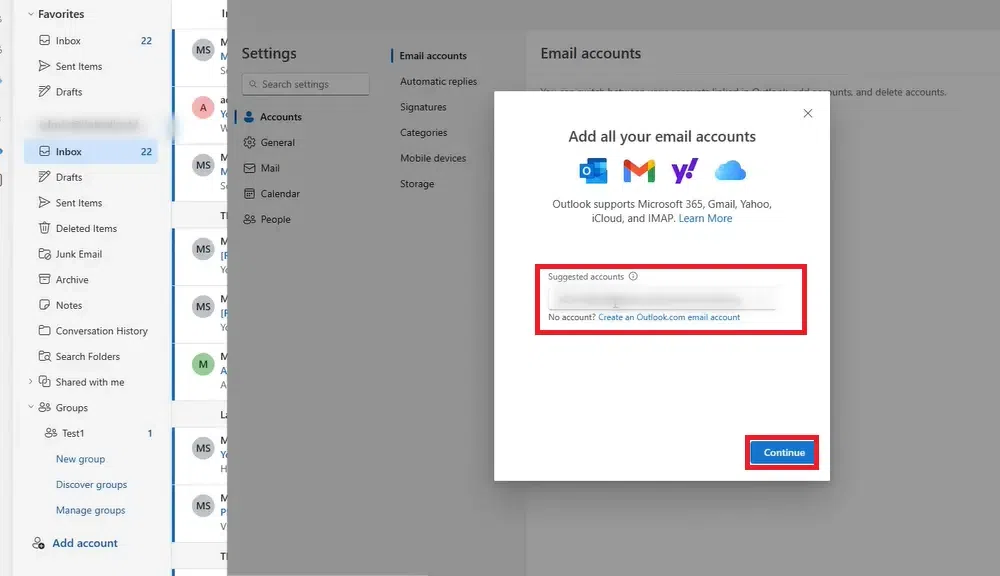
Step 3: Enter Email Address and Click on "Continue"
Now enter your email address that you want to add to Outlook and click on the "Continue" button.
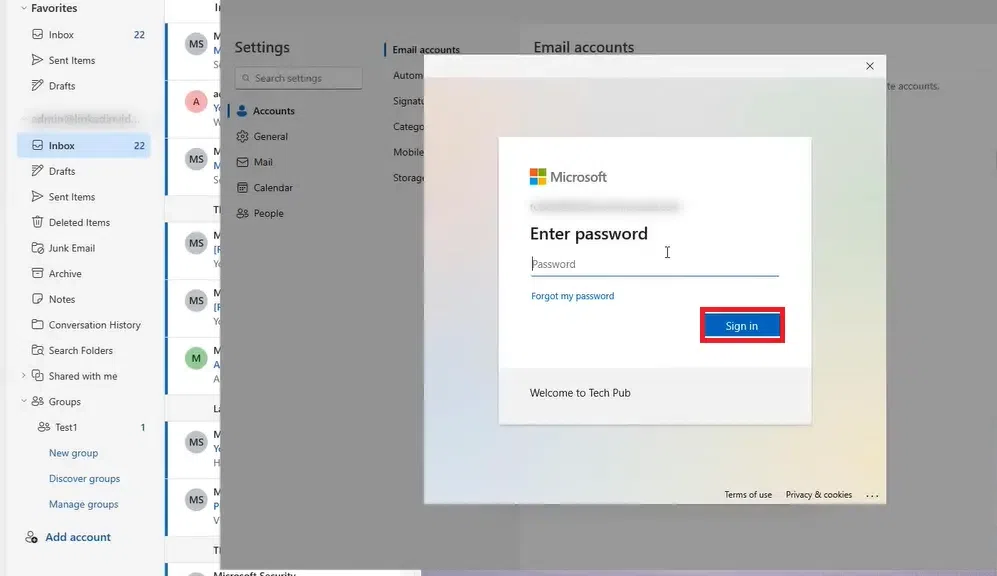
Step 4: Enter Password
Now enter your password in the box and click on "Sign In" button.
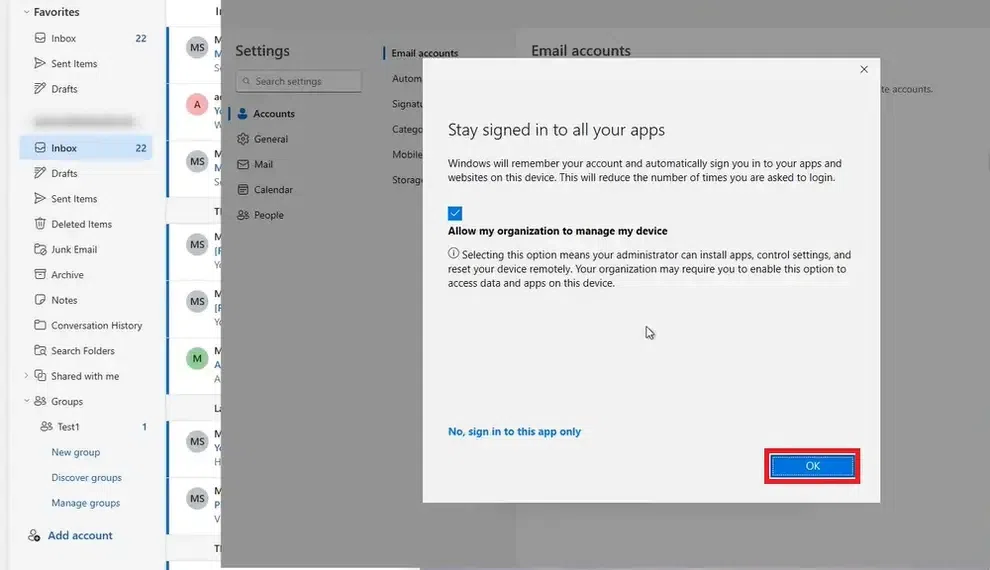
Step 5: Give Permission
Now by checking the checkbox you can allow your organization to manage your device.
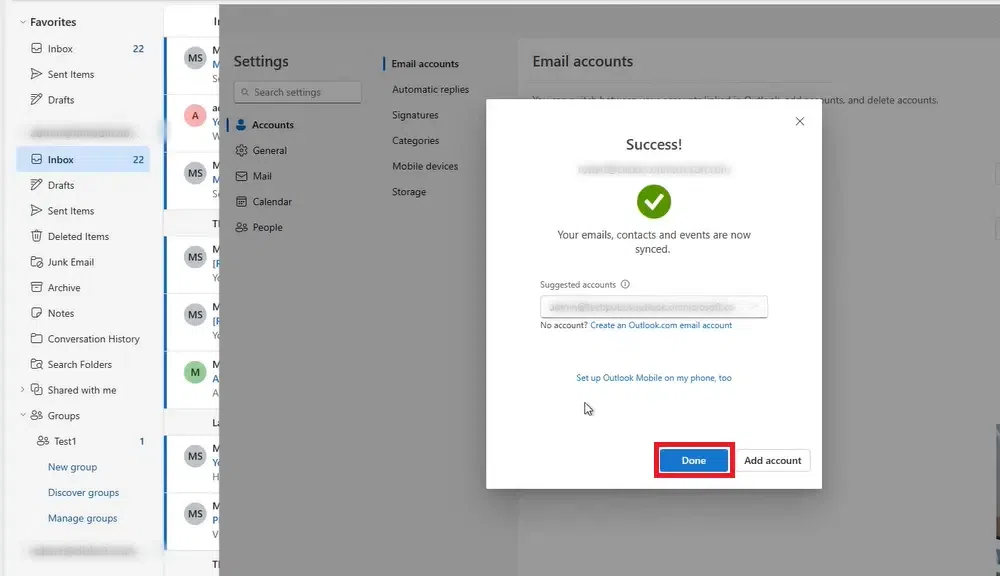
Step 6: Account Added
Now you have successfully added an additional email account to your Outlook.
How to Add Multiple Email Accounts in Outlook on Mobile (Android & iOS)
Many of us wants to separate there Work Outlook Account from Personal Outlook account, In order to setup Outlook for iOS and Android, below are the following steps:
Step 1: Launch Outlook App
Open the Outlook Application on your mobile phone and swipe the screen right to open your Outlook menu.
Note: You can also click on the top right corner Outlook Logo to open the menu.
.jpg)
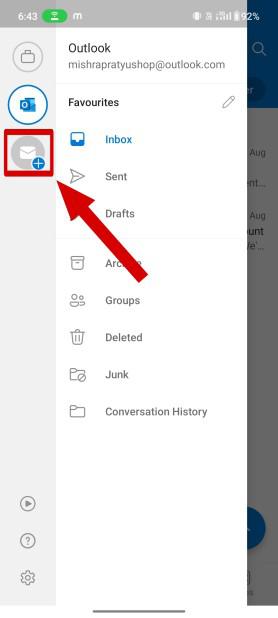
Step 2: Select the (+) Icon
Now from the left hand side panel click the third icon or icon with + sign to add a new account.
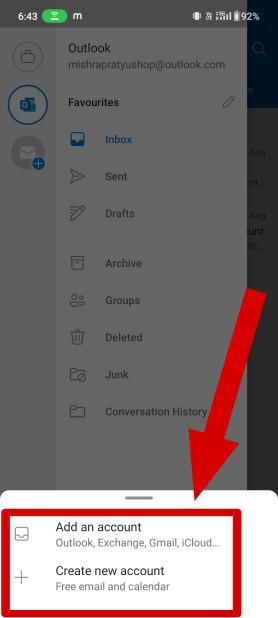
Step 3: Select Add an account
Now if you have created your email ID then select "Add an Account" or select "Create an Account" to create a new account.
Step 4: Enter Account Information
Now add an "Email ID" or add account directly from google account on your mobile phone and click Continue.
.jpg)
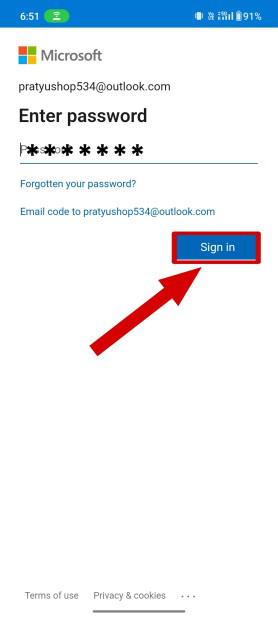
Step 5: Enter Account Password
Now enter the "Credential or Password" of the account you want to add in your Outlook and Select "Sign in".
How to Add Another Email Account to Outlook Mac
Follow the Below steps to add another email account to Outlook on a Mac:
Step 1: Open Outlook
Launch the Outlook application on your Mac.
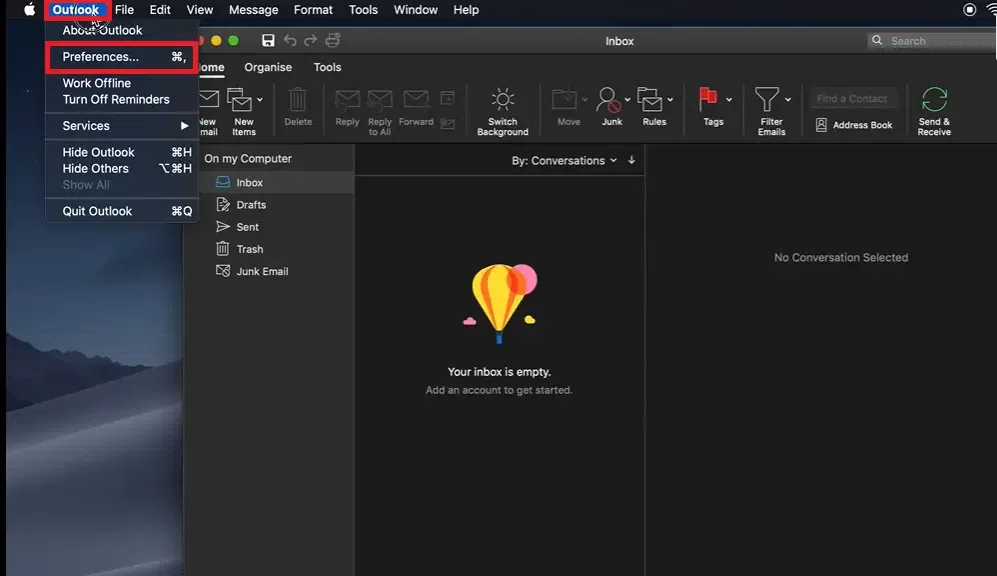
Step 2: Click on the Outlook Menu and Select Preferences
Click on the Outlook menu at the top left corner of the screen. Select Preferences from the dropdown menu.
Step 3: Click on Accounts Option
In the Preferences window, click on Accounts.

Step 4: Click Add Email Account Button
In the Accounts window, click the "+" (plus) sign at the bottom left. Choose New Account.
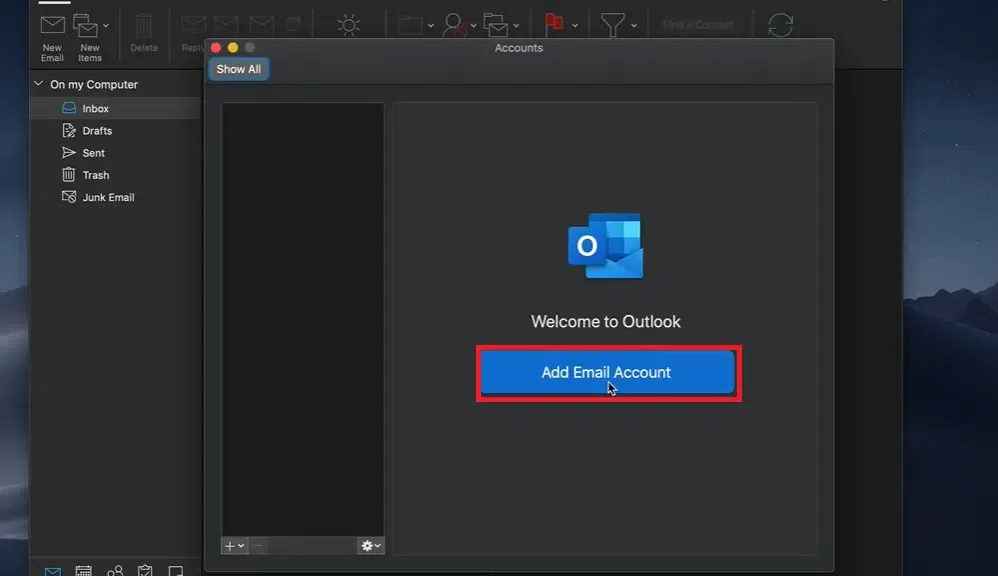
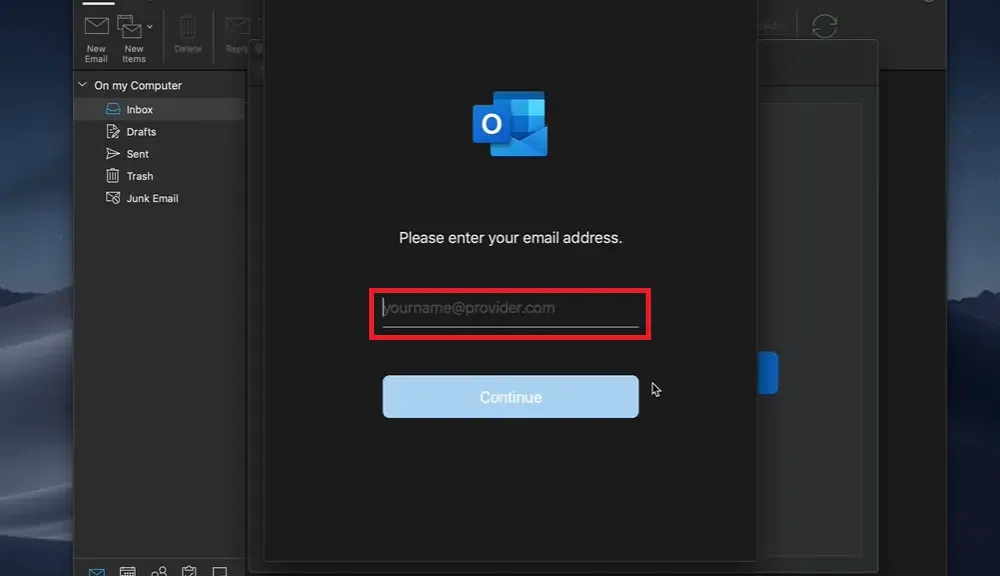
Step 5: Enter Your Email Address
Type in the email address you want to add and click Continue.
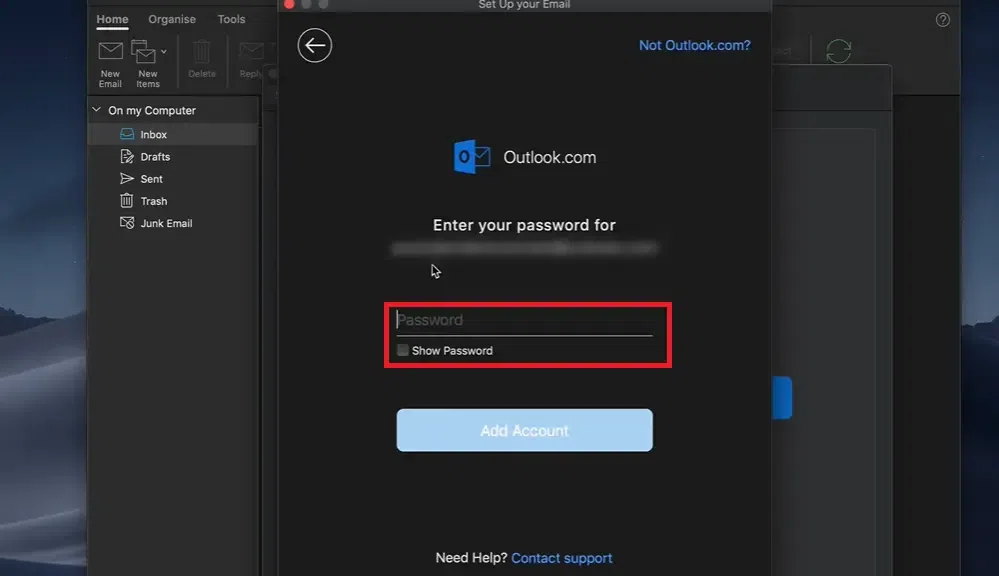
Step 6: Enter your Password
- Follow the prompts to sign in to your email account. Enter your password when required.
- If your account uses two-factor authentication, complete the verification using your phone or authentication app.
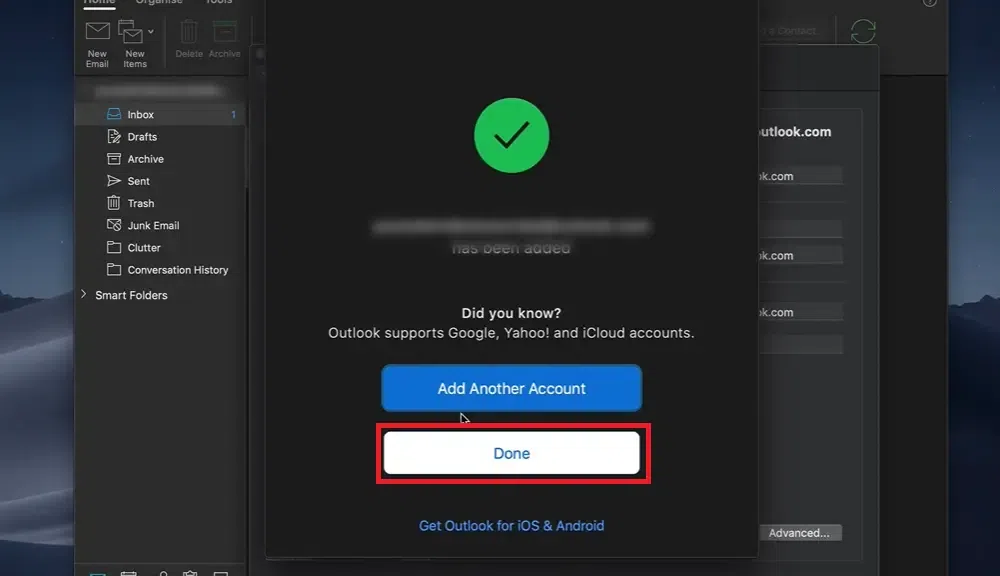
Step 7: Email Account Added
The newly added email account should now appear in your Outlook folders. You can start sending and receiving emails.
Also Read:
Conclusion
Adding an additional email account to Outlook is a straightforward process that can greatly enhance your email management experience. With all your accounts in one place, you can easily access, organize, and respond to emails without the hassle of juggling multiple platforms. Now that you know how to set it up, take advantage of Outlook's powerful features to keep your inbox organized and stay connected effortlessly. Embrace the convenience and productivity of managing multiple email accounts from one unified platform!