
Keeping your Outlook password up to date is essential for securing your email account and preventing unauthorized access. Whether you're using Outlook 365, the Outlook app on Windows 10, or mobile devices, updating your password is a quick and straightforward process.
This guide will walk you through how to change your password in Outlook on different platforms, including Windows, Mac, Web, and Mobile, as well as how to reset a forgotten Outlook password.
Table of Content
How to Change Outlook Password on Desktop (Windows & Mac)
Follow the steps given below to change the Outlook password on your Desktop:
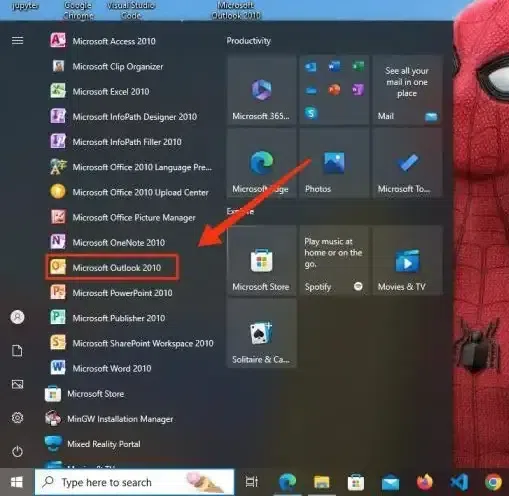
Step 1: Open Microsoft Outlook
- Click the Start menu or search bar and type "Microsoft Outlook."
- Click on the Outlook icon to launch the application.
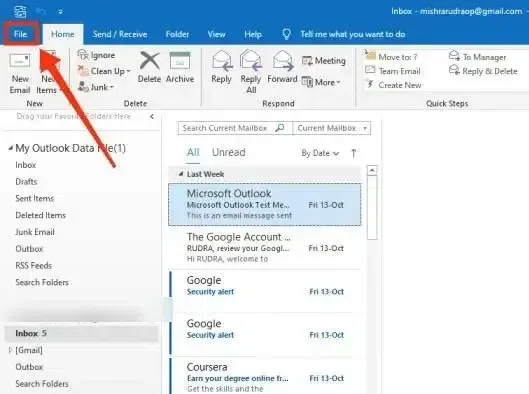
Step 2: Access Account Settings
- Click on the File option in the top-left corner of the Outlook interface.
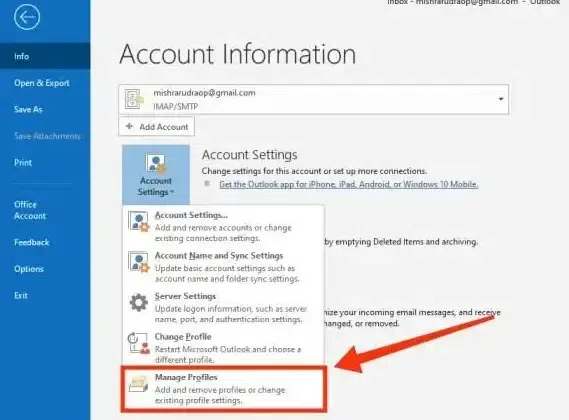
- Under the Account Information section, click on Account Settings → Manage Profiles.
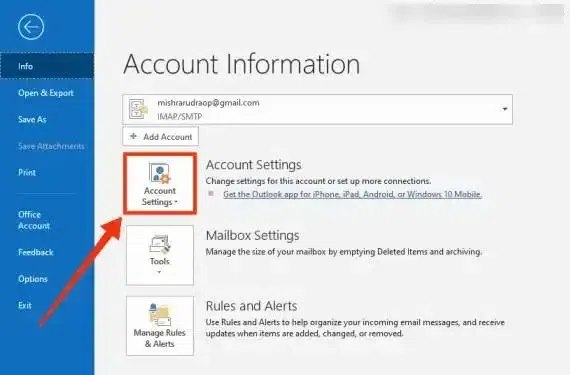
Step 3: Open Account Settings
- In the Account Information section, click Account Settings in the first row.
- This section allows you to manage various account-related actions.
Step 4: Navigate to Manage Profile
- From the Account Settings menu, select Manage Profile to modify your profile settings.
Step 5: Select Email Accounts
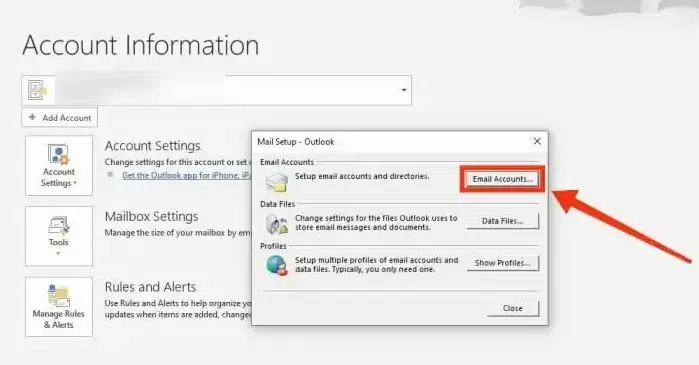
- Click on Email Accounts to access your account configuration options.
Step 6: Change Password
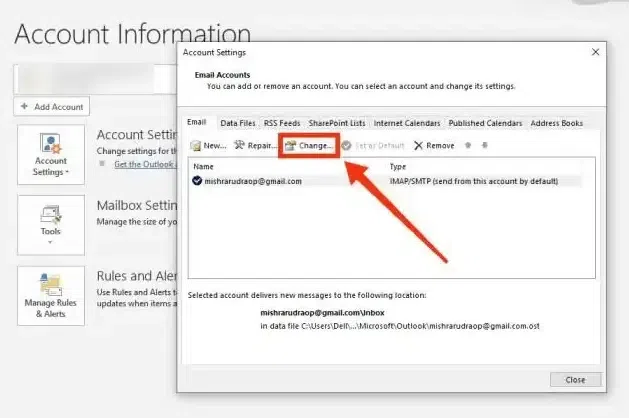
- In the Email Accounts window, locate your email account.
- Click Change to modify your login credentials.
Step 7: Enter a New Password & Save
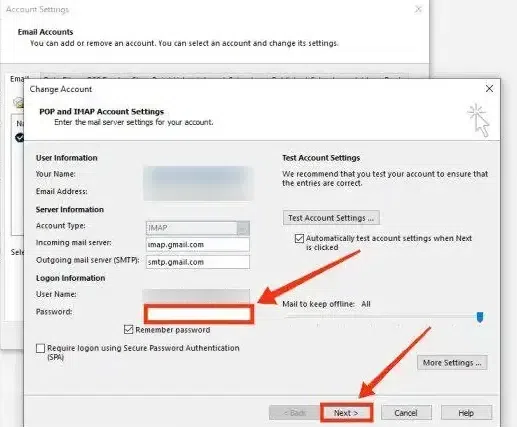
- A settings window will open displaying your account details.
- Enter your new password in the designated field.
- Click Next, then Finish to confirm the update.
How to Change Password in Outlook Web App
In the case you are on the Outlook Web then you need to follow the steps how to change password in Outlook Web:
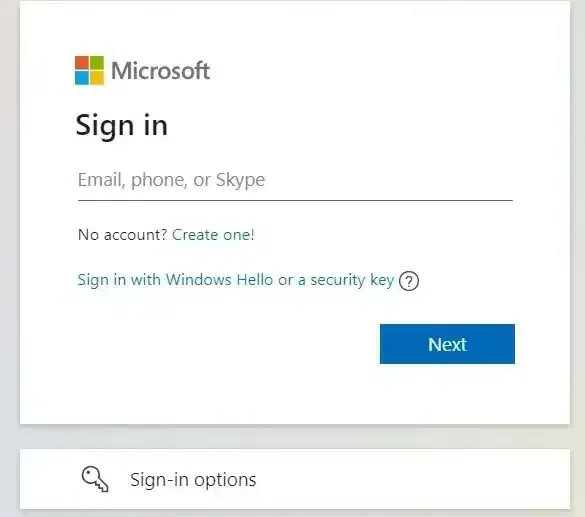
Step 1: Sign in to Microsoft Account
- Go to Microsoft Account Security Page.
- Enter your Outlook email address and current password to log in.
Step 2: Access Password Settings
- Click on the Security tab from the top menu.
- Select Password Security (you may need to verify your identity by entering a security code sent to your email or phone).
Step 3: Open Profile Settings
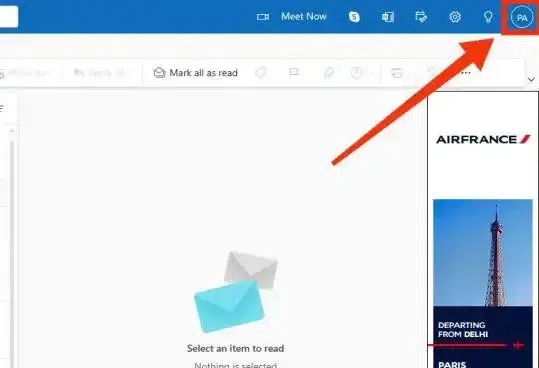
- Click on your profile picture in the top-right corner.
- Select My Profile (highlighted in blue) to open account settings.

Step 4: Change Your Password
- In the profile settings, locate the Change Password button at the top-right corner.
- Click on it to proceed.

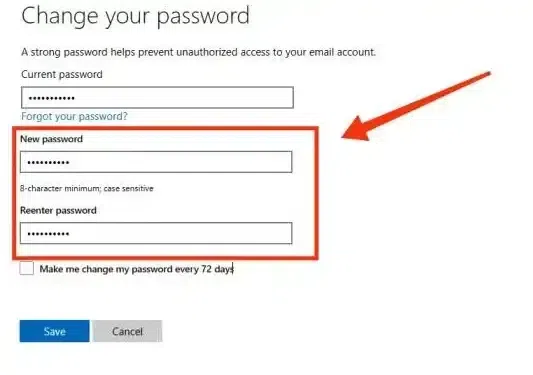
Step 5: Enter a New Password
- Type your current password in the first field.
- Enter a new strong password (at least 8 characters, including uppercase letters, lowercase letters, numbers, and symbols).
- Confirm the new password by re-entering it in the designated field.
- Click Save to apply the changes.
How to Change Outlook Password in Mobile App
Since the Outlook mobile app does not allow direct password changes, you must use a mobile web browser to update your password. Follow these steps:
Step 1: Open Outlook Live and Sign In
- Open any mobile web browser and go to Outlook Live.
- Enter your email address and current password, then click Sign In.
-660.webp)
Step 2: Access Your Profile Settings
- Tap on your profile icon in the top-right corner of the screen.
- Select My Microsoft Account to open your account settings.
-660.webp)
Step 3: Navigate to Password Change
- In your Microsoft Account settings, locate and tap on Change Password.

Step 4: Enter a New Password
- Type your current password in the designated field.
- Enter your new password and confirm it by retyping it.
- Click Save to apply the changes.
-660.webp)
Step 5: Verify the Email and Send Code
After changing your password, you have to verify your email by entering it.
-660.webp)
Step 6: Enter the Code and Complete the Process
- Check your email inbox for the verification code.
- Enter the code in the required field and tap Sign In to confirm your new password.
-660.webp)
Your Outlook password is now successfully updated! You can use your new password to log in to Outlook on your mobile app and other devices.
Also Read: How to Change your Profile Photo or Name in OutlookMust Read: Income Tax Exemptions and Deductions
Documents required to file ITR
How to Reset a Forgotten Outlook PasswordMust Read: Income Tax Exemptions and Deductions
Documents required to file ITR
If you've forgotten your Outlook password and can't log in, follow these steps to reset it:
Step 1: Go to Microsoft’s Password Reset Page
Open a browser and go to Microsoft Password Reset.
Step 2: Enter Your Outlook Email
- On the Outlook login page, enter your email address and click Next.
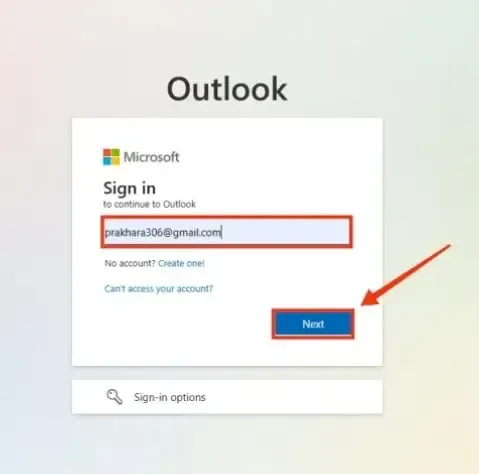
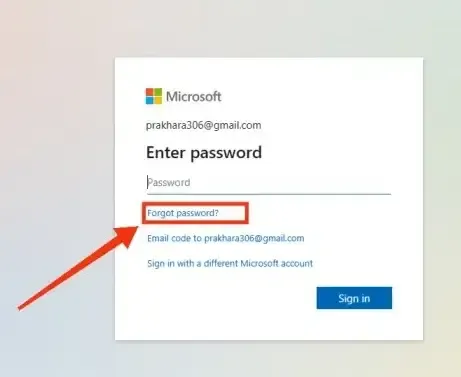
Step 3: Click on Forgot Password
After entering your email and clicking the Next button click on the "Forgot Password" button to change your password.
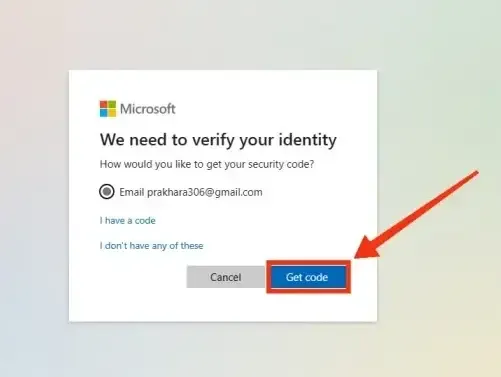
Step 4: Verify Email and Get Code
Now select your email and click on the Get Code button to receive a code on your recovery email account.
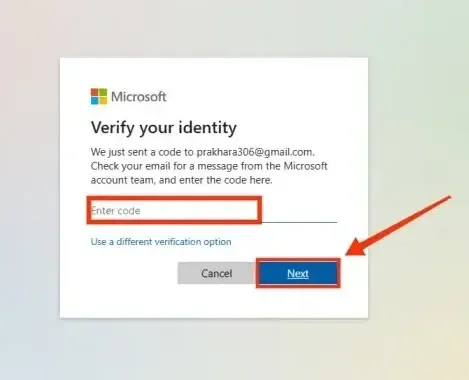
Step 5: Enter the Code and Click the "Next" button
Now enter the that you have received on your email account and click on the "Next" button.
Step 6: Enter your New Password and Click "Next"
Now your new password in the blank box and click on the "Next" button to move towards the next step.

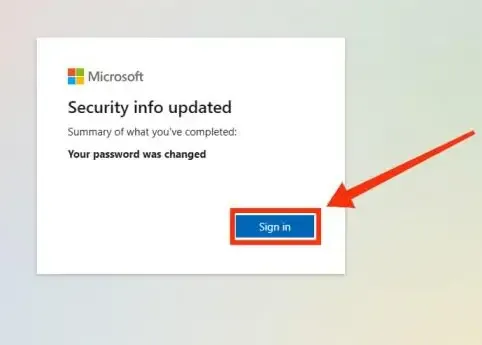
Step 7: Your Password has Changed
Now the Password of your Outlook account has been changed and you can now log into your Outlook.
Conclusion
In conclusion, understanding how to change your password on the Outlook app, whether on Windows 10 or mobile, is vital for keeping your account secure. Whether you're looking into how to change the password in Outlook 365, reset your Outlook password on the phone, or learn how to change your password on the Outlook app on iPhone, regularly updating your credentials strengthens your Outlook login security.
If you ever need to reset your Outlook password or deal with an Outlook forgot password situation, these steps will help you safeguard your account across all devices and ensure peace of mind.