
Want to update your Outlook profile picture but don’t know how? Your Outlook profile photo is the first thing people see when they receive an email from you. Keeping it updated enhances your professional appearance, improves recognition, and syncs across Microsoft 365,Teams, and Office apps.
In this step-by-step guide, you’ll learn how to change your profile photo in Outlook on Windows, Mac, Outlook Web (OWA), and Mobile (Android & iPhone).
Table of Content
How to Change Profile Photo in Outlook for Windows
Updating your profile picture in Outlook for Windows ensures that your image syncs across all Microsoft 365 apps, including Teams, OneDrive, and Office applications. This method is perfect for professionals using Outlook on their desktops. Follow the below steps to change your outlook profile photo:
Step 1: Open Outlook and Click on Your Profile Picture
- Launch Microsoft Outlook on your Windows PC.
- In the top-right corner, click on your profile icon (initials or photo).
.png)
Step 2 : Select Edit Profile
Click on "Edit Profile" and choose "Add" or "Change" your picture. This action will lead you to another window.
_LI.jpg)
Step 3: Select Change Picture
Click on Browse and Choose the picture you want to use as your profile photo by click "Add a Photo".
In the new tab, you have the option to either drag and drop the profile image into the drop zone or click on "Add a photo" to upload an image from your local drive.
_LI.jpg)
Step 4: Upload a New Profile Picture
Select the profile photo of your choice ( The recommended dimension is 648 x 648 pixels, maximum file size is 240 KB ).
In this step: You can Drag, Rotate or Resize the image, and then select Save.
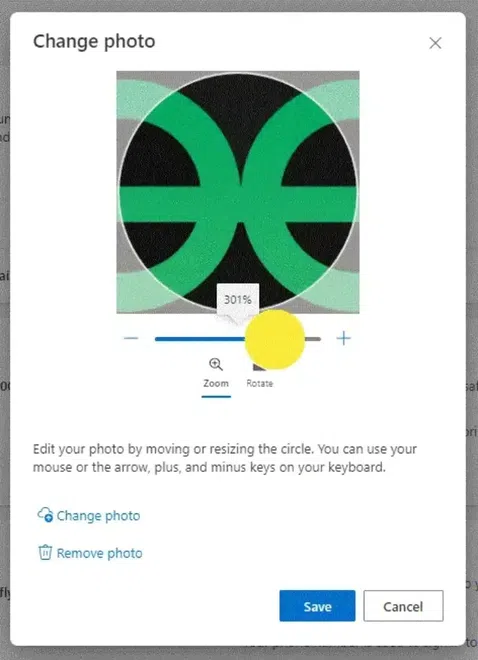
Step 5: Save Changes
- Click "Apply" or "Save" to confirm your new profile picture.
Your updated profile photo will sync across Outlook, Microsoft 365, and Teams within a few hours.
How to Change Profile Picture in Outlook for Mac
For Mac users, updating your Outlook profile photo ensures consistency across Apple devices and Microsoft services. This method is ideal for users who work with Outlook on MacBooks and iMacs. Follow the below steps to change outlook profile picture in Mac:
Step 1: Open Outlook & Click on Profile Picture
Launch Outlook for Mac and click your profile icon in the top-right corner.
Step 2: Click "Edit Profile"
Select "Edit Profile", which redirects you to the Microsoft account settings page.
Step 3: Upload a New Profile Picture
Click "Change Picture", then "Upload New Picture" from your Mac storage.
Step 4: Save and Sync Changes
Adjust the image if needed, then click "Save".
Your new profile picture will sync across Microsoft 365 apps, including Teams and Outlook Web.
How to Change Profile Picture in Outlook Web App
Outlook Web App (OWA) allows users to update their profile picture from any device without needing to install the desktop application. This method is best for those who frequently use Outlook via a web browser.
Step 1: Open Outlook Web & Sign In
- Go to https://outlook.office.com/mail/ and sign in.
Step 2: Click on Your Profile Picture
- In the top-right corner, click your profile icon.
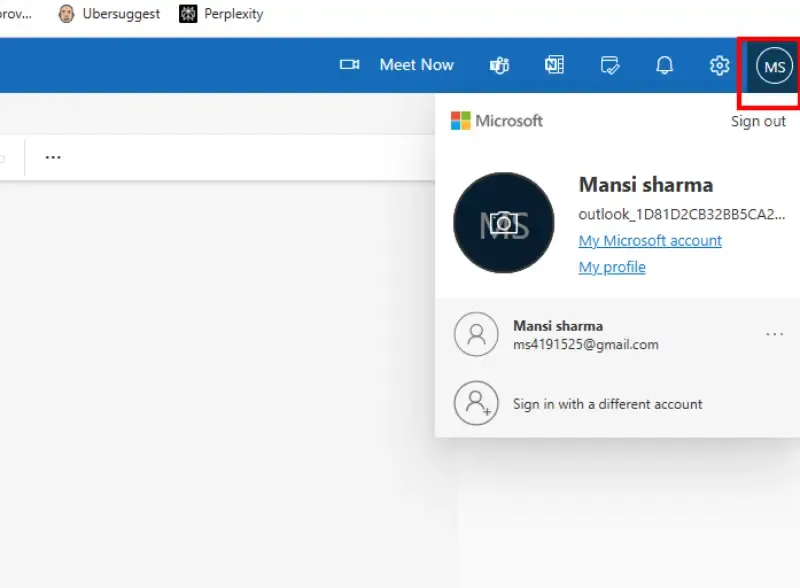
Step 3: Select "Edit Profile" > "Change Picture"
- Click "Edit Profile" > "Change Picture" to open the upload settings.
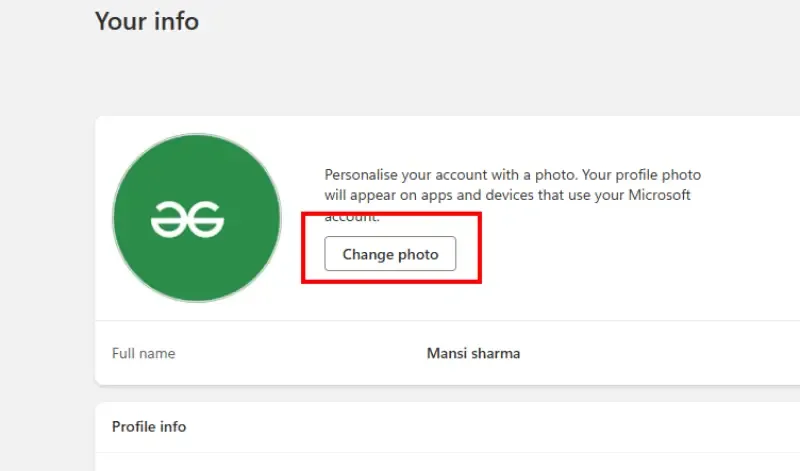
Step 4: Upload & Adjust Your Photo
- Click "Upload Picture", select a new image, and resize if necessary.
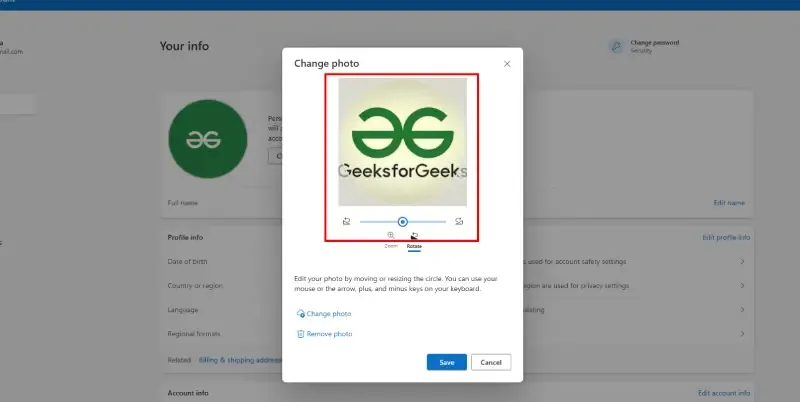
Step 5: Save Changes & Wait for Syncing
- Click "Save", and your new photo will update across Outlook Web, Microsoft Teams, and Office 365 apps.
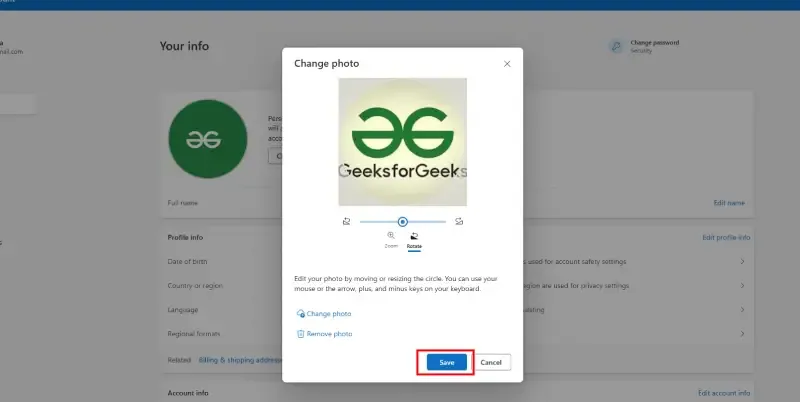
If your picture doesn’t update immediately, wait a few hours for Microsoft to sync the changes.
How to Change Profile Picture in Outlook Mobile
For mobile users, updating the Outlook profile photo ensures a consistent look across all devices. This method is ideal for professionals who rely on their smartphones for communication.
Step 1: Open the Outlook App & Tap Your Profile Picture
- Launch the Outlook mobile app on your Android or iPhone.
- Tap the profile icon in the top-left corner.
Step 2: Tap "View Profile" > "Edit Picture"
- Select "View Profile", then "Edit Picture".
Step 3: Upload a New Profile Photo
- Choose a new picture from your phone’s gallery.
Step 4: Save and Sync Changes
- Tap "Save", and your profile picture will update across all Microsoft apps.
Your new profile picture may take a few hours to sync.
Troubleshooting: Why Isn’t My Outlook Profile Picture Updating
If your new profile picture isn’t updating immediately, try these quick fixes:
- Wait for Syncing: Microsoft takes up to 24 hours to update profile pictures.
- Clear Browser Cache: If using Outlook Web, clear cache & refresh the page.
- Restart Outlook: Close & reopen Outlook to force synchronization.
- Check Organization Restrictions: If using a work/school account, IT admins may have disabled profile updates.
- Update the Outlook App: Ensure you’re using the latest version of Outlook.
Conclusion
Updating your Outlook profile picture is a simple yet impactful way to maintain a professional image and ensure consistency across Microsoft 365, Teams, and Outlook Web. Whether you're using Windows, Mac, Outlook Web App (OWA), or Mobile, the process is quick and ensures your contacts see the most up-to-date version of you.
By following the steps in this guide, you can effortlessly change your profile picture in Outlook, making your email interactions more personal and recognizable. If your new picture doesn’t update immediately, be patient—Microsoft may take a few hours to sync changes.
Take control of your digital identity today by updating your Outlook profile photo and presenting yourself professionally in all your communications!