
How to Add Roles in Discord - Quick Steps
- Open Discord App
- Select a Server > Open Server's settings
- Select Role tab > Click "Create Role"
- Customize Role > Manage Permissions > Add Members
- Review the Changes
Creating Discord roles is essential for managing your community and keeping things organized. Discord server roles allow you to assign different permissions and responsibilities to members. Whether you want to set up auto roles Discord, or even let users self assign roles Discord, this guide will help you manage roles effectively.
Learn how to create role in Discord, set up automatically assign roles Discord, and maintain order with roles in Discord for a better community experience.

Table of Content
What are Discord Roles
Discord roles act like special categories where you can neatly organize the members of your Discord server. These roles not only define how they look but can also set the rules and permissions they have within your community. Discord roles are customizable labels assigned to server members, helping organize and manage your community efficiently.
With roles, you can set different permissions, allowing members to moderate, create channels, or access specific features. Whether you're running a small group or a large server, understanding what are Discord roles is crucial for maintaining order and streamlining tasks. Roles can be color-coded, and you can assign multiple roles to users for better customization.
There are several things that you can customize in roles:
- Color of Role Member's Name.
- Role Members Channel Access Permission.
- Role Members Action in Discord Server.
How to Add and Manage Discord Roles
Adding and managing roles in Discord is essential for server organization. To add roles in Discord, go to your server settings, navigate to the "Roles" tab, and create custom roles based on your needs. You can explore creative Discord server roles ideas or use a Discord server roles list to assign permissions and responsibilities effectively. Here we will discuss about how to create discord roles on desktop.
How to Create Server Roles on Desktop
Follow the steps to create and manage the discord server roles:
Step 1: Launch the Discord App or Web App
To launch the Discord app on your Desktop, navigate the Discord app and give it a click.
In the case you are not having the Discord app installed, you can go through your any web browser to the Discord Web.

Step 2: Select a Server and Right Click to Open Server Menu
First of all, you need is a server you can go through any of your existing server. So, just go to your server and right-click on the server icon to open the drop-down menu.

Step 3: Select Sever Settings
From the drop-down menu appeared after clicking on the server's icon gives a lot options to perform anything on the server, among all the options select the "Server Settings" option to open the server settings of the particular server.

Step 4: Select Roles and Click on Create Role Button
After coming to the server settings select the "Roles" tab among all the tabs to go to the roles section of the server and then click on "Create Role" button present before the Default permissions.

Step 5: Customize your Role in the Display Section
A role in Discord is created in four steps among the four steps first in Display section you need to customize your role by giving your role a name, for whom you are creating the role and selecting the color for the role. After customizing your role's name and color go to the permissions tab.

Step 6: Manage Role Permission
Within the permissions section, you can grant specific abilities to the role you've created. These abilities can range from viewing channels to managing them, overseeing roles, and more. Granting permissions to your role is as simple as toggling the switch next to each permission name.
Remember to click on "Save Change" button present at the bottom of the interface after giving all the permissions required to the role.

Step 7: Create Linked Role
Now in the Link tab the person for whom you are creating the role has to link his or her profile to any of the social media account such as Instagram, Facebook, PayPal and so on. You can go through the "Add Requirement" button to add any of the user's social media accounts.

Step 8: Add and Manage Members
To assign the newly created role to one of your server members, click the "Add members" button. This action allows you to add members to the role you've just created.

Also Read: How to add Reaction Roles in Discord
How to Add Roles on Discord Mobile
Here are the steps on how to add roles in discord mobile:
Step 1: Open Discord Mobile App
To launch the Discord Mobile App on your mobile, locate the Discord icon and give it a click.

Step 2: Select Server and Click on Three-Dot Menu
Go to your Server in which you want to create roles for member, after coming to your server click on Three Dots present next to your server's name.

Step 3: Click on Settings Icon
Go to the Server settings by clicking on the Settings (Gear Icon) present in the among options.

Step 4: Select "Roles"
After coming to the Server Settings find the Roles option and click on it to open the roles section of the Sever.

Step 5: Click on '+' Icon to Create New Roles
When you click on the Roles option from the server settings you will come to the "Server Roles" of the server and in order to create a new role click on the '+' icon present on the top right corner of the Discord interface.
-660.jpg)
Step 6: Create a New Role and Type Role Name
Now in the first step customize your role by giving the role name and selecting the color. After customizing your role click on the "Create" button.

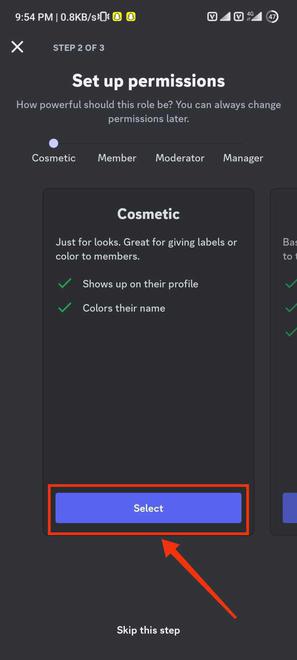
Step 7: Set Up Permissions
Now give your role the required permissions by clicking on the "Select" button, you can also go for the more permissions by swiping right.
Step 8: Add a User and Click Finish
Next, include the members you wish to assign to the newly created role by choosing their names. After successfully adding these members to the role, conclude the process by clicking on the "Finish" button.

Step 9: Review the Changes
Once you've completed all the steps in creating the role, take a moment to review the changes you've made within the "Server Roles" section.

Also Read:
Conclusion
In conclusion, adding and managing roles in Discord is key to organizing your server efficiently. Whether you're learning how to self-assign roles in Discord mobile or how to assign roles in Discord with reactions, these features make role assignment seamless. Using tools like Carl-bot, you can automate role creation by learning how to add roles in Discord with Carl bot and even customize your Discord roles list for better control. Additionally, you can display roles in Discord to easily manage permissions, or integrate bots to streamline the process by knowing how to add roles in Discord bot for automation.