
How to Retract an Email in Outlook - Quick Steps
- Open Outlook > Select the Email
- Click More Actions > Choose "Recall This Message"
- Select Recall Option > Confirm & Resend
We've all been there—you hit "Send" on an email, only to realize moments later that you've made a mistake. Maybe you forgot an attachment, sent it to the wrong person, or included incorrect information. Thankfully, Microsoft Outlook offers a Recall Email feature that allows you to retract a sent email before the recipient reads it. However, this feature has specific conditions, and knowing how to use it effectively can save you from potential email disasters.
In this guide, we’ll walk you through the step-by-step process of recalling an email in Outlook, including tips on when it works, why it sometimes fails, and alternative solutions like Undo Send and follow-up emails. Stay with us to master this essential Outlook feature and avoid embarrassing email mishaps!
Table of Content
How to Unsend an Email in Outlook 365
If you need to unsend, recall, or take back an email in Outlook, follow these steps:
Step 1: Open the Email
- Open Microsoft Outlook 365 on your computer.
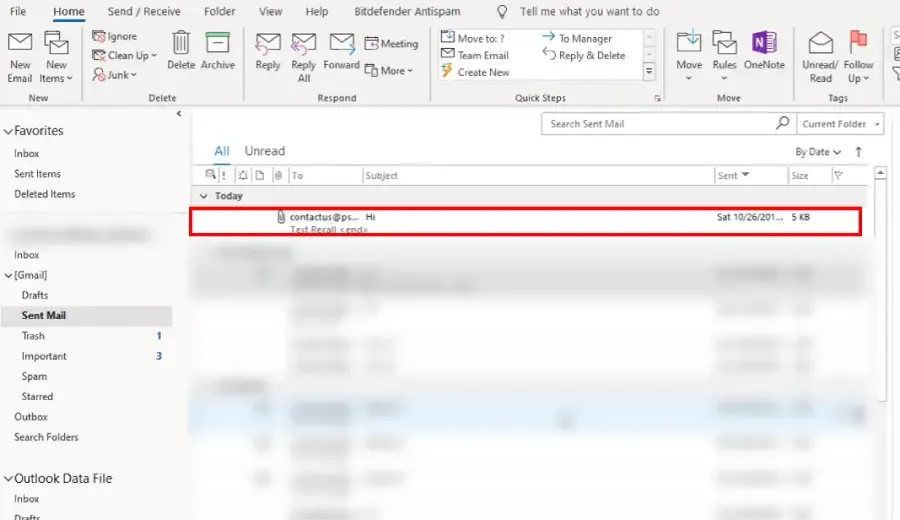
- Navigate to the "Sent Items" folder in the left panel.
- Double-click the email you want to recall to open it in a separate window.
Step 2: Click Move Icon and Select "Recall This Message"
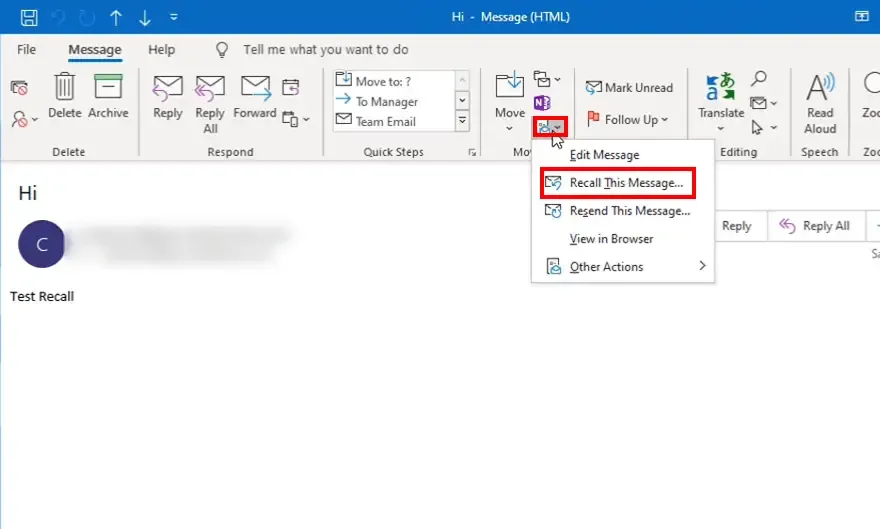
- In the email window, go to the "Message" tab at the top.
- Click on the "Move" group, then select "Recall This Message" from the dropdown menu.
Step 3: Select the Recall Option
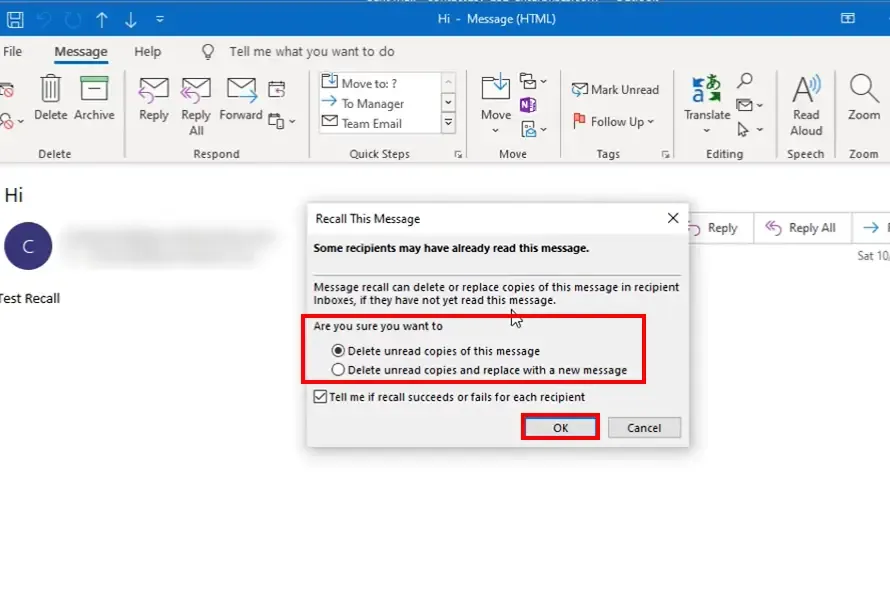
A new window will appear with two options:
- Delete unread copies of this message (removes the email if it’s unread).
- Delete unread copies and replace with a new message (allows you to edit and resend the email).
- Choose your preferred option and check "Tell me if recall succeeds or fails for each recipient" for status updates. Click "OK" to proceed.
Step 4: Message Recalled – Edit and Send Again
- If you selected "Replace with a new message," the original email will be deleted from the recipient's inbox (if unread).
- A new email window will open where you can make necessary edits.
- Once edited, click "Send" to resend the updated email.
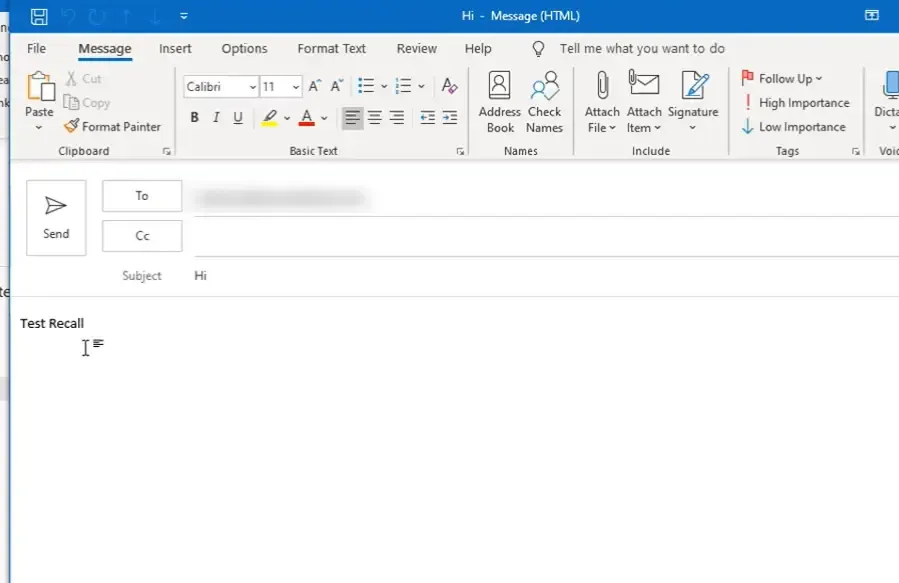
Key Points to Remember:
- The recall feature only works if the recipient is using Microsoft Exchange or Microsoft 365 within the same organization.
- If the recipient has already opened the email, the recall will fail.
- If the recipient uses Gmail, Yahoo, or another email service, the recall won’t work.
How to Recall an Email in New Outlook (Step-by-Step Guide)
If you’ve sent an email by mistake in the new Outlook, you can recall or replace it before the recipient reads it. Follow these steps to recall an email in Outlook for Windows, Mac, and Office 365.
Step 1: Open the Sent Email
Open New Outlook and navigate to the "Sent Items" folder. Double-click the email you want to recall to open it in a new window.
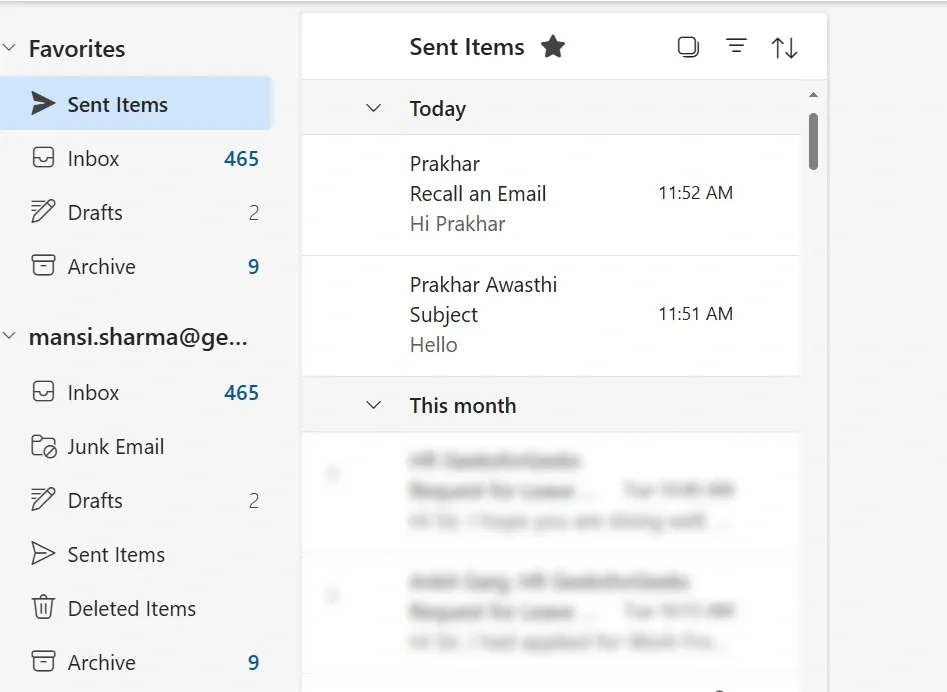
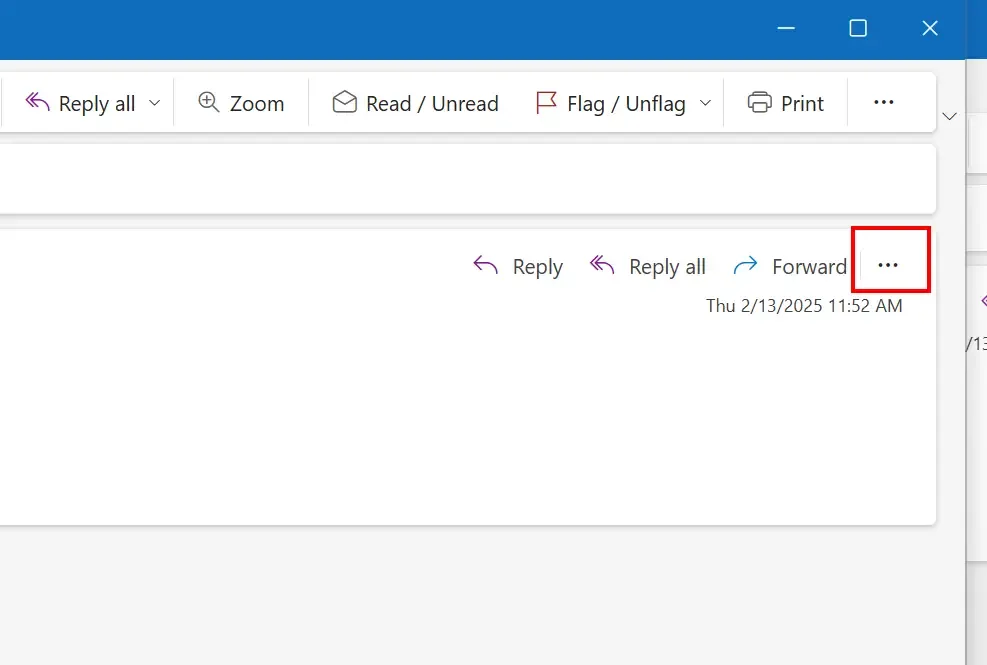
Step 2: Click on the Three Dots (More Actions)
In the open email, click on the three dots (⋮) in the top toolbar to expand the More Actions menu.
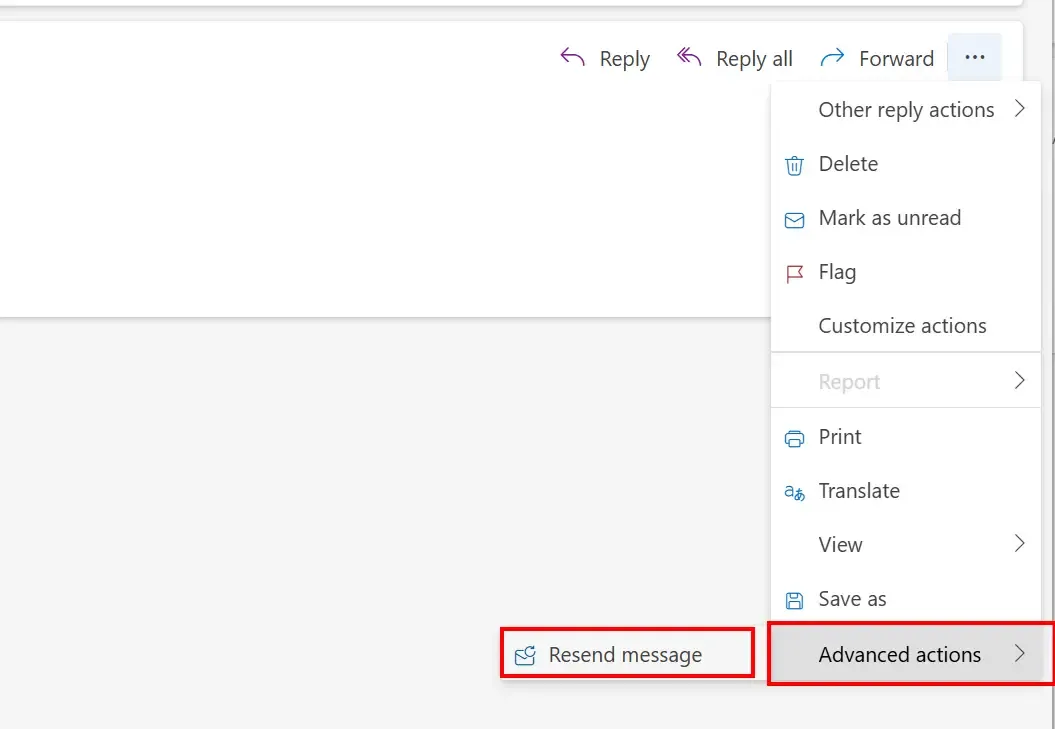
Step 3: Select "Advanced Actions" and Click on "Resend or Recall"
From the dropdown menu, select "Advanced Actions", then click on "Resend or Recall" and choose "Recall This Message."
Step 5: Edit and Resend (If Needed)
If you selected "Replace with a new message," a new email window will open. Make the necessary edits and click "Send" to resend the updated version.
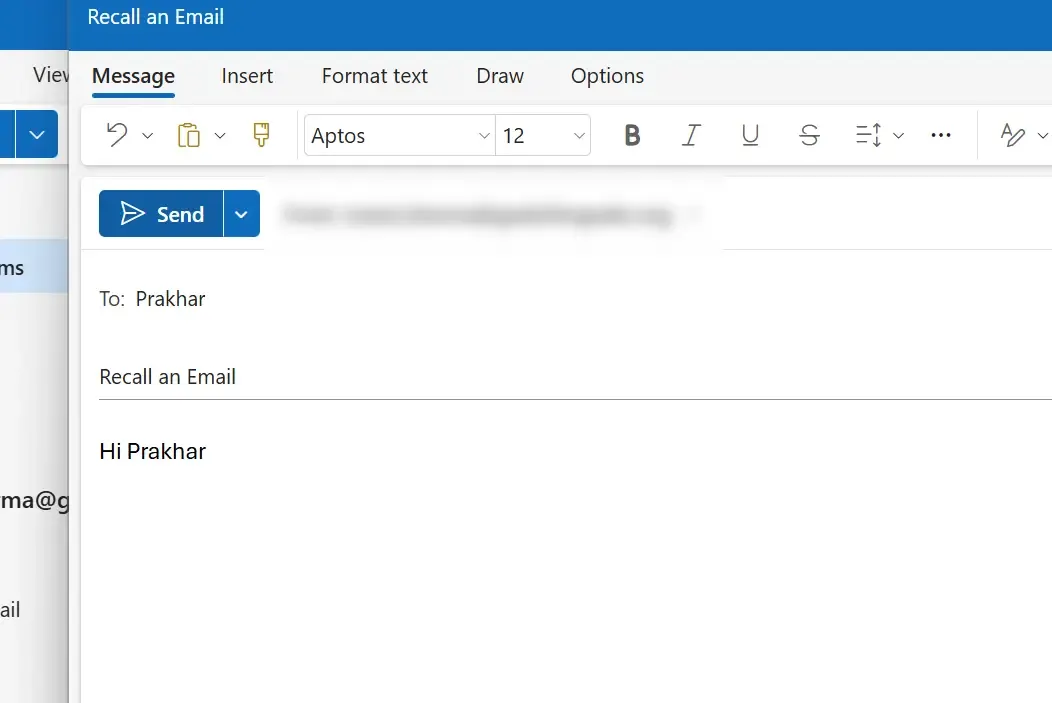
Alternative: Use "Undo Send" in Outlook Web
If you're using Outlook Web (Outlook.com or Office 365), you can enable the "Undo Send" feature:
- Go to Settings (⚙️) > Mail > Compose and reply.
- Under "Undo Send", set a delay (up to 10 seconds).
- When sending an email, click "Undo" before the timer expires.
How to Recall an Email in Outlook on Mobile (iPhone & Android)
Unlike the desktop version of Outlook, the Outlook mobile app (iPhone & Android) does not have a recall feature for sent emails. However, you can prevent sending mistakes by using the Undo Send feature in Outlook mobile.
Step 1: Open the Email
Go to the Outlook Mobile app and navigate to the "Sent Items" folder. Tap on the email you want to recall.
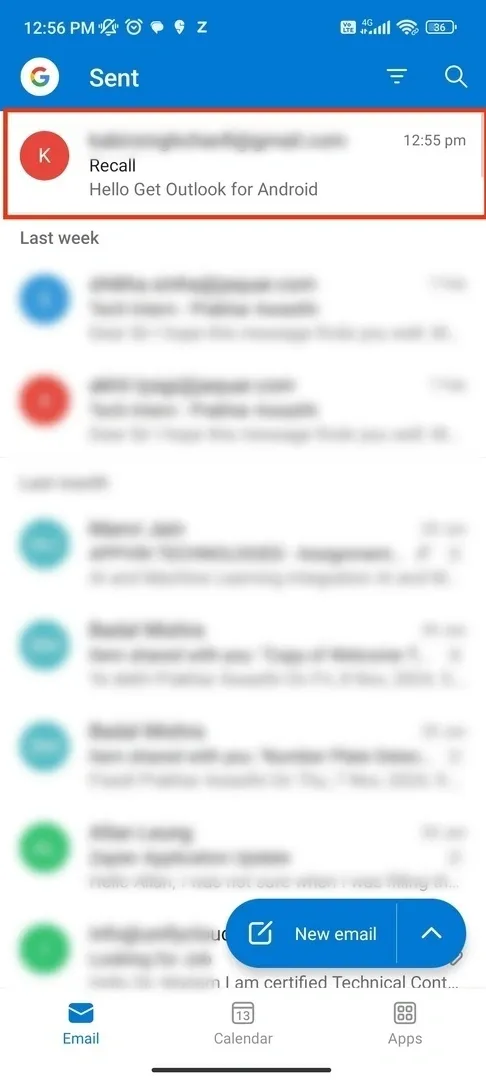
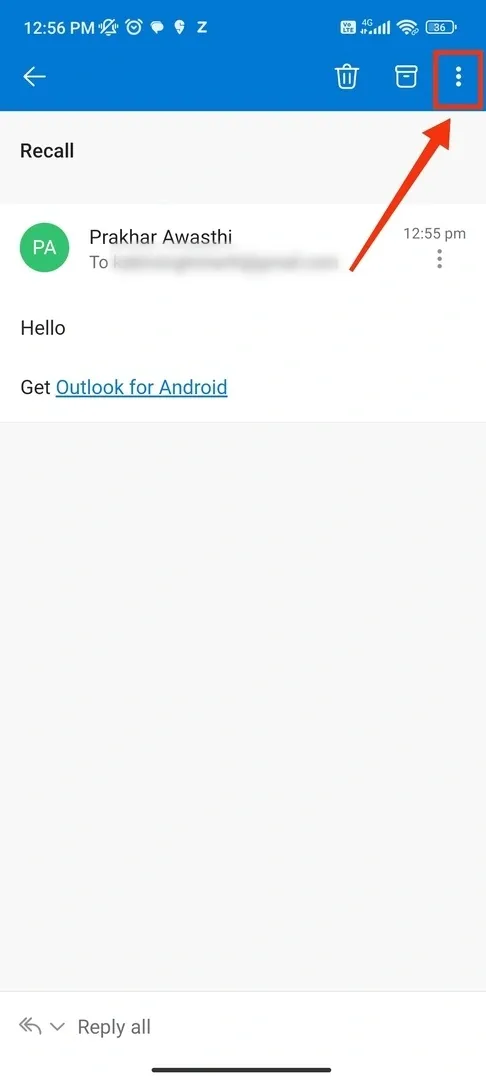
Step 2: Click on Three Dots (More Actions)
In the email view, tap the three dots (⋮) in the top-right corner to open the menu.
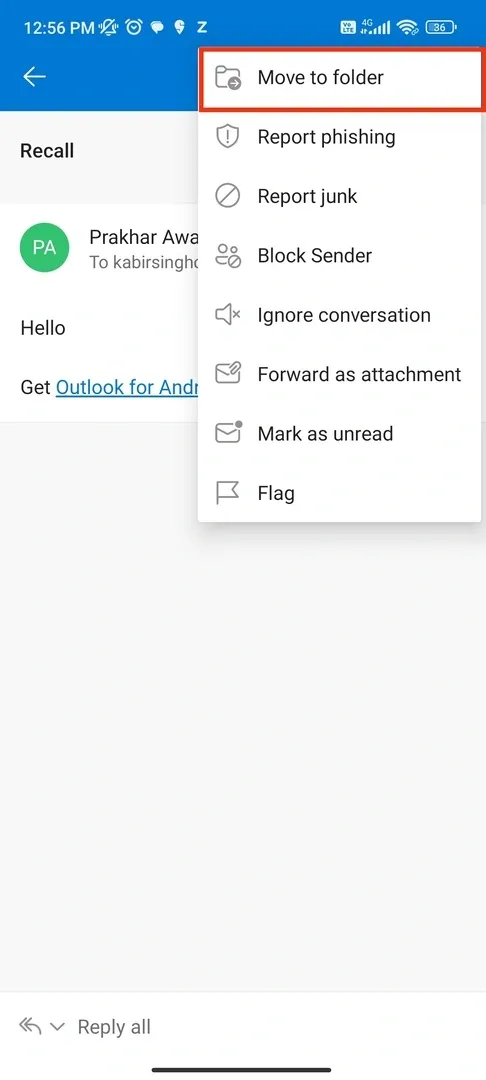
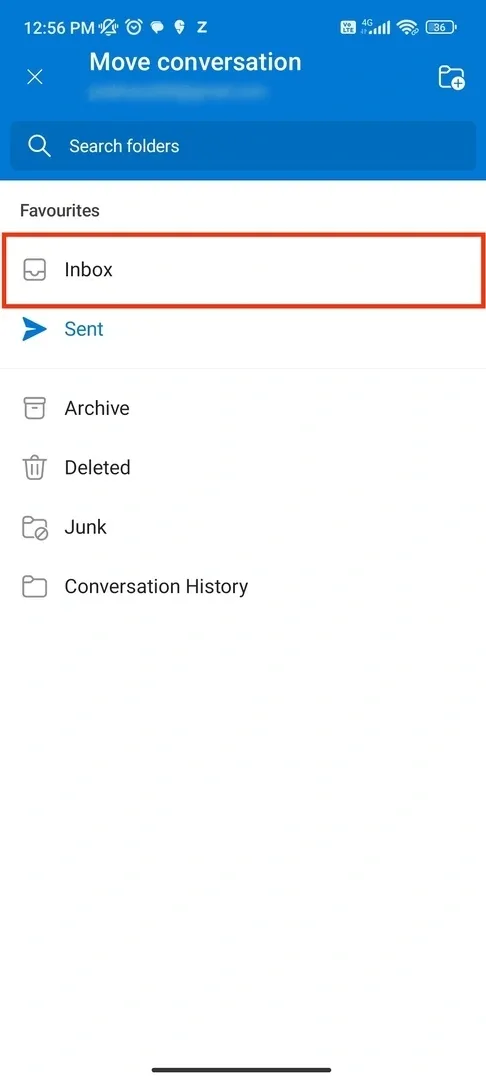
Step 3: Select "Move to Folder"
From the menu options, tap "Move to Folder."
Step 4: Choose "Inbox"
Select "Inbox" as the destination folder to move the email.
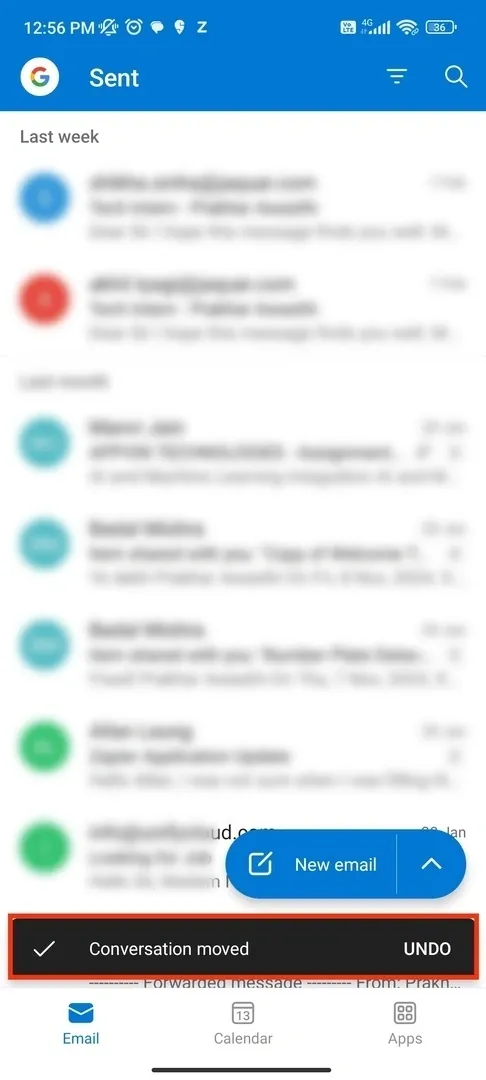
Step 5: Conversation Moved
The email will be moved to your Inbox, but this does not fully recall the email from the recipient’s inbox. Outlook mobile does not support full email recall like the desktop version. Instead, consider sending a follow-up correction email if necessary.
⚠ Note: Outlook Mobile does not have a dedicated "Recall" feature like the desktop app. If the email was sent in error, you may need to use Outlook on a computer to attempt a recall.
Conclusion
Recalling an email in Outlook can be a lifesaver—but only under the right conditions. If both you and the recipient are on Microsoft Exchange or Microsoft 365 within the same organization, and the email remains unread, you have a good chance of successfully retracting it. However, if the recall option fails, using Undo Send (in Outlook Web) or sending a follow-up correction email can help minimize any miscommunication.
To prevent future email mistakes, consider enabling Undo Send, double-checking recipients before hitting send, and using Outlook rules to delay outgoing emails. Mastering these tools ensures that your email communication remains professional, accurate, and mistake-free. Now that you know how to recall emails in Outlook, you can take control of your inbox and avoid unnecessary stress.