
If you have ever backed up your Outlook emails, contacts, or calendar events, chances are you’ve come across a PST (Personal Storage Table) file. These files store important Outlook data and can be crucial for restoring emails, transferring data to a new computer, or archiving old messages. But what happens when you need to access the information inside a PST file? Whether you're using Outlook 2019, Outlook 2016, Outlook 365, or an older version, knowing how to open a PST file in Outlook is essential for seamless email management.
In this guide, we’ll walk you through the step-by-step process to open a PST file in Outlook, troubleshoot common issues, and even import PST files if you need to fully integrate them into your mailbox.

Table of Content
What is a PST File
Before we dive into the steps to open a PST file, let’s first understand what a PST file is. A Personal Storage Table (PST) file is used by Microsoft Outlook to store emails, calendar events, contacts, and other personal information. PST files are typically created when you want to back up your Outlook data or transfer it to another computer.
How to Open a PST File in Outlook
Here are the step-by-step instructions on how to open a PST file in Outlook:
Step 1: Open Microsoft Outlook
Launch the Outlook application on your computer. If you are using Outlook for the first time, make sure that you’ve completed the initial setup (adding email accounts and configuring your profile).
Step 2: Go to the File Tab
In Outlook, go to the File tab located in the upper-left corner of the window. This will open the Account Information page, which gives you access to settings and other options.
Step 3: Click on Open & Export
From the File menu, click on Open & Export. This option provides several choices related to accessing additional files and managing data.
Step 4: Select Open Outlook Data File
Click on Open Outlook Data File. A file explorer window will open, allowing you to browse and select the PST file that you want to open.
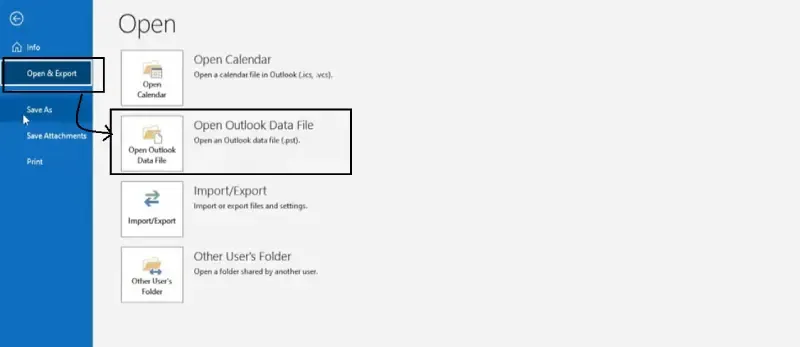
Step 4: Select "Export to a File" and Choose "Open Outlook Data File"
Select "Export to a File" from the options and Click on Open Outlook Data File. A file explorer window will open, allowing you to browse and select the PST file that you want to open.
Step 5: Locate and Select the PST File
Navigate to the folder where the PST file is stored on your computer. Once you find the file, click on it to highlight it, and then click Open.

Step 6: Access the Data in the PST File
Once the PST file is opened, the contents will appear in your Outlook under Data Files or Outlook Data File in the folder pane. You’ll be able to view emails, calendar entries, contacts, and other information contained in the PST file.
Step 7: Closing the PST File (Optional)
If you want to remove the PST file from the Outlook session, simply close Outlook and then go back to File > Open & Export > Open Outlook Data File, and choose Close to remove the file.
How to Open a PST File in Outlook Web
Currently, Outlook Web (Office 365 or Outlook.com) does not support opening PST files directly. However, if you're using Outlook 365 or a version of Outlook that has a desktop app, follow the instructions above to open your PST file. Alternatively, you can use the desktop version of Outlook to import the PST file and then access it through your Outlook Web account.
Common Issues and Solutions When Opening PST Files
While opening PST files in Outlook is typically straightforward, sometimes issues can arise. Below are some common problems and how to resolve them:
- Corrupted PST Files:
- Issue: If you encounter an error when trying to open your PST file, it may be corrupted.
- Solution: Use the built-in Inbox Repair tool (scanpst.exe) to fix a corrupted PST file. Run scanpst.exe and follow the prompts to repair the file.
- PST File Not Showing in Folder Pane:
- Issue: Sometimes, the PST file may not show up in the folder pane even after opening it.
- Solution: Make sure you have selected the correct file when opening it and that Outlook is properly refreshed.
- Large PST Files:
- Issue: PST files over 2GB (especially in older versions) can cause performance issues or errors when opening.
- Solution: Split large PST files into smaller ones, or archive older data to reduce the file size.
How to Import a PST File into Outlook
If you prefer to import the contents of a PST file rather than just opening it, you can follow these steps:
Step 1: Open Outlook and Go to File
Open Microsoft Outlook and click on the File tab.
Step 2: Select Open & Export
Click on Open & Export, and then select Import/Export.
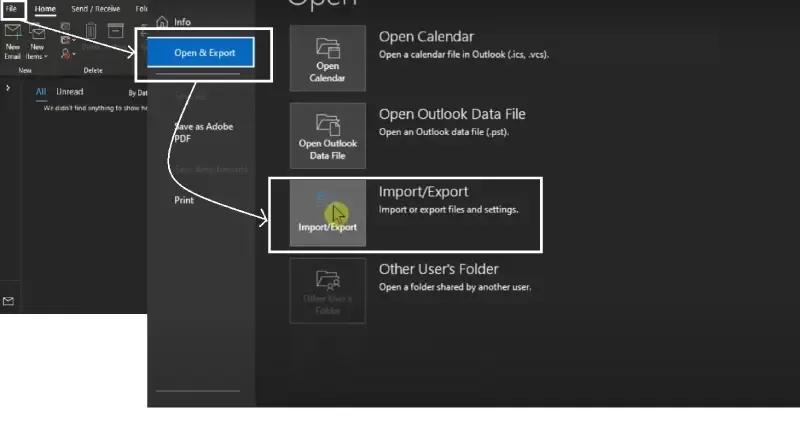
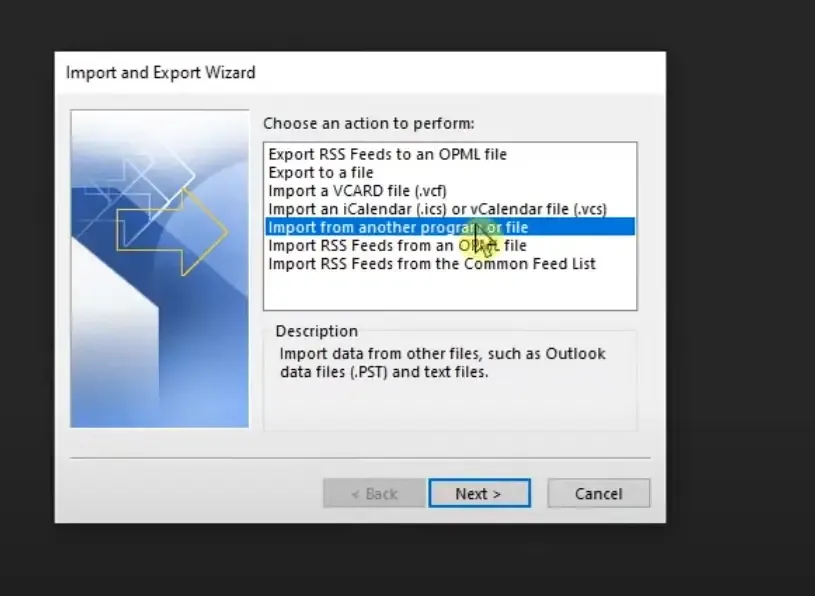
Step 3: Choose Import from Another Program or File
Select Import from another program or file and click Next.
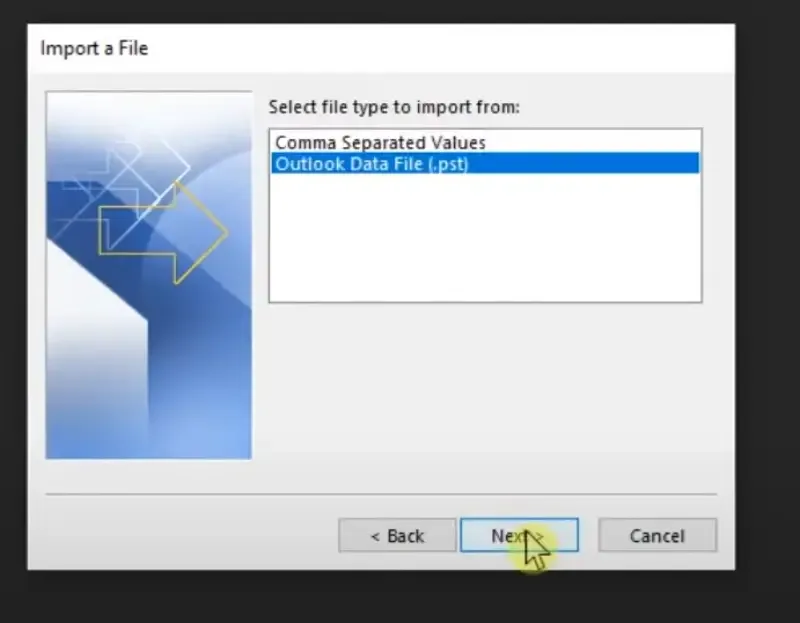
Step 4: Choose PST File
Select Outlook Data File (.pst) and click Next.
Step 5: Browse and Select PST File
Browse to the location where your PST file is stored, select it, and click Next.
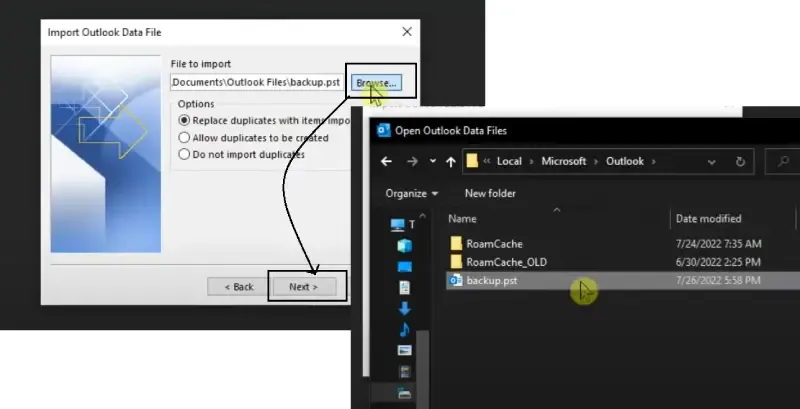
Step 6: Choose Folder to Import
Choose the folder in which you want to import the PST file’s data and click Finish.

Conclusion
Opening a PST file in Outlook is a straightforward process, but it’s important to follow the correct steps to avoid data loss or errors. Whether you're retrieving old emails, restoring backups, or moving data to a new Outlook installation, understanding how to open, import, and troubleshoot PST files ensures that you can access your important information anytime.
By following these best practices, you can efficiently manage your Outlook emails, contacts, and calendar events, ensuring a seamless and clutter-free email experience. Now that you know how to open a PST file in Outlook, you can access your email archives with confidence!