
Want to know how to save emails from Outlook? Keeping important emails stored safely is essential for organizing your inbox, maintaining records, and backing up critical information. Microsoft Outlook offers multiple ways to save, download, and back up emails, whether you want to store them on your computer, export them as files, or save email templates for future use.
In this guide, we’ll explore how to save emails in Outlook, including how to backup Outlook emails, how to download Outlook emails, and how to save email templates in Outlook across Windows, Mac, Microsoft 365, and Outlook Web App.
Table of Content
- How to Save Emails in Outlook for Windows
- How to Save an Email as a PDF in Outlook
- How to Backup Multiple Emails as a PST File in Outlook
- How to Download Outlook Emails from Outlook Web App
- How to Save Email Templates in Outlook (Windows, Mac & Microsoft 365)
- How to Save Outlook Emails to OneDrive or Cloud Storage
How to Save Emails in Outlook for Windows
Saving emails as MSG, TXT, HTML, or PDF allows easy access, offline viewing, and quick sharing with others. Follow the below steps to Save emails in Outlook for Windows:
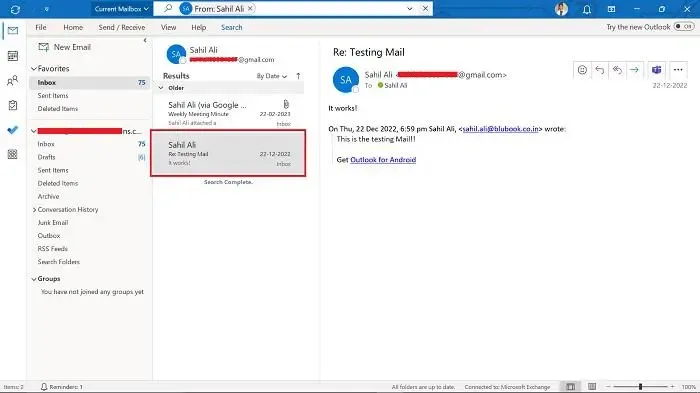
Step 1: Open Outlook and Select the Email
Launch Outlook and choose the email you want to save.
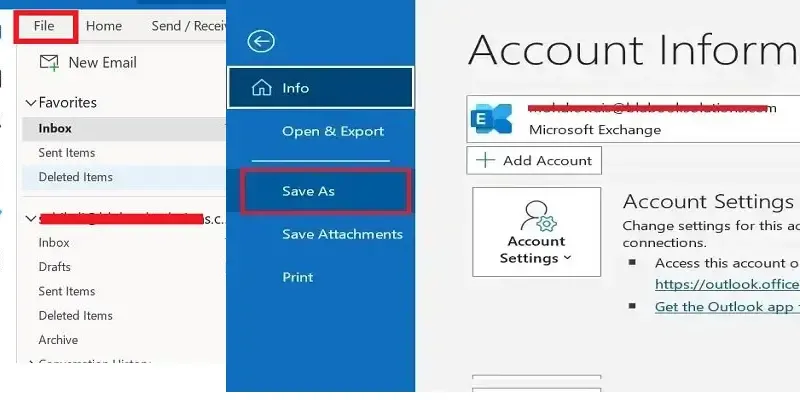
Step 2: Click "File" and choose "Save As"
Go to the File menu and select Save As.
Step 3: Select a Save Location and File Format
Pick a folder where you want to store the email and choose a file format:
- MSG – For opening in Outlook.
- TXT – Saves as plain text.
- HTML – Opens in a web browser.
- PDF – Use the Print to PDF option (explained below).

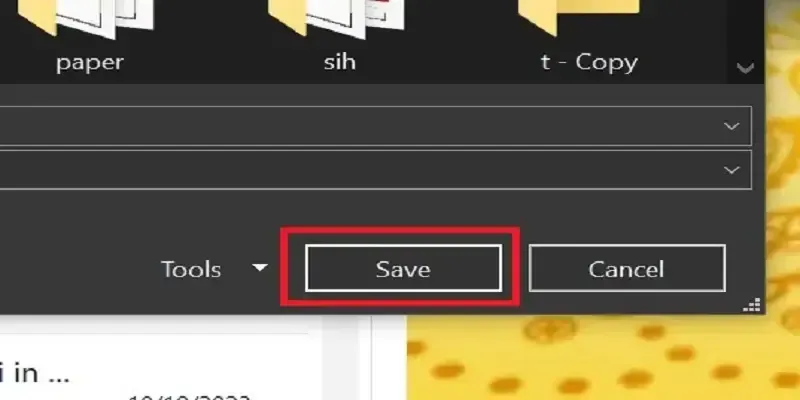
Step 4: Click "Save"
Confirm the selection and save the email.
How to Save an Email as a PDF in Outlook
PDFs are ideal for preserving email formatting, sharing, and long-term storage. Follow the below steps to learn how to backup outlook emails by converting them into PDF in windows and Microsoft 365:
Step 1: Open Outlook and Select the Email
Search for "Outlook" in the Search bar and Navigate to email that you want to save as a pdf. Double-click on the email to open it.
Step 2: Click on the File Option
Now, Click on the "File" menu in the upper-left corner.
Step 3: Choose Print Option
Select "Print" and then click on "Print icon" Button. This will open a dialog box that allows you to specify the location where you want to save the email.
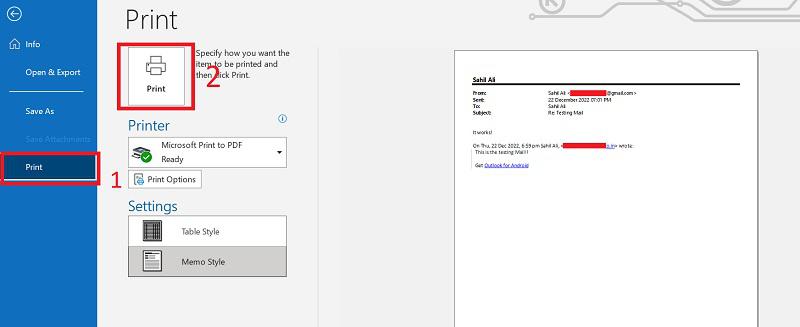
Step 4: Select the Location & Save
Choose a folder where you want to save the email and write the file name as you want. Click the "Save" button to save the email as a pdf in the chosen location.
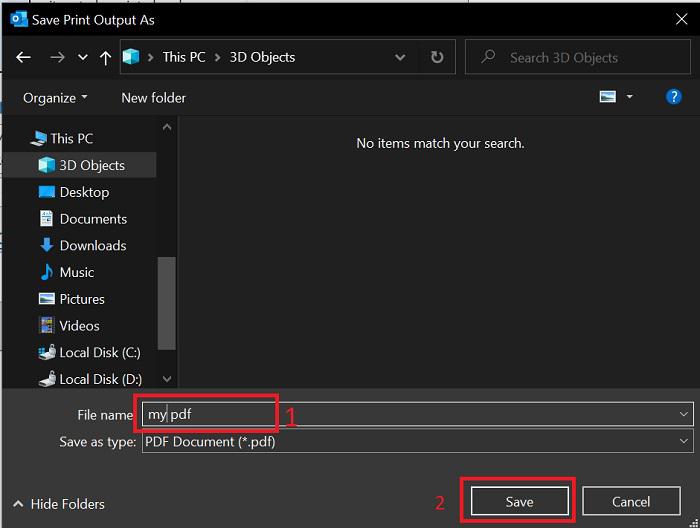
Your email will be saved as PDF for future use.
How to Backup Multiple Emails as a PST File in Outlook
PST files allow users to back up and transfer multiple emails while keeping their original format. Follow the below steps to backup multiple emails as a PST File in Outlook:
Step 1: Go to the File Tab
Click on "File" located in the top left corner of the Outlook window
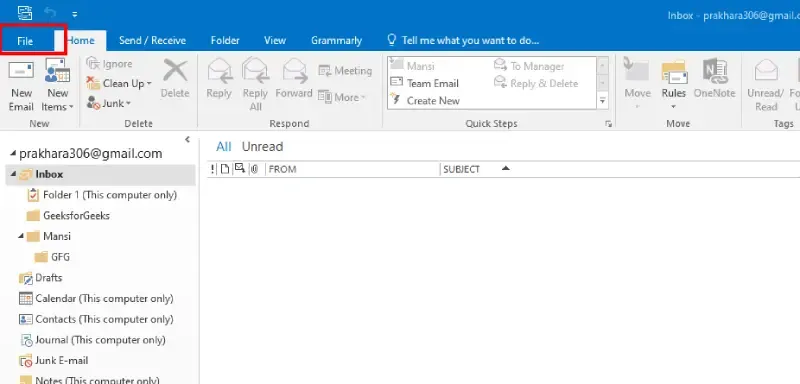
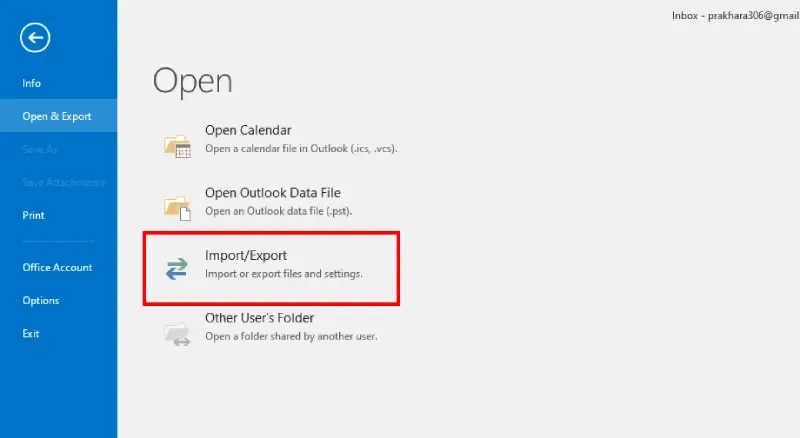
Step 2: Select Open & Export Option
Click on the "Open & Export" Option
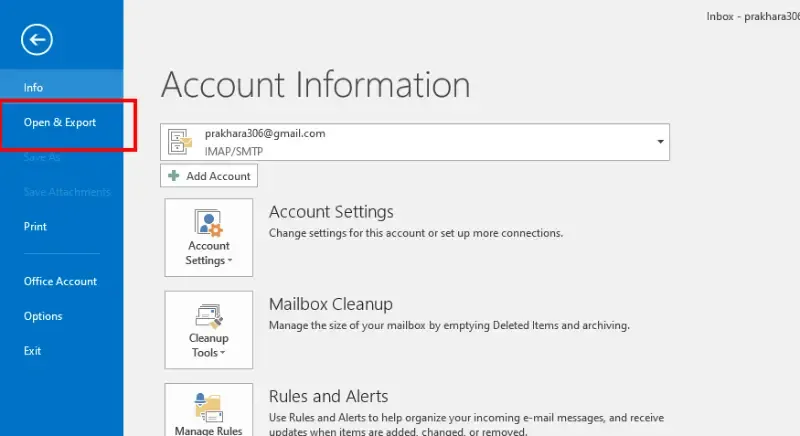
Step 3: Click on Import/Export
Now, Click on the "Import/Export" Button
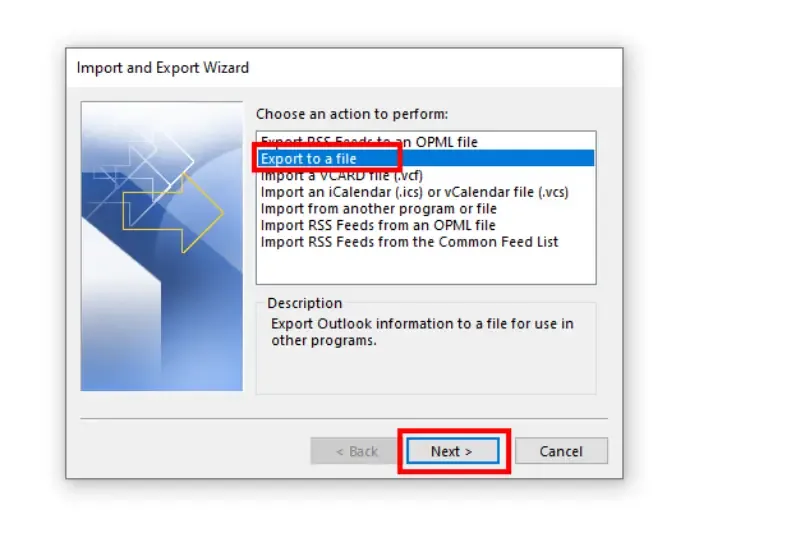
Step 4: Select "Export to a File" and Click "Next"
Select "Export to a file" and click the Next button.
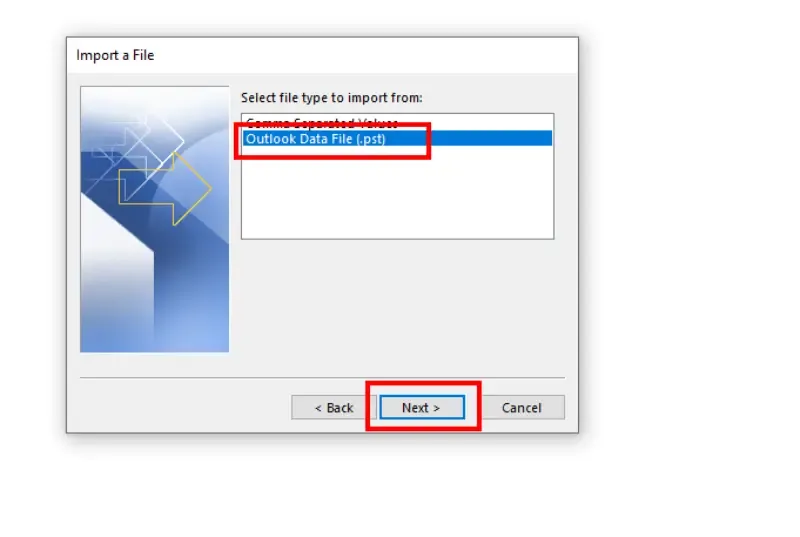
Step 5: Select "Outlook Data File (.pst)"
Pick Outlook Data File (.pst) as the file format.
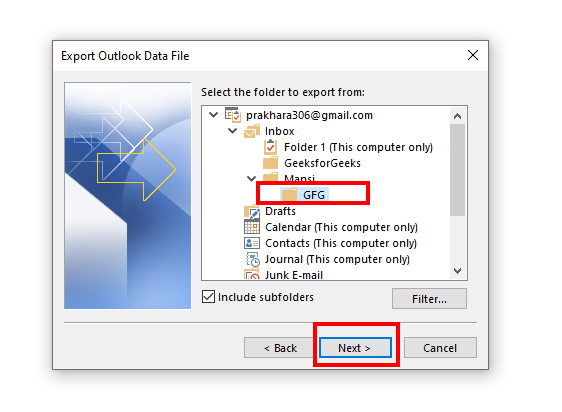
Step 6: Choose Emails or Folders to Backup
Select individual emails, folders, or the entire mailbox for backup.
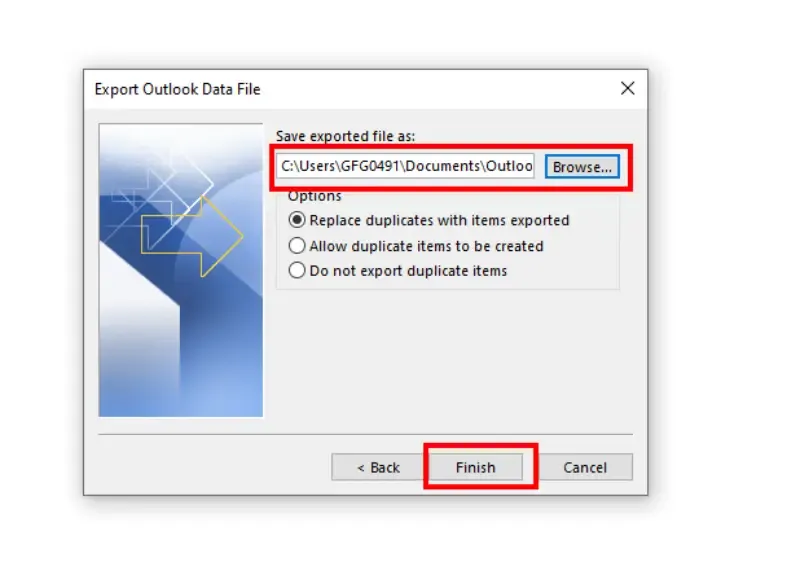
Step 7: Choose a Location and Click "Finish"
Pick a folder to save the PST file, then click Finish.
How to Download Outlook Emails from Outlook Web App
Saving emails from Outlook Web App helps you store important messages locally without using the desktop version.
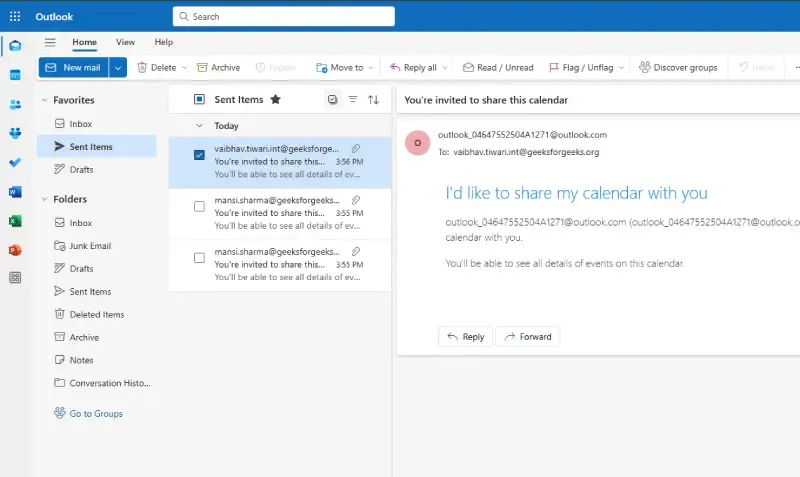
Step 1: Open Outlook Web App and Select an Email
Log in to Outlook Web App, then choose an email to save.
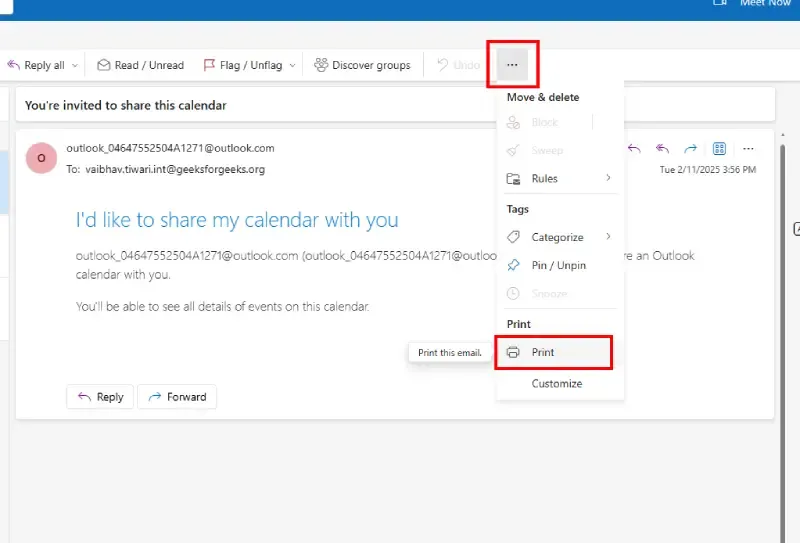
Step 2: Click the Three-Dot Menu and Click on Print
Click the More Actions (three-dot) menu and Select the Print Option
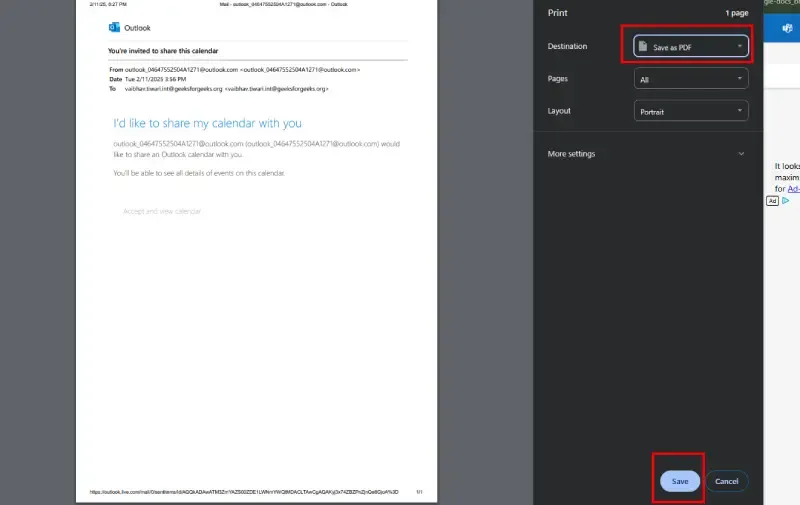
Step 3: Choose "Save as PDF" and Click on Save
Select Print, then Print to PDF (Windows) / Save as PDF (Mac). Pick a folder and save the email as a PDF.
Pro Tip: If you are looking for how to download Outlook emails, this method works best for web users.
How to Save Email Templates in Outlook
Email templates save time by storing pre-written responses for repeated use. Follow the below steps to save outlook email templates in (Windows, Mac & Microsoft 365).
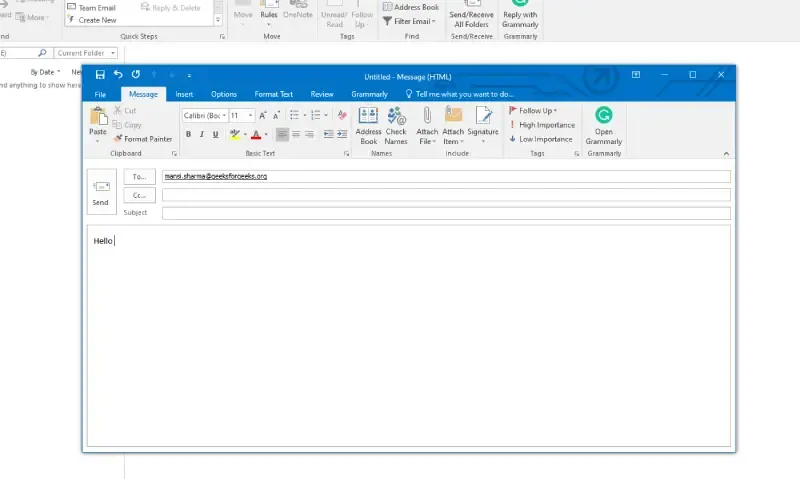
Step 1: Open Outlook and Create a New Email
Click New Email and compose the message.
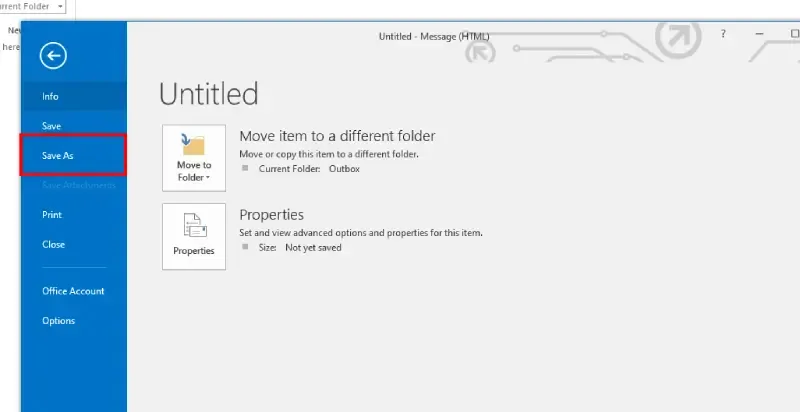
Step 2: Click "File" > "Save As"
Go to File, then select Save As.
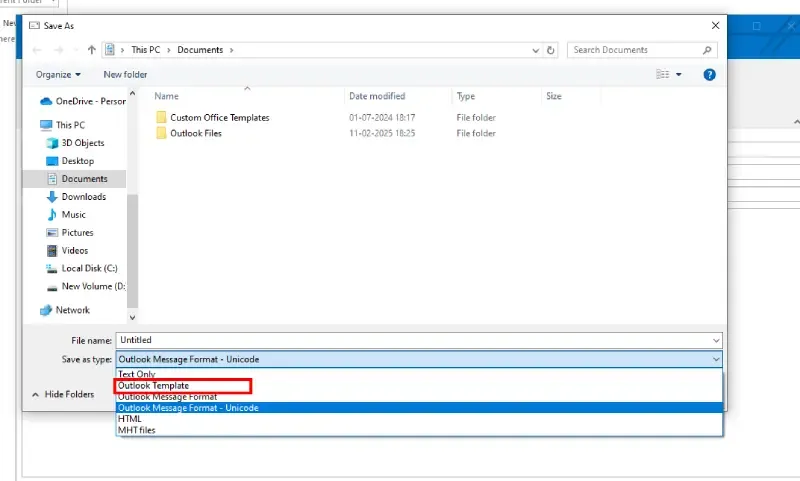
Step 3: Choose "Outlook Template (.oft)"
Pick Outlook Template (.oft) as the file format.
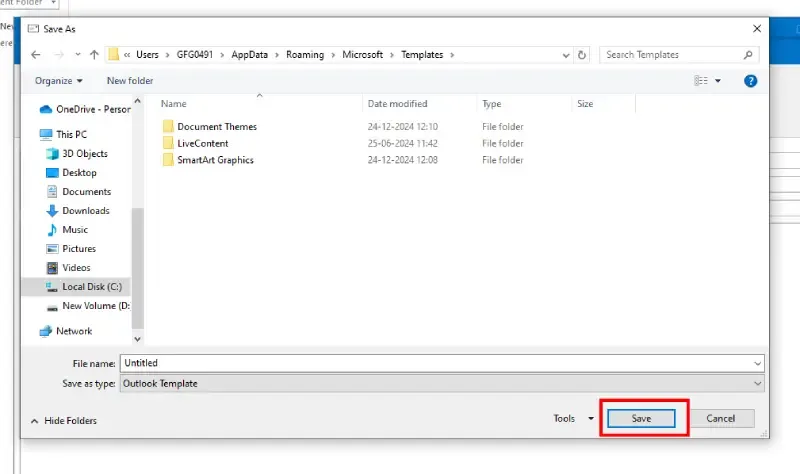
Step 4: Select a Location and Click "Save"
Choose a location and confirm by clicking Save.
Pro Tip: To use a saved template, go to New Items > Choose Form > Look in User Templates.
How to Save Outlook Emails to OneDrive or Cloud Storage
Storing emails in OneDrive, Google Drive, or Dropbox ensures secure access across multiple devices and prevents data loss.
Step 1: Save the Email as PDF, TXT, or HTML
Follow the methods above to save the email in a preferred format.
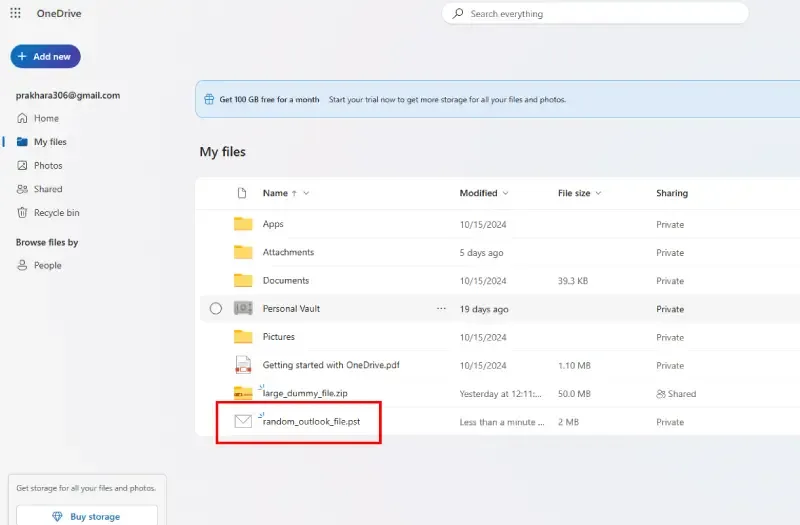
Step 2: Open OneDrive and Upload the Saved File
Go to OneDrive, then upload the email file.
Step 3: Access the Email Anytime from Any Device
Now, you can access the saved email from any cloud-connected device.
Conclusion
Saving emails in Outlook is an essential practice for anyone who wants to stay organized, preserve important information, and protect their email history. Whether you’re learning how to backup Outlook emails, how to download Outlook emails, or how to save email templates for easy replies, Outlook offers a range of powerful options to suit your needs. By leveraging PST export, OneDrive storage, or email templates, you can ensure that your critical emails are safe, organized, and available whenever you need them. Start saving your emails today to streamline your workflow and keep your important communications secure!