
How to Set Automatic Reply in Outlook- Quick Steps
- Open Microsoft Outlook
- Click on "File" >> Select Automatic Replies
- Set the Time Range
- Write your Automatic Reply
- Click Ok.
Need to set up an away message in Outlook? Whether you're on vacation, at a meeting, or simply away from your desk, Outlook’s automatic reply feature ensures your contacts know you're unavailable. In this easy guide, we’ll show you how to quickly set up and customize your Out of Office reply on Windows, Mac, Web, and Mobile.
Table of Content
- What is an Out of Office Message in Outlook
- How to Set Up an Out of Office Message in Outlook for Windows
- How to Set Up an Out of Office Message in Outlook For Mac
- How to Set Up an Out of Office Message in Outlook on Web App
- How to Set Up an Out of Office Message in Outlook Mobile
- How to Customize Your Out of Office Message in Outlook
What is an Out of Office Message in Outlook
An Out of Office message (also called an Automatic Reply) is an email response that is sent automatically whenever someone emails you while you're away. It informs senders that you are unavailable and provides alternative contact information or a date of return if necessary.
How to Set Up an Out of Office Message in Outlook for Windows
If you're using Microsoft Outlook on Windows (Office 365, 2019, 2016, or earlier versions), follow these steps to enable Automatic Replies.
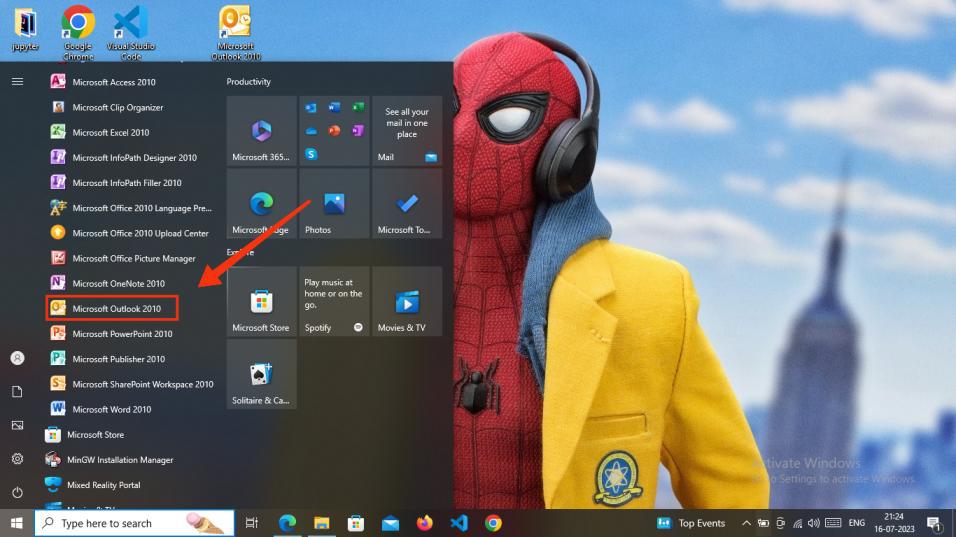
Step 1: Open "Microsoft Outlook"
To start Microsoft Outlook on your Windows computer, search Microsoft Outlook and Click the icon.
Note: The process of creating email groups remains consistent across all versions of Microsoft Outlook on your Windows device, including Microsoft Outlook 2010, 2013, 2016, and 2019.
Step 2: Select the File Icon
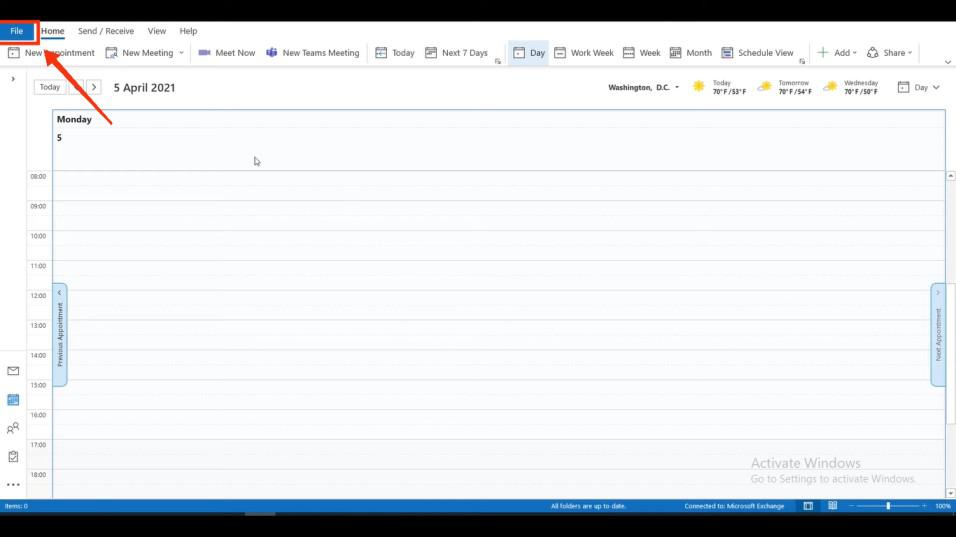
Click on the File option to open the Account Information. (This will be available on the top left corner of the Outlook interface)
Step 3: Select "Automatic Replies"
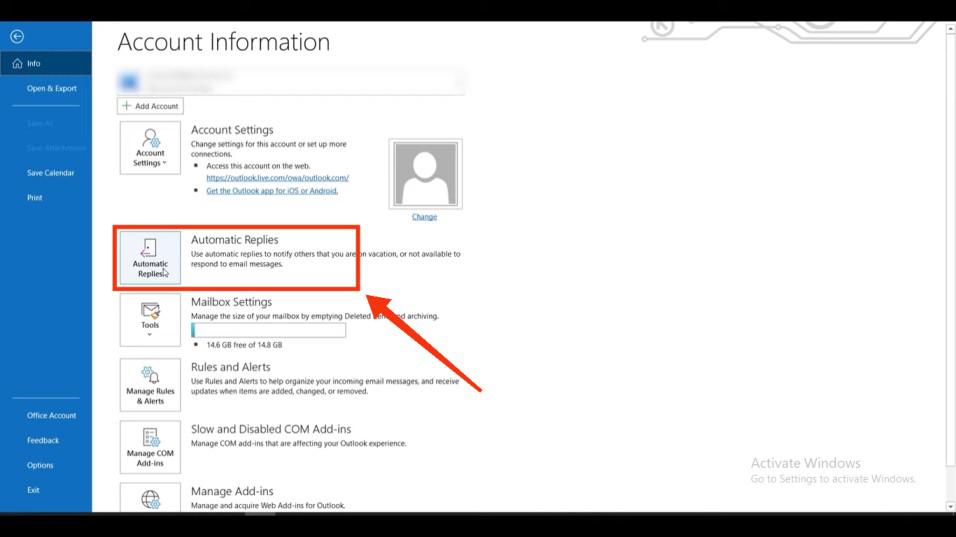
From Account Information Click on the "Automatic Replies" tab.
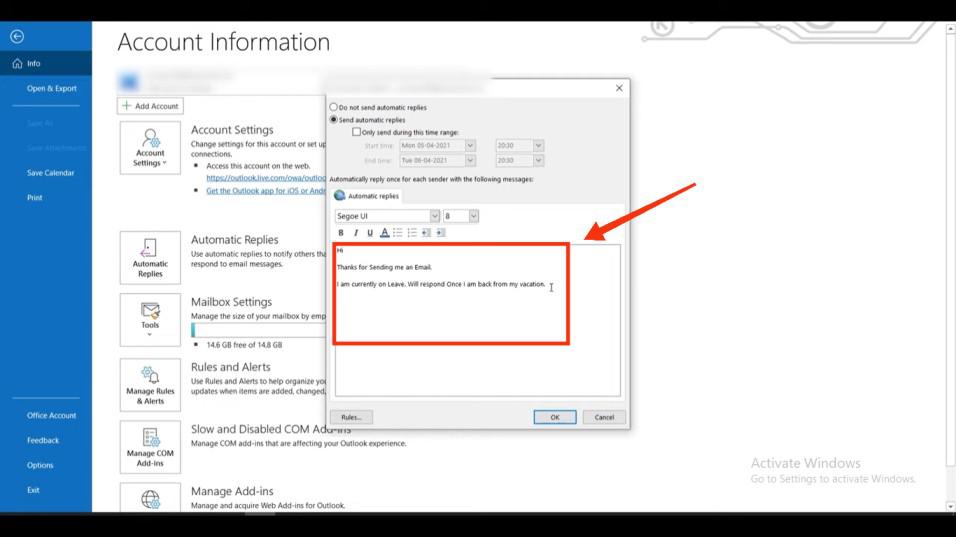
Step 4: Type your Automatic Reply
Now write you an automatic reply text that will be sent to the person who will message you when you are on vacation mode on Outlook.
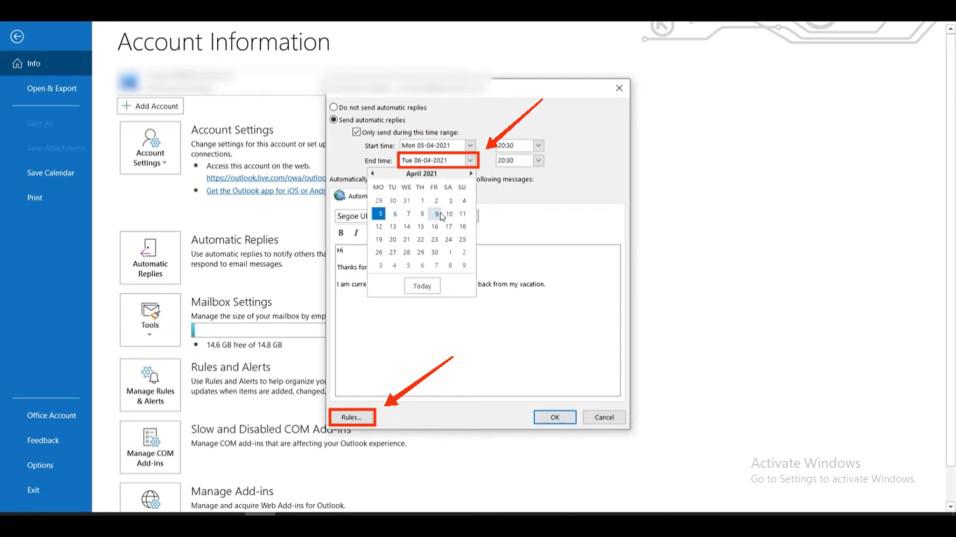
Step 5: Set the Sharing Time Range and Click on Rules
Now Select the time period of holidays so that the Automatic Reply can last for the specific time range. You can also set rules of Reply by clicking the Rules button.
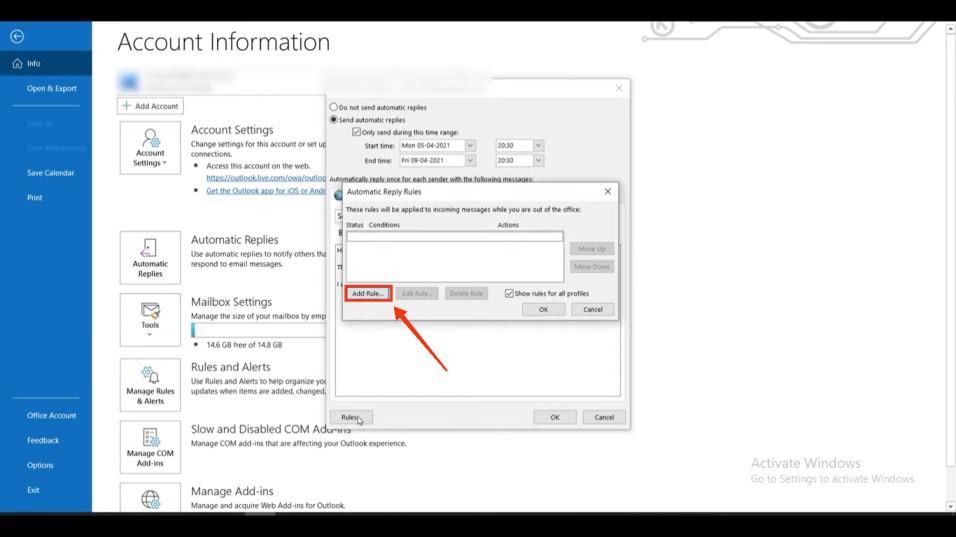
Step 6: Click on Add Rules
In this step, you can add the rules that you wish to configure for your Automatic Reply to apply to all your incoming emails.
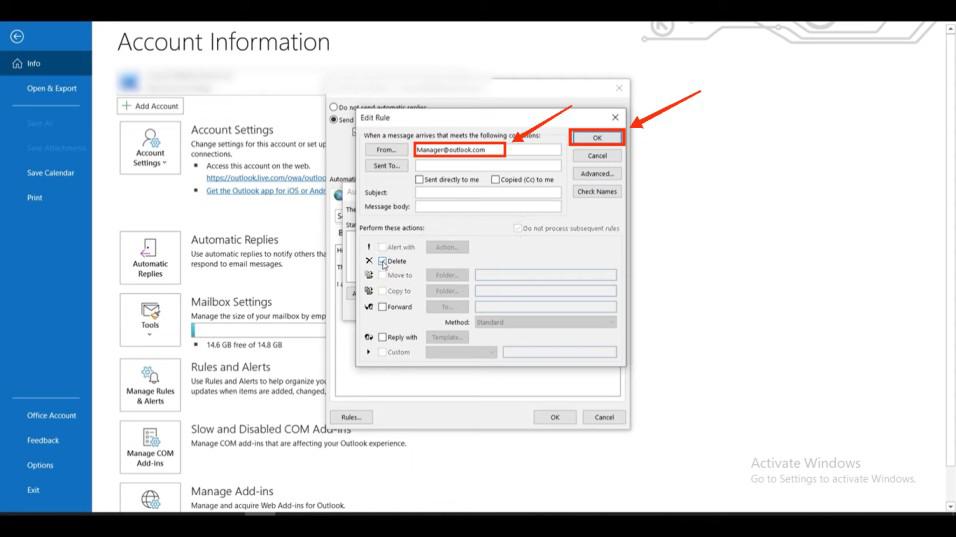
Step 7: Set the Rules
In this setting, you have the option to establish guidelines for responding to a particular individual when they send you messages. You can choose to delete their messages, mark them as "seen," and more.
Note: Ensure to click on OK button after setting the rules and "Automatic Reply".
Step 8: Your Set Up to Out Office is Completed
Now that your setup is complete, you'll notice that the Automatic Reply feature is activated, and you can control its settings through the "Automatic Reply" button located at the bottom of Outlook's interface.
Pro Tip:
- If you want to send different messages to internal and external contacts, use the Inside My Organization and Outside My Organization tabs.
- To disable the Out of Office message, follow the same steps and select "Do not send automatic replies."
How to Set Up an Out of Office Message in Outlook For Mac
For Mac users, setting up an Out of Office reply is slightly different. Follow the below steps to Enable Automatic Replies in Outlook for Mac:
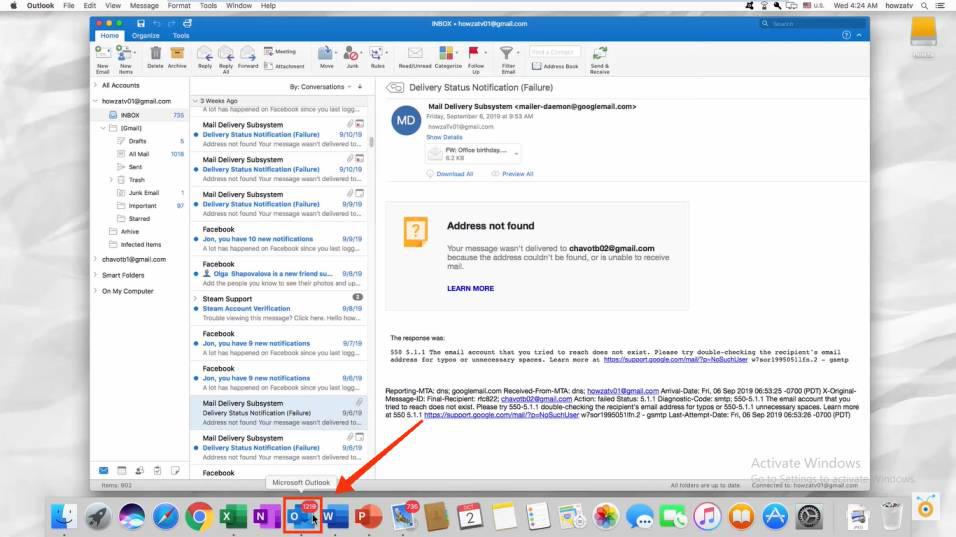
Step 1: Open Microsoft App on your Mac
To open Microsoft Outlook on your Mac, find the icon for Microsoft Outlook and click on it.
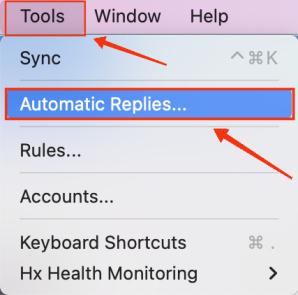
Step 2: Go to Tools and Select Automatic Replies
Click on the Automatic Reply button present in the Tools tab to open the setting of Automatic Replies.
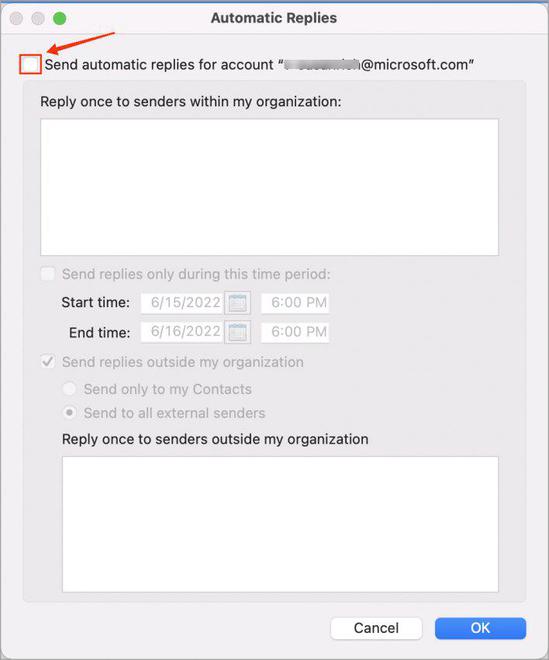
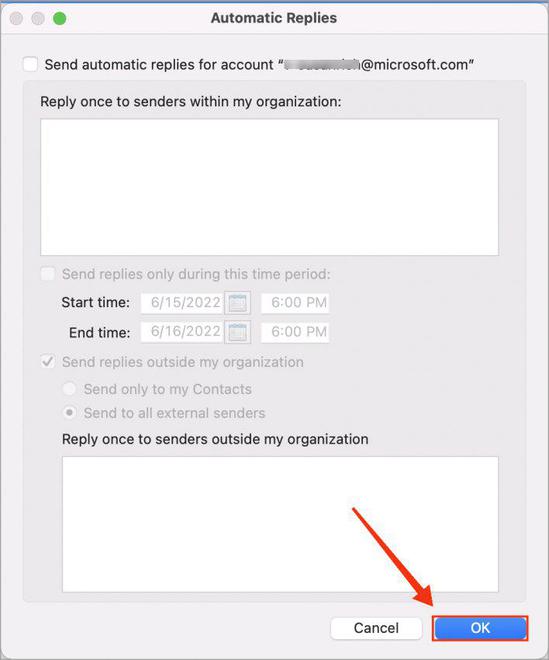
Step 3: Check the Checkbox of Send Automatic Replies
Click on the Checkbox to set the Automatic Reply.
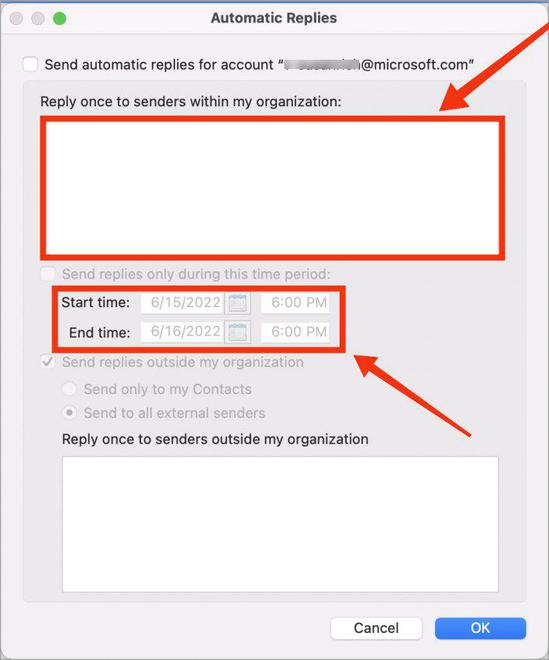
Step 4: Write Your Automatic Reply and Set the Time Range
Now, write your Automatic Reply Text that will be sent when you are on Holiday and your Automatic Reply is turned on.
Step 5: Click Ok Button
Click on the Ok button to Save all the settings for Automatic Reply.
Pro Tip: If you don’t see the "Out of Office" option, make sure your email account is Microsoft Exchange or Office 365—this feature is not available for IMAP or POP accounts.
How to Set Up an Out of Office Message in Outlook on Web App
If you’re using Outlook Web, you can enable Automatic Replies in just a few clicks.
Step 1: Sign in to Outlook on the web
Go to https://outlook.office.com/mail/ and log into your account.
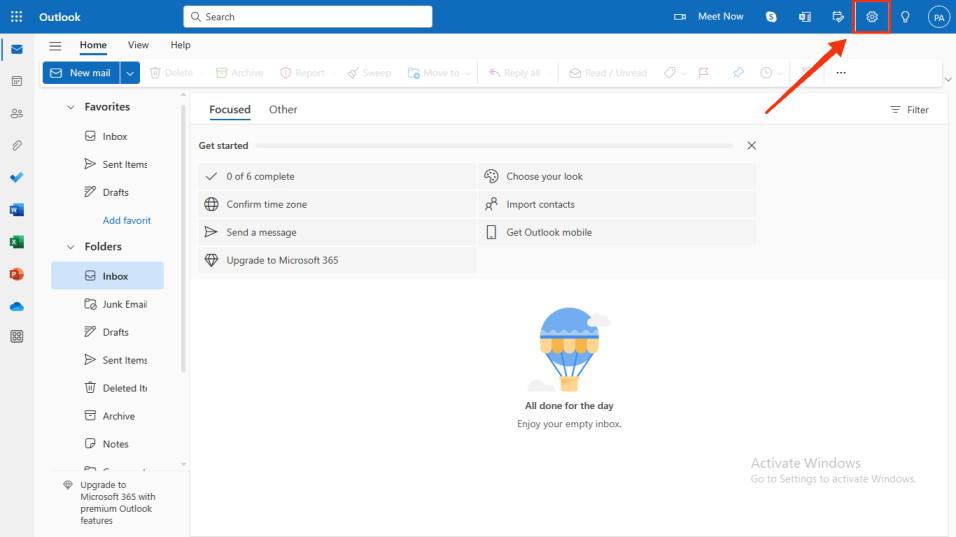
Step 2: Click the Setting icon
Click on the gear icon (Settings) in the top-right corner.
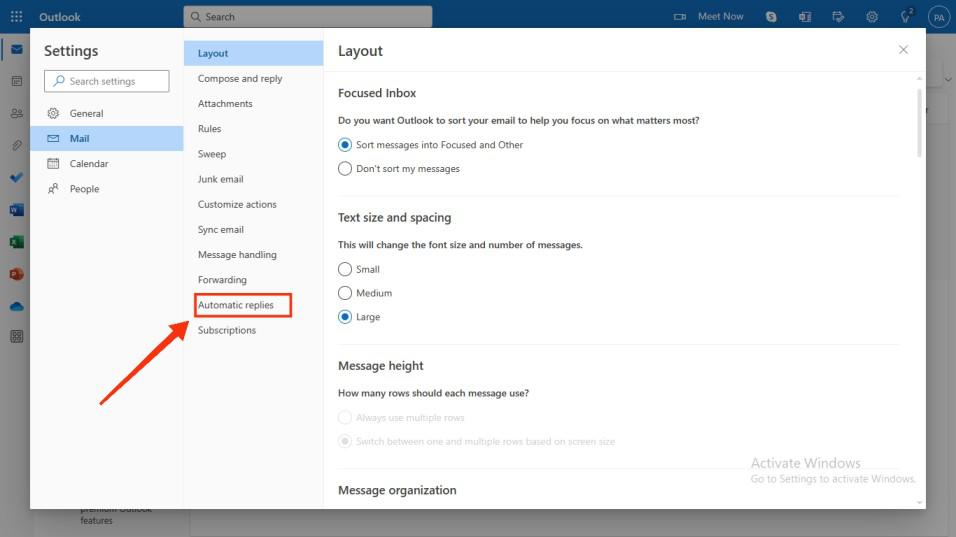
Step 3: Navigate to Mail and Select Automatic Replies
Click on the Automatic Replies button to open the settings of Automatic Replies.
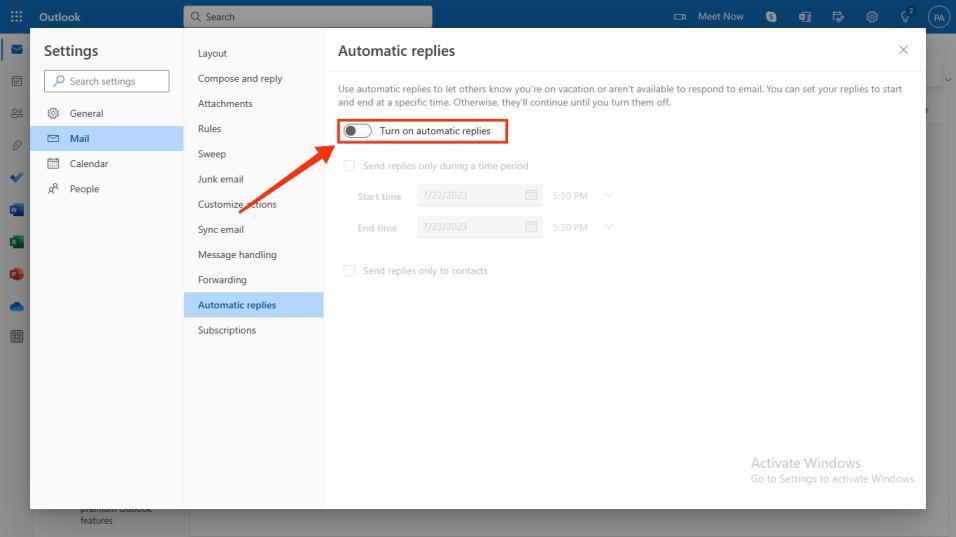
Step 4: Turn on Automatic Replies
Click on the Automatic Replies button to turn on the Automatic Replies.
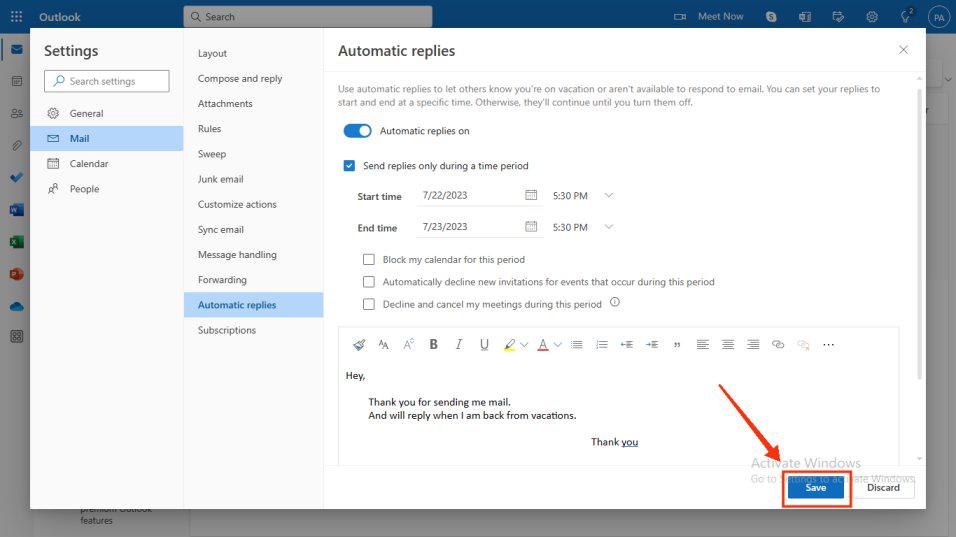
Step 5: Set the Time Range >> Write your Automatic Reply
You now have the option to configure the time range for your Automatic Reply and compose the message that will be sent to individuals when your Automatic Reply is enabled.
.jpg)
Step 6: Click Save
Click on the Save button to Save your setting of Automatic replies.
How to Set Up an Out of Office Message in Outlook Mobile
For those who use Outlook on their mobile devices (Android & iPhone), you can set an Out of Office reply through the Outlook app.
Step 1: Open Microsoft Outlook mobile app
Click on the Microsoft Outlook icon to open the application on your mobile phone.
-660.jpg)
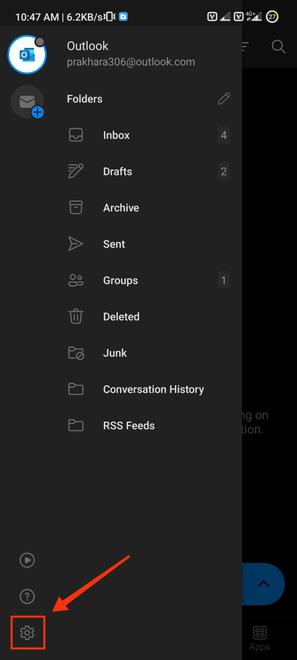
Step 2: Go to Profile and Click on "Setting icon"
Tap your profile icon (top-left corner) and Click on the settings icon to open the Account settings.
Step 3: Select your E-mail
Select your E-mail account to find the option of Automatic Replies.
-660.jpg)
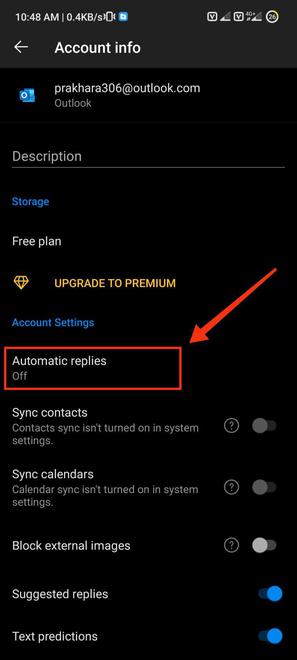
Step 4: Select "Automatic Replies" tab
Click on the Automatic Replies tab.
Step 5: Turn on Automatic Replies
Now turn on the Automatic Replies to open the settings of automatic replies.

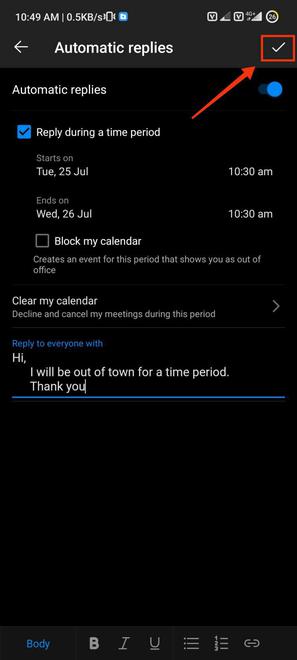
Step 6: Write your Automatic Reply >> Set Time Period
Now here you have to write your automatic reply, which will be send when your automatic reply is turned on and you can also set your Time period for you are Out of office.
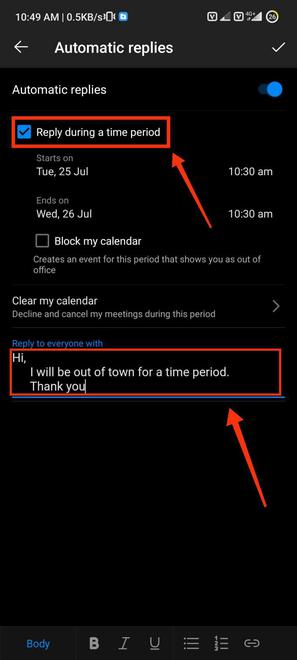
Step 7: Click Tick icon (✓)
Click on the tick icon to save all the changes you made in the Automatic replies section.
Pro Tip: If you have multiple email accounts in Outlook Mobile, you must set automatic replies separately for each one.
How to Customize Your Out of Office Message in Outlook
When writing your Out of Office email, keep it clear and professional. Here are some examples based on different needs:
Basic Out of Office Message:
Subject: Out of Office – [Your Name]
Thank you for reaching out. I am currently out of the office and will return on [Return Date].
If your request is urgent, please contact [Alternative Contact Name] at [Alternative Email]. Otherwise, I will respond as soon as I return.
Best regards,
[Your Name]
Formal Out of Office Message for Business:
Subject: Out of Office – [Your Name]
Hello,
I am currently out of the office from [Start Date] to [End Date] and will have limited access to email.
For urgent matters, please reach out to [Alternative Contact Person] at [Alternative Email].
Thank you for your patience, and I will respond as soon as possible upon my return.
Regards,
[Your Name]
Conclusion
Setting up an Out of Office message in Outlook is an essential feature for anyone who needs to manage emails while away. Whether you're on vacation, attending meetings, or just stepping away from your inbox, configuring automatic replies ensures that your contacts receive timely updates and alternative contact information. With the step-by-step instructions outlined for Windows, Mac, Web, and Mobile, you can easily set up and customize your out of office reply based on your specific needs.
By following these simple steps, you can set the auto-reply feature and ensure professional communication during your absence. Don’t forget to customize your messages to make them clear, concise, and informative. Whether you want to send different replies to internal vs external contacts or set a time range for your automatic replies, Outlook provides the flexibility to ensure your communication is effective and seamless.
Now, with your automatic replies set up, you can rest assured that you won’t miss important updates while you’re away, keeping your Outlook experience smooth and easy.