Microsoft Azure - RDP to Azure Virtual Machines using Azure Bastion
Last Updated :
31 Mar, 2023
In this article, we will learn how to do RDP(Remote Desktop Protocol) / SSH(Secure Shell) Connection to an Azure VM using Azure Bastion. First, let's discuss Azure Bastion.
The Azure Bastion service is a fully platform-managed PaaS service that you provision inside your virtual network. It provides secure and seamless RDP/SSH connectivity to your virtual machines directly from the Azure portal over TLS. Once it is deployed in a virtual network, it can be used to RDP/SSH to their VMs without exposing those VMs to public IPs. Internally, Azure Bastion is a VM scale set and it has the capability to resize itself as more sessions come in. Azure Bastion always give an RDP/SSH session on target VMs private IP address.
To set up this bastion service, we need to create a Linux or Windows Virtual Machine. Since Public IP addresses and ports are not required. Therefore, there is no need to create a public IP address and open public inbound ports. Let's start with Linux virtual machine.
Prerequisite:
- Azure account
- A Virtual Machine on Azure Portal
Steps to use Bastian in Linux VM:
Step 1: Go to portal.azure.com and sign in. Also, create a Linux VM with SSH public key. I have created 'Test-VM-Linux-00' where Image is Ubuntu Server 20.04 LTS- Gen 1. On the overview tab, click on connect and select 'Bastion'.

Step 2: Click on 'Use Bastion'. First, we will set up Bastion.

Step 3: On the next page. it will show the address space and we can choose the respective address space. I choose default address space. Then create a Bastion Subnet. Choose Address space for Bastion subnet and select NSG(Network Security Group) if needed.

Step 4: On the next page, create Bastian and give it a name. Select Tier, Public IP address name, and Resource group. Click on 'Create Azure Bastion using defaults'. To customize the default settings of Azure Bastion, use the other option ' I want to configure Azure Bastion on my own'
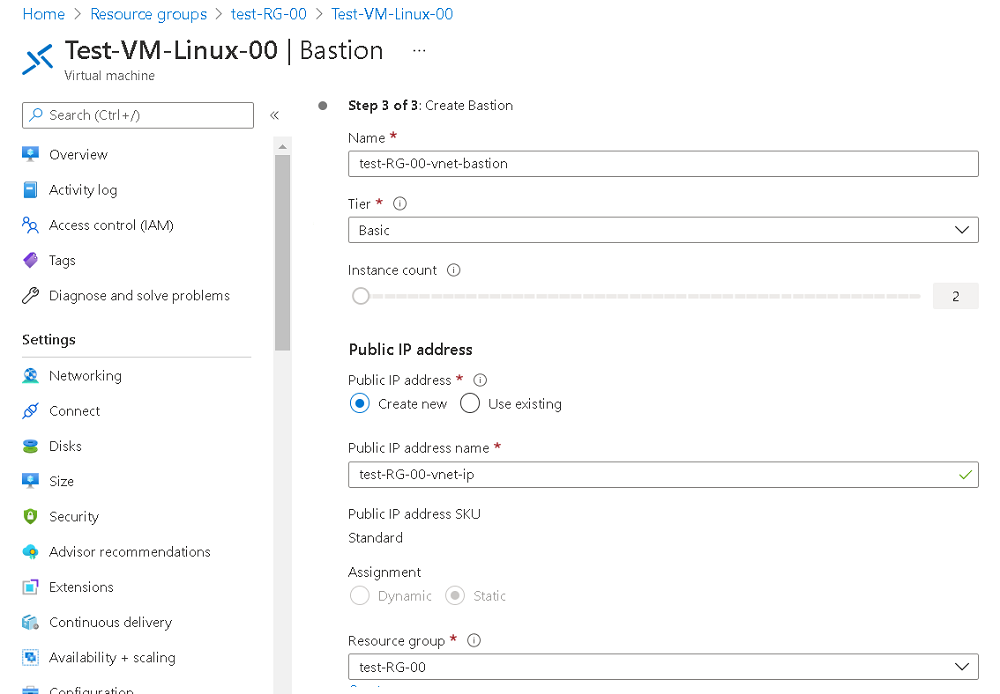

Step 5: Once the Provisioning state is Succeeded, log in into the VM with Username and downloaded the private key. Click on Connect.

Step 6: The Linux Virtual machine will open in the next tab.

Azure Bastion on Windows VM:
- Go to portal.azure.com and sign in. Also, create a Windows Virtual Machine. I have created "Test-VM-00" where the image is Windows 10 Pro, Version 20H2 - Gen 1. On the overview tab, click on connect and select 'Bastion'.

- Similarly, repeat steps 2-5 for the windows machines too. The windows machine will open in the next tab.

Explore
Basics Of Cloud Computing
Cloud Deployment Models
Cloud Service Models
Cloud Virtualization
Cloud Service Provider
Advanced Concepts of Cloud