Optimizing Team Collaboration with Azure Boards
Last Updated :
23 Jul, 2025
Team collaboration is an absolute must to see any project succeed in today's fast paced digital. Effectively coordinating tasks, tracking progress, and communicating are essential, whether you lead a small team or manage large-scale projects. Azure Boards comes in handy—a highly effective tool included within the Azure DevOps suite. Azure Boards provides a flexible solution for tracking work items such as features, stories, tasks, and bugs using built-in scrum boards or Kanban boards.
Getting Started with Azure Boards
- Create an Azure DevOps account: In order to take advantage of the benefits that come with Azure Boards, you will first need an account setup. Azure DevOps is the integrated suite of Microsoft development tools, but it also has Azure Boards as part of it.

- Getting Started: Go to the Azure DevOps website and sign up for an account You just need to sign in with your Microsoft account and confirm.
- Add an organization: After signing up, Add a new organization. These will be the parent entity of your projects at this level
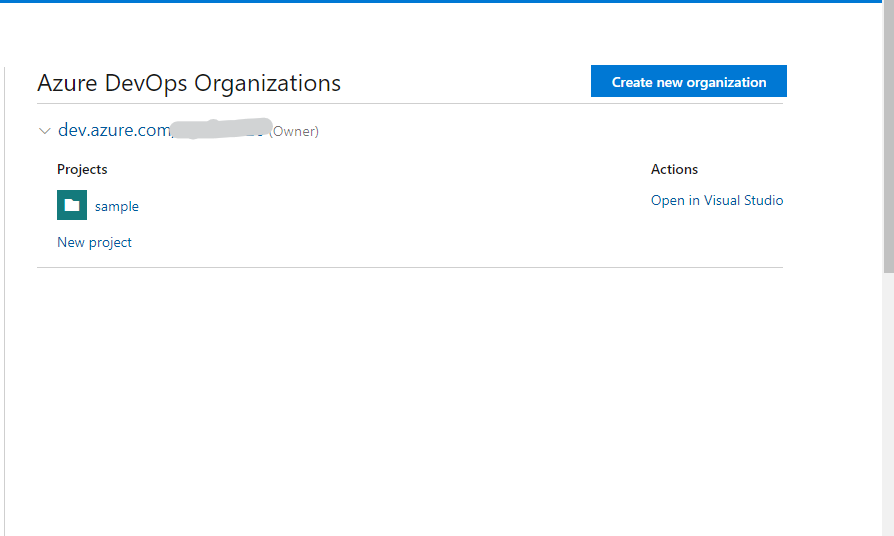
- Creating a new project: You create it within your organization. All the work will be managed through this project which contains your Azure Boards setup.
- Your First Project
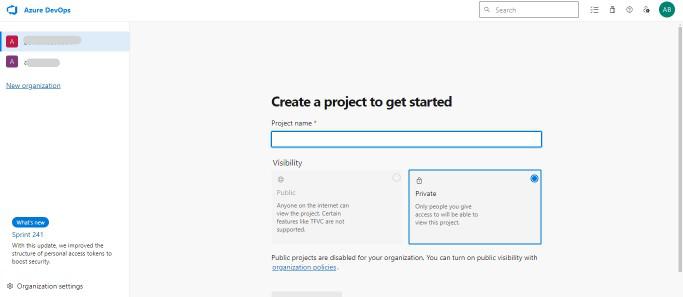
- After you have your account and organization, go ahead and create your first project in Azure Boards.
- Enter Project Details: Add a Name & Description for the project. Public, Private Select the appropriate scope for your team.
- Choose a Process: Azure Boards provide various process templates like Agile, Scrum and Basic. Pick the process that aligns best with your own workflow and team.
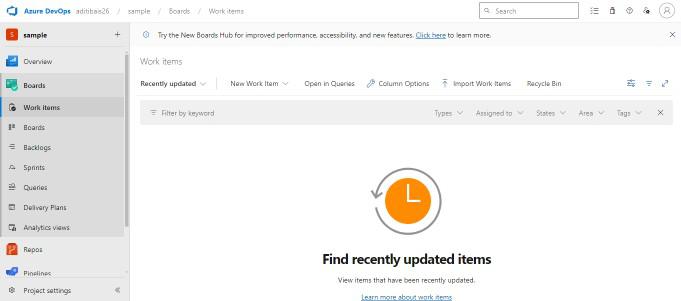
- Customize your project settings such as permissions, areas and iterations to match the structure of your team and goals with Configure Project Settings
Key Features of Azure Boards
- Work Items and Backlogs: Work items are the building blocks of Azure Boards. Tasks, bugs, user stories, features; all kinds of issues can be represented in there. A backlog is a list of work items that help organize the project workload.
- Create Work Items : Effortlessly create new work items and assign them to teammates. Include context with description, attachments, tags.
- Backlog Management : Add work items to Backlogs based on their priority and profitability. Reorder items in the way you want with our drag and down approach
- Hierarchies and Dependencies: Model hierachical relationships between work items, using parent-child relations to represent top-level tasks with their sub-tasks. This aids to visualize dependencies and progress.
- Boards and Kanban View:The Kanban view of Azure Boards is an excellent way for clear and transparent managing your work. It can track the status of work items as they progress in a workflow.
- Leveraging Boards: Adopt your Kanban boards to model how work is done in your team. Include Columns (To Do, In Progress and Done)
- Card Customization: Design your work item cards on the board. Shows some vital information such as assignees, tags and due dates.
- Swimlanes & Work Item Types: Swimlane work items on a board based on criteria such as priority and type. You can configure different workflows and columns for various work item types.
- Planning is Done in Sprints and Iteration
- Azure Boards provides rich support for planing sprints and iterations with Agile or Scrum methodologies which most of the teams follow.
- Create Sprints - These sprints are like iterations which we define that needs to be performed as a part of the project.
- Start or end Dates: Define a schedule and timebox your work.
- Use sprint planning view to schedule work items into sprints Make sure that the workload for each sprint aligns with team capacity.
- Track progress: Use burn down charts and sprint boards to monitor the advancement of sprints. Make course plan changes according to team performance and suggestions.
- Queries and Dashboards
- Azure Boards is an amazing set of widgets and queries that allow you to track the work; this makes it easier for teams to have a sense of their project status as well monitoring on efficiency.
- Querying: Create custom queries to search work items by specific attributes. Bookrks: Save and Share with anyone on the team
- LANGUAGES DASHBOARD: Build individual dashboards to highlight important metrics and data. Include work item charts, sprint burndown and more as widgets.
- Analytics Views Use built-in analytics views to visualize data trends and discover opportunities for improving your campaign. Tailor your views to display only key metrics for streamline communication across teams.
Customizing Azure Boards for Your Team
- Custom Work Item Types
- Create custom work item types in Azure Boards to match how your team works.
- Define custom types: Create new work item types (WITs) or make changes to existing ones. For each kind, fields/ layouts / workflow is defined.
- Work Item Types as implemented for Customization: Assign the custom work item types to areas or teamservers of your project. This allows different teams have distinct work item configurations.
- Managing Custom Types: Keep your custom work item types in sync with the evolution of processes on your team Maintain consistency of capabilities and interfaces amongst the project
- Crafting States and TransitionsWork items have a workflow defined by states and transitions. In customizing these elements you ensure they are aligned with your team processes.
- Customized states: Change the state names, for example “New”, “In progress”,” Review and ” Closed”.
- You will then be required to define rules of how the state transits, which is normally called transition rules (simplified examples: what fields are mandatory, or validation or notification). To ensure that things are consistent and no mistakes keep happening.
- Visualize Workflow: Visual diagrams of work items following the workflow. This allows team players to know how well are the teams coming along and if there is a jam.
- Custom Dashboards & Widgets
- Personalized dashboards that provide a central place to see all relevant project metrics and information.
- Building Dashboards: Customize dashboards based on teams, positions or people / role Work item queries, charts and project status widgets.
- Customizing widgets -To show only the needed data and metrics in a widget. You may also filter and customize what is shown on the toolbars.
- Sharing and Collaboration - Share dashboards with your team or stakeholders. Work together on dashboards to make sure everyone has the information they need.
Integrating Azure Boards with Other Tools
- Link Azure Boards to GitHub
- When Azure Boards integrated with GitHub, it provides end-to-end traceability linking the code changes to work items.
- Connect to GitHub repositories: Link your Azure Boards project with GitHub repos. This is the means by which work items are associated with commits, pull requests and branches.
- Automatic Work Item Updates: Automatically update work items based on GitHub activity. For instance, closure of a pull request can change the status code for work items that are relative.
- Tracking with WI Changes to Code This facilitates keeping a track of the status on features and creating pointers to any problems in identifying them.
- Microsoft Teams Integration
- With Microsoft Teams integration, you can communicate with a team or a specific person in real-time.
- Connect Teams: Connect your Azure Boards project with Microsoft Teams channel. You will receive updates and notifications about work item in Teams.
- Bot Commands: Use Azure Boards bot command in Teams to work with work items interactively. You can create, update, and query work items directly from Teams .
- Collaboration: Collaborate better when you talk about work items and sprints with Teams. URLs to work items and dashboards can also be used for reference.
- Azure Boards integrates with many other Azure DevOps services:With that, the development process will enjoy the benefits of a unified environment. These include:
- Azure Repos: Source control may be performed in Azure Repos, while commits and branches should be connected to the work items. It ensures that the changes to the code align with the project.
- Azure Pipelines: If you connect Azure Pipelines, the development and deployment process will be never impaired. Build and release processes should be automated, and connections could be tracked in Azure Boards.
- Azure Test Plans: Azure Test Plans may be used in concert with Azure Boards. Test management is comprehensive. Plan and track the results of the tests executing and link the test cases with the work items.
Best Practices for Effective Team Collaboration
- Establishing Clear Workflows
- Well-defined and clear workflows are important for the smooth flow of work.
- Stages Define the states which Work Items goes through from creation to resolved stage. This ensures the rest of the team knows what to expect, and garner some empathy from their colleagues.
- Documenting Workflows: Document workflows and share them with the team Give recommendations on transitions and the types of work items to be performed.
- Iterative Process: Review and revise workflow based on feedback from the team and project requirements. Continuous Improvement to maximize efficiency
- Review and update boards regularly
- Regular check-ins keep your boards up to date and true the current state of play (not that scrum is anything like a game, oh no).
- Sprint Reviews: Review jumps to measure progress and adjust game plans for the next interval. Incorporate what was not working and amend the workflow.
- Backlog Grooming: Budget regular time to shepherd through backlog items, review and prioritize work as needed. Monitor the backlog to ensure it is current and aligned with project objectives
- Board Audit: Conduct board audits to keep a check regularly whether your work is being tracked and updated correctly. It is all about fixing their inconsistencies and obsolesce information.
- Supporting Team Communication and Feedback
- Ability to Communicate (and provide feedback) - without which you won't agree on much of anything.
- Keep the Channels Open: Support an atmosphere where open communication is encouraged. Leverage tools such as Microsoft Teams to have that live conversation and keep the team up-to-date.
- Set Up Regular Meeting: Schedule regular meetings like daily stand ups, sprint retro to keep team in shape and address any issue.
- Loop in feedback: Create mechanisms for getting input from team members Feedback to enhance processes , tools or workflows
Case Studies
- Success Stories of Teams Using Azure Boards
Many teams have since successfully implemented Azure Boards in different industries. - Example: A tech start-up was able to speed up their build cycle by using Azure Boards for development.
- Customized Solution: Increased velocity and quality of release cycles with GitHub/Azure Pipelines integrated into Azure Boards.
- Company: An enterprise company that used Azure Boards for organizing their huge projects. With the development approach they adopted in using work item path types and workflows, it was custom created for their intricate processes which made project tracking and reporting become more improved.
- A non-profit organization using Azure Boards for a distributed team approach to work more collaboratively. The native Microsoft Teams integration kept them connected between the communication, allowing seamless and real-time coordination to achieve their objectives.
Troubleshooting and Support
This concerns the usual problems and their solutions
- Sync Issues: If you find work items or boards are not syncing as expected, check if all your integrations properly configured and up-to-date.
- Slow performance is often just a matter of optimizing queries and dashboards. Keep widgets smaller and make queries less complicated.
- Permission Errors - If team members receive permission errors, check project settings and properly set permissions on the right roles.
Real World Implementations and Lessons
- SummaryCustomization plays a vital role in making Azure Boards work the way you want it to.
- Allows for integration: Integrating Azure Boards with tools like GitHub and Microsoft Teams to get the most out of your projects.
- These Regular Reviews and Feedback enable that the correctness in boards maintained and thus speed up / enhance workflows.
Creating and Managing Work Items
Open your project in Azure DevOps
- Select Boards and then select Work items.

- New Work Item - Type > Task,Bug or User Story.

- Choose a title (required), description and assign to team members.

Using Boards and Backlogs
- Go to Boards > your boards
- If necessary, click "New Board."

- Include columns related to progress (e.g., To Do, In Progress, Done)

- Work item cards - you can drag them from one column to another.
Managing Backlogs
- Go to "Boards" > "Backlogs."

- But for new work items, go directly into the backlog.

- Drag Items in the List to prioritize them as your workload allows.
Sprint Planning and Executio
- Creating a Sprint: Boards > Sprints
.jpg)
- Name your sprint, set the start and end dates
.jpg)
- Planning a Sprint: You start out by dragging work items from the backlog into the sprint.
.jpg)
- Keep their utilization aligned with the workload using a tool for capacity planning.
Executing a Sprint: Keep an eye on progress with the sprint board and burndown charts.
- Make your plans and adjust them after use or feedback.
.jpg)
Collaboration and Communication
- Using Microsoft Teams Integration: Go to the project settings then open Service Hooks.
- Develop a new Microsoft Teams Subscription
.jpg)
.jpg)
- Set settings to get work item updates in a Teams channel.
- Using Comments and @Mentions:
- Include comments to work items for team reviews
- Notify individual team members by using the @mention.
Customizing Azure Boards
Custom Work Item Types: Go to Project settings > Process.
.jpg)
- Choose the method you want to customize.
- Or, Add/modify work item types
.jpg)
Custom States and Transitions
- Change some of the "New," "In Progress," or even it has been completed to "Done."
- Explicit the transition rules between states
Conclusion
Azure Boards Azure boards is another Powerfull tool to improve team collaboration and effectively manage project. With its all-in-one capabilities, flexibility and integration with other tools Slack is a perfect fit for any team in every industry. This will also help in productivity and smooth workflow by use of features available in the industry best practices being followed.
Explore
DevOps Basics
Version Control
CI & CD
Containerization
Orchestration
Infrastructure as Code (IaC)
Monitoring and Logging
Security in DevOps