Use of Flash Fill in Excel
Last Updated :
22 Aug, 2025
Flash Fill in Excel is an intelligent tool that automatically fills data by recognizing patterns.
For example, Given a large dataset with shop name and shop number, we want to combine the name of the shop with the shop number so we can use the Flash Fill option to achieve this goal.
1. Where Can We Find Excel Flash Fill?
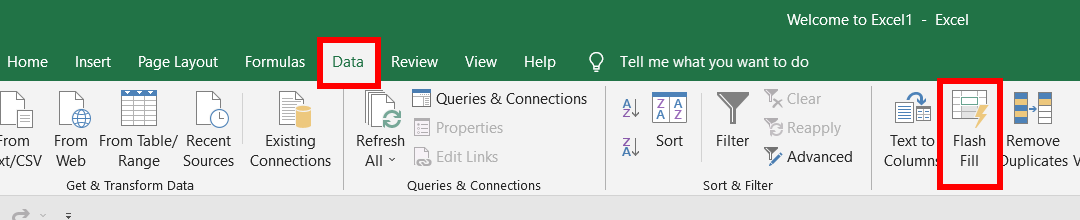
Go to the Data tab in our worksheet, and we will find an option called Flash Fill.
2. Use of Excel Flash Fill
There can be many ways to use Excel flash fill. Here listed are the three common ways to use Excel flash fill. So let us consider a data set with Email. Now we use Flash Fill to fill in the First name and Last name of the given data. Consider the same data set for all methods.

3. Method 1: Using Excel Flash Fill Option
To use Excel flash Fill follow the following steps:
Step 1: Fill at least one cell of each column so that the Flash Fill could detect the pattern.
Step 2: Click inside any cell of the table. Then click on the Data tab and then click on Flash Fill, the entire First Name column will be filled.
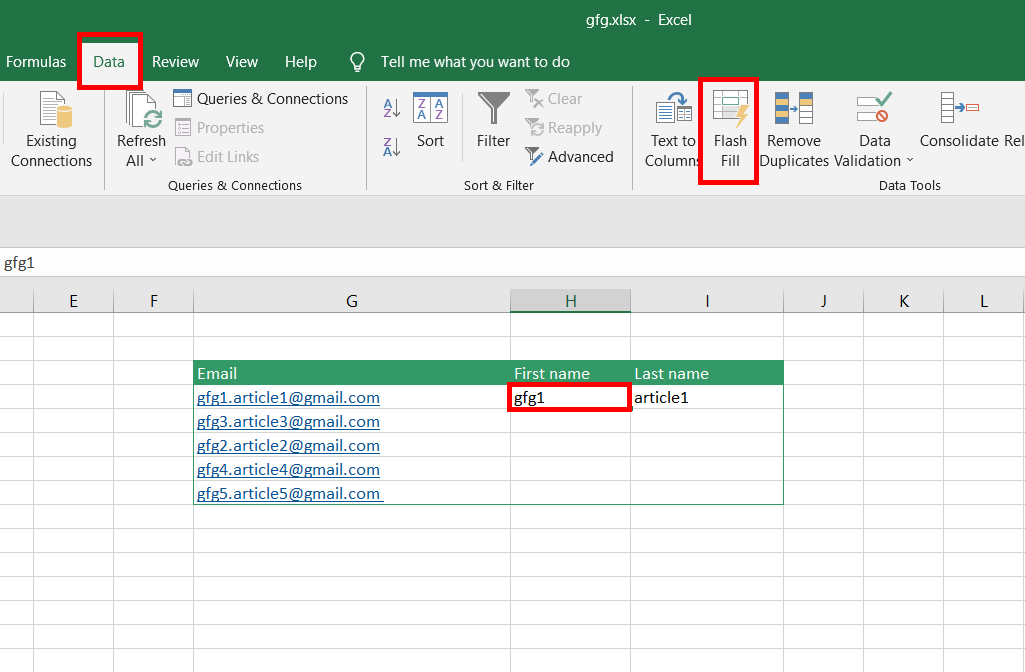
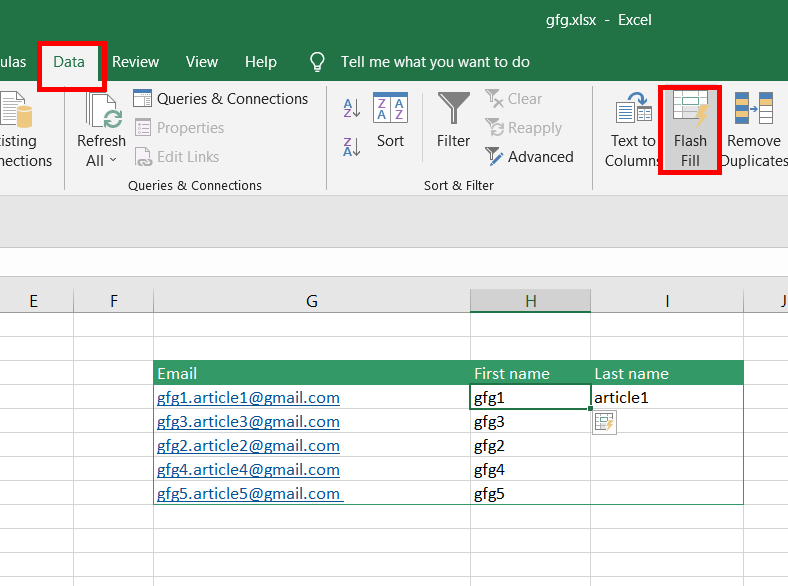
Similarly, fill the data in the Last Name Column using the Flash Fill method.
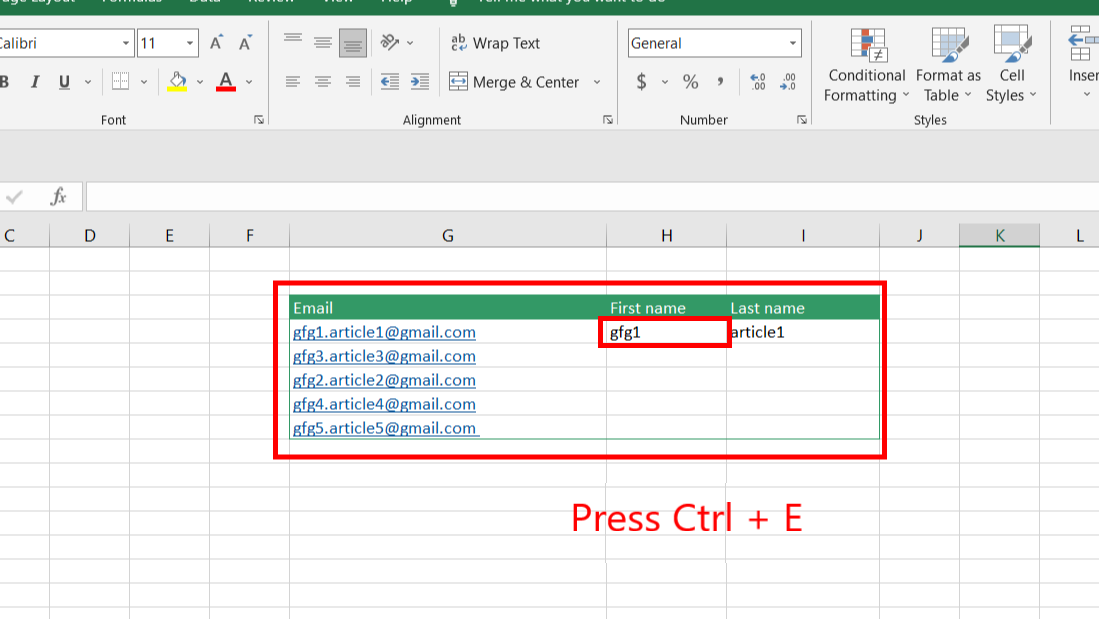
4. Method 2: Flash Fill Using Ctrl + E
We can also use the shortcut key Ctrl + E to use Excel Flash Fill option. To do so follow the following steps:
Step 1: Fill at least one cell of each column, so that the Flash Fill could detect the pattern.
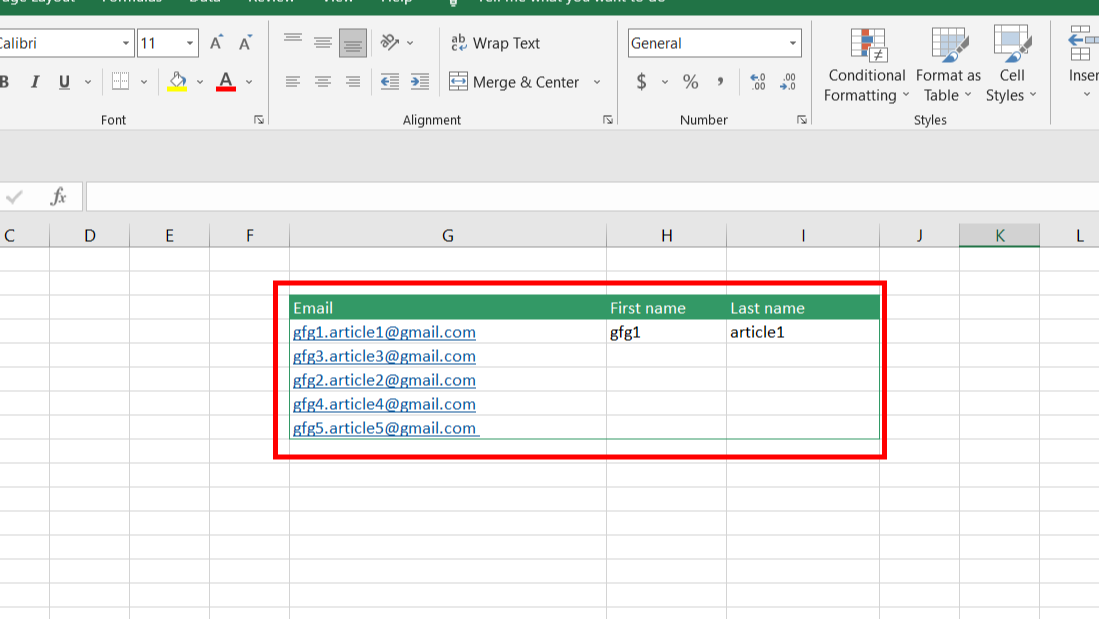
Step 2: Now press Ctrl + E on our Keyboard and the entire column get auto-complete.
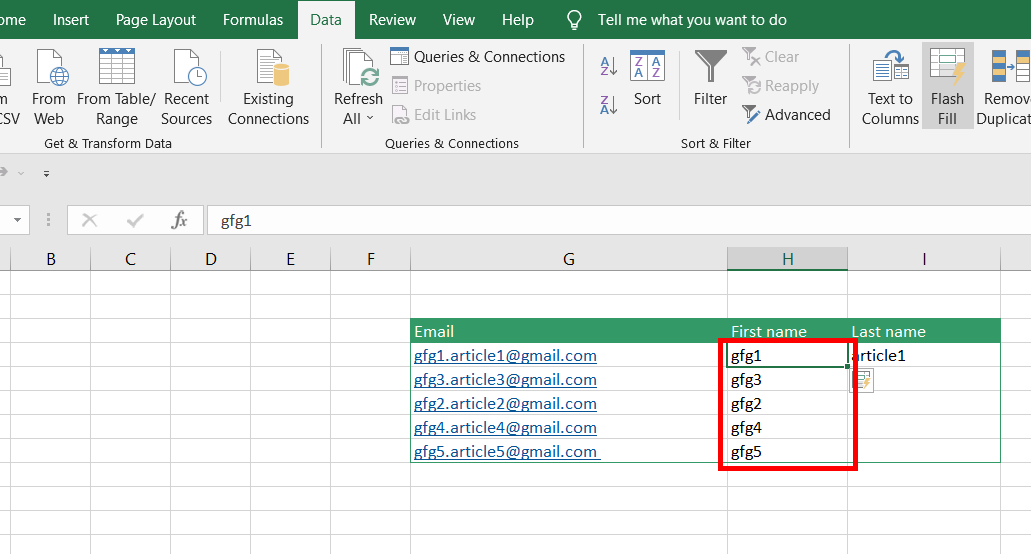
Similarly, fill the data in LastName Column using the shortcut key.
5. Method 3: Flash Fill Using the Faded list
We can also add data in the columns using Faded List. To do so follow the following steps:
Step 1: Go to column First Name and start filling the First Name until a Faded list appears.
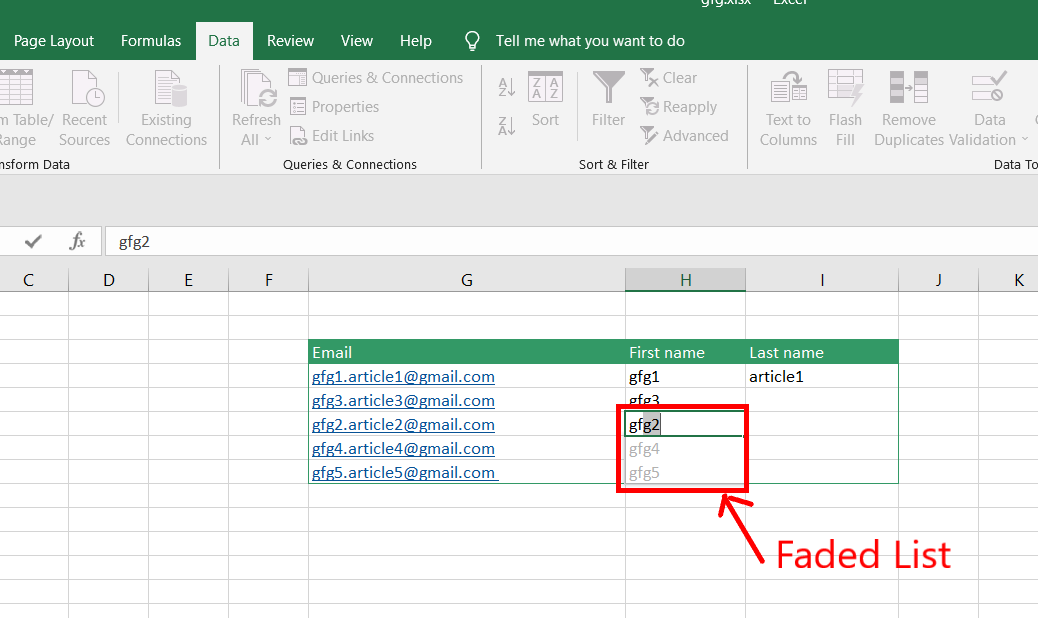
Step 2: After the Faded list appears. If we find the Faded list suitable then press Enter.
Similarly, fill the data in the Last Name Column using the Faded list. If we have a middle name then Flash Fill can also use to find the middle name.
Explore
Excel Fundamental
Excel Formatting
Excel Formula & Function
Excel Data Analysis & Visualization
Advanced Excel
Excel Data Visualization
Excel VBA & Macros
Power BI & Advance Features in Excel