How to Install the Windows Subsystem for Linux on Windows 11?
Last Updated :
25 Apr, 2022
As a programmer, it is very important to test software on multiple platforms. However, it can be very tedious and inefficient to use multiple virtual machines to achieve the same. Thankfully, this process can be simplified if you are using Windows and wish to run a Linux distribution - with WSL. WSL, or Windows Subsystem for Linux, lets developers run a Linux or GNU environment directly and enables one to run a bash terminal on a Windows system, without necessarily relying on a full virtual machine or dual boot setup in place. As such it is a lightweight and resource-efficient alternative.
Installing WSL and running Linux on Windows 11
following are the steps to install WSL and then run Linux on Windows 11:
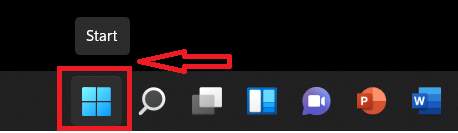
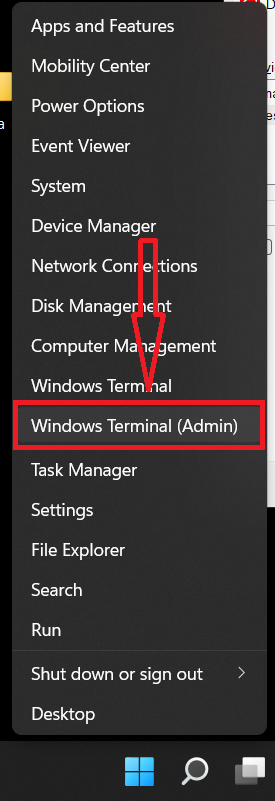
Step 1: Open Windows Terminal. Right Click on the Start button on the taskbar, and choose 'Windows Terminal (Admin)'.
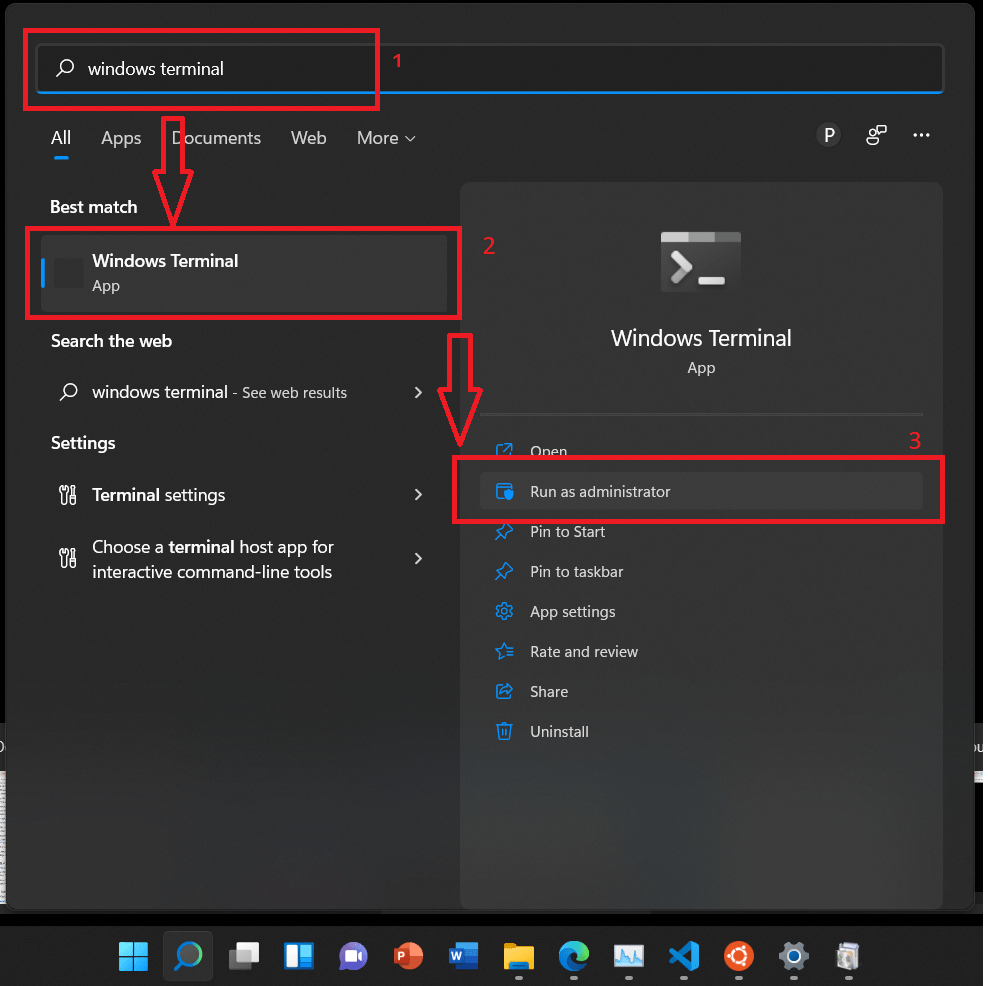
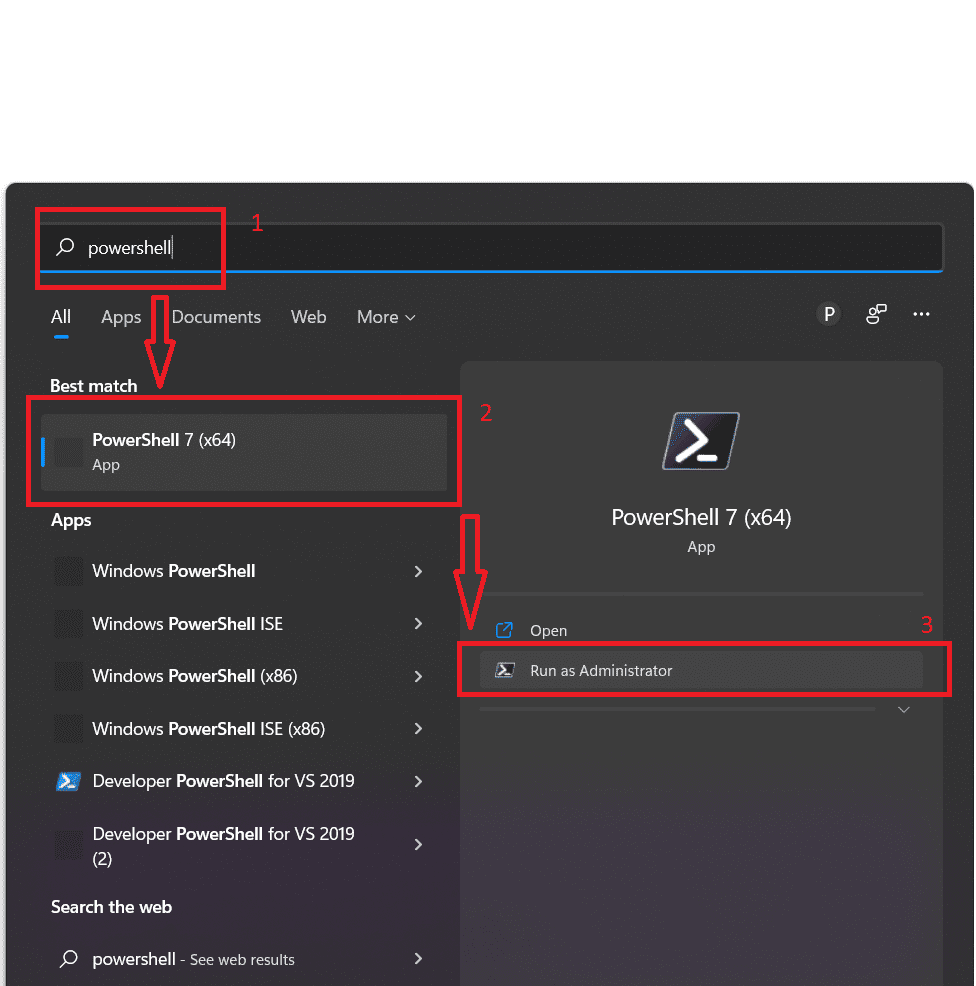
Alternatively, you can simply click on the Search icon, and search for Windows Terminal. Then, hover on 'Windows Terminal'. Finally, On the menu that appears on right, choose, 'Run as Administrator'.
Or for installation, we can also use Powershell. Another alternative is to use Powershell. Following a similar procedure as the one outlined above, search for 'Powershell', and click, 'Run as Administrator'.
Step 2: Now, type the following to install WSL:
wsl --install
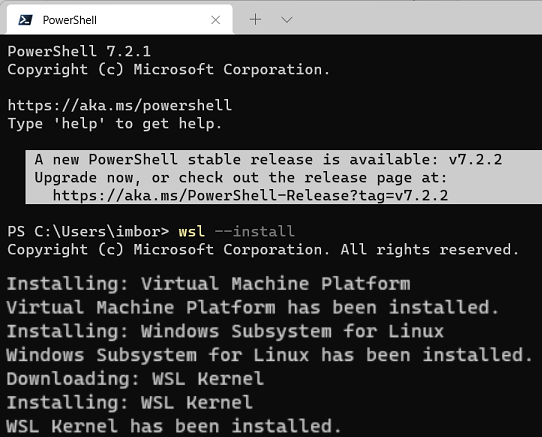
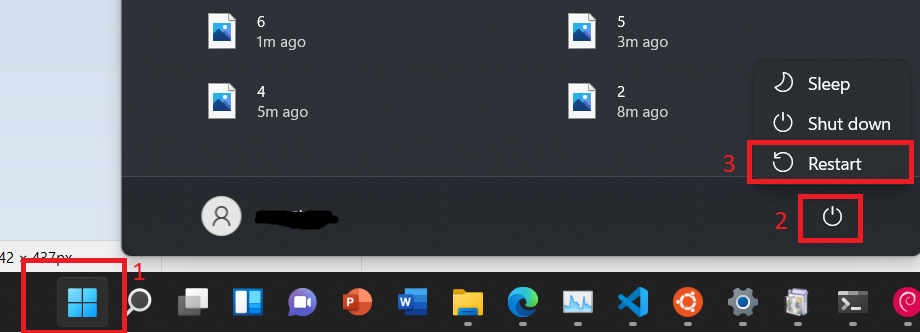
When the process is finally over, Windows will prompt you to restart your PC.
Step 3: Click on the Start Button -> Power -> Restart, or Alt + F4 + U and choose Restart from the Options.
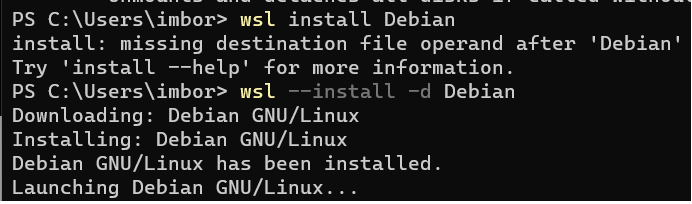
Step 4: After restarting, open your terminal or PowerShell again. Now, you can install any Linux distribution of your choice, by running the following command:
wsl --install -d <name of the distribution>
For instance:
1. To install kali-linux, type:
wsl --install -d kali-linux
2. To install Debian, type:
wsl --install -d Debian
Step 5: To view a list of all available Linux distributions, you can run one of the following commands:
wsl --list --online
or,
wsl --l -o

Step 6: Once the distribution has finished downloading, a new window will open. Now, you will be prompted to enter your username and password. Upon entering these, you will be ready to use Linux on Windows!

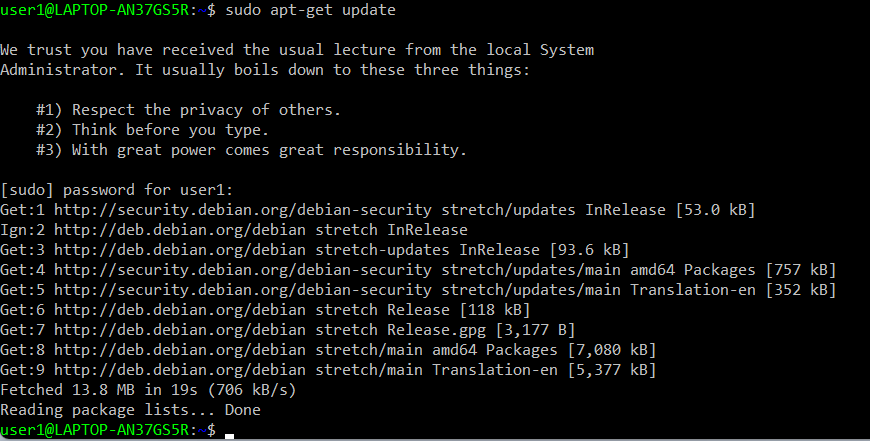
Step 7: It is strongly recommended that as soon as you install your chosen distribution, you run the following command to ensure that your installation is up to date:
sudo apt-get update