Returning HTTP response from Django and understanding URLS
Last Updated :
05 Dec, 2025
Django offers a simple way to send HTTP responses, allowing the server to communicate with the client based on the user's request.
- HttpResponse is the main class used to return responses in Django.
- Can send plain text, HTML, JSON, or any other content type.
- Helps define what the browser should display after a request.
- Forms the basic building block for building dynamic web pages.
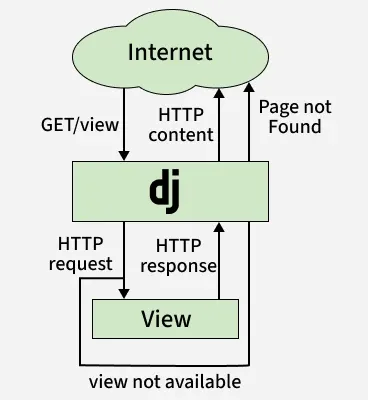 Django Request–Response Cycle
Creating a Simple HTTP Response
Consider a project named 'core' having an app named 'home'. To return a simple response, define a view function in app's views.py file.
In home/views.py:
Python
from django.http import HttpResponse

def index(request):
    # return plain text/HTML as HTTP response
    return HttpResponse("Hi.. from Django Server")
Adding HTML Content to Responses:
HTML content can also be included in the response to display dynamic web pages.
In home/views.py:
Python
from django.http import HttpResponse

def about(request):
    # HTML content returned as response
    html_content = "<h1>Hii.. from Django Server | This is an <b>About Page...</b><br><p>This about page can be used to see the about section.</p>"
    return HttpResponse(html_content)
Developers can include HTML content within the response to render dynamic web pages.
Understanding URLs in Django
URLs are used in Django to connect user requests to the correct view. They decide which code should run when a specific URL is visited.
- The urls.py file is where URL patterns are defined.
- Each pattern maps a URL path to a specific view function or class.
- Django checks these patterns in order to find the correct match.
- This system controls how requests move through the application.
1. firstly import the views functions from views.py
In core/urls.py:
Python
from django.urls import path
from home.views import index, about
2. include the path for calling the views function
In core/urls.py:
Python
from django.urls import path
from .views import index,about

urlpatterns = [
    path('', index, name='index'),
    path('about/', about, name='about'),
]
3. Run the django server
python manae.py runserver
Visit http://127.0.0.1:8000/ in a web browser to view the “Hi.. from Django Server” message as shown below:
 Local host snapshot
On visiting http://127.0.0.1:8000/about/ in a web browser, the following output will be displayed:
 Local host about snapshot
 Returning HTML Page as Response
To serve HTML pages, follow these steps:
1. Create a templates folder:
Inside app directory, create a folder named templates.
 App Directory
2. Create an HTML file:
Add HTML file inside the templates folder. In home/templates/index.html:
HTML
<!DOCTYPE htmL>
<html Lang="en">
<head>
<meta charset-"UTF-8">
<meta name="viewport" content="width=device-width, initial-scale=1.0">
  <title› Django Server </title>
</head>
<body>
<h1>This HTML page is returned by Django.</h1>
  <p>Django is really nice.</p>
</body>
</html>
3. Update views.py:
Use Django’s render function to serve the HTML file. In home/views.py:
Python
from django.shortcuts import render

def index(request):
    return render(request, 'index.html')
4. Map the view in urls.py:
Python
from django.urls import path
from home.views import index

urlpatterns = [
    path('', index, name='index')
]
5. Run the django server
python manage.py runserver
Visit http://127.0.0.1:8000/ in a web browser to display the following output:
 Local host Snapshot
Explore
Python Fundamentals
Python Data Structures
Advanced Python
Data Science with Python
Web Development with Python
Python Practice