How to Fix Ctrl+C and Ctrl+V Not Working in Windows
Last Updated :
23 Jul, 2025
What if your essential keyboard shortcuts, CTRL C (copy) and CTRL V (paste), suddenly stop working on your Windows system? This frustrating issue is not uncommon and can occur during any task due to software conflicts, corrupted files, or incorrect settings.
In this guide, we will provide step-by-step instructions to fix the Ctrl+C and Ctrl+V issues and restore your clipboard functionality.

How to Fix Ctrl C & Ctrl V Not Working Issue - 5 Methods
Whether you’re using Windows 10 or Windows 11, there are several potential causes for this issue, but fortunately, it can often be resolved with a few simple fixes. Let's check them out
1. Restart Your PC
Sometimes the issues are solved by just restarting your computer. It resolves temporary glitches and refreshes the computer which can solve the problem.
Step 1: Click on Windows Icon
- Click on the Windows Icon to open the Start Menu. Now, Select "Restart"
Step 2: Restart System
- Press the Windows key or click on the Windows icon and select option "Restart" with the help of your Mouse or Trackpad.
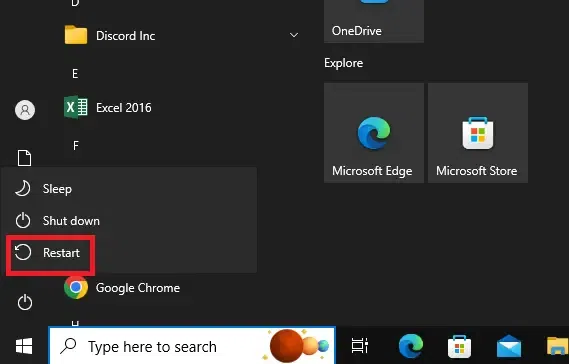 Click to "Restart"
This might help you to fix the issue. If problems still persist then follow the other below method to check for any driver issues.
2. Check for Driver Update
- Outdated or incompatible drivers can cause keyboard shortcuts to malfunction. Follow these steps to update your drivers:
Step 1: Go to Device Manager
- Press Win + X or right click on windows icon and select "Device Manager " option.
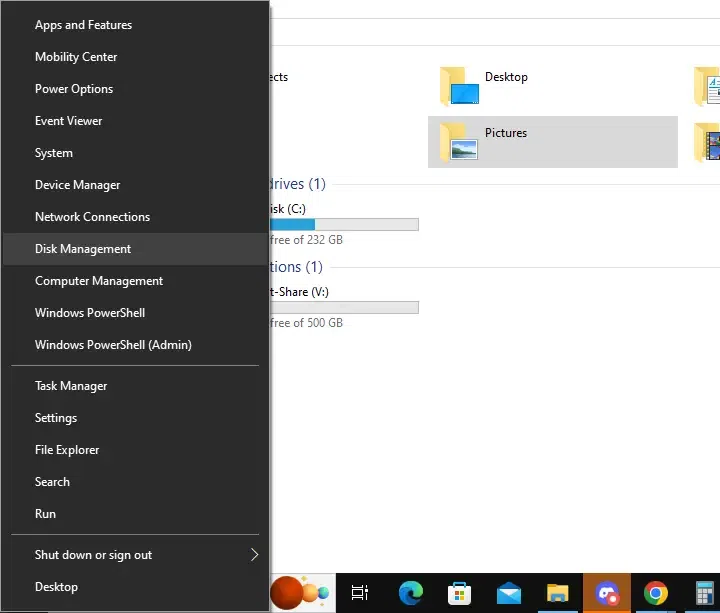 Check for Driver update
Step 2: Go to Keyboard
- Click on the "Keyboards" and expand it.
 Go to Keyboard
Step 3: Click on Update Driver
- Now make a Right-click your Keyboard option and click on "Update driver" option.
 Go to Update Driver
Step 4: Search for Drivers
- Click on "Search automatically for drivers" option
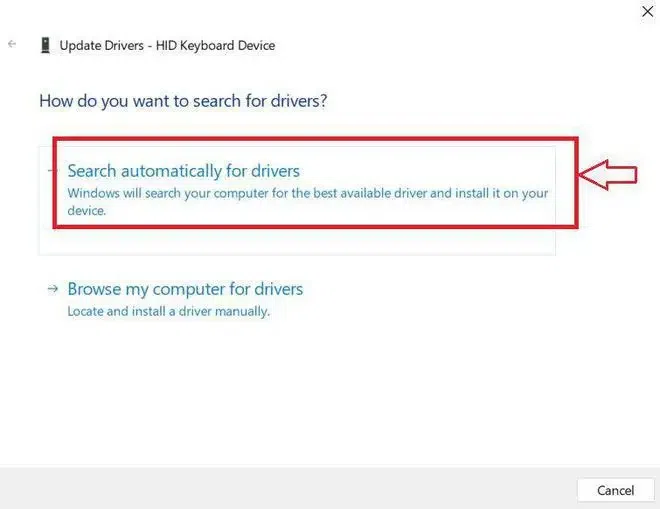 Search for Drivers
Note: If your system will have any driver issue then this might be the best method to fix it.
3. Check for Windows Update
Sometime issue may cause because your Windows operating systems is not up to date. To update Windows OS follow these simple steps:
Step 1: Press Win + I
- Press Win + I shortcut key to open Settings and select "Windows Update" on the top right.
 Update Windows
Step 2: Check for any available updates
- Click "Check for updates" and follow prompts to install available windows updates.
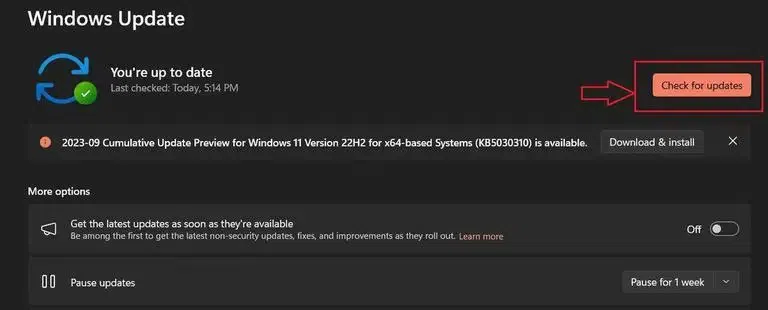 Check for Updates
4. Disable Third-party Software
Sometimes there is a possibility that a third-party applications prevent the functioning the keyboard shortcut keys. You can disable the recently installed software which is causing this issue. Follow these simple steps to solve the issue:
Step 1: Open Task Manager
- Press Ctrl + Shift + Esc to open Task Manger or go to Start Menu and search for Task Manager.
Step 2: Click on "Processes" tab to check for on-going tasks
- Now, Locate the application which is causing problem under the "Processes" tab. Once you found, simply select and click on "End Task".
 Task Manager
5. Enable Ctrl C & Ctrl V using CMD
You may also seek help of Windows Command Prompt to check and enable copy-paste issue. This will help you to enable ctrl c and ctrl v function with the help of these steps.
Step 1: Go to Start and open CMD
- Press windows key and type cmd, right click on cmd and choose "Run as administrator" option.
 Open CMD
Step 2: Open Properties in CMD
- Once you open CMD, make a right-click on the Tile bar (upper tab) and click on Properties option.
 Go to Properties
Step 3: Check to ensure Ctrl keys are enabled
- Once you enter the "Properties" go to Options. Now you'll find a "Edit Options" . Make sure that Enable Ctrl key shortcuts is enable. If not then select that option. Click OK and exit.
 Edit Options
Alternate Ways to Fix Ctrl C and Ctrl V issue in Windows - 4 Methods
The above shared methods will help you to solve your Ctrl c and Ctrl v not working issue. However, there are certain other methods as well to cater this issue. These methods are worth trying as well:
1. Check Your Keyboard
Ensure that your keyboard is functioning correctly. Before diving into software-related fixes make sure that there is no hardware malfunction.
Step 1: Clean your keyboard
- Try to clean the keys or use a spare keyboard and check Ctrl C & Ctrl V keys.
Step 2: Plug in External Keyboard
- If possible, plug in any external keyboard to check if the issue still persists. If it's working fine then there might be issue with your in-built keyboard.
Note: If the problem is still not solved then follow the other below way to fix it.
Some third-party clipboard manager tools can interfere with the default clipboard functionality in Windows, which can cause Ctrl+C and Ctrl+V to stop working. To check if a clipboard manager is causing the issue:
Step 1: Uninstall Third-Party Software
- Go to Settings and navigate to apps > app & feature and look for any clipboard manager or similar tools. Click on Uninstall it.
Step 2: Disable Clipboard History
- Press Win + V to check if clipboard history is enabled. If it is, disable it temporarily to see if this resolves the issue.
3. Use On-Screen Keyboard
- If the physical Ctrl key seems to be malfunctioning and you can't get the shortcuts to work, you can temporarily use the on-screen keyboard as a workaround:
Step 1: Open the On-Screen Keyboard
- On your keyboard, hit Win + R, cmd will open up and now type osk, and press Enter.
Step 2: Test in your Clipboard or Text File
- By following the first step, you will get an on-screen keyboard. Now, go to Notepad and test it by yourself to see if it's working or not.
Note: This might not be the method to fix your physical keyboard issue but it can save a lot of time specially while you're working on something.
4. Reinstall Windows
If the issue persists despite trying all the above methods, it may be time to consider more drastic measures like resetting or reinstalling Windows. This is often the last resort if no other solution works.
Step 1: Navigate to Windows Settings
- Go to Settings > Update & Security > Recovery, and select Reset this PC.
Note: You can choose to keep your files or remove everything for a fresh installation.
- While having the Ctrl+C and Ctrl+V shortcuts suddenly stop working can be frustrating, there are several methods you can try to fix the issue. Fixing Ctrl+C and Ctrl+V not working in Windows is crucial for maintaining productivity and ensuring smooth operation of your system. By following the steps outlined in this guide, you can troubleshoot and resolve issues with these essential keyboard shortcuts.
Quick Recap
| Summarized Methods | Actions to Take |
|---|
| Restart Your PC | Reboot your computer to clear temporary glitches. |
| Check the Keyboard | Test with an external keyboard. |
| Disable Conflicting Software | Uninstall or disable third-party apps causing issues. |
| Clear Clipboard | Restart Windows Explorer or clear clipboard history. |
| Update Keyboard Drivers | Update drivers via Device Manager. |
| Use Windows Troubleshooter | Run the built-in troubleshooter for keyboard issues. |
| Check for Updates | Ensure Windows is up-to-date. |
| Reset Keyboard Settings | Reset through Language & Region settings. |
| System Restore | Roll back Windows to a previous working state. |
Also Read
Explore
How To
MAC
AI Tools
Shortcut Key