

Instantly visualise the accessibility of PDF documents
The PDF Usability Checker (PUC) is a powerful, free web-based tool that helps assess and visually inspect the accessibility of PDF documents.
PUC goes beyond technical compliance, focusing on real-world usability for screen reader users.
Check the accessibility of your PDFs
 The PUC tool
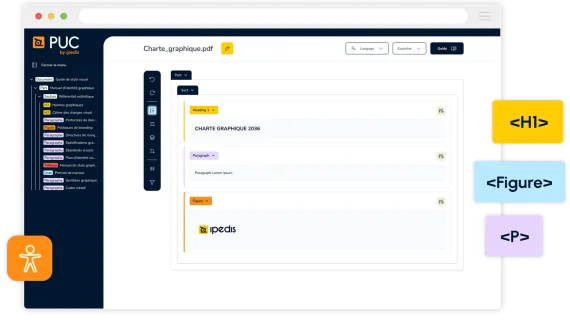
PDF Usability Checker, an HTML rendering of the tagging
PUC is your go‑to tool for a visual, human‑readable check of PDF structure and tag usability. It won't fix your PDF automatically, but it shines in making accessibility issues understandable and fixable, especially after a technical pass by automated checkers.
When paired with remediation (manual or AI‑powered) and a PAC validation, it boosts both compliance and actual user experience.

What does PUC do?
- Converts your PDF into an interactive HTML rendering, showcasing each accessibility tag (e.g., H1, P, LI, Table) in color-coded borders and background for clarity.
- Allows you to manually inspect the document’s tagging structure, reading order, and overall accessibility setup.
HTML renderingWhy is PUC useful?
Usability
Helps detect real-world usability issues in PDF accessibility tags like headings that are incorrectly structured or list items that don’t flow logically.
Visual debugging
Tag types are highlighted with different colors, so you can quickly isolate issues like out-of-order tags or misapplied structures.
User guidance
Through a clear HTML representation, it empowers users (even non-experts) to understand what needs fixing.
 PDF accessibility
When and why to use PUC?
If a document has passed PAC
or equivalent, PUC can be used to ensure the document is truly usable and not just technically compliant.
Ideal for organizations
needing accessible PDFs for legal, educational, or public communication.
Especially helpful
for non-technical users needing a clear, visual verification before remediation.
Did you know?PDFs, the blind spot of digital accessibility

PDF documents flood websites: market studies, financial reports, expert reports...
These documents, when not accessible, form barriers for disabled people: their assistive tools incorrectly relay or fail to relay the information, preventing access and comprehension.
According to DREES census data from 2024, 17% of the French population lives with a disability, totalling 11 million individuals affected by this issue.
Only correct tagging ensures compatibility with external assistive tools, providing access to information and autonomy for all users.
MethodHow to use PDF Usability Checker?
Upload your PDF
up to 50 MB
Instantly view
the PDF document converted into HTML
Easily check
each element through tagging highlights associated with a compliance checker
Fix
issues manually using tools like Adobe Acrobat Pro
Re-run PUC
to ensure proper tagging after corrections
Validate
final compliance with PAC
ResultsConcrete examples of results achieved
Simplified verification
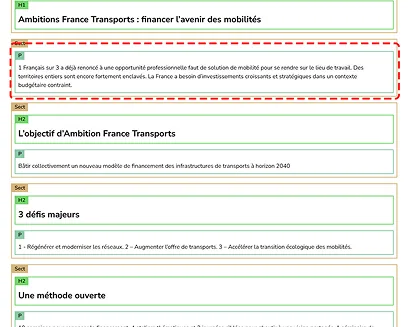
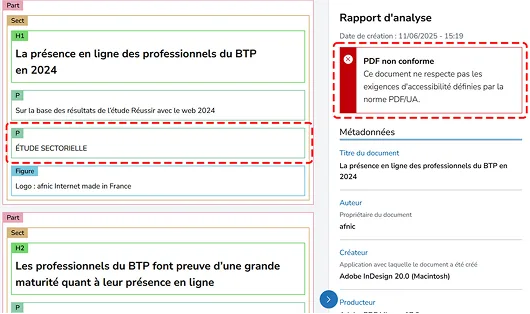
Tags such as headings (H1, H2, etc.), paragraphs (P), and image alt texts are easily identified through color coding based on category.
Quick error detection
Thanks to color-coded tags and a reading order that is accurately rendered, users can quickly spot necessary corrections or tagging errors.
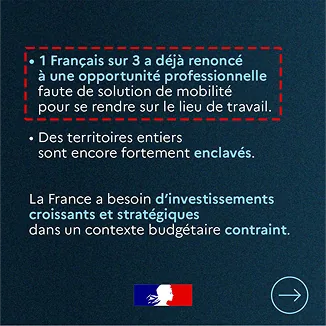
Carousel-type document and its tagging via PDF Usability Checker
Study-type document and its tagging via PDF Usability Checker

 PDF Accessible Platform
PDF Usability Checker and PDF Accessible Platform: the perfect combination
Ipedis’s flagship solution, PDF Accessible Platform, quickly and easily automates accessibility remediation of your existing PDF documents using AxessTag AI, our patented proprietary artificial intelligence.
Combine PDF Usability Checker with PDF Accessible Platform to automate accessibility remediation of your existing PDFs and benefit from a comprehensive process, from initial verification to final validation.
FAQFrequently asked questions
PUC helps ensure the PDF tagging meets PDF/UA and WCAG standards.
Headings, paragraphs, lists, images, tables, table of contents, links and many other elements, whether simple or complex, are supported.
Form fields are not yet supported, but this feature is planned for a future release.
PAC is an automated tool for checking the accessibility of PDF files. It requires software installation in a Windows environment.
PUC is an online tool for checking and visualizing PDF accessibility tags. It does not require any software installation, whether on Mac or Windows.
PUC is provided free of charge by Ipedis to enable non-experts to easily check the accessibility of PDF documents.