IMAP vs POP3 vs SMTP: What is the Difference
Last Updated :
23 Jul, 2025
An email protocol is a set of rules that define how emails are sent, received, and stored between mail servers and clients. The three primary email protocols—SMTP, POP3, and IMAP—each serve distinct purposes in managing email communication. SMTP (Simple Mail Transfer Protocol) handles email sending, while POP3 (Post Office Protocol 3) and IMAP (Internet Message Access Protocol) manage email retrieval and storage.
This guide breaks down what SMTP, POP3, and IMAP do, how they work, and which one is best suited for your needs. Whether you need to access emails across multiple devices or prefer downloading them for offline access, knowing how these protocols function can improve your email experience.
Disclaimer: Choosing the right protocol depends on how you prefer to send, receive, and manage your emails.
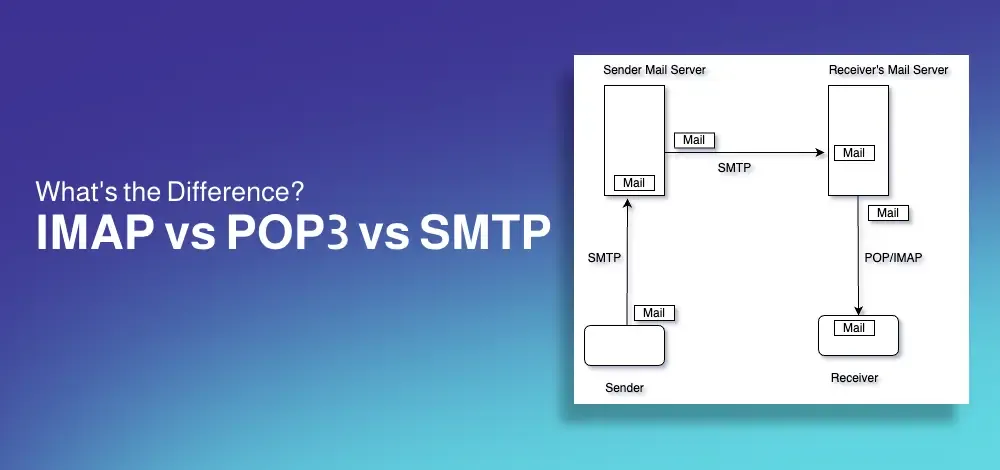 IMAP vs POP3 vs SMTP: What is the Difference
Key Takeaways
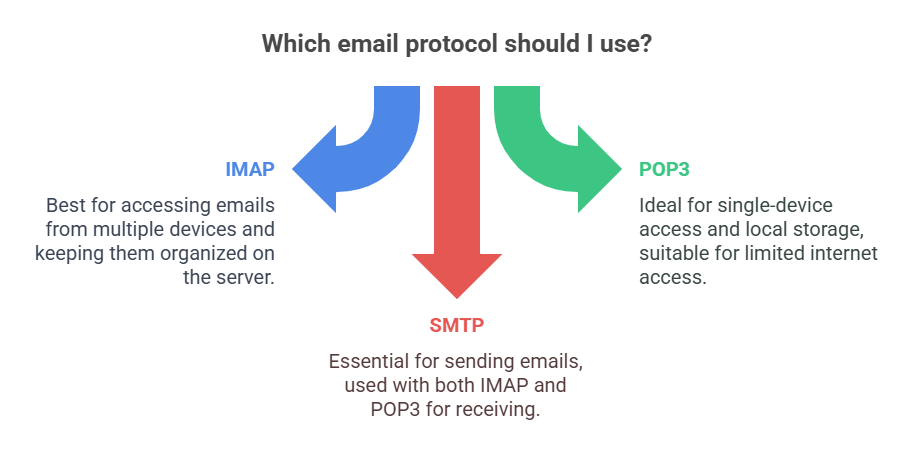
- IMAP is best for accessing emails on multiple devices while keeping them stored on the server.
- POP3 is better for those who want to download emails to a single device and free up server space.
- SMTP is used for sending emails and works alongside IMAP or POP3 for complete email functionality.
What is SMTP Protocol
SMTP (Simple Mail Transfer Protocol) handles the sending of emails. It ensures that messages are relayed from the sender’s device to the recipient’s mail server. It is text based protocol. This means that the communication between the client (sender's email program) and the server (sender's outgoing mail server or recipient's incoming mail server) is carried out using plain text commands and responses.
How Does SMTP Work:
SMTP (Simple Mail Transfer Protocol) is like a digital post office for sending emails. Here’s how it works step-by-step:
- You Hit “Send”: When you write an email and click “send,” your email app (like Gmail or Outlook) connects to an SMTP server (your email provider’s “mail delivery person”).
- Checking the Sender: The SMTP server checks if you’re allowed to send emails (like verifying your username/password).
- Finding the Recipient’s Mailbox: The server looks at the recipient’s email address (e.g., [email protected]) and splits it into two parts:
- Username: “friend”
- Domain: “example.com”
It then asks the internet’s “address book” (DNS) to find the correct mail server for “example.com.”
- Delivering the Email: Your SMTP server sends the email to the recipient’s mail server (like handing a letter to another post office). If their server is busy, yours will try again later.
- Storing the Email: The recipient’s server stores the email in their inbox. When they check their email, their app (using protocols like POP3 or IMAP) fetches it.
Key Notes:
- SMTP only sends emails. Receiving uses other tools (like IMAP/POP3).
- If the email can’t be delivered (e.g., wrong address), you’ll get a “bounce back” error.
Example: Sending a letter to a friend: you give it to your post office (SMTP server), which finds their post office (recipient’s server) to deliver it.
Key Features of SMTP:
- Sends emails from the client to the recipient’s mail server.
- Works in conjunction with IMAP or POP3 for complete email functionality.
- Supports email relaying and delivery tracking.
SMTP Advantages:
- Reliable email delivery across servers.
- Standardized protocol ensures compatibility with most email services.
- Supports multiple recipients in a single email.
SMTP Disadvantages:
- Does not handle incoming emails, only outgoing.
- Can be vulnerable to spam abuse if not properly secured.
What is the POP Protocol
POP3 (Post Office Protocol 3) downloads emails to a single device and removes them from the server by default. It works on TCP port number 110. It is a simple protocol to download the email. we can read email after download only.
How Does POP3 Work:
POP3 (Post Office Protocol version 3) is like a digital mailbox for receiving emails. It lets you download emails from a server to your device (like your computer or phone). Here’s how it works step-by-step:
- You Open Your Email App: When you open your email app (like Gmail or Outlook) and click “Check Email,” it connects to the POP3 server (your email provider’s “mail storage”).
- Logging In: Your email app sends your username and password to the POP3 server to prove you’re allowed to access the emails.
- Downloading Emails: Once logged in, the POP3 server sends all the emails stored on it to your device. By default, POP3 downloads the emails and removes them from the server (like taking letters out of a mailbox).
- Storing Emails Locally: The emails are saved on your device (computer, phone, etc.). This means you can read them even without an internet connection.
- Optional: Keeping Emails on the Server
- Some email apps let you choose to keep a copy of emails on the server after downloading them. This way, you can access them from other devices too.
Key Features of POP3:
- Downloads emails locally and deletes them from the server (default behavior).
- Ideal for offline access.
- Limited synchronization with the server.
POP3 Advantages:
- Emails are downloaded locally, allowing offline access.
- Saves server storage by deleting emails after download (optional).
- Simpler protocol with fewer resources required.
POP3 Disadvantages:
- Limited to a single-device setup, with no synchronization.
- Changes made locally do not reflect on the server or other devices.
What is the IMAP Protocol
IMAP (Internet Message Access Protocol) is designed to access and manage emails directly on the mail server. It keeps messages on the server, synchronizing changes across all devices.
How Does IMAP Work:
IMAP (Internet Message Access Protocol) is like a cloud-based email system that lets you access your emails from multiple devices (like your phone, laptop, or tablet). Unlike POP3, which downloads emails to one device, IMAP keeps your emails on the server and syncs them across all your devices. Here’s how it works step-by-step:
- You Open Your Email App: When you open your email app (like Gmail, Outlook, or Apple Mail) and click “Check Email,” it connects to the IMAP server (your email provider’s “mail storage”).
- Logging In: Your email app sends your username and password to the IMAP server to prove you’re allowed to access the emails.
- Syncing Emails: Instead of downloading all the emails to your device, IMAP only syncs the email headers (subject, sender, date, etc.) or a preview of the emails. This makes it faster to load your inbox.
- Reading and Organizing Emails: When you open an email, IMAP downloads it from the server so you can read it. If you organize your emails (e.g., move them to folders, mark them as read, or delete them), these changes are synced back to the server. This means all your devices stay up-to-date.
- Emails Stay on the Server: IMAP keeps all your emails on the server unless you manually delete them. This allows you to access your emails from any device, anytime, as long as you’re connected to the internet.
Key Features of IMAP:
- Access emails from multiple devices.
- Synchronizes email status (read, unread, deleted) across all devices.
- Stores emails on the server for real-time access.
IMAP Advantages:
- Emails remain on the server, enabling multi-device synchronization.
- Supports advanced folder organization and search functionalities.
- Changes made on one device reflect across all devices.
IMAP Disadvantages:
- Requires consistent internet connectivity to access emails.
- Consumes more server storage compared to POP3.
Comparison Between IMAP vs POP3 vs SMTP
| Feature | IMAP (Internet Message Access Protocol) | POP3 (Post Office Protocol v3) | SMTP (Simple Mail Transfer Protocol) |
|---|
| Purpose | Access and manage emails on a remote server | Download emails from the server to a local device | Send emails from a client to a mail server |
| Function | Synchronizes emails across multiple devices | Downloads and removes emails from the server | Transfers outgoing emails to recipient's server |
| Email Storage | Emails remain on the server | Emails are downloaded and usually deleted from the server | Does not store emails (only transfers them) |
| Access Method | Multiple devices can access and sync emails | Emails are stored locally, not synced across devices | Used only for sending emails, not receiving |
| Offline Access | Requires an internet connection to view emails | Emails are available offline after download | N/A (used for sending only) |
| Folder Management | Supports folder organization and searching | Limited to inbox download only | N/A (only handles outgoing mail) |
| Security | Supports encryption (SSL/TLS) for secure access | Supports encryption (SSL/TLS) but less secure than IMAP | Uses SSL/TLS for secure email transmission |
| Best For | Users needing access to emails on multiple devices | Users who prefer to store emails locally | Sending emails from an email client (e.g., Outlook, Gmail) |
| Port (Non-Secure) | 143 | 110 | 25 |
| Port (Secure - SSL/TLS) | 993 | 995 | 465 (SSL) / 587 (TLS) |
 IMAP vs POP3 vs SMTP: What is the Difference
Conclusion
Choosing the right email protocol—SMTP, POP3, or IMAP—depends on how emails need to be sent, stored, and accessed. SMTP is essential for sending emails, while POP3 is suited for downloading messages to a single device, and IMAP provides flexible, multi-device access with server-side storage.
Understanding these differences helps in configuring email settings for better security, accessibility, and efficiency. Whether setting up a personal inbox or managing business email systems, selecting the appropriate protocol ensures smooth and reliable email communication.
Explore
Computer Network Basics
Physical Layer
Data Link Layer
Network Layer
Transport Layer
Session Layer & Presentation Layer
Application Layer
Advanced Topics
Practice